
A WIM file is a disk image format Microsoft created for deploying Windows. If you’ve ever extracted a Windows ISO or worked with system recovery tools, you’ve likely run into one. Most people hit a wall the first time they try to open it because Windows doesn’t open WIM files with a simple double-click.
About WIM File
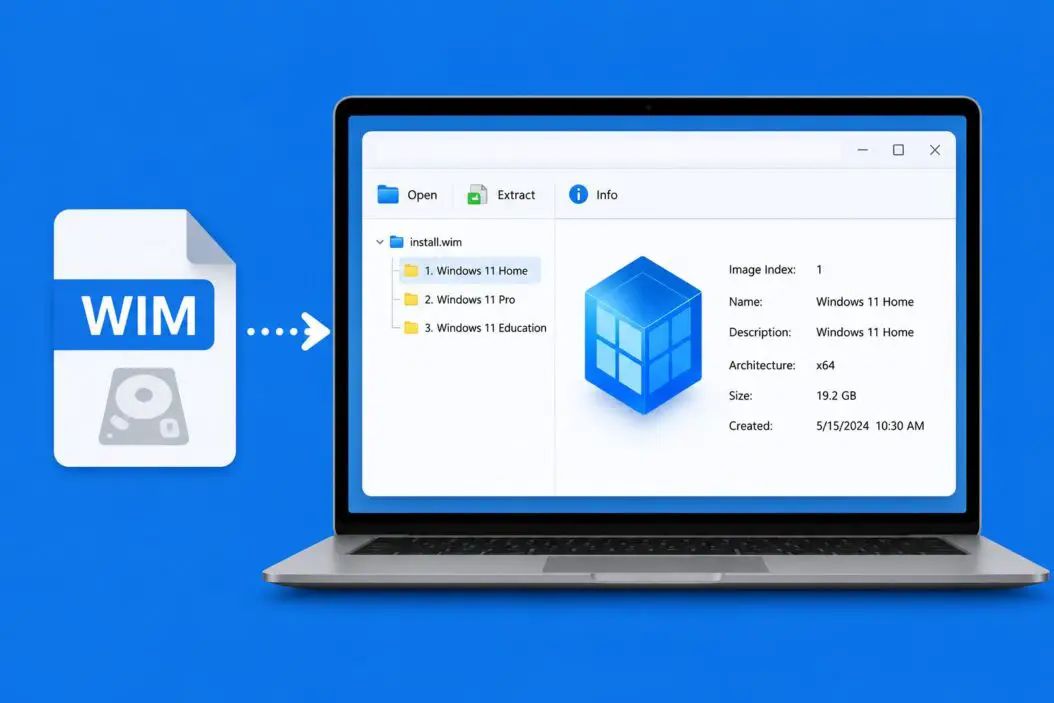
WIM stands for Windows Imaging Format. It’s a file-based disk image format, meaning it stores files and folders rather than a raw sector-by-sector copy of a disk. Microsoft uses it heavily for Windows deployment, especially inside installation media.
When you download a Windows ISO, there’s almost always a install.wim or install.esd file inside the sources folder. That single file contains the entire Windows operating system.
Key things to know about WIM files:
- They support compression, so the file is smaller than the total size of its contents
- A single WIM file can hold multiple Windows editions (called indexes)
- They’re not encrypted by default, so you don’t need a password to open them
- The
.esdformat is a compressed variant of WIM that requires conversion before editing
How to Open WIM File in Windows 11/10
There are three main ways to do this: mount it using DISM (built into Windows), extract it with 7-Zip, or use a third-party tool like NTLite or Wimlib. Each method serves a different purpose.
Method 1: Mount a WIM File Using DISM (No Extra Software Needed)
DISM (Deployment Image Servicing and Management) is built into Windows. It’s the cleanest way to open a WIM file if you want to browse or modify its contents like a real folder.
Step 1: Create a mount folder
Open Command Prompt as Administrator. Then run:
mkdir C:\WIMMountStep 2: Check available indexes in the WIM file
Before mounting, check how many editions or indexes are inside the WIM:
dism /Get-WimInfo /WimFile:C:\path\to\install.wimReplace C:\path\to\install.wim with your actual file path. You’ll see a list of indexes with names like Windows 11 Home, Windows 11 Pro, etc.
Step 3: Mount the WIM
dism /Mount-WIM /WimFile:C:\path\to\install.wim /Index:1 /MountDir:C:\WIMMount /ReadOnlyUse /ReadOnly if you just want to browse. Remove it if you plan to make changes.
Step 4: Browse the contents
Open File Explorer and navigate to C:\WIMMount. You’ll see the full Windows directory structure.
Step 5: Unmount when done
Always unmount cleanly. If you made no changes:
dism /Unmount-WIM /MountDir:C:\WIMMount /DiscardIf you made changes and want to save them:
dism /Unmount-WIM /MountDir:C:\WIMMount /CommitImportant: Never just delete the mount folder without unmounting first. That corrupts the WIM file.
Method 2: Extract WIM File Contents Using 7-Zip
If you just want to get files out of a WIM without mounting it, 7-Zip handles WIM files natively. It’s the fastest option for a one-time extraction.
- Download and install 7-Zip if you don’t have it
- Right-click on the
.wimfile - Select 7-Zip > Open archive
- Browse the contents inside 7-Zip’s file manager
- Select the files or folders you want, then click Extract
7-Zip will ask where to extract. Pick a folder with enough space, since WIM files are heavily compressed and the extracted contents can be several gigabytes.
Limitation: 7-Zip extracts files from the first index by default. If the WIM has multiple indexes, it shows them as separate numbered folders (1, 2, 3, etc.). Just open the one that matches the edition you need.
Method 3: Use Windows PowerShell to Mount WIM
PowerShell offers the same DISM functionality with a slightly cleaner syntax for scripting purposes.
Open PowerShell as Administrator, then:
Mount-WindowsImage -ImagePath "C:\path\to\install.wim" -Index 1 -Path "C:\WIMMount" -ReadOnlyTo unmount:
Dismount-WindowsImage -Path "C:\WIMMount" -DiscardThis does exactly what DISM does, but works well inside scripts or automation tasks.
Method 4: Use NTLite for a GUI Experience
If you prefer a graphical interface and plan to work with WIM files regularly, NTLite is a solid option. It’s used by IT professionals to customize Windows images.
- Download NTLite from ntlite.com (free tier is enough for viewing)
- Install and open it
- Click Add > Image folder or file
- Browse to your WIM file and load it
- Select the index you want to work with
- NTLite shows all components, drivers, updates, and files inside
NTLite is particularly useful if you’re editing a WIM for deployment, removing bloatware, or integrating updates before installing Windows.
How to Open a WIM File Inside a Windows ISO
Most people encounter WIM files inside a downloaded Windows ISO. Here’s how to get to it:
Step 1: Mount the ISO
Right-click the ISO file in File Explorer and select Mount. Windows will create a virtual DVD drive.
Step 2: Navigate to the sources folder
Open the mounted drive and go to the sources folder. You’ll find install.wim or install.esd there.
Step 3: Copy the WIM file out
Copy install.wim to another drive or folder. WIM files inside ISOs are read-only and can’t be mounted directly from the ISO.
Step 4: Open the WIM using any method above
Once copied, use DISM, 7-Zip, or PowerShell as described.
Difference Between install.wim and install.esd
| Feature | install.wim | install.esd |
|---|---|---|
| Compression | Standard | High (smaller file) |
| Editable | Yes | No (must convert first) |
| Mountable with DISM | Yes | Yes (read-only) |
| Common source | Retail ISO | Consumer download ISO |
To convert an ESD to WIM before editing:
dism /Export-Image /SourceImageFile:install.esd /SourceIndex:1 /DestinationImageFile:install.wim /Compress:max /CheckIntegrityHow to Fix Common Errors When Opening WIM Files
Error: “The system cannot find the path specified”
This means the mount folder doesn’t exist. Create it first using mkdir before running the DISM command.
Error: “The WIM file is already mounted”
Run dism /Get-MountedWimInfo to see all active mounts. Unmount them before mounting again.
Error: “Access is denied”
You’re not running Command Prompt or PowerShell as Administrator. Right-click and choose “Run as administrator.”
Error: “The file cannot be accessed by the system”
The WIM file may be corrupted. Check if it downloaded correctly. Re-download if needed and verify the SHA256 hash against Microsoft’s official checksums.
Error: Mount fails with a corrupt message after a crash
Run this to clean up stuck mounts:
dism /Cleanup-WIMThis clears any WIM files that got stuck in a mounted state due to a crash or improper shutdown.
When Would You Actually Need to Open a WIM File?
Understanding the use cases helps you pick the right method:
- Extracting specific drivers or files from a Windows image without doing a full install
- Customizing a Windows installation by removing apps or adding drivers before deployment
- Recovering a file from a backup or installation image
- Building a slipstreamed ISO with updates already integrated
- IT and enterprise deployment where you need a custom Windows image for multiple machines
For most regular users, the 7-Zip method is the quickest. For anyone working in IT or building custom images, DISM or NTLite is the right tool.
Summary
Opening a WIM file in Windows 10 or Windows 11 comes down to three practical options. Use DISM from Command Prompt when you need to mount and browse or edit the image. Use 7-Zip when you just need to extract specific files quickly. Use PowerShell if you’re scripting. And use NTLite when you want a full graphical experience with editing capabilities.
The DISM approach is the most powerful since it’s built into Windows and gives you full access to the image contents. Just remember to always unmount cleanly when you’re done.
Frequently Asked Questions
Can I open a WIM file without installing any software?
Yes. DISM and PowerShell are both built into Windows 10 and Windows 11. You don’t need to install anything. Open Command Prompt or PowerShell as Administrator and use the DISM commands I listed above. The only time you’d need third-party software is if you want a graphical interface.
My WIM file is over 4GB and I can’t copy it to a USB drive. What’s going on?
FAT32-formatted USB drives have a 4GB file size limit. Format the USB drive as NTFS instead. Right-click the drive in File Explorer, choose Format, select NTFS, and reformat. Then copy the WIM file again. This is a common issue people run into when preparing Windows installation media manually.
Is it safe to open install.wim from a Windows ISO I downloaded?
If you downloaded the ISO from Microsoft’s official website, yes, it’s completely safe. The WIM file inside is just the Windows operating system packaged up. It’s not executable on its own. If you got the ISO from a third-party site, I’d be cautious and verify the SHA256 hash first.
How do I know which index to mount if the WIM has multiple editions?
Run dism /Get-WimInfo /WimFile:C:\path\to\install.wim first. It lists every index with its name, such as Windows 11 Home (Index 1) and Windows 11 Pro (Index 2). Pick the index number that matches the edition you need and use that number in your mount command.
Can I create a bootable USB from a WIM file?
Not directly from the WIM file alone. You need the full ISO structure or use a tool like Rufus or the Media Creation Tool. The WIM file is one component of a bootable Windows setup, but the boot files, the bootmgr, and the sources folder structure all need to be in place for it to boot properly.
