
If your IT team just gave you access to a shared mailbox, you probably want to see it in Outlook without jumping through hoops. I’ll walk you through every method that actually works, on desktop, web, and mobile.
What Is a Shared Mailbox?
A shared mailbox is an email account multiple people can access without needing a separate password. Teams use them for things like support@company.com or info@company.com. Everyone who has permission can read, send, and manage emails from that address.
You do not log into it directly. Instead, your IT admin grants you access, and then you add it to your Outlook profile.
Before You Start
Make sure these two things are in place:
- Your IT admin has granted you permission to the shared mailbox
- You are signed into Outlook with your own work account
If you open the mailbox and get a permission error, that is an IT issue, not an Outlook setting. Contact your admin first.
Adding a Shared Mailbox to Outlook Desktop (Windows)
This is the most common setup. There are two ways to do it on desktop.
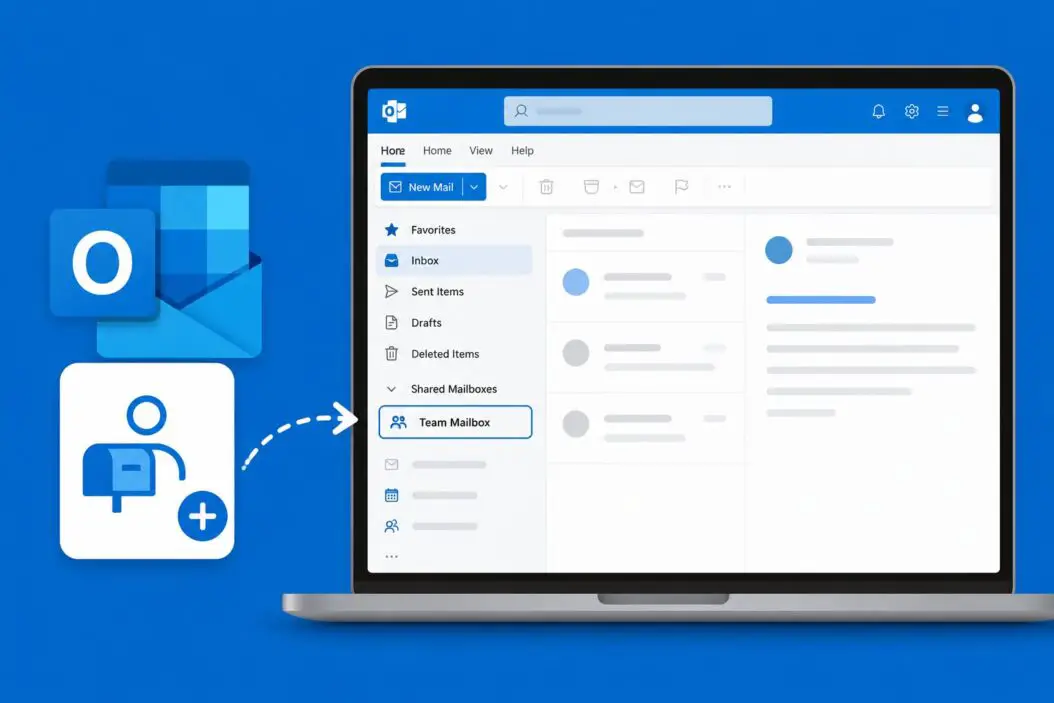
Method 1: Automatic Add (Works Most of the Time)
When your admin gives you Full Access permission, Outlook often adds the shared mailbox automatically within 24 hours. You just open Outlook and it appears in the left sidebar under your own folders.
If it did not show up after a day, use Method 2.
Method 2: Add It Manually
- Open Outlook
- Click File in the top left
- Select Account Settings, then click Account Settings again from the dropdown
- Click on your email account, then hit Change
- Click More Settings
- Go to the Advanced tab
- Under Mailboxes, click Add
- Type the shared mailbox email address (like support@yourcompany.com)
- Click OK, then Apply, then OK
- Click Next and Finish
Restart Outlook. The shared mailbox will appear in the left panel below your primary inbox.
Method 3: Open as a Separate Window
If you only need occasional access and do not want it permanently in your sidebar:
- Click File
- Select Open & Export
- Click Other User’s Folder
- Type the mailbox email address and select Inbox
- Click OK
This opens it as a one-time view. It will not stay after you close Outlook.
Adding a Shared Mailbox to Outlook on Mac
- Open Outlook for Mac
- In the top menu, click Tools
- Select Accounts
- Click on your work account
- Click Advanced
- Go to the Delegates tab
- Under Open these additional mailboxes, click +
- Type the shared mailbox address and press Add
- Click OK
The mailbox shows up in your sidebar after a few moments.
Adding a Shared Mailbox in Outlook Web (OWA)
If you use Outlook through a browser:
- Go to outlook.office.com and sign in
- Right-click on Folders in the left sidebar
- Select Add shared folder or mailbox
- Type the shared mailbox email address
- Click Add
It appears instantly in your left sidebar. No restart needed.
Adding a Shared Mailbox in the New Outlook (Windows 11)
Microsoft rolled out the New Outlook as the default for many Windows 11 users. The steps are slightly different:
- Open New Outlook
- Right-click on your account name in the left sidebar
- Select Add shared folder or mailbox
- Enter the shared mailbox email address
- Click Add
Done. It loads within seconds.
Adding a Shared Mailbox on Outlook Mobile (iOS and Android)
The mobile app does not support shared mailboxes in the traditional way. The cleanest workaround is to add the shared mailbox as a separate account using your own credentials via delegation, but honestly, the best experience is through the browser on mobile (outlook.office.com) or by using the desktop app.
Some admins set up the shared mailbox with a password specifically for mobile access. If you need it on mobile, ask your IT team how they want you to handle it.
How to Send Email From a Shared Mailbox
Once the mailbox is added, you can send emails as that address.
In Outlook Desktop:
- Open a new email
- Click From (if you do not see it, go to Options and enable From Field)
- Click From and select Other Email Address
- Type the shared mailbox address
- Send the email
Outlook will remember this address for future emails.
In Outlook Web:
- Click New Mail
- Click the From field
- Select the shared mailbox address from the dropdown
If the shared mailbox does not appear, you may need to add it to your profile first using the steps above.
Shared Mailbox vs Delegate Access: What Is the Difference?
| Feature | Shared Mailbox | Delegate Access |
|---|---|---|
| Requires separate license | No (up to 50 GB) | No |
| Own password | No | No |
| Multiple users | Yes | Yes |
| Send as the mailbox | Yes | Limited |
| Shows in sidebar | Yes (after adding) | Yes |
| Best for | Team inboxes | Personal assistant setups |
Shared mailboxes are for team use. Delegate access is when one person manages another person’s specific mailbox.
Why Your Shared Mailbox Is Not Showing Up
Here are the most common reasons:
- Permission not granted yet – IT might not have finished setting it up
- Auto-mapping delay – Can take up to 24 hours after permission is granted
- Wrong Outlook version – Some steps differ between Classic Outlook and New Outlook
- Cache issue – Try restarting Outlook or clearing the Outlook cache
- You are on Outlook mobile – Mobile does not auto-sync shared mailboxes the same way
Tips for Managing a Shared Mailbox Well
- Set up rules inside the shared mailbox to auto-sort incoming emails
- Assign categories so teammates know who is handling which thread
- Turn on notifications carefully; shared mailboxes can get noisy fast
- Do not save passwords for shared mailboxes since they should not have a login
- Mark emails as read after you handle them so others know it is done
When the Shared Mailbox Needs Its Own License
Shared mailboxes are free up to 50 GB. If the mailbox goes over that, Microsoft requires an Exchange Online license. Your IT admin handles this. You will know it is an issue if emails start bouncing or your admin mentions storage limits.
Conclusion
Adding a shared mailbox to Outlook takes under two minutes once permissions are in place. On desktop, the manual method through Account Settings is the most reliable. On the web app, right-clicking Folders is the fastest. On Mac, go through Tools, then Accounts, then Advanced.
The most important thing to check first is always permissions. If IT has not given you access yet, nothing else will work. Once that is confirmed, pick the method that matches your Outlook version and follow the steps above.
Most teams get this working within a few minutes. If something is still not loading after following these steps, a quick restart of Outlook or a conversation with your IT team usually sorts it out.
Frequently Asked Questions
Can I reply to emails from a shared mailbox without revealing my personal email?
Yes. When you reply from the shared mailbox address, recipients see only that shared address, not your personal one. Just make sure you change the From field before hitting send. If you forget once, do not panic. You can resend from the correct address.
How many shared mailboxes can I add to one Outlook profile?
There is no hard limit set by Outlook itself. I have seen users add five or six without any problem. However, too many active mailboxes can slow down Outlook, especially on older machines. Keep it to what you actually need.
Does adding a shared mailbox sync my sent items correctly?
It depends on your Microsoft 365 settings. By default, sent items from a shared mailbox go to your personal Sent folder. Your admin can change this so they appear in the shared mailbox’s Sent folder instead. If your team needs visibility into sent replies, ask your IT team to enable that setting at the admin level.
Will I get notifications for new emails in the shared mailbox?
In Outlook desktop, shared mailboxes can trigger notifications if alerts are turned on. You can manage this through File > Options > Mail > Message Arrival. On the web app, notification settings are more limited. If the shared mailbox is high volume, I would recommend keeping alerts off to avoid constant interruptions.
What happens to the shared mailbox if I leave the company?
The mailbox itself stays intact. Your access gets removed when your account is deactivated, but the mailbox and all its emails remain accessible to other permitted users. Your IT admin can reassign access to someone else without losing any data.
