
Pinning an app to the taskbar in Windows 11 is straightforward. Right-click any open app in the taskbar and select Pin to taskbar. That’s the fastest way. But there are several other methods depending on where you’re starting from, and this article walks through all of them clearly.
I’ll also cover what to do when pinning doesn’t work, how to manage pinned apps, and a few things people often miss about the Windows 11 taskbar.
Why Pin Apps to the Taskbar
The taskbar sits at the bottom of your screen, always visible. Pinning apps there means one click to open them, no matter what you’re doing. You skip the Start menu, skip searching, skip everything. For apps you use daily, it saves real time.
Windows 11 changed how the taskbar works compared to Windows 10. It’s more locked down. You can’t drag and drop files onto pinned apps, and you can’t move the taskbar to the side. But pinning apps still works reliably once you know the right steps.
How to Pin App to Taskbar in Windows 11: All Methods
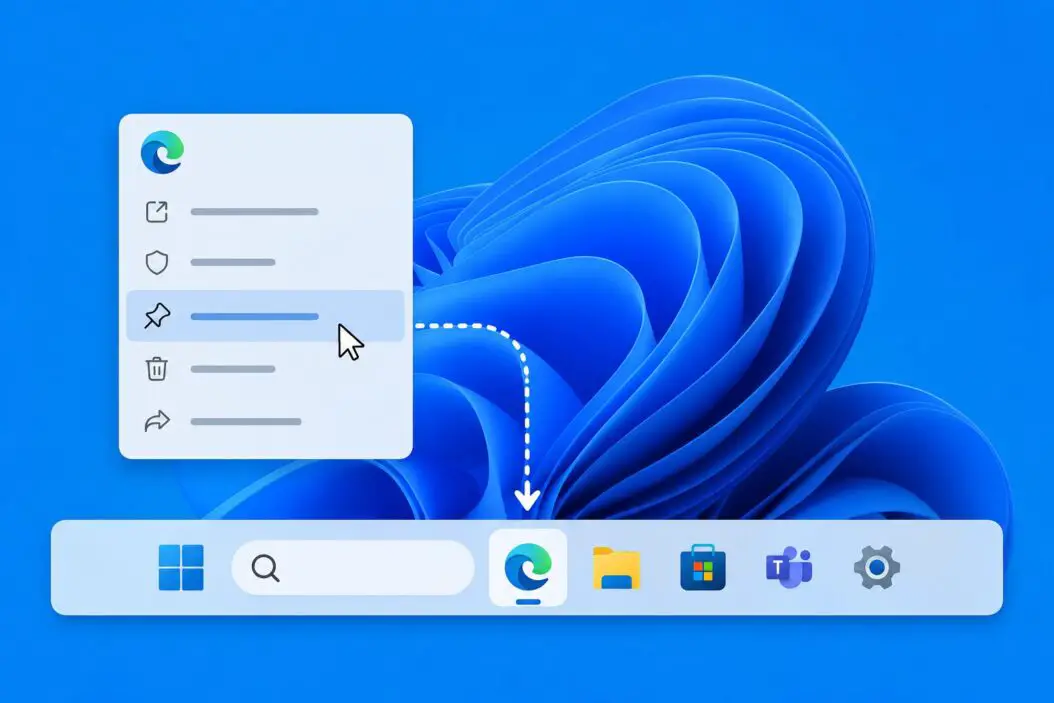
Method 1: Pin from a Running App
This is the quickest method if the app is already open.
- Open the app you want to pin.
- Look at the taskbar at the bottom of your screen. You’ll see the app’s icon there with a small line under it.
- Right-click that icon.
- Click Pin to taskbar.
Done. The app stays in your taskbar even after you close it.
Method 2: Pin from the Start Menu
- Click the Start button (Windows icon, center of taskbar).
- Find the app in the Pinned section or click All apps to browse everything.
- Right-click the app name.
- Hover over More.
- Click Pin to taskbar.
This works for any app installed on your system, even ones you haven’t opened yet.
Method 3: Pin from the Desktop or File Explorer
If you have a shortcut on your desktop or can find the app’s .exe file in File Explorer:
- Right-click the app shortcut or .exe file.
- You should see Pin to taskbar in the context menu.
- Click it.
Note: This works directly for .exe files and desktop shortcuts. If you don’t see the option, the file might not be a recognized app type.
Method 4: Pin from Search
- Click the Search icon on the taskbar (looks like a magnifying glass).
- Type the name of the app.
- When the app appears in results, right-click it.
- Click Pin to taskbar.
This is handy when you don’t want to dig through the Start menu.
Method 5: Pin from the Taskbar During Use (Running Apps)
When any app is running, its icon appears in the taskbar with a small underline. Right-clicking gives you the option to pin it permanently. Same as Method 1, but worth knowing this works for any app currently open, including things like Settings or File Explorer.
How to Unpin Apps from the Taskbar
Keeping the taskbar clean matters. To remove a pinned app:
- Right-click the pinned app icon in the taskbar.
- Click Unpin from taskbar.
That’s it. The app still exists on your computer, it’s just removed from the taskbar.
Rearranging Pinned Apps on the Taskbar
You can drag pinned app icons left or right along the taskbar to reorder them. Just click and hold an icon, then drag it to a new position. Windows 11 supports this natively, so no extra tools needed.
Pinning Websites to the Taskbar
You can pin websites as apps using Microsoft Edge or Google Chrome. This is useful for tools like Gmail, Notion, or any web app you use constantly.
Using Microsoft Edge:
- Open the website in Edge.
- Click the three-dot menu (top right).
- Go to Apps.
- Click Install this site as an app.
- Once installed, right-click its icon in the taskbar and select Pin to taskbar.
Using Google Chrome:
- Open the website in Chrome.
- Click the three-dot menu.
- Go to Save and share.
- Click Create shortcut.
- Check Open as window and click Create.
- Right-click the shortcut icon that appears in the taskbar and pin it.
For more on managing web apps in Windows, Microsoft’s official support page at support.microsoft.com is a reliable reference.
Pinning File Explorer Locations to the Taskbar
Windows 11 doesn’t let you pin specific folders directly to the taskbar the same way apps work. But there’s a workaround:
- Right-click your desktop.
- Select New > Shortcut.
- In the location field, type
explorer.exefollowed by the folder path. For example:explorer.exe C:\Users\YourName\Documents - Name the shortcut and finish.
- Right-click the shortcut, select Pin to taskbar.
Now clicking that taskbar icon opens that specific folder directly.
Common Taskbar Pinning Methods at a Glance
| Method | Best For | Steps Required |
|---|---|---|
| Right-click running app | Apps already open | 2 steps |
| Start menu right-click | Any installed app | 3 steps |
| Desktop shortcut right-click | Apps with desktop icons | 2 steps |
| Search result right-click | Quick pinning by name | 3 steps |
| Edge/Chrome web app | Web-based tools | 5+ steps |
| Custom folder shortcut | Pinning specific folders | 5 steps |
What to Do When “Pin to Taskbar” Option Is Missing
Sometimes the option doesn’t appear. Here’s what usually causes it and how to fix it.
The App Is a UWP or Microsoft Store App
Some Microsoft Store apps behave differently. Try opening the app first, then right-clicking from the taskbar. That almost always reveals the pin option.
The File Is Not an .exe
If you’re trying to pin a document, a script, or a non-executable file, Windows won’t offer the pin option. You need to create a shortcut that points to an executable, then pin that shortcut.
Taskbar Is Managed by Your Organization
On work or school computers, IT administrators sometimes lock the taskbar. In that case, you may not be able to add or remove pinned apps without admin access. Check with your IT team.
Windows Registry or System Issue
If the option is completely missing across all apps, your Windows installation might have a corrupted shell component. Running sfc /scannow in Command Prompt (as administrator) can fix this. Type it exactly, press Enter, wait for the scan to finish, then restart.
Restart Windows Explorer
Sometimes a simple restart of Windows Explorer fixes the missing pin option:
- Press Ctrl + Shift + Esc to open Task Manager.
- Find Windows Explorer in the list.
- Right-click it and select Restart.
Pinning System Tools Like Task Manager or Control Panel
These built-in tools can also be pinned.
Task Manager: Open it with Ctrl + Shift + Esc, then right-click its taskbar icon and pin it.
Control Panel: Search for it using the taskbar search, right-click the result, and select Pin to taskbar.
Command Prompt or PowerShell: Same approach. Search, right-click, pin.
How Many Apps Can You Pin to the Taskbar
There’s no hard limit set by Windows 11, but the taskbar has physical space. As you add more icons, they shrink slightly. Once the taskbar fills up, new pins push older ones out of view on smaller screens. Practically speaking, most people find 10 to 15 apps to be a comfortable maximum before it gets cluttered.
Taskbar Settings Worth Knowing
A few settings in Windows 11 affect how your taskbar and pinned apps behave.
To access taskbar settings: Right-click an empty area of the taskbar and select Taskbar settings.
From there you can:
- Turn system icons like Search, Task View, and Widgets on or off.
- Choose whether the taskbar appears on all displays (useful with multiple monitors).
- Set taskbar behaviors like auto-hide and icon alignment (center or left).
Switching the alignment to Left makes Windows 11 feel more like Windows 10 if that’s your preference. It also gives pinned apps a consistent starting position instead of shifting around based on open apps.
Backing Up Your Taskbar Pins
If you reinstall Windows or set up a new PC, your pinned apps don’t transfer automatically. But you can manually back them up.
Pinned taskbar shortcuts are stored here:
%AppData%\Microsoft\Internet Explorer\Quick Launch\User Pinned\TaskBarPaste that path into File Explorer’s address bar and press Enter. Copy the entire TaskBar folder to a backup location. To restore, paste those shortcuts back into the same folder on the new system and restart Windows Explorer.
This doesn’t always work perfectly for Microsoft Store apps since they use different shortcut types, but it preserves most traditional app pins.
Conclusion
Pinning apps to the taskbar in Windows 11 takes seconds once you know where to look. Right-clicking a running app’s taskbar icon is fastest. The Start menu and Search methods work well for apps you haven’t opened yet. For websites, installing them as apps through Edge or Chrome and then pinning works cleanly.
If the option is missing, check if it’s a Store app issue, a file type issue, or an organization policy. The sfc /scannow fix handles most corruption cases.
Keep the taskbar to apps you actually use every day. A clean, focused taskbar beats a cluttered one with 20 apps you never open.
Frequently Asked Questions
Can I pin a specific document or file to the taskbar, not just an app?
Not directly. Windows 11 only allows pinning executable apps or app shortcuts to the taskbar. For documents, a workaround is to create a shortcut that opens the file using its default application, then pin that shortcut. For example, you can create a shortcut pointing to notepad.exe "C:\path\to\yourfile.txt" and pin that.
My pinned apps disappeared after a Windows update. How do I get them back?
This happens occasionally after major updates. Windows sometimes resets taskbar layout. If you backed up the TaskBar folder (mentioned above), restore it. If not, you’ll need to re-pin manually. Going forward, keeping a backup of that folder saves time.
Is there a way to group pinned apps in the taskbar?
Windows 11 doesn’t support native app grouping on the taskbar. Third-party tools like TaskbarX or StartAllBack offer grouping and more customization options, but they require separate installation and configuration.
Can I pin the same app twice with different settings?
Yes, indirectly. You can create two separate shortcuts pointing to the same executable but with different startup parameters or target directories. Pin both shortcuts, and they’ll appear as separate icons. This is useful for apps like terminals or browsers where you want separate instances.
Why does my pinned app icon look blank or show a generic icon?
This usually means Windows can’t find the icon resource for the shortcut. Right-click the pinned item, go to Properties, and click Change Icon. Browse to the app’s .exe file and select the correct icon. If the app was moved or uninstalled and reinstalled to a different location, the shortcut path breaks, which causes the blank icon.
