
You hid an app, and now you need it back. Maybe you forgot where you put it, or the App Library feels like a maze. Either way, this article walks you through every real method to unhide apps on iPhone, step by step.
The short answer: apps on iPhone are never truly deleted when hidden. They are either tucked away in the App Library, removed from your Home Screen, or restricted through Screen Time. You just need to know where to look.
What “Hidden” Actually Means on iPhone
Apple does not have a single “hide” button that works the same everywhere. When people say an app is hidden, they usually mean one of three things.
The app was removed from the Home Screen but still lives in the App Library. The app was restricted using Screen Time settings. The app page it was on got hidden entirely.
Understanding which one happened to you makes finding the fix much faster.
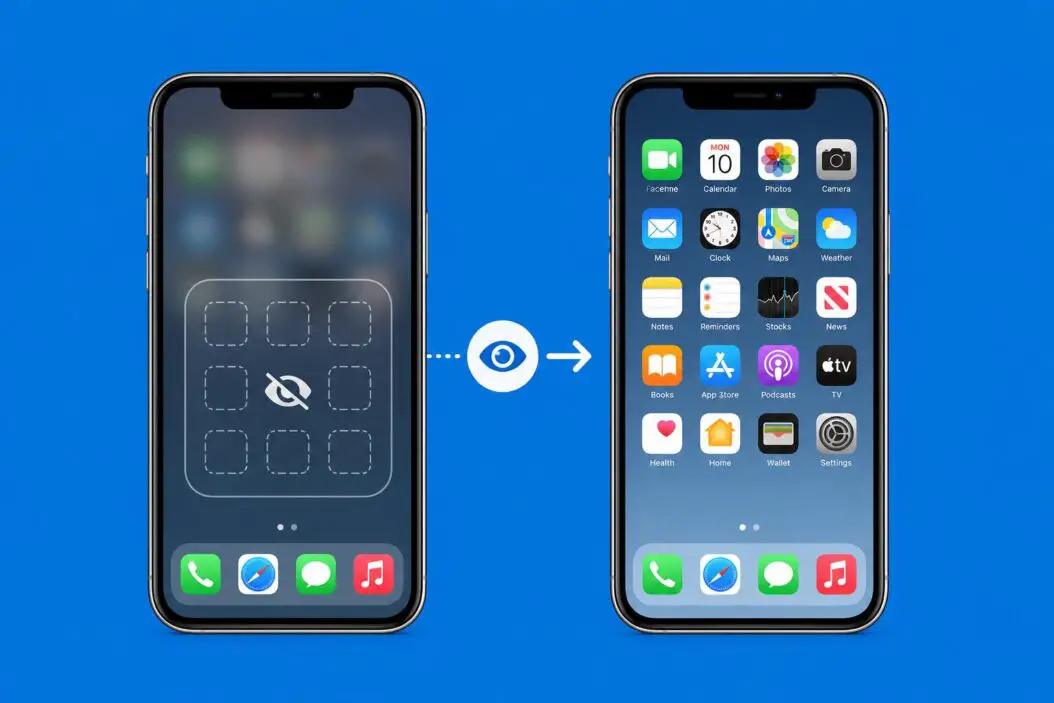
Method 1: Search for the App Using Spotlight
This is the fastest way. If the app is still installed, Spotlight will find it.
Swipe down from the middle of your Home Screen. Type the app name in the search bar. Tap the app icon directly from the results to open it. Or press and hold the icon, then tap “Add to Home Screen.”
This works 90% of the time when an app just got removed from the Home Screen. The app was never gone. It was just not visible on any page.
Method 2: Find the App in the App Library
Apple introduced the App Library in iOS 14. Every installed app lives there automatically, even if you remove it from your Home Screen.
Swipe left past all your Home Screen pages. You will land on the App Library. Browse categories like “Recently Added,” “Social,” or “Utilities.” Or use the search bar at the top and type the app name.
Once you find it, here is how to bring it back to your Home Screen.
Press and hold the app icon. Tap “Add to Home Screen” from the menu.
That puts it right back where you can see it every day.
Method 3: Unhide a Home Screen Page
This is one people miss. You can hide entire Home Screen pages on iOS 14 and later. If a full page of apps disappeared, this is likely why.
Press and hold an empty spot on your Home Screen until the icons start jiggling. Tap the row of dots at the bottom of the screen. You will see thumbnail previews of all your Home Screen pages. Pages with a checkmark are visible. Pages without one are hidden. Tap the circle under any hidden page to bring it back. Tap “Done” in the top right corner.
All the apps on that page will reappear instantly.
Method 4: Unhide Apps Restricted by Screen Time
If an app is completely invisible and Spotlight cannot find it either, Screen Time is probably blocking it. This happens a lot on family devices or when someone set up Content Restrictions.
Go to Settings. Tap Screen Time. Tap Content and Privacy Restrictions. Tap Allowed Apps. Find the app type that was turned off (like Safari, Camera, or FaceTime). Toggle it back on.
For third-party apps blocked by age ratings:
Go to Settings. Tap Screen Time. Tap Content and Privacy Restrictions. Tap Content Restrictions. Tap Apps. Change the allowed age rating to a higher option or “Allow All Apps.”
This should make the restricted apps visible again across your entire iPhone.
Note: If Screen Time has a passcode you don’t know, you will need the person who set it up to unlock it. If it was you and you forgot the code, you can reset it through your Apple ID. Apple’s Screen Time support page covers that recovery process in detail.
Method 5: Reinstall an App You Actually Deleted
Sometimes an app is gone because it was deleted, not just hidden. There is a difference. If none of the above methods worked, this is your answer.
Open the App Store. Tap your profile icon in the top right. Tap “Purchased.” Browse or search for the app. Tap the cloud icon next to it to reinstall.
If you bought the app or downloaded it free before, reinstalling it costs nothing.
Method 6: Unhide Apple’s Built-In Apps
Apple’s own apps like Podcasts, Stocks, or Tips can be removed from the Home Screen too. They follow the same rules as third-party apps.
Use Spotlight to search. Find them in the App Library. Or go to the App Store, search the app name, and tap the cloud/download icon if it shows as removed.
Some Apple apps like Safari can be toggled through Screen Time as mentioned above.
How to Organize Apps After Unhiding Them
Once you bring apps back, it is worth spending two minutes organizing so this does not happen again.
| Action | How to Do It |
|---|---|
| Move app to a specific page | Press and hold, drag to the edge of the screen |
| Create a folder | Drag one app on top of another |
| Pin apps to the Dock | Drag any app to the bottom dock area |
| Rearrange pages | Hold any icon, tap the dots, drag page thumbnails |
Keeping your most-used apps in the Dock or on the first page saves a lot of searching later.
Why Apps Disappear Without You Doing Anything
This happens more than people think. Here are the real reasons.
iOS update glitch. Some updates rearrange app pages or reset Home Screen layouts. It is not common, but it happens.
Shared device. Someone else using your phone may have hidden or deleted an app.
Automatic offloading. iOS can offload rarely used apps when storage gets low. The icon stays but the app data is removed. You can reinstall by tapping the icon.
Restrictions were turned on. A Screen Time profile from work, school, or a family setup can restrict apps automatically.
For automatic offloading specifically, you can turn it off. Go to Settings, tap App Store, then toggle off “Offload Unused Apps.” This keeps everything installed as long as you have storage space.
You can learn more about how iOS manages storage from Apple’s official iPhone storage guide at support.apple.com, which explains offloading and storage recommendations clearly.
Difference Between Hiding and Deleting an App
This is worth understanding clearly because a lot of people confuse the two.
| Hiding an App | Deleting an App |
|---|---|
| Still installed on your iPhone | Completely removed |
| Found in App Library | Not in App Library |
| No storage freed up | Storage is freed |
| Data stays intact | Data is usually deleted |
| Spotlight can find it | Spotlight cannot find it |
If you want to recover a deleted app’s data, check if you have an iCloud backup. Go to Settings, tap your name, then iCloud, then Manage Account Storage or iCloud Backup to review what is saved.
Quick Reference: Which Method to Use
Not sure which approach fits your situation? Use this.
App shows in Spotlight but not on Home Screen: Use Method 1 or 2. Entire page of apps vanished: Use Method 3. App is nowhere, not even in search: Use Method 4 (Screen Time). App is definitely gone for good: Use Method 5 (reinstall from App Store).
That covers pretty much every real scenario.
A Few Extra Tips Worth Knowing
If you have iOS 16 or later, you can also use Focus Modes to hide apps from your Home Screen during specific times. Those apps are not deleted, they are just filtered based on your active Focus. Check Settings, then Focus, to see if that is running.
Also, if you are managing a child’s iPhone, Apple’s Family Sharing lets you approve and manage apps remotely. That is worth setting up properly so you have full visibility. The team at 9to5Mac covers iOS tips regularly and is a solid resource for keeping up with changes across iPhone updates.
Conclusion
Unhiding apps on iPhone is straightforward once you know what kind of “hidden” you are dealing with. Most of the time, the app is sitting in the App Library or on a hidden Home Screen page. A quick Spotlight search usually finds it in under ten seconds.
If Screen Time is involved, the fix takes a bit longer but the path is clear. And if the app was truly deleted, reinstalling from the App Store gets it back without any cost.
The key is not to panic. Your app almost certainly still exists on your iPhone. You just need to know where iOS put it.
FAQs
Can I hide apps on iPhone without using Screen Time?
Yes. You can remove any app from your Home Screen by pressing and holding it, tapping “Remove App,” and choosing “Remove from Home Screen.” The app stays installed and goes to the App Library. This is not the same as Screen Time restrictions, and anyone with the phone can bring it back easily.
Why does an app show in the App Library but not appear when I search in Spotlight?
This can happen if Spotlight is not set to index that app. Go to Settings, tap Siri and Search, find the app, and make sure “Show App in Search” is turned on. After that, the app should appear in Spotlight results.
I restored my iPhone and now some apps are missing. What happened?
When you restore from a backup, apps that were offloaded or not included in the backup may not come back automatically. Check your App Store purchase history under your profile and reinstall anything missing. Your data should restore from iCloud if it was backed up before the restore.
Does hiding an app from the Home Screen affect notifications?
No. Removing an app from your Home Screen does not affect notifications, background refresh, or any app behavior. The app runs exactly the same way. You just cannot see its icon on the main screen. Notification settings remain whatever you set them to in Settings under Notifications.
Is there a way to see all hidden apps in one place on iPhone?
Not directly through a dedicated “hidden apps” menu. The App Library shows every installed app, so that is the closest thing. For Screen Time restrictions, you can see which app categories are limited under Settings, Screen Time, Content and Privacy Restrictions. Combining both gives you a full picture of what is installed versus what is restricted.
