
High contrast mode in Windows makes your screen easier on the eyes, especially if you have low vision, light sensitivity, or just want a cleaner, less visually noisy desktop. I’ll show you every way to turn it on and off, including the fastest keyboard shortcut most people never know about.
The Fastest Way to Toggle High Contrast Mode
Press Left Alt + Left Shift + Print Screen on your keyboard. Windows will show a confirmation dialog asking if you want to turn on High Contrast. Click Yes. Press the same keys again to turn it off.
That’s it. No menus, no settings, just one shortcut. But there’s a lot more to know if you want full control over how it works.
What High Contrast Mode Actually Does
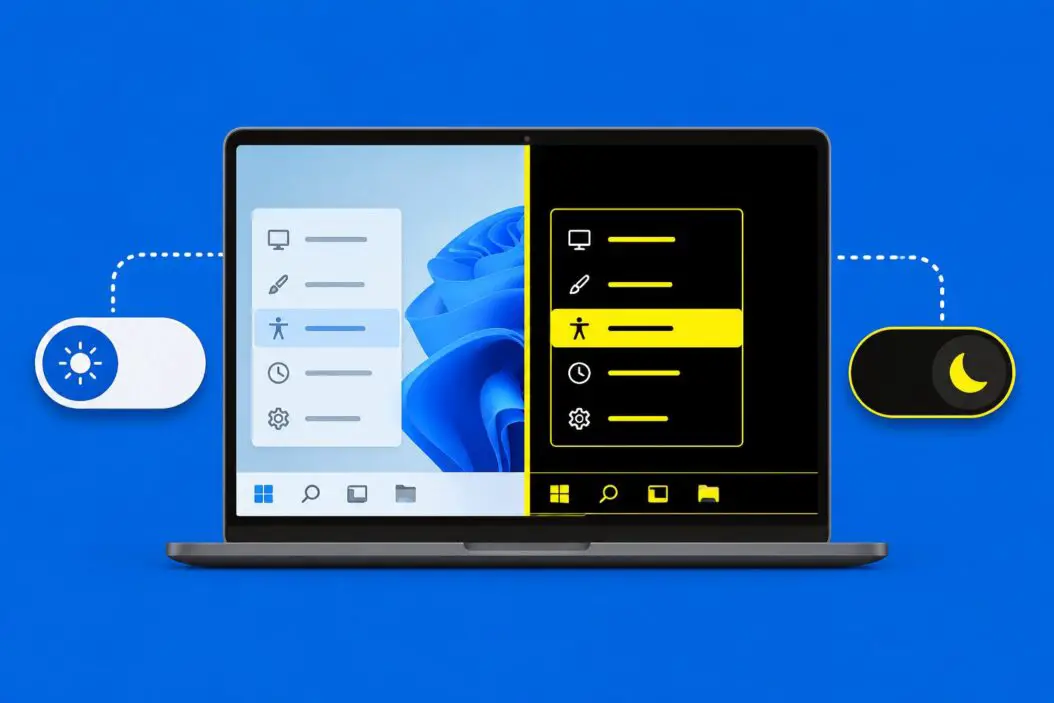
High contrast mode replaces your normal color scheme with a high-contrast palette. Text becomes sharper. Backgrounds shift to solid dark or light colors. Animations and gradients mostly disappear.
It is not the same as Dark Mode. Dark Mode is cosmetic. High contrast mode is a full accessibility feature that changes how Windows renders text, buttons, borders, and backgrounds at a system level.
Windows 11 calls it Contrast Themes. Windows 10 still uses the older “High Contrast” label. They work the same way underneath.
All the Ways to Turn On High Contrast Mode in Windows 11 and 10
Method 1: Keyboard Shortcut (Fastest)
| Action | Keys |
|---|---|
| Toggle High Contrast On/Off | Left Alt + Left Shift + Print Screen |
| Confirm the prompt | Enter or click Yes |
This shortcut works on both Windows 10 and Windows 11. If nothing happens, check that your keyboard layout supports it. Some laptop keyboards map Print Screen to a function key combination like Fn + PrtSc.
Method 2: Through Settings in Windows 11
- Open Settings (Windows key + I)
- Go to Accessibility
- Click Contrast themes
- Pick a theme from the dropdown: Aquatic, Desert, Dusk, or Night Sky
- Click Apply
You can also preview each theme before applying. Just hover over the dropdown option and the preview updates on the right side.
Method 3: Through Settings in Windows 10
- Open Settings (Windows key + I)
- Go to Ease of Access
- Click High contrast in the left sidebar
- Toggle Turn on high contrast to On
- Choose a theme from the dropdown
Windows 10 offers four built-in themes: High Contrast Black, High Contrast White, High Contrast 1, and High Contrast 2.
Method 4: From the Sign-In Screen
You don’t need to be logged in to enable high contrast. On the Windows sign-in screen, click the Accessibility icon in the bottom right corner. Select High contrast from the list. This is useful if you struggle to read the login screen itself.
Method 5: Using the Control Panel (Windows 10)
- Open Control Panel
- Click Ease of Access Center
- Select Make the computer easier to see
- Under “High Contrast,” check Turn on or off High Contrast when left ALT + left SHIFT + PRINT SCREEN is pressed
- Click Apply
This method is mostly for managing the shortcut setting, not for toggling the mode directly.
Method 6: Via Run Command or Registry (Advanced)
If you manage multiple machines or want to script it, you can toggle high contrast through the registry.
Open Run (Windows + R), type regedit, and navigate to:
HKEY_CURRENT_USER\Control Panel\Accessibility\HighContrastThe key Flags controls the state. A value of 4194 means on, 4190 means off. This is useful for IT admins pushing settings via Group Policy or scripts.
Choosing the Right High Contrast Theme
Not all high contrast themes look the same. Here’s a quick breakdown:
| Theme | Best For |
|---|---|
| High Contrast Black / Night Sky | Low vision, light sensitivity, night use |
| High Contrast White / Desert | Reading in bright environments |
| High Contrast 1 | General accessibility use |
| Aquatic / Dusk (Win 11) | Medium contrast with more color variation |
You can also create a custom contrast theme in Windows 11. Under Contrast themes, click Edit after selecting a theme. You can change the colors for text, hyperlinks, disabled text, selected text, button text, and background individually.
This is worth doing if none of the defaults feel quite right. A lot of people find the fully black themes too harsh and prefer a dark gray background instead.
How to Disable the Keyboard Shortcut
Some people accidentally press Alt + Shift + PrtSc and get confused when the screen changes. If you want to disable this shortcut:
Windows 11:
- Go to Settings > Accessibility > Contrast themes
- Turn off Keyboard shortcut for contrast themes
Windows 10:
- Go to Settings > Ease of Access > High contrast
- Toggle off Allow the shortcut key to start High Contrast
How High Contrast Affects Different Apps
High contrast mode works well for most built-in Windows apps. Edge, Notepad, File Explorer, and Settings all respond properly. But some third-party apps partially ignore it, especially those with custom-rendered interfaces like Electron apps (VS Code, Slack, Discord).
VS Code, for example, has its own high contrast theme built in. It’s better to use that instead of relying on Windows to force colors. Go to File > Preferences > Theme > Color Theme and search for “High Contrast.”
For web browsing, Chrome and Edge both support contrast themes. You can also install the Windows High Contrast extension for Chrome from Google for more granular control per site.
Why High Contrast Mode Sometimes Breaks App Layouts
Some apps hard-code their colors instead of pulling from Windows system colors. When high contrast activates, Windows overrides most system colors but can’t touch custom-drawn elements. This results in partially styled apps where some parts look normal and others look broken.
The fix is usually inside the app itself. Look for an accessibility or theme setting. If nothing exists, report it to the developer, as this is considered a bug under modern accessibility standards.
Scheduled or Automatic High Contrast Switching
Windows doesn’t have a built-in schedule for high contrast like it does for Night Light. But you can automate it using Task Scheduler with a PowerShell script.
A basic script to toggle high contrast looks like this:
$spi = Add-Type -MemberDefinition @'
[DllImport("user32.dll")]
public static extern bool SystemParametersInfo(uint uiAction, uint uiParam, ref HIGHCONTRAST pvParam, uint fWinIni);

[StructLayout(LayoutKind.Sequential)]
public struct HIGHCONTRAST {
    public uint cbSize;
    public uint dwFlags;
    public string lpszDefaultScheme;
}
'@ -Name SPI -Namespace Win32 -PassThru
This is more advanced, but Task Scheduler can run it at sunrise/sunset times if you configure it correctly.
Summary
High contrast mode in Windows 10 and 11 is one of the most underused accessibility tools. The keyboard shortcut Alt + Shift + PrtSc is the fastest toggle. Settings give you more control over which theme you use. Windows 11 expands this with proper contrast themes that are more visually refined than the older Windows 10 options.
If you have light sensitivity, low vision, or just want a cleaner screen at night, it’s worth spending five minutes choosing the right theme and customizing the colors to suit your needs. The shortcut alone can change how comfortable your daily computer use feels.
FAQs
Does high contrast mode slow down Windows?
No. It actually reduces rendering work because Windows skips gradients, animations, and transparency effects. On older or lower-spec machines, high contrast can make things feel slightly snappier.
I turned on high contrast and now my wallpaper is gone. Is that normal?
Yes. High contrast mode replaces the desktop background with a solid color. Your wallpaper is still set in the background settings, it just doesn’t show while high contrast is active. It comes back the moment you turn it off.
Can I use high contrast mode on just one monitor in a dual-monitor setup?
No. High contrast applies system-wide across all connected displays. There’s no built-in way to limit it to a single monitor, though some third-party display tools offer partial workarounds.
My high contrast setting resets after every restart. How do I fix that?
This usually happens when your user profile is set to a temporary or roaming profile. Check Settings > Accounts to confirm your account type. If you’re on a work or school machine, Group Policy from your IT admin might be overriding the setting on login.
Is high contrast mode the same as inverting colors in Windows?
No. Color inversion (available under Magnifier settings or via third-party tools) flips every color on screen mathematically. High contrast mode uses a predefined palette. High contrast is more readable because it’s designed for legibility, while inverted colors can look strange with images and videos.
