
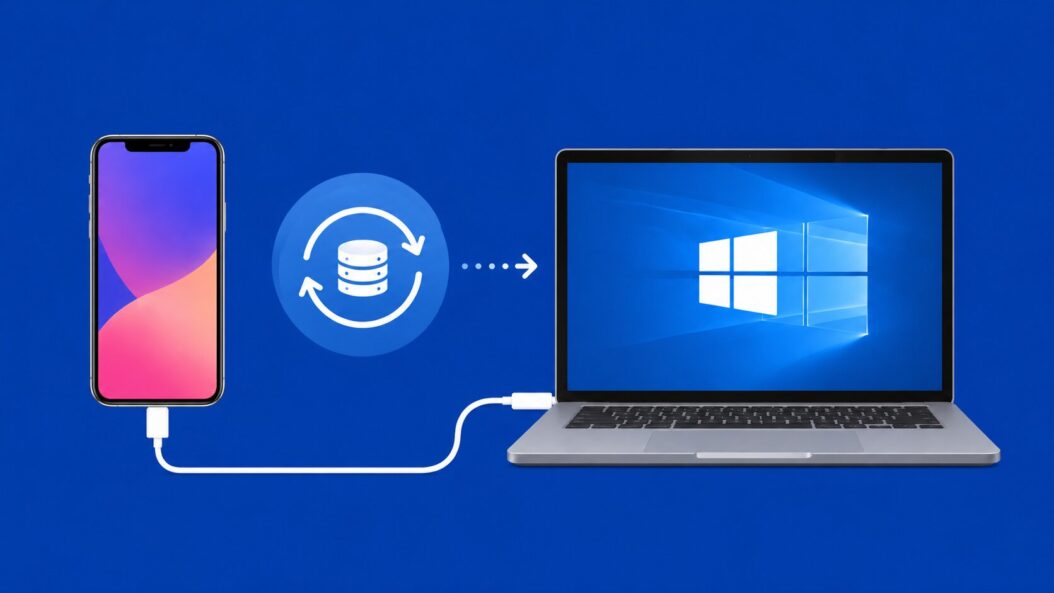
Backing up your iPhone to a Windows PC saves all your photos, contacts, messages, and app data locally on your computer — no iCloud subscription required. If your iPhone is lost, damaged, or reset, a fresh backup lets you restore everything within minutes. This guide covers every method available: iTunes/Apple Devices app, iCloud backup via Windows, and manual file transfer, including troubleshooting when backups fail.
Why You Should Back Up Your iPhone to a PC
A local PC backup gives you full control over your data without paying for extra iCloud storage. The free iCloud tier (5 GB) fills up fast — a single iPhone with average photo usage exceeds that limit. A Windows PC backup stores everything locally: photos, videos, app data, health data, messages, and device settings.
Local backups also complete faster than iCloud backups on slow connections and remain accessible even when you have no internet. If you travel frequently or live in an area with unreliable internet, a PC backup is the more reliable safety net.
What a Windows PC backup includes:
| Data Type | Local PC Backup | iCloud Backup |
|---|---|---|
| Photos and videos | Yes (unencrypted) | Yes |
| Text messages and iMessage | Yes | Yes |
| App data and settings | Yes | Yes |
| Health and fitness data | Only if encrypted | Yes |
| Passwords and Wi-Fi credentials | Only if encrypted | Yes |
| Apple Pay cards | No (re-add manually) | No |
What You Need Before Starting
Before you run your first backup, confirm you have these in place:
Hardware and software requirements:
- A Windows 10 (version 1903 or later) or Windows 11 PC
- A Lightning-to-USB or USB-C cable (use the official Apple cable for best reliability — third-party cables cause sync errors more often)
- iTunes 12.10 or later (Windows 10) OR the Apple Devices app (Windows 11, available from the Microsoft Store)
- At least 10-15 GB of free disk space per backup (a 128 GB iPhone backup is typically 8-12 GB)
- iPhone running iOS 16 or later (the steps are the same for iOS 17 and iOS 18)
Before you plug in:
- Update iTunes or the Apple Devices app to the latest version
- Make sure your iPhone is charged to at least 20%
- Unlock your iPhone and have it at your side — you will need to tap “Trust” on screen
Method 1: Backup iPhone Using the Apple Devices App (Windows 11)
Apple replaced iTunes on Windows 11 with the Apple Devices app, released in 2023. It is the recommended backup method for Windows 11 users and provides a cleaner interface than iTunes.
Installing the Apple Devices App
Open the Microsoft Store on your Windows 11 PC and search for “Apple Devices”. Install the free app. If you previously had iTunes installed, you do not need to uninstall it — both can coexist, but you should use Apple Devices for new backups going forward.
Alternatively, download Apple Devices directly from the Microsoft Store link at apps.microsoft.com (search “Apple Devices” in the store search bar).
Running Your First Backup
- Open the Apple Devices app on your PC
- Connect your iPhone to your PC using a USB cable
- Unlock your iPhone — a prompt asking “Trust This Computer?” appears on your iPhone screen; tap Trust
- Enter your iPhone passcode if prompted
- Your iPhone appears in the left sidebar of the Apple Devices app under “Devices”
- Click your iPhone name in the sidebar
- Under the General tab, locate the Backups section
- Select “This computer” as the backup location
- (Optional) Check “Encrypt local backup” if you want Health and password data included — see the encryption section below for details
- Click Back Up Now
The progress bar at the top of the app shows backup status. A 128 GB iPhone with 60 GB used takes approximately 10-30 minutes depending on your USB connection and PC speed.
Checking the Backup Location
The Apple Devices app stores backups at:
C:\Users\[YourUsername]\Apple\MobileSync\Backup\Each backup folder is named with a long alphanumeric string (your device UDID). Do not rename or modify these folders manually.
Method 2: Backup iPhone Using iTunes on Windows 10
On Windows 10, iTunes remains the primary backup tool. iTunes is available as a free download from the Apple website or from the Microsoft Store.
Which iTunes Version to Use
There are two versions of iTunes for Windows:
| Version | Source | Recommendation |
|---|---|---|
| iTunes from Apple website | apple.com/itunes | Use this if you have any third-party iPhone management tools |
| iTunes from Microsoft Store | Microsoft Store | Easier to update; no Apple driver install required |
Either version works identically for backups. The Microsoft Store version updates automatically, making it easier to maintain.
Backing Up with iTunes on Windows 10
- Open iTunes on your Windows 10 PC
- Connect your iPhone via USB cable
- Tap Trust on your iPhone when the trust prompt appears
- Click the iPhone icon in the upper-left area of iTunes (below the playback controls)
- In the Summary panel, find the Backups section
- Select “This Computer” under “Automatically Back Up”
- Click Back Up Now under the “Manually Back Up and Restore” section
iTunes shows a progress bar in the top center of the window while the backup runs. Do not disconnect your iPhone until the progress bar disappears and the backup date updates in the Backups section.
Confirming the Backup Completed in iTunes
After the backup finishes:
- Go to Edit > Preferences in iTunes (or press
Ctrl + ,) - Click the Devices tab
- Your backup appears with a timestamp — confirm it matches today’s date and time
Method 3: Backup iPhone to PC via iCloud for Windows
This method does not create a local PC backup — instead, it syncs your iCloud backup to a folder on your Windows PC. This is useful if you want your iCloud data accessible from File Explorer without downloading the full iCloud app on your iPhone.
Setting Up iCloud for Windows
- Download iCloud for Windows from the Microsoft Store (search “iCloud”) or from apple.com/icloud/icloud-for-windows
- Sign in with your Apple ID
- Check the boxes for Photos, iCloud Drive, and any other data you want synced to your PC
- Click Apply
iCloud creates a folder at C:\Users\[YourUsername]\iCloudDrive and a separate iCloud Photos folder that mirrors your iPhone’s photo library.
Limitations of iCloud for Windows
This method does not replace a full local backup. iCloud for Windows syncs only the data categories you enable (photos, drive files, contacts, calendars). It does not back up app data, messages, or device settings. For a complete backup, use Method 1 or Method 2 instead.
How to Verify Your iPhone Backup Was Successful
Never assume a backup completed correctly — always verify before you need to rely on it.
Verifying in Apple Devices App
- Open Apple Devices
- Click your iPhone in the sidebar
- In the Backups section, the “Latest Backup” field shows the date and time of the most recent successful backup
Verifying in iTunes
- Open iTunes
- Go to Edit > Preferences > Devices tab
- Your backup appears with a timestamp and a padlock icon if encryption is enabled
Verifying by Checking the Backup Folder Directly
Navigate to your backup folder in File Explorer:
C:\Users\[YourUsername]\Apple\MobileSync\Backup\Open the folder with the longest alphanumeric name. Look for a file named Info.plist. Right-click it and open with Notepad. Search for Last Backup Date — this confirms when the backup was written.
A healthy backup folder for a typical iPhone contains hundreds to thousands of files and is at least 2-3 GB in size.
How to Restore iPhone from a Windows PC Backup
When you get a new iPhone, reset your current device, or need to recover lost data, restoring from a PC backup brings everything back.
Restoring via Apple Devices App
- Connect your iPhone to your PC
- If restoring a factory-reset iPhone: the iPhone shows a Setup screen — select “Restore from Mac or PC” on the device
- Open Apple Devices on your PC
- Click your iPhone in the sidebar
- Click Restore iPhone (this erases the device and restores from backup) OR click Restore Backup (this restores data without a full erase, useful when troubleshooting)
- Select the backup you want to restore from the dropdown — it shows the backup date and size
- If the backup is encrypted, enter your backup password
- Click Restore and keep your iPhone connected until the restore completes
Restoring via iTunes (Windows 10)
- Open iTunes and connect your iPhone
- Click the iPhone icon
- Click Restore iPhone (full erase + restore) or Restore Backup (data restore only)
- Select your backup from the list
- Click Restore and keep the device connected
Restore time varies by backup size — a 10 GB backup typically takes 20-45 minutes. Your iPhone restarts once during the process; do not disconnect it.
Backup Encryption: Should You Enable It?
By default, iPhone backups to Windows PC are unencrypted, which means certain sensitive data is excluded for security reasons.
What Encryption Adds to Your Backup
| Data | Unencrypted Backup | Encrypted Backup |
|---|---|---|
| Photos and media | Included | Included |
| App data | Included | Included |
| Contacts and calendars | Included | Included |
| Saved passwords and keychain | Not included | Included |
| Health and activity data | Not included | Included |
| Wi-Fi network passwords | Not included | Included |
If you use your iPhone for health tracking or rely on saved passwords syncing after a restore, enable encrypted backups.
How to Enable Encrypted Backups
In Apple Devices app:
- Check the “Encrypt local backup” checkbox in the Backups section
- Create a strong password — write it down somewhere safe
- Click Back Up Now
In iTunes:
- Check “Encrypt local backup” in the Summary tab
- Set a password and confirm it
- Click Back Up Now
The encryption password is separate from your Apple ID and iPhone passcode. If you forget it, you cannot access the backup — Apple has no way to recover it. Store this password in a password manager.
Troubleshooting Common iPhone Backup Errors on Windows
“iTunes Could Not Back Up iPhone Because an Error Occurred”
This generic error usually has one of three causes:
Fix 1 — Restart the Apple Mobile Device Service:
- Press
Win + R, typeservices.msc, press Enter - Find Apple Mobile Device Service in the list
- Right-click it and select Restart
- Reconnect your iPhone and try again
Fix 2 — Clear corrupted backup data:
Navigate to C:\Users\[YourUsername]\Apple\MobileSync\Backup\ and delete the folder corresponding to your device (check the timestamp to find the most recent failed backup). Then try backing up again.
Fix 3 — Update Apple drivers:
Open Device Manager (Win + X > Device Manager), expand Universal Serial Bus controllers, and look for any Apple USB Device with a yellow warning icon. Right-click and select Update driver.
“iPhone Not Recognized in iTunes or Apple Devices”
This happens when the Apple drivers are not installed or the cable is faulty.
- Try a different USB port (prefer USB 2.0 ports — some USB 3.0 ports cause detection issues)
- Use the original Apple cable or a certified MFi cable
- Uninstall and reinstall iTunes, then restart your PC
- Check that you tapped Trust on your iPhone when prompted
“Backup Is Too Large — Not Enough Disk Space”
iPhone backups do not compress aggressively. A 128 GB iPhone with 80 GB used typically creates an 8-15 GB backup. If your C: drive is low on space:
- Move existing old backups to an external drive temporarily
- Change the backup destination (iTunes does not support changing backup location natively — use a symlink):
# Run Command Prompt as Administrator
mklink /J "C:\Users\[YourUsername]\Apple\MobileSync\Backup" "D:\iPhoneBackups"
This redirects all backup writes to D:\iPhoneBackups while iTunes continues to look at the original path.
“Backup Failed — iPhone Disconnected During Backup”
Keep your iPhone screen on (or turn off auto-lock temporarily) during backups. Go to Settings > Display and Brightness > Auto-Lock and set it to Never for the duration of the backup, then restore your preferred setting afterward.
Final Thoughts
You now have a complete local backup of your iPhone on your Windows PC. For ongoing protection, back up your iPhone weekly or before any major iOS update, factory reset, or phone upgrade. The Apple Devices app and iTunes both support automated backups when your iPhone is connected — enable this in the Backups section by selecting “This Computer” as your default backup location.
If you store irreplaceable photos and documents on your iPhone, consider running both a local PC backup and an iCloud backup simultaneously — the two do not conflict and give you redundancy in case one backup source fails.
For further reading, Apple’s official support documentation at support.apple.com/guide/iphone covers device-specific restore procedures including emergency recovery mode (DFU mode) for iPhones that will not turn on.
