
If your iPhone is frozen, stuck on the Apple logo, or just acting completely unresponsive, a hard reset is usually the fastest fix. I’ll walk you through exactly how to do it on every iPhone model, what happens when you do it, and when you need something stronger than a hard reset.
A hard reset forces your iPhone to restart immediately. It cuts the power cycle and starts the device fresh without touching your data, apps, or settings.
Think of it like pulling the plug on a computer that’s completely locked up. Nothing gets deleted. Your photos, messages, and apps stay exactly where they are.
This is different from a factory reset, which wipes everything. A hard reset is just a forced reboot.
Apple officially calls this a “force restart.” You’ll see that term in their support pages. Same thing, different name.
How to Hard Reset iPhone: Quick Answer by Model
The button combination depends on which iPhone you have. Here’s the fast breakdown:
| iPhone Model | Steps |
|---|---|
| iPhone 8, X, XS, XR, 11, 12, 13, 14, 15, 16 | Press and release Volume Up, press and release Volume Down, hold Side button until Apple logo appears |
| iPhone 7, 7 Plus | Hold Volume Down and Sleep/Wake button together until Apple logo appears |
| iPhone 6s, 6s Plus, SE (1st gen) | Hold Home and Sleep/Wake button together until Apple logo appears |
Now let’s go deeper on each one.
How to Hard Reset iPhone 16, 15, 14, 13, 12, 11, X, XS, XR, and iPhone 8
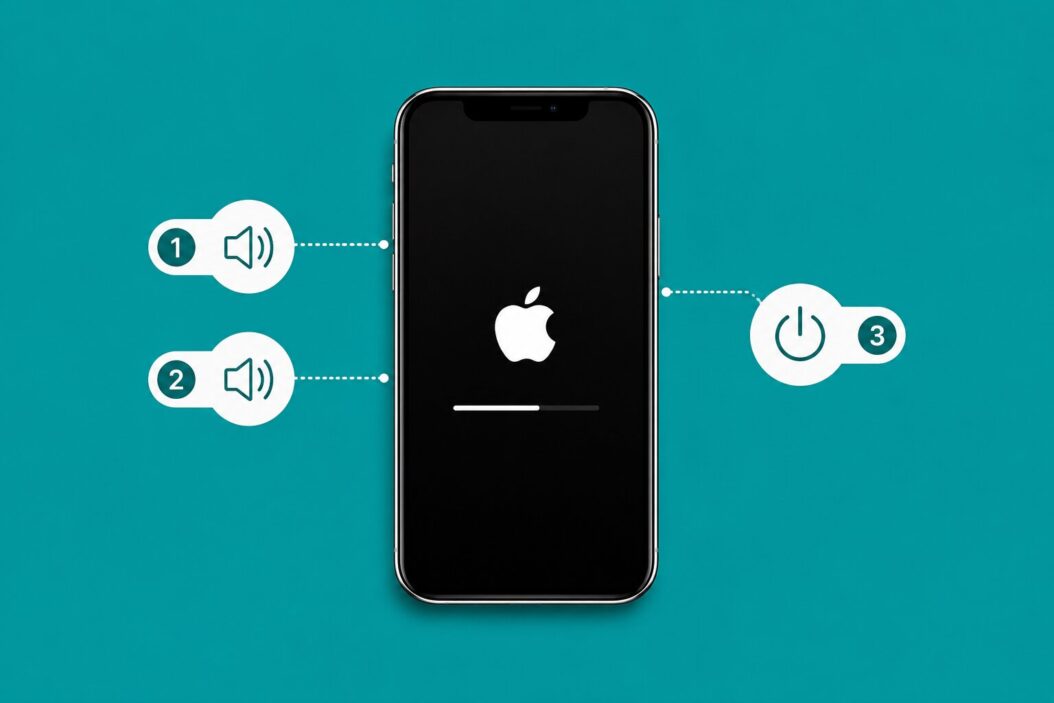
Apple uses the same method for all iPhones without a physical Home button.
Steps:
- Press the Volume Up button quickly and let it go
- Press the Volume Down button quickly and let it go
- Press and hold the Side button on the right edge
- Keep holding even when the power slider appears on screen
- Let go when the Apple logo shows up
The Apple logo usually appears within 10 to 15 seconds. If your screen stays black, hold the Side button a bit longer.
One thing that trips people up: you need to press Volume Up and Volume Down quickly, not hold them. They’re just quick taps. Only the Side button gets a long press.
How to Hard Reset iPhone 7 and 7 Plus
Apple removed the physical Home button clicker on iPhone 7 and replaced it with a pressure sensor. That change meant the old Home + Sleep method no longer worked for force restarting.
Steps:
- Press and hold the Volume Down button (left side)
- At the same time, press and hold the Sleep/Wake button (right side)
- Keep both held down
- Release when you see the Apple logo
This usually takes about 10 seconds. Some people accidentally let go when the power slider pops up. Ignore that slider and keep holding.
How to Hard Reset iPhone 6s, 6s Plus, and iPhone SE (1st Generation)
These older models still had a fully mechanical Home button, so the method is different.
Steps:
- Press and hold the Home button (the round button at the bottom front)
- At the same time, press and hold the Sleep/Wake button (top edge or right side depending on model)
- Hold both until the Apple logo appears
- Release
If you see the power slider, you released too early. Keep holding through it.
What Happens After a Hard Reset
Your iPhone restarts cleanly. That’s it. Nothing is deleted.
When it comes back on, you’ll need to enter your passcode once before Face ID or Touch ID starts working again. That’s normal. It’s a security requirement after any restart.
Apps reload from their last save state. If you were in the middle of writing something, you might lose a few seconds of unsaved work. Everything else is untouched.
When a Hard Reset Actually Helps
A hard reset solves a specific category of problems. It’s worth knowing what it fixes and what it doesn’t.
Works well for:
- iPhone completely frozen with no touch response
- Screen stuck on the Apple logo during startup
- Apps not responding even after closing them
- iPhone feels sluggish and slow across the board
- Screen is black but the phone is still on (you can hear notifications)
- Touchscreen registering wrong inputs
Doesn’t help with:
- iPhone won’t turn on at all (likely a battery or hardware issue)
- Water damage affecting hardware
- Broken screen or display issues
- Software problems that return immediately after restart
If the same problem keeps coming back within minutes of a hard reset, the issue runs deeper than a frozen process.
Hard Reset vs Factory Reset: Know the Difference
These two terms get mixed up constantly, and the difference matters a lot.
| Hard Reset (Force Restart) | Factory Reset | |
|---|---|---|
| What it does | Forces an immediate reboot | Erases everything and reinstalls iOS |
| Data deleted? | No | Yes, all data is wiped |
| Time required | 10 to 20 seconds | 20 to 60 minutes |
| When to use it | Frozen phone, minor bugs | Selling phone, serious software failure |
| Reversible? | Yes, nothing changes | Only with a backup |
If someone told you to “reset your iPhone” without specifying which kind, a hard reset is the safe one to try first.
When You Need More Than a Hard Reset
Sometimes a force restart isn’t enough. If your iPhone keeps crashing, won’t get past the Apple logo, or has a software issue that restarts can’t fix, you need Recovery Mode or DFU Mode.
Recovery Mode lets you restore iOS through a computer. You don’t lose data if you restore from a backup, but the process reinstalls the operating system.
DFU Mode (Device Firmware Update) is the deepest restore available. It bypasses the current iOS installation entirely. Apple’s own technicians use this for serious software failures.
For Recovery Mode instructions, Apple’s official support page walks through the process clearly: support.apple.com/en-us/111787
Hard Reset When iPhone Won’t Turn On
If your iPhone screen is completely black and unresponsive, try this before assuming it’s broken:
- Plug it into a charger and wait two minutes
- Then attempt the hard reset for your model
- If nothing happens, try a different cable and charger
- If it still won’t respond, hold the hard reset button combination for a full 30 seconds
A completely drained battery sometimes looks exactly like a broken phone. Give it power first, then force restart.
Hard Reset When iPhone Is Stuck in a Boot Loop
A boot loop is when the iPhone keeps showing the Apple logo, shutting off, and restarting over and over.
A hard reset sometimes breaks the loop. Try it two or three times. If it keeps looping, you need Recovery Mode because there’s likely a corrupted iOS file causing the restart cycle.
iFixit has a solid guide on diagnosing iPhone boot loops that goes into more depth on the hardware side: ifixit.com/Wiki/Apple_iPhone_Troubleshooting
Doing a Hard Reset on an iPhone With a Broken Side Button
If your Side button is broken, a hard reset through button combinations won’t work. You have a couple of options.
AssistiveTouch creates a virtual button on your screen. Go to Settings, then Accessibility, then Touch, then AssistiveTouch, and turn it on. From there you can access restart options through the virtual button.
If the phone is functional but you just can’t press buttons, you can also restart through Settings by going to General and then Shut Down, then powering back on manually.
How Often Should You Hard Reset iPhone?
There’s no harm in doing it occasionally, but you shouldn’t need to do it regularly.
If you’re force restarting more than once a week because of freezes or crashes, that’s a sign something else is wrong. Check for iOS updates first. A buggy app running in the background causes more freezes than most people realize. Delete or update apps you installed right before the problems started.
Persistent crashing also sometimes signals low storage. iPhones running with less than a couple of gigabytes free tend to behave erratically.
Summary
A hard reset on iPhone is a force restart. It fixes frozen screens, unresponsive apps, and sluggish behavior without touching your data.
On iPhone 8 and newer (no Home button): quick press Volume Up, quick press Volume Down, then hold the Side button until the Apple logo appears.
On iPhone 7: hold Volume Down and the Sleep/Wake button together.
On iPhone 6s and older: hold Home and Sleep/Wake together.
If a hard reset doesn’t fix the problem, Recovery Mode is the next step. And if you’re seeing recurring crashes after restarts, the issue is something inside iOS or a misbehaving app, not a freeze a restart can clear.
Frequently Asked Questions
Can I hard reset my iPhone without any buttons working?
Yes. If your buttons are physically broken, go into Settings, tap General, then scroll to Shut Down. After the phone powers off, charge it to trigger a restart. You can also enable AssistiveTouch under Settings and Accessibility to get a virtual button on screen that handles restarts without needing physical buttons.
Does a hard reset delete my iCloud data?
No. iCloud data lives on Apple’s servers and isn’t affected by anything you do to the local device. A hard reset only clears temporary system memory, not storage. Your photos, contacts, messages synced to iCloud, and app data all stay intact.
My iPhone shows a red screen or blue screen before freezing. Will a hard reset fix that?
A hard reset often clears these color screen glitches because they’re usually caused by a graphics process crashing. Try it first. If the colored screen comes back within a short time, it points to a deeper iOS issue that needs a full restore through Recovery Mode rather than just a restart.
How is a hard reset different from just restarting normally?
A normal restart goes through a proper shutdown sequence where iOS closes apps, saves states, and powers down cleanly. A hard reset skips all of that and cuts the power cycle immediately, similar to pulling a plug. Normal restart is for routine use. Hard reset is for when the phone is too frozen to do a normal restart.
Will hard resetting too many times damage my iPhone?
No, there’s no hardware damage from force restarting. The storage uses NAND flash memory which handles millions of read/write cycles. Doing a hard reset once a day for years wouldn’t meaningfully affect it. The concern would only be if you’re restarting because of an underlying problem you’re ignoring rather than fixing.

- How to Do a Mail Merge in 2026 (Step-by-Step Guide for Any Tool) - June 2, 2026
- How to Hard Reset iPhone: A Simple Guide - June 2, 2026
- How to Block Spam Emails (And Actually Keep Them Out in 2026) - May 30, 2026