
Sending an encrypted email in Outlook is straightforward once you know which method fits your setup. You have two main options: Microsoft 365 Message Encryption (OME), which works for most business users, and S/MIME encryption, which requires a digital certificate. I’ll walk you through both, step by step, so you can protect sensitive emails today.
Email encryption sounds technical, but the idea is simple. It scrambles your message so only the intended recipient can read it. Without encryption, emails travel across servers in plain text, meaning anyone intercepting the data can read every word. That matters a lot when you’re sending contracts, financial data, medical records, or passwords.
Encryption Methods in Outlook You Should Know
Before jumping into steps, you need to know which encryption type applies to you. Using the wrong method wastes time.
| Encryption Type | Best For | Requires |
|---|---|---|
| Microsoft 365 Message Encryption (OME) | Microsoft 365 business users | Microsoft 365 subscription |
| S/MIME | Organizations with strict compliance needs | Digital certificate from a CA |
| IRM (Information Rights Management) | Controlling what recipients can do with the email | Azure Information Protection |
Most people reading this are on Microsoft 365. OME is your fastest path. S/MIME is more technical but gives stronger cryptographic guarantees.
How to Send an Encrypted Email in Outlook on Desktop
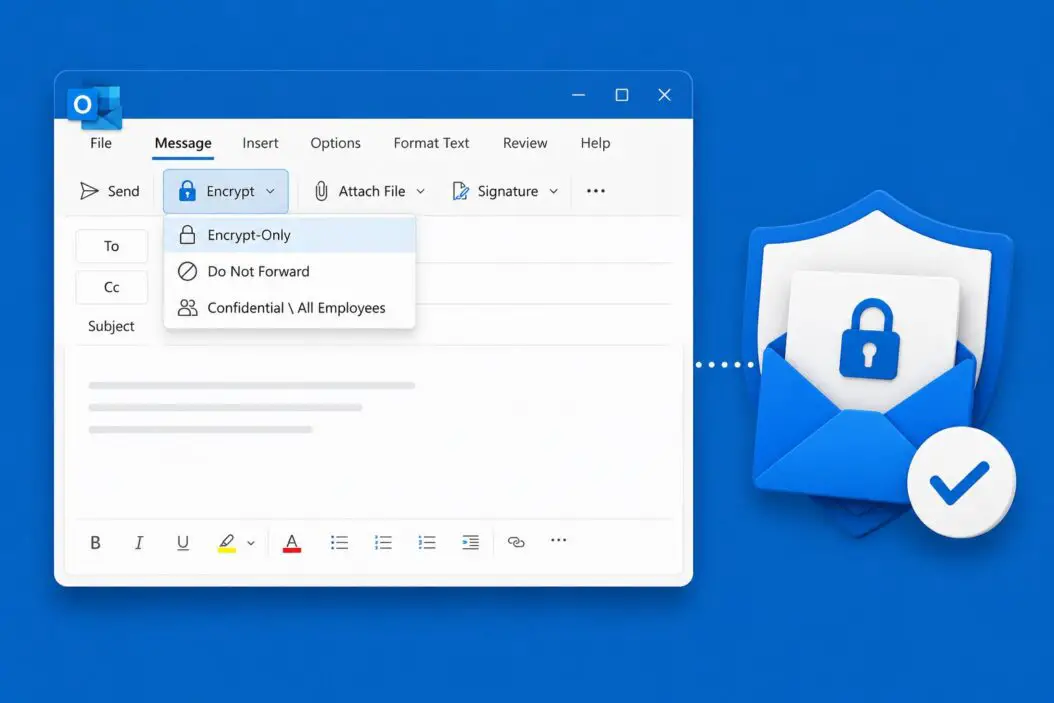
Microsoft 365 Users (OME)
This method works if your organization has Microsoft 365 Business or Enterprise.
- Open Outlook and click New Email
- Go to the Options tab in the ribbon
- Click Encrypt
- Choose an option from the dropdown:
- Encrypt-Only: Encrypts the message content and attachments
- Do Not Forward: Prevents forwarding, printing, and copying
- Write your email normally and hit Send
That’s it. The recipient gets a notification with a link to read the message securely. If they use Outlook or Microsoft 365, it opens directly. If they use Gmail or another client, they authenticate via a one-time passcode.
S/MIME Encryption in Outlook Desktop
S/MIME requires a digital certificate. If your IT team hasn’t set one up, you’ll need to get one from a Certificate Authority like Comodo, DigiCert, or your organization’s internal CA.
Step 1: Install Your Certificate
- Get your .pfx or .p12 certificate file from your CA or IT department
- Double-click the file to open the Certificate Import Wizard
- Follow the prompts and store it in the Personal certificate store
Step 2: Configure Outlook to Use It
- Go to File > Options > Trust Center > Trust Center Settings
- Click Email Security
- Under Encrypted Email, click Settings
- Choose your certificate under Signing Certificate and Encryption Certificate
- Click OK
Step 3: Send an Encrypted Message
- Open a New Email
- Go to Options > Encrypt > Encrypt with S/MIME
- Write your message and send
One important thing: both you and your recipient need to have exchanged signed emails before you can encrypt. This is how S/MIME shares public keys. Send a digitally signed email first, then the recipient can send you encrypted emails, and vice versa.
How to Encrypt Emails in Outlook on the Web (OWA)
If you use Outlook on the web, the process is even simpler.
- Log into outlook.office.com
- Click New message
- Click the three-dot menu (more options) at the top of the compose window
- Select Message options
- Toggle Encrypt this message (S/MIME) or look for the encryption lock icon depending on your org settings
- Send your email
For Microsoft 365 Message Encryption in OWA:
- Start a new email
- Click Encrypt at the top of the compose window (appears if your admin has enabled it)
- Select your encryption option
- Send
If you don’t see the Encrypt button, your admin may need to enable it. Forward this to your IT team: the policy is managed through the Microsoft Purview compliance portal under Message Encryption.
How to Encrypt Emails in Outlook Mobile (iOS and Android)
Mobile encryption is available but limited to S/MIME on the Outlook mobile app.
For iOS:
- Go to Settings > Account > your email account
- Tap S/MIME
- Turn on Sign and Encrypt by Default
- Install your certificate through the iOS Settings > General > VPN & Device Management
For Android:
- The process is similar, but you’ll need to install the certificate through your device’s Security settings first
- Then open Outlook, go to Settings > your account > S/MIME, and configure it
OME is not configurable from the mobile app directly. Your organization’s policies apply automatically when you send from mobile.
What the Recipient Experiences
This part is often overlooked. Understanding what the other person sees helps you avoid confusion.
If the recipient uses Microsoft 365 or Outlook: The email opens normally. They might see a banner saying the message is encrypted, but otherwise it reads like any email.
If the recipient uses Gmail, Yahoo, or another provider: They get a message saying “This message is encrypted.” They click a link, authenticate with a one-time code sent to their email, and read the message in a secure browser window. Attachments are also accessible from there.
If you used S/MIME and the recipient doesn’t have your public key: The encryption will fail or the message won’t be readable. This is a common issue with S/MIME. It only works when both parties have exchanged digital certificates.
Setting Up Automatic Encryption Rules
If you encrypt specific types of emails regularly, setting up rules saves time.
In Microsoft 365 (Purview / Exchange Admin Center):
- Go to the Microsoft Purview compliance portal
- Navigate to Data loss prevention or Mail flow rules
- Create a new rule with conditions like:
- When subject contains “Confidential”
- When sender is from a specific department
- When attachment contains sensitive information types (SSN, credit card numbers)
- Set the action to Apply Office 365 Message Encryption and rights protection
- Save and activate the rule
This is powerful for compliance-heavy industries like healthcare (HIPAA) or finance (GLBA). Instead of relying on users to manually encrypt, the system does it based on content detection.
Troubleshooting Common Encryption Issues
Encrypt Button Is Missing
- Your Microsoft 365 plan may not include OME. It requires Business Premium, E3, or E5.
- Your admin hasn’t configured the Azure Rights Management service. They need to enable it in the Microsoft 365 admin center.
- You’re using a version of Outlook that doesn’t support it (Outlook 2016 or older may have limited support).
S/MIME Certificate Errors
- The certificate may have expired. Check the validity date in your certificate settings.
- The recipient’s public key isn’t in your address book. Ask them to send you a digitally signed email first.
- The certificate chain isn’t trusted. Make sure the root CA is in the Trusted Root Certification Authorities store.
Recipient Can’t Open the Encrypted Email
- If they’re on a corporate network with strict filtering, the OME portal link might be blocked. Have them try from a personal device or browser.
- For S/MIME, they need your public certificate. They won’t be able to decrypt without it.
Attachments Not Encrypting
With OME’s Encrypt-Only option, attachments are encrypted. But if you’re using a third-party plugin or an older Exchange configuration, attachments might not be included. Always test by sending to yourself first.
Difference Between Encryption and Digital Signatures
These two features often get confused. They solve different problems.
| Feature | What It Does | When to Use It |
|---|---|---|
| Encryption | Hides message content from unauthorized readers | Always, when sending sensitive data |
| Digital Signature | Proves the email came from you and wasn’t altered | When authenticity matters, like legal or financial communications |
You can use both at the same time. In Outlook, under Options, you’ll see both Encrypt and Sign options. Using a digital signature doesn’t encrypt the message. It just adds a verified stamp that says “this came from me.”
Compliance and Legal Context
If you’re in a regulated industry, encryption isn’t optional.
HIPAA requires covered entities to protect electronic protected health information (ePHI) in transit. Encrypted email is one of the required safeguards.
GDPR in the EU requires appropriate technical measures for personal data. Unencrypted email doesn’t qualify when transmitting personal data across networks.
PCI-DSS prohibits sending cardholder data over messaging systems without strong cryptography.
Using Outlook’s built-in encryption tools with Microsoft 365 satisfies most of these requirements, but always confirm with your compliance officer. Microsoft publishes detailed compliance documentation that aligns with these regulations.
Best Practices for Email Encryption
A few things worth keeping in mind as you build this into your workflow:
- Don’t rely on encryption alone. A well-crafted phishing email that tricks someone into forwarding decrypted content bypasses all encryption.
- Train your team. Encryption only works if people use it consistently. One unencrypted email with sensitive data can create liability.
- Use sensitivity labels. Microsoft Purview lets you apply labels like “Confidential” that automatically apply encryption. It’s less friction than remembering to click Encrypt every time.
- Test before relying on it. Send a test encrypted email to a personal Gmail account to confirm the recipient experience works in your environment.
- Archive encrypted emails properly. Some archiving solutions can’t read encrypted content. Make sure your archiving tool integrates with your encryption method.
- Rotate certificates. S/MIME certificates expire, typically after one to three years. Set a calendar reminder to renew them before expiry.
Conclusion
Sending encrypted email in Outlook comes down to two things: knowing your method (OME for most Microsoft 365 users, S/MIME for certificate-based setups) and following the right steps for your client, whether that’s desktop, web, or mobile.
For most business users, OME is the practical choice. It works across email clients, doesn’t require recipients to install anything, and covers attachments. S/MIME is stronger cryptographically but requires coordination with recipients, which makes it better suited for consistent internal communication or high-security industries.
The key takeaway: start with OME if you’re on Microsoft 365. If your compliance requirements demand more control, move toward S/MIME or explore sensitivity labels and mail flow rules to automate encryption based on content.
Don’t wait for a data breach to sort this out. Encrypted email takes about five minutes to set up and saves a lot of trouble.
Frequently Asked Questions
Can I encrypt an email I already sent in Outlook?
No. Once an email is sent, you cannot retroactively encrypt it. The recipient already has the unencrypted version in their inbox. If you sent something sensitive without encryption, contact the recipient directly and ask them to delete the message. Going forward, consider setting up automatic encryption rules so it never gets missed.
Does encrypting an email in Outlook also encrypt the subject line?
Not with OME or S/MIME in most configurations. The subject line travels in plain text because mail servers use it to route and filter messages. Avoid putting sensitive information in the subject line. Write something generic like “Important Update” or “Secure Communication” instead.
My recipient says the email shows as encrypted but they can’t read it. What’s happening?
This usually means the OME portal link is being blocked by their corporate firewall, or their browser has cookies disabled. Ask them to open the link in a private or incognito browser window, or from outside their corporate network. For S/MIME issues, they likely don’t have your public key, so they can’t decrypt the message.
Is there a way to encrypt all outgoing Outlook emails automatically without clicking Encrypt every time?
Yes. If you’re on Microsoft 365, your IT admin can create mail flow rules in the Exchange Admin Center or Microsoft Purview that apply encryption automatically based on conditions like the sender’s department, keywords in the body, or sensitive data types detected. Alternatively, you can configure your Outlook trust center to digitally sign all outgoing emails by default, but that’s signing, not encryption.
Does Outlook encryption work with Gmail or Yahoo recipients?
Yes, OME works with any email address. Recipients on Gmail or Yahoo receive a link to view the message in a secure Microsoft-hosted portal. They verify their identity with a one-time passcode sent to their inbox. They don’t need a Microsoft account. S/MIME, however, requires the recipient to also have a compatible certificate, so it’s less practical for external Gmail or Yahoo users.

- How to Find Screenshots on Windows 11/10: Check These Folders - June 17, 2026
- How to Send Encrypted Email in Outlook (Step-by-Step Guide) - June 17, 2026
- What Is a Data Center? Everything You Need to Know - June 17, 2026