
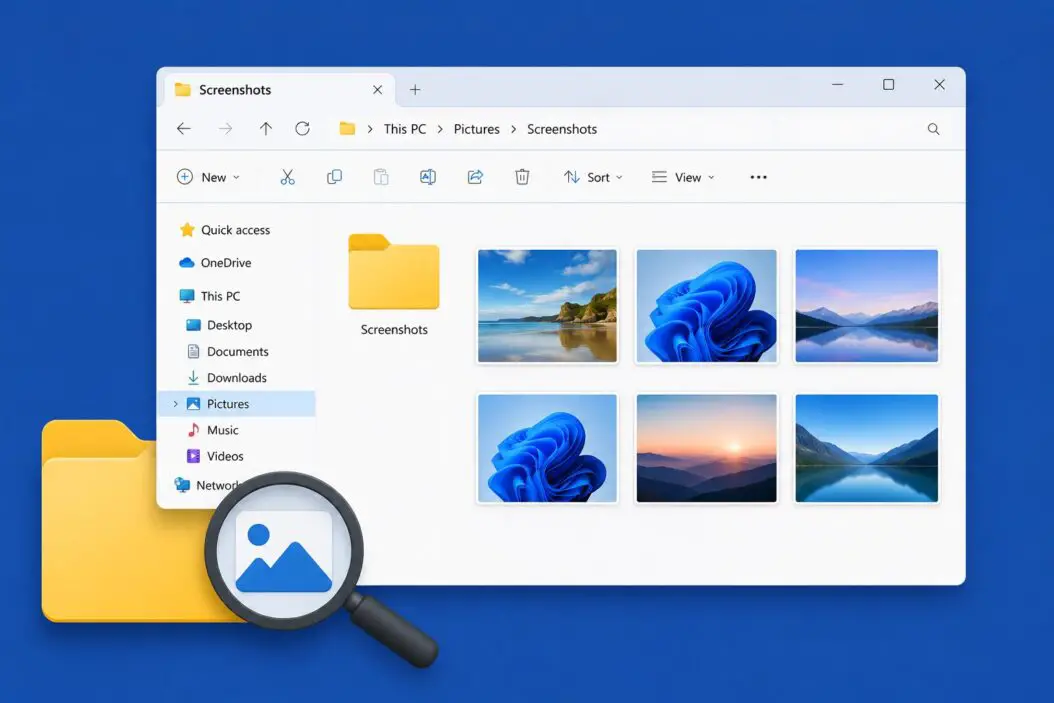
Screenshots on Windows save to different folders depending on how you took them. That’s the short answer. If you pressed Win + PrtScn, check your Pictures > Screenshots folder. If you used Snipping Tool or Snip & Sketch, the file only saves when you manually hit Save. If you pressed just PrtScn, nothing was saved at all since it only copied to your clipboard.
The Fastest Way to Find Your Screenshots Right Now
Open File Explorer and paste this into the address bar:
%userprofile%\Pictures\ScreenshotsHit Enter. If your screenshots are there, you’re done.
If that folder is empty, the screenshot probably went somewhere else depending on what you used. Keep reading.
Where Windows Saves Screenshots by Method
This is the core of the problem. Windows has multiple screenshot tools and each one saves files differently.
| Method | Shortcut | Where It Saves |
|---|---|---|
| Win + PrtScn | Auto-save | Pictures > Screenshots |
| Snipping Tool | Win + Shift + S | Clipboard (manual save needed) |
| PrtScn alone | Clipboard copy | Nowhere (clipboard only) |
| Xbox Game Bar | Win + Alt + PrtScn | Videos > Captures |
| Snipping Tool (save) | Ctrl + S inside app | You choose the location |
| Third-party tools | Varies | Depends on the app settings |
Let me break each one down.
Win + PrtScn Screenshots
This is the most reliable auto-save method. When you press Windows key + Print Screen together, the screen dims for a split second and the screenshot saves automatically.
Default save location:
C:\Users\YourName\Pictures\ScreenshotsReplace YourName with your actual Windows username.
To get there quickly, open File Explorer, click Pictures in the left panel, then open the Screenshots folder. Files are named like Screenshot (1).png, Screenshot (2).png, and so on.
If you’ve taken a lot of them, sort by Date Modified (click the column header) to see the newest ones first.
Snipping Tool and Snip & Sketch
This trips up most people. When you use Win + Shift + S, it opens the snip bar at the top of your screen. You select an area and it copies to clipboard but does not auto-save.
To save it, you have two options:
Option 1: Paste it into Paint (Win + R, type mspaint, hit Enter) and save from there.
Option 2: Click the notification that pops up in the bottom-right corner after you snip. It opens the Snipping Tool app where you can hit Ctrl + S to save wherever you want.
On Windows 11, Snipping Tool is more integrated. It has a built-in auto-save toggle. Go to Snipping Tool > Settings and turn on “Automatically save screenshots.” It will then save to:
C:\Users\YourName\Pictures\ScreenshotsXbox Game Bar Screenshots
If you’re gaming or want to capture something in a fullscreen app, Win + Alt + PrtScn uses Game Bar to take a screenshot.
These save to a completely different location:
C:\Users\YourName\Videos\CapturesYes, Videos. Not Pictures. Microsoft put it there because Game Bar is primarily for recording gameplay clips, and the screenshots sit alongside those recordings.
You can also open Game Bar (Win + G) and click the Gallery icon to see all your captures directly inside the overlay.
PrtScn Key Alone
Just pressing Print Screen on its own does nothing visible. It silently copies a screenshot of your entire screen to the clipboard. There’s no saved file.
You need to paste it somewhere manually:
- Open Paint (or any image editor) and press Ctrl + V
- Then save it wherever you want
Alt + PrtScn does the same but only captures the active window instead of the whole screen.
How to Search for Screenshots Using Windows Search
If you’re not sure where a screenshot ended up, use Windows Search to hunt it down.
- Press Win + S to open Search
- Type
screenshot - Click Documents or Photos in the filter tabs
- Look through the results
You can also search by file type. In File Explorer, click the search bar at the top and type:
*.pngThis shows all PNG files in the current folder and subfolders. Screenshots are usually saved as PNG files.
For a wider search, navigate to C:\Users\YourName first, then search *.png there to cover your whole user profile.
How to Change Where Screenshots Are Saved
You can move the default Screenshots folder to another location, like a different drive or a more organized folder.
Here’s how:
- Open File Explorer
- Navigate to
Pictures > Screenshots - Right-click the Screenshots folder
- Click Properties
- Go to the Location tab
- Click Move and pick a new folder
- Click Apply and confirm
Windows will ask if you want to move existing files. Say yes so you don’t lose anything already saved there.
This is useful if your C: drive is running low on space and you want screenshots going to a secondary drive.
OneDrive and Screenshots
If OneDrive is set up on your PC, it might be intercepting your screenshots.
OneDrive has a feature called Automatically save screenshots. When it’s on, Win + PrtScn screenshots go to:
OneDrive > Pictures > ScreenshotsNot to your local Pictures folder. This confuses a lot of people.
To check: open the OneDrive app (the cloud icon in your taskbar), go to Settings > Backup, and look for the screenshots toggle.
If it’s enabled, your files are in your OneDrive folder, which is usually at:
C:\Users\YourName\OneDrive\Pictures\ScreenshotsYou can disable it there if you’d rather keep files local.
Third-Party Screenshot Tools
Apps like Lightshot, ShareX, Greenshot, and Snagit all have their own save locations.
ShareX saves to:
C:\Users\YourName\Documents\ShareX\ScreenshotsIt organizes by year and month inside that folder.
Lightshot copies to clipboard by default and only saves when you use Ctrl + S or choose to upload.
Greenshot opens a menu after each screenshot asking what you want to do with it.
Check the settings of whatever tool you use. Look for a “Save to” or “Output folder” option. That’s where your files are going.
Finding Old Screenshots When You Don’t Know the Date
Sometimes you need a screenshot from weeks ago but can’t remember when you took it.
Use File Explorer’s search with filters:
- Open the Screenshots folder (or Videos > Captures)
- Click the search bar
- Type
datemodified:followed by a date range
Example: datemodified:1/1/2026..3/1/2026
This shows files modified between January and March 2026.
You can also sort by file size. Screenshots of a full 4K screen are larger than cropped ones, which can help narrow things down visually.
Another trick: switch File Explorer to Large icons view so you see thumbnail previews. Much faster than opening files one by one.
Windows 11 vs Windows 10 Differences
The core locations are the same on both, but Windows 11 made Snipping Tool more powerful.
| Feature | Windows 10 | Windows 11 |
|---|---|---|
| Snipping Tool auto-save | No | Yes (in Settings) |
| Win + Shift + S | Copies to clipboard | Copies to clipboard + offers save prompt |
| Screenshot folder location | Same | Same |
| Game Bar location | Same | Same |
| OneDrive integration | Available | More prominent |
If you’re on Windows 11 and want a smoother experience, go into Snipping Tool’s settings and turn on auto-save. It removes the frustration of losing snips.
Quick Reference: All Screenshot Locations at a Glance
| Tool Used | File Location |
|---|---|
| Win + PrtScn | C:\Users[Name]\Pictures\Screenshots |
| Game Bar (Win + Alt + PrtScn) | C:\Users[Name]\Videos\Captures |
| OneDrive sync enabled | C:\Users[Name]\OneDrive\Pictures\Screenshots |
| ShareX | C:\Users[Name]\Documents\ShareX\Screenshots |
| PrtScn alone | Clipboard only, not saved |
| Snipping Tool (without save) | Clipboard only, not saved |
Conclusion
Most screenshots on Windows end up in Pictures > Screenshots when you use Win + PrtScn. Game Bar puts them in Videos > Captures. Snipping Tool with Win + Shift + S saves nothing unless you manually save or enable auto-save in Windows 11.
The single biggest reason people can’t find their screenshots is mixing up these methods without realizing it. Once you know which tool you used, you know exactly where to look.
If you changed the default save location at some point and forgot where, use Windows Search and type *.png from your user folder. That will surface them regardless of where they landed.
Frequently Asked Questions
I took a screenshot but the Screenshots folder is completely empty
You probably used Win + Shift + S or just PrtScn. Neither of those auto-saves a file. Win + Shift + S copies to clipboard and only saves if you click the notification and save manually. PrtScn by itself also only copies to clipboard. Only Win + PrtScn creates an automatic file in the Screenshots folder.
My screenshot numbers jumped from Screenshot (5) to Screenshot (47), are files missing?
No files are missing. Windows counts every screenshot taken across your PC’s lifetime, not just the ones in that folder. If you deleted older ones or moved them, the numbering still continues from where it left off. The gaps are normal.
Can I recover a screenshot I forgot to save from Snipping Tool?
If you closed the Snipping Tool without saving, the image is gone unless you pasted it somewhere. However, check your clipboard history by pressing Win + V. If clipboard history is enabled, recently copied screenshots appear there and you can paste and save them.
My Game Bar shortcut isn’t working for screenshots
Game Bar sometimes gets blocked by certain apps, especially non-game software. Try pressing Win + G first to open the overlay, then click the camera icon to take a screenshot from inside it. Also check that Game Bar is enabled under Settings > Gaming > Xbox Game Bar.
Does Windows auto-delete screenshots after a certain time?
No. Windows never automatically deletes screenshots. If they’ve disappeared, check if OneDrive moved them to cloud-only storage (showing a cloud icon instead of a checkmark in File Explorer), or if Storage Sense deleted them. Storage Sense can be configured to clean certain folders, so check Settings > System > Storage > Storage Sense to see if it’s targeting your Screenshots folder.
