
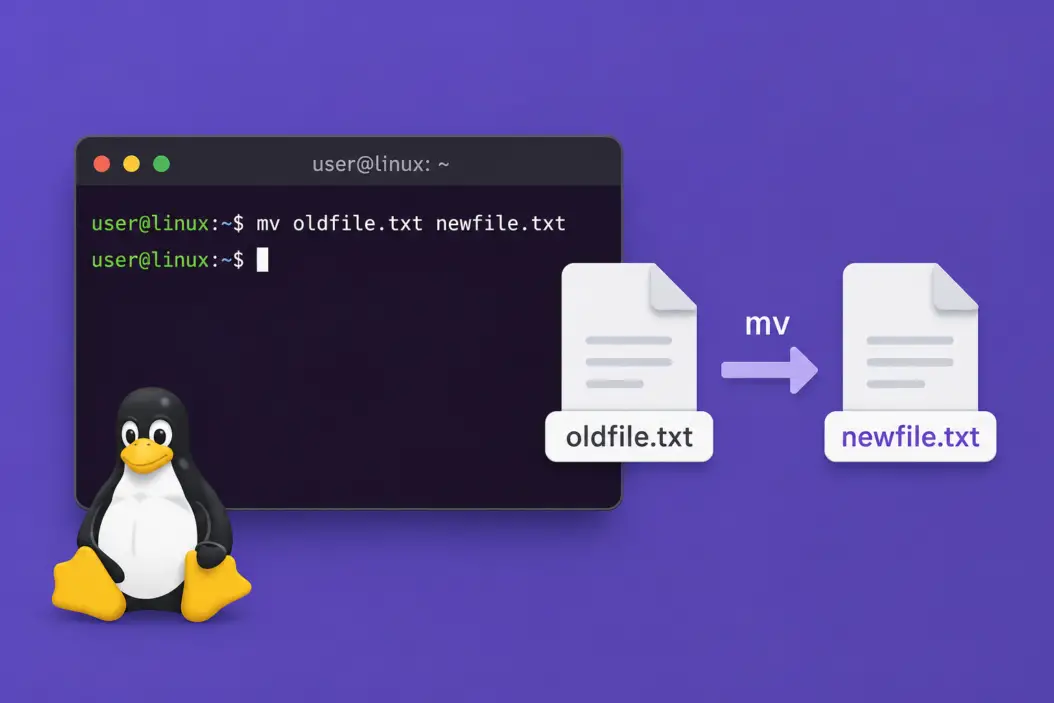
Renaming a file in Linux is straightforward once you know the right command. The primary way to do it is with the mv command. You type mv oldname.txt newname.txt and the file is renamed. That’s it for the basic case.
But there’s more to it depending on what you’re trying to do. Renaming one file is easy. Renaming dozens of files with a pattern, renaming files inside scripts, or renaming without accidentally overwriting something else, that’s where most people get stuck. This article covers all of it.
The mv Command: Your Default Tool for Renaming Files in Linux
The mv command stands for “move.” On Linux, renaming and moving are the same operation under the hood. When you rename a file, you’re technically moving it to a new name in the same directory.
Basic syntax:
mv [options] source destinationSimple rename example:
mv report.txt final_report.txtThat renames report.txt to final_report.txt in the same directory.
Rename and move at the same time:
mv report.txt /home/user/documents/final_report.txtThis moves the file to a different folder and renames it in one step.
What Happens If the Destination Already Exists
By default, mv will silently overwrite the destination file if it already exists. That can cause data loss if you’re not careful.
To prevent overwriting, use the -i flag (interactive mode):
mv -i report.txt final_report.txtIt will ask you to confirm before overwriting. Use -n to skip the operation entirely if the destination exists:
mv -n report.txt final_report.txtThis is the safer option when you’re not sure if the target name is already taken.
Renaming Directories
The same mv command works for directories:
mv old_folder new_folderNo special flags needed. Linux treats directories like any other file object for this operation.
The rename Command: For Batch Renaming Files
When you need to rename multiple files at once, mv gets tedious. The rename command handles this much better.
There are two versions of rename on Linux, and they have different syntax. This matters because many people copy a command from the internet and it doesn’t work, and they have no idea why.
Finding Out Which Version You Have
rename --versionIf it says “util-linux,” you have the simpler version. If it says “Perl rename” or shows a version like v2.x, you have the Perl version.
Perl rename (Most Common on Ubuntu/Debian)
This version uses Perl regex syntax. It’s powerful.
Install it if you don’t have it:
sudo apt install renameSyntax:
rename 's/old/new/' filesExamples:
# Change .txt extension to .md for all txt files
rename 's/\.txt$/.md/' *.txt

# Remove spaces from all filenames
rename 's/ /_/g' *.txt

# Add a prefix to all jpg files
rename 's/^/2026_/' *.jpg

# Convert all filenames to lowercase
rename 's/[A-Z]/\L$&/g' *
The s/old/new/ pattern is a substitution. The g at the end means “replace all occurrences, not just the first.”
util-linux rename (Common on older distros)
This version is simpler and doesn’t use regex. It does a plain string replacement.
rename old new filesExample:
rename .txt .md *.txtThis replaces .txt with .md in every matching filename. No regex, no flags.
Dry Run Before You Commit
The Perl version of rename supports a dry run with -n:
rename -n 's/\.txt$/.md/' *.txtIt shows what would happen without actually doing anything. Always use this first when renaming a batch of files you care about.
Renaming Files with Special Characters in the Name
Files with spaces, parentheses, or symbols in their names need to be quoted or escaped.
mv "my document.txt" "my_document.txt"Or use a backslash to escape spaces:
mv my\ document.txt my_document.txtFilenames starting with a dash are tricky because the shell might interpret the name as a flag. Use -- to signal end of options:
mv -- -myfile.txt myfile.txtOr use the full path:
mv ./-myfile.txt ./myfile.txtRenaming Files Using a File Manager (GUI)
If you’re on a desktop environment like GNOME or KDE, you can rename files the same way you would on Windows or macOS. Click the file once to select it, then press F2. Type the new name and press Enter.
For GNOME Files (Nautilus), right-clicking and selecting “Rename” also works. This is fine for one-off renames when you’re already in the GUI.
Renaming Multiple Files with a Loop
Sometimes you want custom renaming logic that rename alone can’t handle cleanly. A shell loop gives you full control.
Example: Add a number prefix to a group of files:
i=1
for file in *.jpg; do
    mv "$file" "${i}_${file}"
    ((i++))
done
Result: photo.jpg becomes 1_photo.jpg, sunset.jpg becomes 2_sunset.jpg, and so on.
Example: Strip a prefix from all files:
for file in backup_*; do
    mv "$file" "${file#backup_}"
done
The ${file#backup_} syntax strips the prefix backup_ from the variable. This is called parameter expansion in bash.
Example: Rename files using their modification date:
for file in *.txt; do
    date=$(date -r "$file" +"%Y%m%d")
    mv "$file" "${date}_${file}"
done
This prepends the file’s modification date to each filename.
Rename Files Based on Content or Metadata
This is a more advanced use case but comes up often with images and videos.
For images, exiftool can rename files based on EXIF metadata like the date the photo was taken:
exiftool '-FileName<DateTimeOriginal' -d "%Y%m%d_%H%M%S.%%e" *.jpgInstall exiftool first:
sudo apt install libimage-exiftool-perlThis is far more reliable than using file modification dates, which change whenever you copy a file.
For a deeper look at batch processing files with shell loops, the GNU Bash manual on shell expansions is worth bookmarking.
Renaming Files in a Script Safely
When you write scripts that rename files, a few habits prevent disasters.
Always quote your variables:
mv "$oldname" "$newname"Without quotes, filenames with spaces break everything.
Check if the source exists before moving:
if [ -f "$oldname" ]; then
    mv "$oldname" "$newname"
else
    echo "File not found: $oldname"
fi
Log what you rename:
echo "Renaming $oldname to $newname" >> rename_log.txt
mv "$oldname" "$newname"
This is especially useful when running batch rename jobs overnight or on servers.
Common Errors and What They Mean
| Error | What It Means | Fix |
|---|---|---|
mv: cannot stat 'file.txt': No such file or directory | Source file doesn’t exist | Check the spelling and current directory |
mv: cannot move 'file.txt' to 'dir/': Not a directory | Destination path is wrong | Verify the destination path exists |
mv: 'file.txt' and 'file.txt' are the same file | Source and destination are identical | You probably made a typo in the new name |
rename: not found | rename is not installed | Install with sudo apt install rename |
Permission denied | You don’t own the file or directory | Use sudo or fix file ownership |
Quick Command Reference
| Task | Command |
|---|---|
| Rename one file | mv oldname.txt newname.txt |
| Rename without overwriting | mv -n oldname.txt newname.txt |
| Rename with confirmation | mv -i oldname.txt newname.txt |
| Rename all .txt to .md | rename 's/\.txt$/.md/' *.txt |
| Rename directory | mv old_dir new_dir |
| Rename file with spaces | mv "old name.txt" "new_name.txt" |
| Dry run batch rename | rename -n 's/old/new/' * |
| Strip prefix from files | for f in pre_*; do mv "$f" "${f#pre_}"; done |
A Note on Case Sensitivity
Linux filesystems are case-sensitive. File.txt and file.txt are two completely different files. This matters when renaming. You can have both exist in the same directory, which would never happen on Windows.
If you’re renaming files to change only the case, use a temporary name in between on some filesystems:
mv file.txt file_temp.txt
mv file_temp.txt File.txt
Some older filesystems and macOS-formatted drives (HFS+) are case-insensitive by default, so this can cause unexpected behavior if you’re working across systems.
For more on Linux filesystem behavior and how it affects file operations, the Linux man page for mv covers every flag and edge case in detail.
Conclusion
Renaming files in Linux comes down to two core tools: mv for single files and rename for bulk operations. Once you know which version of rename is on your system, batch renaming becomes fast and predictable. Shell loops fill in the gaps for anything with custom logic.
The biggest mistakes people make are forgetting to quote filenames with spaces, assuming the destination file doesn’t exist yet, and not doing a dry run before bulk operations. Avoiding those three things keeps your file operations clean.
Start with mv for anything simple. Reach for rename when you have a pattern to apply. Write a loop when you need full control. That covers 99% of everything you’ll ever need to do.
FAQs
Can I rename a file that’s currently open by another process?
Yes, in most cases. Linux allows renaming a file that’s open because the filesystem tracks files by inode, not by name. The process that has the file open keeps its file descriptor pointing to the same inode. The rename just changes what name points to that inode. The other process won’t notice the rename unless it tries to open the file by name again.
What’s the difference between mv and cp when renaming?
mv renames (or moves) the original file and removes the source. cp copies the file to a new name but leaves the original in place. If I just want to rename, I use mv. If I want a renamed copy while keeping the original, I use cp oldname.txt newname.txt.
How do I undo a rename in Linux?
There’s no built-in undo. Once you run mv, the rename is done. The only way to reverse it is to run mv again with the names swapped. If I’m doing bulk renames, I keep a log of what changed so I can reverse it if needed. Tools like git can also track filename changes if the directory is under version control.
Does renaming a file change its permissions or ownership?
No. Renaming with mv within the same filesystem preserves all permissions, ownership, timestamps (mostly), and extended attributes. The inode stays the same, only the directory entry changes. If you move across filesystems (different partitions or drives), the file is copied and deleted, and timestamps may reset.
Why does rename work differently on CentOS and Ubuntu?
The two Linux distributions ship different implementations of rename. Ubuntu and Debian use the Perl-based rename that supports regex. CentOS and Red Hat ship the simpler util-linux version that does plain string replacement. The commands look similar but behave very differently. Always check with rename --version before using a command you found online for a different distro.
