
Yahoo Search keeps showing up in Chrome even after you try to change it. You’re not imagining things. It doesn’t go away with one setting change. That’s because it usually gets installed through a browser extension or a program that quietly rewrites your browser settings. The good news is you can fully remove Yahoo Search from Chrome in about 5 minutes.
Why Yahoo Search Replaced Your Default Search Engine
Yahoo Search rarely gets set manually. Most people find it there after installing free software, a PDF converter, a browser toolbar, or even a shady Chrome extension.
These programs hijack your default search engine, homepage, and sometimes your new tab page. They get paid every time you use Yahoo Search through their redirect. So yes, it’s technically a browser hijacker, even if Yahoo itself is a legitimate company.
If you only change your search engine in Chrome settings without removing the extension or program causing it, Yahoo Search comes right back. You have to fix the root cause first.
Step 1: Remove Suspicious Chrome Extensions
This is the most common reason Yahoo Search keeps returning.
Open Chrome and go to the top right corner. Click the three dots, then go to Extensions > Manage Extensions.
Look through your list. Ask yourself: did I actually install this? If you see anything like a PDF tool, a price comparison addon, a weather bar, a video downloader, or anything you don’t recognize, remove it.
Click Remove on anything suspicious. Don’t just disable it. Remove it completely.
After removing extensions, restart Chrome before you move to the next step.
Step 2: Change Your Default Search Engine Back to Google
Now that the extension causing the hijack is gone, you can safely change the search engine.
Go to Chrome settings by clicking the three dots in the top right, then click Settings.
On the left sidebar, click Search engine.
You’ll see a dropdown that probably says Yahoo. Click it and select Google (or whatever you prefer).
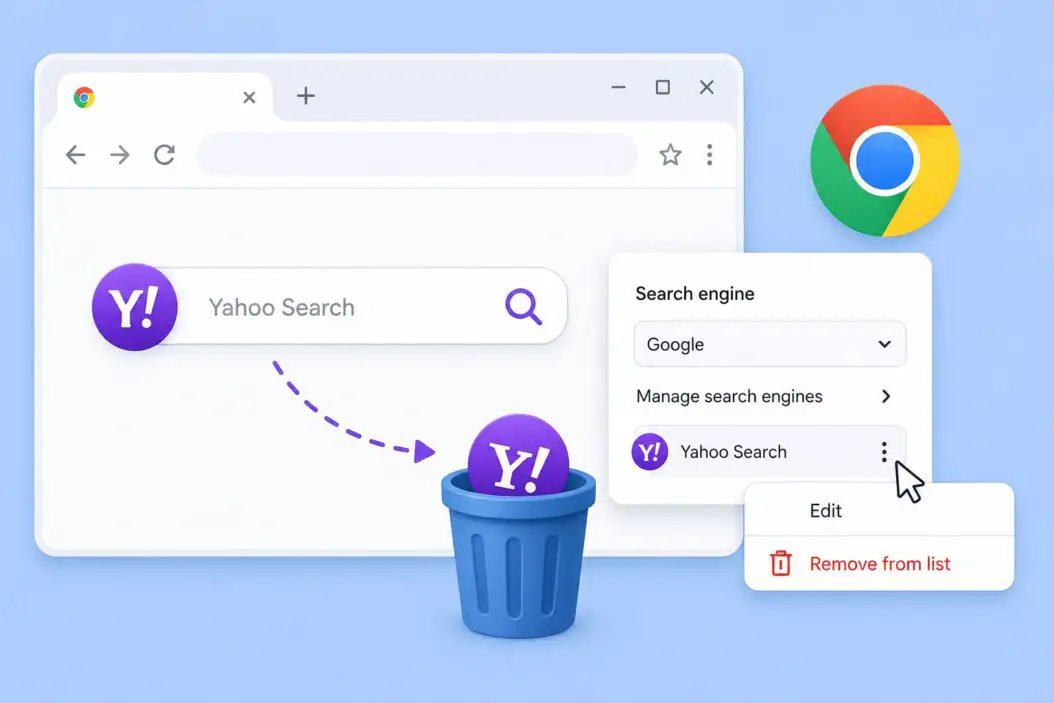
Also click Manage search engines and site search. Look through the list and delete any Yahoo entries you see there. Click the three dots next to them and hit Delete.
Step 3: Fix Your Startup Page and New Tab Settings
Some hijackers also change what Chrome opens when you launch it.
In Chrome Settings, click On startup from the left sidebar.
If it’s set to “Open a specific page” and that page is something like search.yahoo.com or a redirect URL, change it to “Open the New Tab page” or set your own homepage like google.com.
Then click Appearance on the left sidebar. If you see a homepage URL set to Yahoo, delete it and put in whatever you actually want.
Step 4: Uninstall Any Junk Software From Your Computer
Sometimes the culprit isn’t just a Chrome extension. It’s a program installed on your computer that keeps pushing Yahoo back into Chrome.
On Windows:
Open Settings > Apps > Installed Apps. Sort by install date. Look at anything installed around the time Yahoo Search appeared. Uninstall anything unfamiliar.
Common culprits include toolbars, “search assistant” apps, free software bundles, and anything with names like SearchApp, MySearch, or similar.
On Mac:
Open Finder > Applications. Drag anything suspicious to the Trash. Then empty the Trash.
After uninstalling, restart your computer before opening Chrome again.
Step 5: Reset Chrome If Yahoo Still Comes Back
If you’ve done all the steps above and Yahoo Search is still appearing, reset Chrome to factory settings.
Go to Chrome Settings. Scroll all the way down and click Reset settings, then click Restore settings to their original defaults.
A popup will tell you what gets reset: your startup page, new tab page, search engine, and pinned tabs. Your saved passwords, bookmarks, and history stay safe.
Click Reset settings to confirm.
This clears out anything a hijacker may have buried deep in Chrome’s configuration.
Step 6: Scan for Malware (Optional But Recommended)
Chrome has a built-in cleanup tool you might not know about.
Go to Chrome Settings, scroll down to Reset and clean up, and click Clean up computer. Click Find and let Chrome scan. If it finds anything harmful, remove it.
You can also run a free scan using Malwarebytes which is trusted by millions and good at catching browser hijackers that regular antivirus misses.
What If Yahoo Search Keeps Coming Back After All This?
If Yahoo Search returns every time you restart Chrome, something is still pushing it back. Here’s a quick checklist:
- Check Chrome extensions again. A new one may have reinstalled itself.
- Look for Windows scheduled tasks. Some hijackers create a task that resets your browser settings on a schedule. Open Task Scheduler on Windows, look for anything suspicious, and delete it.
- Check if Chrome is being launched with a special shortcut. Right-click your Chrome shortcut, click Properties, and look at the Target field. It should end at
chrome.exe. If there’s a URL or extra text after that, delete it. - Run Malwarebytes or Microsoft Defender Offline Scan for a deeper system-level check.
Quick Table
| Problem | Fix |
|---|---|
| Yahoo set as default search | Change in Chrome Settings > Search engine |
| Yahoo keeps coming back | Remove the extension causing it first |
| New tab or homepage hijacked | Fix in Settings > On startup and Appearance |
| Yahoo reappears after reboot | Uninstall suspicious software from your computer |
| Still stuck after everything | Reset Chrome or scan with Malwarebytes |
Conclusion
Removing Yahoo Search from Chrome isn’t just one setting. You have to check extensions, search engine settings, startup pages, installed programs, and sometimes do a full Chrome reset. The key thing most people miss is removing the extension or software that put Yahoo there in the first place. Do that first, then fix the settings. That’s the order that actually works.
Once you clear everything out, Yahoo Search won’t come back unless something reinstalls it. Keep an eye on what you install, especially free software that bundles extras during setup.
FAQs
Can I keep Yahoo as a search option but not have it as the default?
Yes. You don’t have to delete Yahoo from Chrome entirely. Go to Settings > Search engine > Manage search engines, and Yahoo can stay in the list. Just set Google or Bing as the default. Yahoo will remain available only when you manually visit yahoo.com.
Does removing Yahoo Search affect my Yahoo Mail or Yahoo account?
Not at all. Removing Yahoo Search from Chrome only affects your browser’s default search behavior. Your Yahoo Mail, login, and account data are completely separate and stay untouched.
I don’t see any suspicious extensions but Yahoo is still my default. What’s going on?
This usually means a program on your computer is pushing the setting back. Go to your system’s installed apps list, sort by install date, and uninstall anything that appeared around the same time the problem started. Then change your search engine again and restart Chrome.
Is Yahoo Search a virus?
Yahoo itself is not a virus. It’s a real search engine. But the software or extension that forced Yahoo onto your browser without permission is considered a browser hijacker. The distinction matters because some antivirus tools won’t flag it as a threat, which is why manual removal is often needed.
After resetting Chrome, will my bookmarks and saved passwords be deleted?
No. Chrome’s reset only clears settings like your homepage, startup page, and default search engine. Your bookmarks, browsing history, and saved passwords are not affected by a settings reset.
