
Pinning a website to the taskbar in Windows 10 or 11 takes less than a minute. You get a one-click shortcut that opens your site directly, no browser hunting required. I’ll show you every working method, including the ones most people miss.
What “Pinning a Website” Actually Means
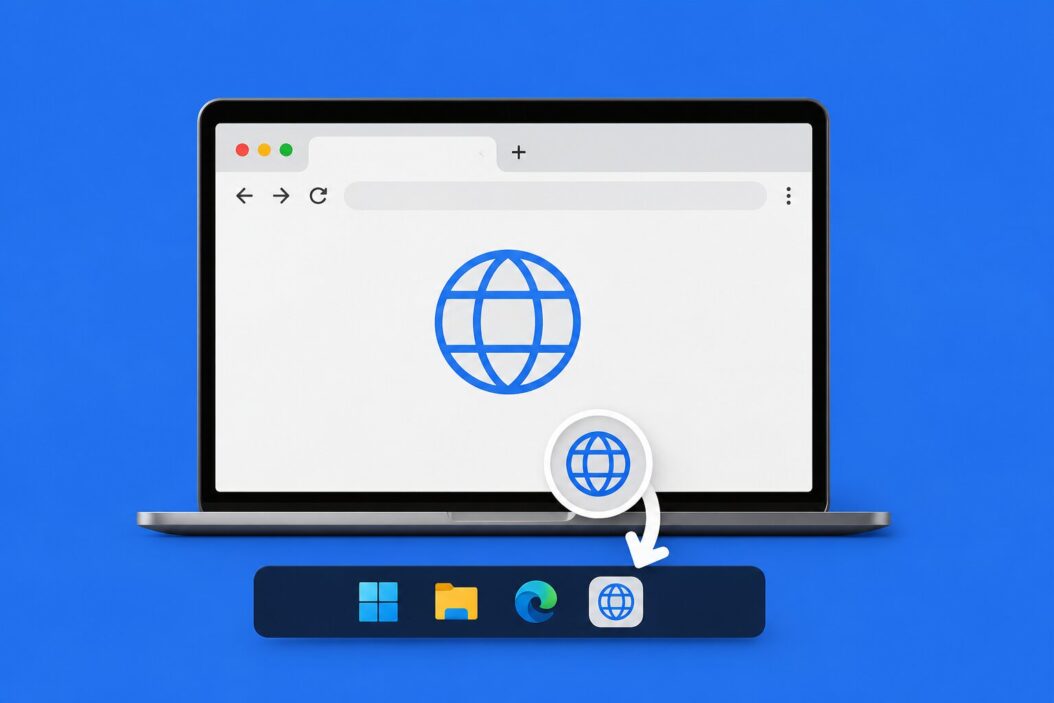
When you pin a website to the taskbar, Windows places a clickable icon at the bottom of your screen. One click opens that site straight away. It works like any app shortcut, but it launches a webpage instead of a program.
This is different from bookmarks. Bookmarks live inside your browser. A taskbar pin lives on your desktop environment and works even when your browser is closed.
How to Pin a Website to Taskbar in Windows 11 Using Microsoft Edge
Edge is built into Windows 11 and has the cleanest method for this.
Step 1. Open Microsoft Edge and go to the website you want to pin.
Step 2. Click the three-dot menu (top right corner).
Step 3. Go to Apps then click Pin to taskbar.
Step 4. A dialog box asks you to confirm. Click Pin.
The site icon now appears in your taskbar. Click it anytime to open that page in its own window, separate from your regular browser tabs.
Some sites show their own branded icon. Others default to a generic Edge icon. That depends on whether the website has set up a proper favicon or web app manifest.
How to Do It in Google Chrome (Windows 10 and 11)
Chrome uses a slightly different path but the result is the same.
Step 1. Open Chrome and visit the site you want.
Step 2. Click the three-dot menu at the top right.
Step 3. Go to Save and share, then select Create shortcut.
Step 4. Check the box that says Open as window if you want it to open without the full browser UI.
Step 5. Click Create.
A shortcut lands on your desktop. Right-click it, then choose Pin to taskbar. Done.
Chrome’s “Open as window” option is worth using. It strips the address bar and tabs, so the site feels more like a standalone app. Great for tools you use daily, like your project management board or email client.
Pinning a Website Using Firefox
Firefox does not have a native “pin to taskbar” feature for websites. Here is the workaround I use.
Step 1. Open Firefox and go to your site.
Step 2. Look at the address bar. You’ll see a small icon (the favicon) to the left of the URL.
Step 3. Click and drag that favicon directly onto your desktop. It creates a shortcut file.
Step 4. Right-click the shortcut on your desktop and select Pin to taskbar.
This method works on both Windows 10 and 11. The shortcut opens the link in your default browser when clicked.
The Manual Method: Works for Any Browser
If the above methods don’t apply to your situation, create the shortcut manually.
Step 1. Right-click on an empty area of your desktop.
Step 2. Hover over New, then click Shortcut.
Step 3. In the location field, type your browser’s path followed by the URL. For Chrome it looks like this:
"C:\Program Files\Google\Chrome\Application\chrome.exe" https://yoursite.com
Step 4. Click Next, give the shortcut a name, then click Finish.
Step 5. Right-click the shortcut on your desktop and choose Pin to taskbar.
You can also change the icon. Right-click the shortcut, go to Properties, then Change Icon. This is useful when you want a cleaner look on your taskbar.
Pinning a Progressive Web App (PWA)
Some websites support PWA installation. These are sites that behave like apps: they have offline support, push notifications, and their own window. Examples include Twitter/X, Spotify Web, and many productivity tools.
When a site supports PWA, you’ll see an install icon in the Edge or Chrome address bar. It looks like a small computer screen with a download arrow.
Step 1. Click that install icon in the address bar.
Step 2. Click Install in the popup.
Step 3. The app installs and opens in its own window. Windows automatically adds it to your taskbar.
PWA shortcuts are the best version of this feature. They feel native, load fast, and stay separate from your browser session.
Windows 10 Specific Notes
Windows 10 works the same way as Windows 11 for all the methods above. The taskbar looks slightly different visually, but the right-click menu options and browser menus are identical.
One thing that tripped me up on Windows 10: after creating a desktop shortcut, sometimes the “Pin to taskbar” option doesn’t appear in the right-click menu. This happens when Windows doesn’t recognize the file as a proper application shortcut.
Fix: Right-click the shortcut, go to Properties, and make sure the Target field points to an executable (like chrome.exe or msedge.exe) followed by the URL. If it just shows a URL with no executable, Windows won’t offer the pin option.
Which Method to Use
| Browser | Native Pin Option | Extra Steps Needed | Opens as App Window |
|---|---|---|---|
| Microsoft Edge | Yes | None | Yes |
| Google Chrome | Yes (via shortcut) | Pin from desktop | Optional |
| Firefox | No | Drag favicon to desktop | No |
| Any browser | No | Manual shortcut creation | Depends on setup |
How to Remove a Pinned Website from Taskbar
Right-click the pinned icon on your taskbar. Select Unpin from taskbar. The shortcut disappears immediately. This does not delete anything from your browser or computer.
Organizing Your Taskbar After Pinning
Once you have a few sites pinned, your taskbar can get crowded. A few things that help:
You can drag pinned icons left or right to reorder them. Put the sites you use most toward the left, closest to the Start button.
If you pinned via Edge’s “Apps” method, go to Edge Settings > Apps > Installed apps to manage everything in one place. You can uninstall, open, or modify each pinned site from there.
Common Problems and Fixes
The “Pin to taskbar” option is grayed out. This usually means the shortcut target isn’t recognized as an app. Edit the shortcut properties and make sure the Target field starts with the full path to your browser executable.
The icon shows a blank or generic look. The website may not have a proper favicon set up. You can manually change the icon by right-clicking the shortcut, going to Properties, then Change Icon, and selecting any .ico file on your computer.
Clicking the pin opens the wrong browser. If you created the shortcut manually, it will use whichever browser you specified in the Target field. Change that path to your preferred browser executable.
The pinned site keeps opening in a tab instead of its own window. For Chrome shortcuts, make sure you checked “Open as window” during creation. For Edge apps, this behavior is automatic.
Conclusion
Pinning a website to your taskbar in Windows 10 or 11 is genuinely useful once you set it up. Microsoft Edge gives you the smoothest experience with its built-in Apps feature. Chrome works well too with the Create Shortcut option. Firefox needs a workaround, but it still gets the job done.
The manual shortcut method is worth knowing because it works for every situation, even if your browser doesn’t have a native option. And if your favorite site supports PWA installation, that’s the best route of all since it behaves like a real app.
Frequently Asked Questions
Can I pin a specific page on a website, not just the homepage?
Yes. Whatever URL you have open when you create the shortcut is the one that gets pinned. So if you want to pin the dashboard page of a tool rather than its homepage, navigate to that exact page before going through the pinning steps. The shortcut will open that specific URL every time.
Does the pinned website work offline?
Standard website shortcuts require an internet connection to load. They are just browser shortcuts, not local files. PWA-based pins are the exception. Some PWAs cache content and can show previously loaded data offline, but that depends entirely on how the website developer built the PWA.
Will my pinned sites survive a Windows update?
In most cases, yes. Taskbar pins are stored in your user profile and Windows updates do not typically clear them. However, major Windows feature updates occasionally reset taskbar customizations. Taking a screenshot of your taskbar before a big update is a simple way to remember what you had pinned.
Can I pin the same website more than once with different icons?
Technically yes. You can create multiple manual shortcuts pointing to the same URL, give each a different name and icon, and pin all of them. This is useful if you want to pin the same site with different URL parameters, like a filtered view versus the default view of a dashboard.
Is there a limit to how many websites I can pin to the taskbar?
Windows does not enforce a hard limit, but your taskbar has physical space constraints. As you add more icons, they get smaller or overflow. In practice, keeping it under 10 pinned items keeps things readable. If you need more, consider using the Start menu or browser bookmarks for less-used sites.
