
WhatsApp has always been tied to your phone number. But that does not mean you are stuck using only your phone. There are several legitimate ways to log into WhatsApp without physically using your phone every time, or even without a smartphone at all in some cases.
The Short Answer
You can log into WhatsApp without your phone using:
- WhatsApp Web on a computer browser
- WhatsApp Desktop app on Windows or Mac
- Linked Devices feature (works even when your phone is offline)
- WhatsApp on a tablet (iPad or Android tablet)
- A virtual phone number if you need to create an account without a physical SIM
Each method works differently. I will explain all of them.
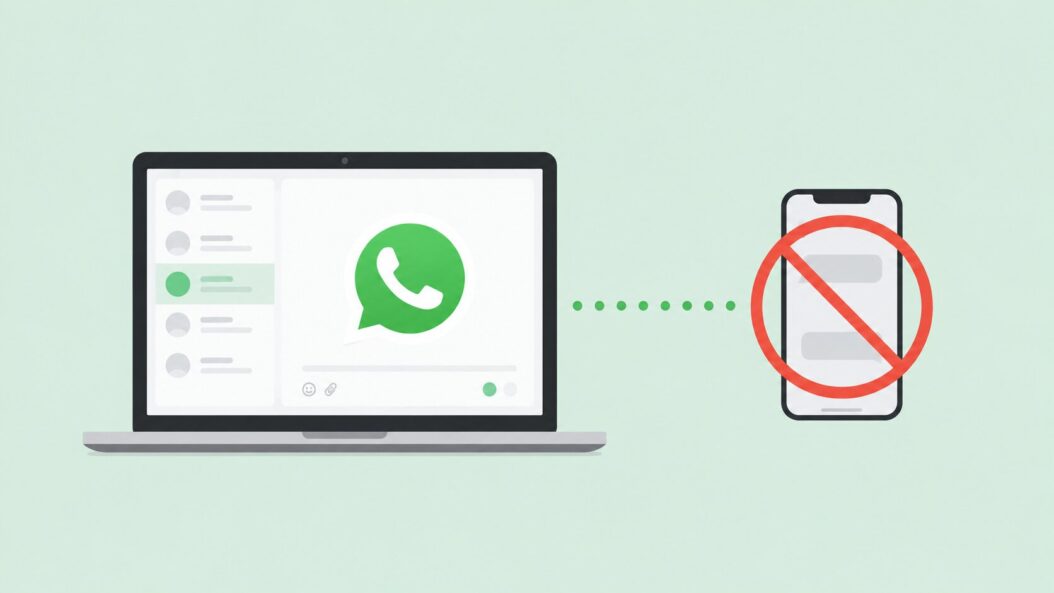
Method 1: WhatsApp Web (Browser Login)
This is the most common method. You open WhatsApp on a browser, scan a QR code once, and you are in.
Steps to Log In via WhatsApp Web
- Open your browser and go to web.whatsapp.com
- You will see a QR code on screen
- Open WhatsApp on your phone
- Tap the three-dot menu (Android) or Settings (iPhone)
- Tap Linked Devices
- Tap Link a Device
- Point your phone camera at the QR code on your computer screen
- Done. WhatsApp Web loads instantly
Once linked, your WhatsApp Web session stays active even if your phone is not nearby, thanks to the multi-device feature WhatsApp rolled out. Your phone does not need to stay connected to the internet for you to use WhatsApp Web.
What You Can Do on WhatsApp Web
- Send and receive messages
- Make voice and video calls
- Share files, images, documents
- Use status updates
- Manage groups
What You Cannot Do
- Change your account phone number
- Access payment features in some regions
- Use certain privacy settings
Method 2: WhatsApp Desktop App
If you spend most of your time on a computer, the desktop app is better than the browser version. It runs faster, sends notifications more reliably, and feels more stable.
How to Set It Up
- Download the WhatsApp Desktop app from whatsapp.com/download
- Install it on Windows or Mac
- Open the app
- You will see a QR code, same as WhatsApp Web
- Open WhatsApp on your phone, go to Linked Devices, and scan
- You are logged in
The desktop app keeps you logged in across restarts. You do not need to scan the QR code again unless you log out or your session expires.
Desktop App vs WhatsApp Web
| Feature | WhatsApp Web | Desktop App |
|---|---|---|
| Runs in browser | Yes | No |
| System notifications | Limited | Full |
| Keyboard shortcuts | Basic | More options |
| Works offline | No | No |
| Setup required | Scan QR | Install + Scan QR |
| Speed | Medium | Faster |
| Recommended for | Quick use | Daily use |
Method 3: Using Linked Devices Without Your Phone Nearby
This is the feature that changed everything. WhatsApp’s Linked Devices now works independently. Once you link your computer or tablet, it stays connected even when your phone is off, out of battery, or not on the internet.
You can link up to four devices to one WhatsApp account.
Devices You Can Link
- Computer (via WhatsApp Web or Desktop)
- iPad
- Android tablet
- Meta Portal devices
- WhatsApp on a second phone (in some regions)
Important Notes
- If your primary phone is inactive for more than 14 days, linked devices get disconnected
- You cannot have two different phone numbers on the same linked device simultaneously
- Messages sync across all linked devices
Method 4: WhatsApp on iPad or Android Tablet
WhatsApp now officially supports tablets. This is useful if you want a separate screen experience or your primary device is not a phone.
How to Set Up WhatsApp on iPad
- Open the App Store on your iPad
- Search for WhatsApp Messenger
- Install it
- Open the app on your iPad
- It will show you a QR code
- Scan it using your phone’s WhatsApp under Linked Devices
- Your account is now active on your iPad
This works the same way for Android tablets.
WhatsApp Companion Mode
WhatsApp calls this Companion Mode. Your tablet acts as a companion to your main phone account. It is not a separate account, it mirrors your existing one. You can read all messages, reply to chats, and use all standard features.
Method 5: Log Into WhatsApp Without a Physical Phone Using a Virtual Number
This is a different use case. Maybe you do not have a smartphone at all, or you want to create a WhatsApp account without using your personal number.
You can register WhatsApp using a virtual phone number and then use WhatsApp Web or the desktop app exclusively.
What Is a Virtual Number
A virtual number is a real phone number that exists online. You receive calls and SMS to it through an app or website, not a physical SIM card.
Some services that offer virtual numbers:
- Google Voice (free, US-based)
- Hushed
- TextNow
- 2ndLine
How to Register WhatsApp with a Virtual Number
- Get a virtual number from any of the services above
- Download WhatsApp on any Android emulator (like BlueStacks on PC) or on a spare device
- Open WhatsApp and enter your virtual number
- Request the SMS verification code
- Receive the code in your virtual number app
- Enter the code in WhatsApp
- Your account is created
- Now link it to WhatsApp Web or the desktop app
This method works but has one limitation. If your virtual number expires or gets recycled, you lose access to your account. Use a stable, paid virtual number if you rely on this setup long-term.
Method 6: Android Emulators on PC
An Android emulator runs a full Android environment on your Windows or Mac computer. You can install WhatsApp inside it and use it directly on your PC without a phone.
Popular Emulators
| Emulator | Platform | Free | Best For |
|---|---|---|---|
| BlueStacks | Windows, Mac | Yes | Beginners |
| LDPlayer | Windows | Yes | Performance |
| NoxPlayer | Windows, Mac | Yes | Multi-instance |
| Genymotion | Windows, Mac, Linux | Paid | Developers |
How to Use WhatsApp on BlueStacks
- Download and install BlueStacks from bluestacks.com
- Open BlueStacks and sign in with a Google account
- Open the Play Store inside BlueStacks
- Search for WhatsApp and install it
- Open WhatsApp inside BlueStacks
- Enter a phone number (use a virtual number if needed)
- Verify with the OTP
- WhatsApp is now running on your PC like a native app
Emulators are heavier on system resources. If your PC has at least 8 GB RAM, it runs smoothly. Below that, it might feel sluggish.
Keeping Your Account Secure
Logging in without a phone is convenient, but it opens up some security considerations worth knowing.
Always Check Linked Devices Regularly
Someone with brief access to your phone could link a device without your knowledge. Check this monthly.
Open WhatsApp on your phone, go to Settings, then Linked Devices. You will see every active session. Tap any device and select Log Out to remove it.
Enable Two-Step Verification
This adds a PIN layer to your account. Even if someone gets your verification code, they cannot set up your account without the PIN.
To enable it: Settings > Account > Two-Step Verification > Enable
Log Out From Unused Sessions
If you logged into WhatsApp Web on a shared computer, log out when done. WhatsApp Web stays logged in until you log out or the session expires.
You can also force logout all devices remotely from your phone:
Settings > Linked Devices > [select device] > Log Out
When WhatsApp Web Does Not Work: Troubleshooting
| Problem | Likely Cause | Fix |
|---|---|---|
| QR code keeps refreshing | Browser cache issue | Clear cache or try a different browser |
| Says “Phone not connected” | Old WhatsApp version | Update WhatsApp on your phone |
| Cannot scan QR code | Camera permission off | Enable camera in phone settings |
| Keeps logging out | Session expired | Re-scan QR code |
| Web loads but no messages | Sync issue | Restart browser and re-link |
| WhatsApp Web blocked | Network restriction | Use a different network or VPN |
Can You Use WhatsApp Completely Without a Phone Number?
Technically, no. WhatsApp requires a phone number for registration. But that number does not have to be from a physical SIM. Once registered with a virtual number and set up on a computer, you can use WhatsApp entirely from a desktop or laptop without ever touching a smartphone.
The phone number is only used for initial verification and for others to contact you. The actual usage can happen entirely on a non-phone device.
Conclusion
Logging into WhatsApp without your phone is not complicated once you know the right method. WhatsApp Web is the fastest solution for most situations. The desktop app is better if you work on a computer daily. Tablets with Companion Mode give you a phone-like experience on a bigger screen. And if you need to go fully without a smartphone, a virtual number combined with an emulator or a spare device does the job.
The multi-device support WhatsApp introduced has made all of this much more practical. Your sessions stay alive, messages sync, and you get a smooth experience across devices without needing your phone glued to your side.
Frequently Asked Questions
Can I log into someone else’s WhatsApp on my phone without them knowing?
No. WhatsApp requires access to the registered phone number for OTP verification or physical access to the phone to scan a QR code. There is no backdoor. Any service claiming otherwise is a scam or spyware, which is both illegal and dangerous. If you are trying to access a family member’s account for monitoring, have that conversation openly instead.
My phone broke and I lost access. How do I get back into WhatsApp?
Get a new SIM with your old number reinstated by your carrier. Then install WhatsApp on any device and verify with that same number. Your chat history stored on cloud backup (Google Drive or iCloud) will be restored. Messages not backed up are lost permanently once the old device is gone.
Does WhatsApp Web work if my phone is switched off?
Yes, as of 2024 and continuing in 2026, WhatsApp Web works independently through the multi-device feature. Your phone can be off or without internet, and WhatsApp Web still sends and receives messages. However, if your phone stays inactive for more than 14 days, the linked session will disconnect.
I get a “This phone number is already registered” error when using a virtual number. What now?
That number was used to register a WhatsApp account before. Either you registered it earlier and forgot, or the virtual number was reused by the provider. Try a different virtual number, or if the account is yours, go through the account recovery process by re-verifying with the same number.
Is it against WhatsApp’s terms to use an emulator or virtual number?
WhatsApp’s Terms of Service do not explicitly ban emulators, but they do restrict automated behavior and third-party clients. Using a standard emulator to run the official WhatsApp app falls in a grey area that most users experience without issues. Virtual numbers are not banned either. That said, WhatsApp reserves the right to ban accounts they detect as suspicious. Using the official app through an emulator with normal human usage rarely triggers this.
