
Your IP address can be changed in minutes. The method depends on what you’re trying to do, what device you’re on, and how permanent you want the change to be.
An IP address is a number your internet provider assigns to your connection. It identifies your device on the internet the same way a home address identifies your house.
There are two types you need to know about:
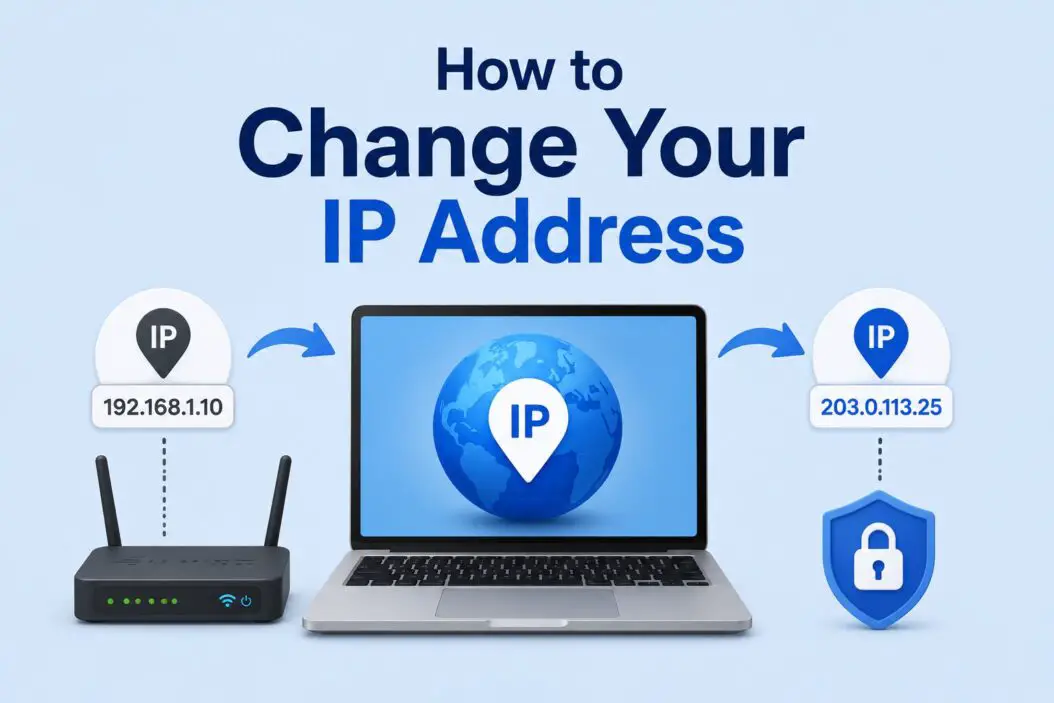
Public IP is what websites see when you connect. It’s assigned by your ISP.
Private IP is what your router assigns to devices inside your home network. Your laptop, phone, and TV each get one.
Most people want to change their public IP. Reasons include:
- Your current IP got blocked by a website or service
- You want more privacy while browsing
- You need to bypass regional content restrictions
- Your ISP gave you a blacklisted IP that affects email delivery
- You’re dealing with a ban or rate limit tied to your IP
Some people want to change their private IP, usually to fix network conflicts or configure a static address for a device.
Both are covered below.
How to Change Your Public IP Address
Method 1: Restart Your Router
This is the first thing to try. Most ISPs assign dynamic IPs, which means your address can change every time you reconnect.
Steps:
- Unplug your router from the power outlet
- Wait 60 seconds, not just 10
- Plug it back in
- Wait for it to fully reconnect
- Check your IP at a site like whatismyip.com
If your IP changed, you’re done. If it stayed the same, your ISP may have assigned you a semi-static or static IP, and you’ll need one of the methods below.
Leaving it unplugged longer increases the chance of getting a new IP. Some people unplug overnight. It depends on how long your ISP holds onto your old IP lease.
Method 2: Use a VPN
A VPN replaces your real IP with one from their server. Every website you visit sees the VPN’s IP, not yours.
This is the most reliable and flexible method. You can pick a server in a different city or country and switch whenever you want.
How it works in practice:
- Download a VPN app (Mullvad, ProtonVPN, and ExpressVPN are solid options)
- Connect to any server
- Your public IP immediately changes to that server’s IP
- Disconnect and your real IP comes back
VPNs are the go-to choice when you need to change your IP consistently, need to appear to be in a specific location, or want privacy as a bonus.
One thing worth knowing: free VPNs often log your activity, have limited servers, and may actually be less private than just using your regular connection. If privacy matters to you, pay for a reputable one.
Method 3: Use a Proxy Server
A proxy routes your traffic through another server before reaching your destination. The destination site sees the proxy’s IP.
Proxies are faster to set up than VPNs but offer less protection. They work at the browser or app level, not the whole device.
You can configure a proxy in your browser settings or use browser extensions. SOCKS5 proxies are more capable than basic HTTP proxies and work with more applications.
Use a proxy when you need a quick IP change for a specific app and don’t need full-device coverage.
Method 4: Use Tor Browser
Tor routes your traffic through multiple servers before reaching the destination. Your IP gets masked completely, and it changes with every new session or circuit.
Download it from the official Tor Project site. Install it like a regular browser and start using it. No configuration needed.
The trade-off is speed. Tor is significantly slower than a regular connection because of how it routes traffic. It’s ideal for anonymity, not for streaming or anything bandwidth-heavy.
Method 5: Connect to a Different Network
If you connect from a different network, you get a different IP automatically. Your IP is assigned by whatever network you’re on.
Practical options:
- Switch from home WiFi to mobile data on your phone
- Go to a coffee shop and use their WiFi
- Use your phone as a mobile hotspot on your laptop
This is the fastest method when you’re dealing with a site block tied to your current IP. Just switch networks and you’re in with a completely different address.
Method 6: Contact Your ISP
If you need a permanent IP change and nothing else is working, call your internet provider and ask them to change your IP address.
Many ISPs will do this for free, especially if you explain a valid reason like receiving spam tied to your current IP, or a security issue.
Some ISPs charge for static IPs or will only give you a dynamic IP that changes periodically. Ask specifically for a new IP lease.
How to Change Your Private IP Address
Your private IP is assigned by your router. Changing it affects how your device is identified within your home network, not on the internet.
On Windows
- Open Settings and go to Network and Internet
- Click on your active connection (WiFi or Ethernet)
- Scroll down and click Edit under IP assignment
- Switch from Automatic (DHCP) to Manual
- Enter your desired IP address (something like 192.168.1.50)
- Fill in the subnet mask: 255.255.255.0
- Enter your gateway (usually 192.168.1.1 or 192.168.0.1)
- Save and reconnect
Alternatively, you can open Command Prompt and type ipconfig /release followed by ipconfig /renew. This tells your router to assign you a new IP from its available pool.
On Mac
- Open System Settings and click Network
- Select your active connection
- Click Details
- Go to the TCP/IP tab
- Change Configure IPv4 from Using DHCP to Manually
- Enter your desired IP, subnet mask, and router address
- Click OK and reconnect
On iPhone and iPad
- Open Settings and tap WiFi
- Tap the info icon next to your connected network
- Scroll to the IPv4 Address section
- Tap Configure IP
- Switch from Automatic to Manual
- Enter your IP, subnet mask, and gateway
- Save
On Android
Steps vary slightly by manufacturer, but the general path is:
- Open Settings and go to WiFi
- Long press your connected network or tap the gear icon
- Tap Manage Network Settings or Advanced
- Change IP settings from DHCP to Static
- Enter your IP and network details
- Save
On Linux
Open terminal and use this command to see your current IP:
ip addr showTo set a static IP temporarily:
sudo ip addr add 192.168.1.50/24 dev eth0Replace eth0 with your actual interface name. For a permanent change, edit your network configuration files in /etc/network/interfaces or use NetworkManager depending on your distribution.
Changing Your IP on Mobile Devices
On a smartphone, switching between WiFi and mobile data instantly gives you a different public IP. Your mobile carrier assigns a separate IP pool from your home ISP.
If you want to change the IP on your mobile connection specifically, most carriers use carrier-grade NAT, which means you share an IP range with many users. You can’t directly control it.
Using a VPN app on mobile gives you full control over what IP sites see, regardless of whether you’re on WiFi or data.
How to Check if Your IP Changed
After any method above, verify the change worked:
- Go to whatismyip.com or just search “what is my IP” on Google
- Compare the address shown with what you had before
- If it’s different, the change worked
If you’re using a VPN, also run a DNS leak test to make sure your real location isn’t leaking through your DNS requests. Sites like dnsleaktest.com show you this quickly.
When Your IP Won’t Change
Sometimes an IP stays the same even after trying multiple methods. Here’s what might be happening:
Your ISP assigned you a static IP. This is common with business internet plans. You’ll need to contact them to change it or use a VPN.
Your router hasn’t fully released the old lease. Try leaving it unplugged for several hours.
You’re behind a double NAT. If your modem and router are separate devices, you may need to restart both.
The VPN is connected but not routing properly. Disconnect, choose a different server, and reconnect.
A Quick Comparison of Methods
| Method | Changes Public IP | Changes Private IP | Speed | Privacy Level |
|---|---|---|---|---|
| Router restart | Yes (sometimes) | No | Instant | None extra |
| VPN | Yes | No | Fast | High |
| Proxy | Yes | No | Fast | Medium |
| Tor | Yes | No | Slow | Very High |
| Switch networks | Yes | No | Instant | None extra |
| Manual config | No | Yes | Instant | None extra |
| Contact ISP | Yes | No | Days | None extra |
Is Changing Your IP Legal
Yes, in almost every country. Changing your IP is not illegal. It’s a standard network practice.
What matters is what you do with the changed IP. Using it to evade a court order, commit fraud, or bypass a legal block could have legal implications depending on your country. The act of changing the IP itself is not the issue.
Businesses change IPs routinely for security and infrastructure reasons. Individuals do it for privacy, access, and troubleshooting. Both are normal.
Conclusion
The fastest way to change your public IP is to restart your router, switch to a different network, or use a VPN. All three work in under a minute.
If you need a consistent, reliable change with added privacy, a paid VPN is the right long-term solution. If you just need a one-time fix, restarting the router or hopping onto mobile data will usually do it.
For private IP changes on your local network, manual configuration through your OS network settings gives you full control and takes about two minutes.
Frequently Asked Questions
Does changing my IP address remove me from a website ban?
It depends on how the ban was applied. If a site banned your specific IP, then yes, a new IP lets you back in. But many modern platforms also ban by account, device fingerprint, or cookies. Changing your IP alone won’t help if the ban is tied to your account or browser. Clear your cookies and use a fresh account if an IP change doesn’t work.
How often does my IP address change on its own?
With most home ISPs, your IP can stay the same for weeks or months even with a dynamic assignment. It usually only changes when your router reconnects after a long outage or when your DHCP lease expires and the ISP doesn’t reassign the same address. There’s no fixed schedule.
Can my ISP see my activity if I change my IP using a VPN?
Your ISP can see that you’re connected to a VPN server, but they cannot see what you’re doing inside that encrypted tunnel. They see the VPN connection, not the destination sites or content. The VPN provider, however, can potentially see your traffic, which is why choosing a no-logs provider matters.
Will a new IP address speed up my internet connection?
Not directly. Your internet speed is determined by your plan and infrastructure, not your IP address. However, if your current IP was throttled, flagged, or routed through a congested node, switching via a VPN to a different server could sometimes improve routing and reduce latency. It’s not guaranteed but it does happen.
What’s the difference between IPv4 and IPv6 addresses, and does it matter when changing my IP?
IPv4 addresses look like 192.168.1.1 and are the most common type. IPv6 addresses are longer and were introduced because we’re running out of IPv4 addresses. Most sites support both. When you change your IP, the type you get depends on your ISP and device settings. Some VPNs only change your IPv4 address and leave IPv6 exposed, which can reveal your real location. Make sure your VPN handles both if privacy is your goal.
