
Your cursor is something you stare at all day, every day. Changing it takes less than two minutes on most systems, and it makes a real difference, especially if you spend long hours in front of a screen.
Here is the short answer: on Windows, go to Settings > Accessibility > Mouse pointer and touch > Mouse pointer style. On Mac, go to System Settings > Accessibility > Display > Pointer. That covers the basics. Keep reading if you want custom cursors, animated ones, or help with browsers and specific apps.
Why People Change Their Cursor
Most people do it for one of three reasons:
- The default cursor is too small and hard to see
- They want a personal touch, a custom icon, a game character, or a color that pops
- Accessibility needs, like high contrast or a larger pointer for low vision
All of these are valid. The process is simple on every major platform.
How to Change Your Cursor on Windows 11 and Windows 10
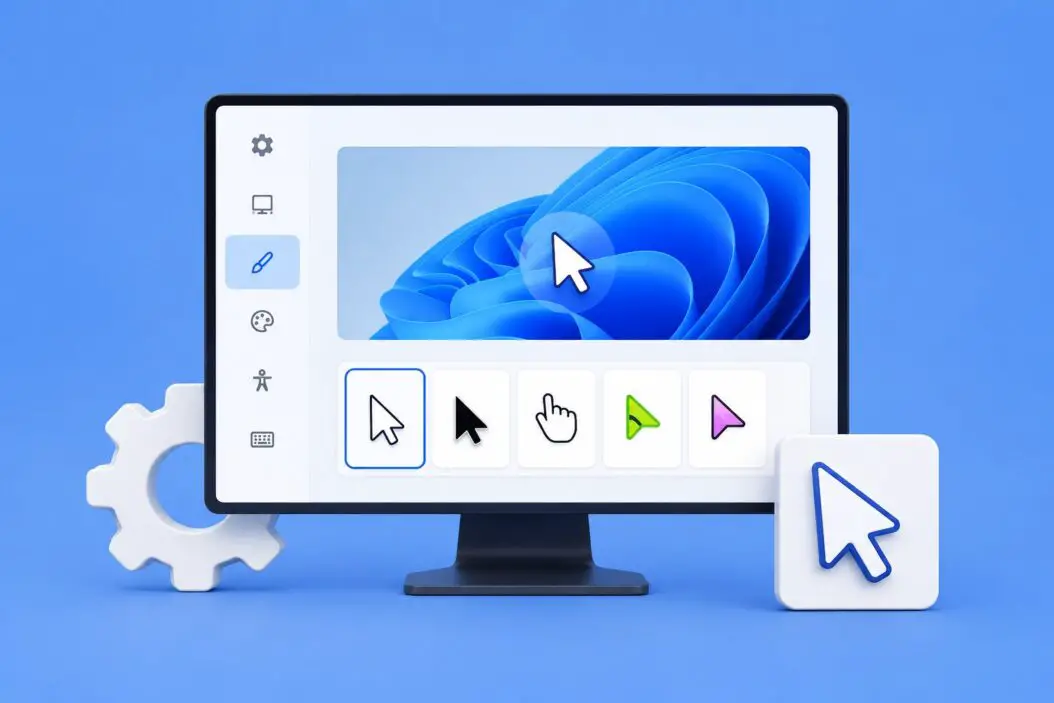
The Built-In Method (Fastest)
Windows has a built-in cursor settings panel that most people never explore.
Windows 11:
- Open Settings
- Go to Accessibility
- Click Mouse pointer and touch
- Under “Mouse pointer style,” pick White, Black, Inverted, or Custom
- Drag the size slider to make it bigger or smaller
That is it. The change applies instantly, no restart needed.
Windows 10:
- Open Settings
- Go to Ease of Access
- Click Mouse pointer on the left
- Choose your style and adjust the size
Change to a Fully Custom Cursor on Windows
The default options are limited. If you want a custom cursor, a sword, a dinosaur, a glowing ring, you need to install a cursor set.
Step 1: Download a cursor pack
The most trusted source is RealWorld Cursor Editor or DeviantArt. Search for “Windows cursor pack” and download a .cur or .ani file set. Always scan downloads with your antivirus.
Step 2: Install it
- Extract the zip file to a folder
- Right-click the
.inffile inside the folder - Click Install
If there is no .inf file, do it manually:
- Press Win + R, type
main.cpl, hit Enter - Go to the Pointers tab
- Click on any pointer action (like “Normal Select”)
- Click Browse and find your
.curfile - Click Apply then OK
Step 3: Save it as a scheme
Once you have custom cursors set up, save the whole thing as a scheme so you can switch back easily. In the Pointers tab, click Save As and give it a name.
Use a Third-Party App on Windows
Apps like Cursor FX or RainMeter give you animated cursors and more control. They are popular with gamers and desktop customization fans. Just stick to well-known tools and read user reviews before installing anything.
How to Change Your Cursor on Mac
Mac does not support custom cursor files the way Windows does, but it gives you solid built-in controls.
Resize and Recolor the Cursor
macOS Ventura and later:
- Open System Settings
- Go to Accessibility
- Click Display
- Scroll to the Pointer section
- Drag the Pointer size slider
- Use Pointer outline color and Pointer fill color to change the look
You can make the pointer outline orange and the fill white, for example. It stands out well on any background.
macOS Monterey and earlier:
- Open System Preferences
- Go to Accessibility
- Click Display
- Adjust pointer size using the slider
Custom Cursors on Mac
Apple does not officially support third-party cursor themes system-wide. However, some apps do it indirectly:
- Cursor Pro (paid app on the App Store) gives you a highlighted cursor effect, great for presentations
- Browsers can change cursor appearance on specific websites through CSS, which developers control
For full custom cursor support on Mac, you are better off using a virtual machine or waiting for a workaround in your specific app.
How to Change Your Cursor on Linux
Linux gives you the most freedom here, especially on GNOME and KDE.
GNOME (Ubuntu, Fedora, Pop OS)
- Install GNOME Tweaks if you do not have it:
sudo apt install gnome-tweaks - Open GNOME Tweaks
- Go to Appearance
- Under Cursor, pick a theme from the dropdown
To add new cursor themes, download a theme (from GNOME-Look.org), extract it to ~/.local/share/icons/, then refresh GNOME Tweaks and select it.
KDE Plasma (Kubuntu, KDE Neon)
- Open System Settings
- Go to Workspace Appearance > Cursors
- Choose a theme from the list or click Get New Cursors to browse and install directly
- Click Apply
KDE makes this incredibly easy. You can install animated cursors directly from the settings panel with one click.
Command Line Method (Any Desktop)
gsettings set org.gnome.desktop.interface cursor-theme 'DMZ-Black'Replace DMZ-Black with the name of your installed theme.
How to Change Your Cursor in a Web Browser
Browsers do not have a built-in cursor changer as a user setting, but there are two ways to do it.
Browser Extensions
Chrome and Edge:
- Search the Chrome Web Store for “custom cursor”
- The extension called Custom Cursor for Chrome has millions of users and a large library
- Install it, open its settings, pick a cursor, done
Firefox:
- Use the add-on Cursor Changer from the Firefox Add-ons store
These extensions only affect the browser window. Your system cursor stays the same outside of it.
For Developers: CSS Cursor Property
If you manage a website and want to change the cursor for visitors:
body {
  cursor: url('mycursor.cur'), auto;
}
You can also use built-in CSS cursor values like pointer, crosshair, grab, zoom-in, and more without any custom file.
How to Change Your Cursor in Specific Apps
Some apps have their own cursor settings.
| App | Where to Change It |
|---|---|
| Adobe Photoshop | Preferences > Cursors |
| Microsoft PowerPoint | No cursor change, but presenter tools add pointer effects |
| OBS Studio | Cursor settings in Scene/Source properties |
| Figma | No built-in option, use system cursor |
| Games (most) | Settings > Controls or Accessibility |
In Photoshop, the brush cursor can be set to “Normal Brush Tip,” “Full Size Brush Tip,” or a standard crosshair. That is under Edit > Preferences > Cursors on Windows or Photoshop > Preferences > Cursors on Mac.
Accessibility Tips for Cursor Changes
If you are changing your cursor because the default one is hard to see, these settings help the most:
Windows:
- Use the Inverted cursor style, it flips color based on background
- Size 3 or above is noticeable without looking cartoonishly large
- Enable Show pointer trails in Mouse Properties for extra visibility
Mac:
- Bright outline colors like yellow or orange work well on both dark and light screens
- macOS also has Shake to find cursor, just shake your mouse fast and the cursor grows temporarily
Linux:
- High-contrast cursor themes like Breeze Snow or Bibata are designed for visibility
- Font scaling in accessibility settings sometimes affects cursor-adjacent elements too
Troubleshooting: Cursor Changes Not Working
Here are fixes for the most common issues.
Problem: Cursor reverts after restart
On Windows, this usually means the cursor scheme did not save. Go back to the Pointers tab in Mouse Properties, make your selections, and click Save As before hitting OK.
Problem: Cursor looks blurry or pixelated
Custom .cur files come in different resolutions. On high-DPI (HiDPI or Retina) displays, low-resolution cursors look bad. Download cursor packs that include @2x or high-DPI versions.
Problem: Custom cursor only shows in some apps
Some apps override the system cursor. This is common in games, design tools, and browsers. For those, you either use the app’s own cursor settings or an extension.
Problem: Animated cursor not animating
.ani files only animate in some environments. On Windows, make sure hardware acceleration is enabled. On Linux, ensure your desktop environment supports animated cursors (most modern ones do).
Cursor Change Methods by Platform
| Platform | Built-in Options | Custom Cursor Support | Easiest Method |
|---|---|---|---|
| Windows 11 | Yes (size, color, style) | Yes (.cur/.ani files) | Settings > Accessibility |
| Windows 10 | Yes (size, color) | Yes | Ease of Access |
| macOS | Yes (size, color) | Limited | System Settings > Accessibility |
| Linux GNOME | Yes (via Tweaks) | Full support | GNOME Tweaks |
| Linux KDE | Yes (built-in) | Full support | System Settings > Cursors |
| Chrome Browser | No (use extension) | Via extension | Chrome Web Store |
Conclusion
Changing your cursor is one of those small tweaks that feels disproportionately satisfying. Windows gives you the most flexibility with full custom cursor support. Mac keeps it clean but limits full customization. Linux, especially KDE, is the most powerful of the three. For browsers, extensions do the job well.
If you are doing this for accessibility, focus on size and color contrast first, those two changes alone make a significant difference. If you are doing it for style, stick to reputable sources for cursor packs and always check user reviews before installing anything from an unknown site.
FAQs
Can changing my cursor slow down my computer?
Animated cursors use a tiny amount of CPU, practically nothing on modern hardware. The only exception is very old systems running complex cursor themes with high frame rates. On any computer made in the last decade, you will not notice any performance difference.
Do cursor changes affect screenshots and screen recordings?
By default, the cursor does not appear in screenshots on most systems. In screen recordings, it depends on your software. OBS Studio, for example, has a setting to capture the cursor. If it does capture it, your custom cursor will appear exactly as it looks on screen.
I installed a cursor pack but only the arrow changed. What happened?
Cursor packs usually include separate files for each cursor state, like the text cursor, loading spinner, resize arrows, and so on. If you installed it manually through the Pointers tab, you only replaced one. Go through each cursor type in the list and assign the matching file from your pack.
Can I use a cursor theme I made myself?
Yes, on Windows you can create .cur files using free tools like RealWorld Cursor Editor. On Linux, cursor themes are just PNG images in a specific folder structure with a cursors subfolder. The process takes some time but it is well documented and completely possible without any special software license.
Does changing the cursor affect all user accounts on my computer?
No. Cursor settings are per-user on both Windows and macOS. Each account has its own cursor configuration. If you want to apply changes across all accounts on Windows, you need to do it through the Registry or Group Policy, which is more advanced and best left alone unless you know what you are doing.
