
Installing programs on Windows sounds simple until something goes wrong. You download a file, double-click it, and nothing happens. Or you’re not sure which version to grab. Or Windows keeps blocking the install. I’ve been there, and this article covers every real way to install software on Windows 10 and 11, including the methods most people never try.
The Fastest Way to Install a Program on Windows
Download the installer from the official website. Run it. Follow the prompts. Done.
That’s the short answer. But there’s a lot more happening behind the scenes, and knowing it saves you from headaches later.
Most Windows programs come as .exe or .msi files. EXE files are general-purpose installers. MSI files are Microsoft Installer packages, often used by enterprise software. Both work the same way from your end. Double-click, follow the wizard, done.
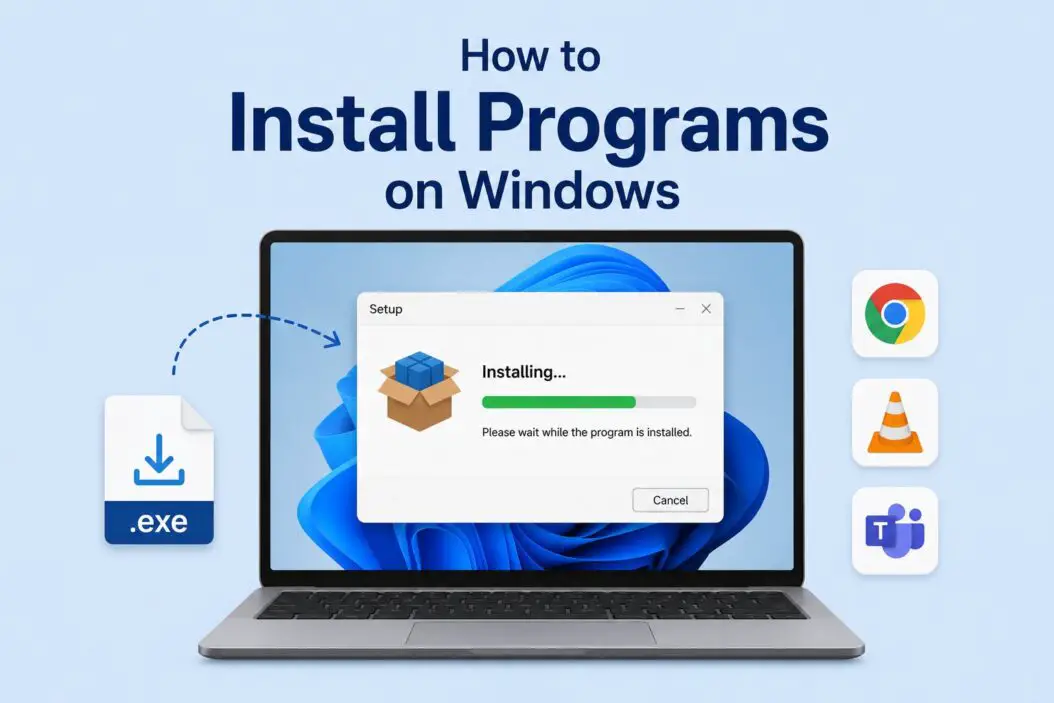
Method 1: Installing from a Downloaded EXE or MSI File
This is what most people do. Here’s the full process:
Step 1: Download from the official source
Always go to the developer’s official website. Avoid third-party download sites like Softonic or CNET’s old download portal. They bundle junk software with the installer.
Step 2: Find the downloaded file
Check your Downloads folder. Press Win + E to open File Explorer and click Downloads on the left sidebar.
Step 3: Run the installer
Double-click the .exe or .msi file. If Windows asks “Do you want to allow this app to make changes to your device?” click Yes. That’s the UAC (User Account Control) prompt. It’s normal.
Step 4: Follow the installation wizard
Most installers walk you through a few screens. You’ll usually see:
- License agreement (scroll to the bottom, accept it)
- Install location (leave it as default unless you know what you’re doing)
- Optional extras (uncheck toolbars, extra software, or browser extensions you don’t want)
- Install button
Step 5: Finish and launch
Click Finish. The program usually appears in your Start menu and sometimes on the desktop.
Watch Out for Bundled Software
During installation, slow down on every screen. Installers hide checkboxes that install extra software. One common trick: a pre-checked box that says “Install [some toolbar] as your default browser.” Uncheck these before continuing.
Method 2: Installing Apps from the Microsoft Store
The Microsoft Store is built into both Windows 10 and 11. It’s the safest place to get apps because everything there is verified by Microsoft.
How to open it:
Press the Windows key, type “Microsoft Store,” and hit Enter. Or click the bag icon in the taskbar on Windows 11.
Finding and installing an app:
- Use the search bar inside the Store
- Click on the app you want
- Hit the “Get” or “Install” button
- Wait for it to download and install automatically
Apps installed from the Store update automatically. You don’t have to manually download new versions. For everyday apps like Spotify, WhatsApp, or VLC, the Store version works great.
Limitation: Not every program is on the Store. Professional software, older tools, and niche utilities usually aren’t available there.
Method 3: Using Windows Package Manager (Winget)
This one’s for people who are comfortable with typing commands. Winget is Microsoft’s official command-line package manager, built into Windows 10 (version 1809 and later) and Windows 11.
Why use it?
You can install software in seconds without touching a browser. It’s also useful for setting up a new PC fast.
How to use Winget:
- Press
Win + Xand click “Terminal” or “PowerShell” - Type a command like this:
winget install --id Google.Chrome- Press Enter. Winget downloads and installs Chrome automatically.
You can search for any app using:
winget search vlcThis shows you the exact package name and ID. Then install it with winget install.
Installing multiple apps at once:
You can chain commands or use a JSON file to install a whole list of programs. Tools like winget.run let you build that list visually and generate the install command automatically.
This method is genuinely fast for setting up a fresh Windows install.
Method 4: Installing from a CD or USB Drive
Less common in 2026, but still relevant for enterprise software, older tools, or offline environments.
From a CD/DVD:
Insert the disc. It usually auto-runs. If it doesn’t, open File Explorer, right-click the disc drive, and select “Open” or “AutoPlay.” Find the setup.exe file and run it.
From a USB drive:
Plug in the USB. Open File Explorer. Navigate to the drive. Find the installer file and double-click it.
Same process after that: follow the wizard, done.
Method 5: Portable Apps (No Installation Needed)
Some programs don’t need installation at all. They’re called portable apps. You download a ZIP file, extract it, and run the .exe directly.
Examples include tools like 7-Zip Portable, Notepad++, or many developer utilities.
How to use portable apps:
- Download the ZIP or portable version from the official site
- Right-click the ZIP file and select “Extract All”
- Open the extracted folder
- Double-click the
.exefile to run the program
No installation wizard, no registry changes. You can even run them from a USB drive on any Windows PC.
Benefit: Uninstalling is simple. Just delete the folder.
Method 6: Using Third-Party Package Managers
Beyond Winget, two tools are popular among developers and power users.
Chocolatey
Chocolatey is a package manager with a massive library. Install it once, then use simple commands to install anything:
choco install firefoxCheck out chocolatey.org to see what’s available and how to get started.
Scoop
Scoop is another command-line installer focused on developer tools. It installs programs in your user folder without needing admin rights.
Both tools are free and work on Windows 10 and 11.
How to Install Programs Without Admin Rights
Sometimes you’re on a work computer and don’t have admin access. A few options:
- Use portable apps. They run without installing anything to the system.
- Use Scoop. It installs to your user folder and doesn’t require elevation.
- Ask your IT department. Seriously, that’s the safest route in a corporate environment.
Some installers have a “Install for current user only” option in the setup wizard. Look for that if you don’t have admin rights.
Common Installation Errors and What They Mean
| Error | What It Means | Fix |
|---|---|---|
| “Windows protected your PC” | SmartScreen blocked an unrecognized app | Click “More info” then “Run anyway” if you trust the source |
| “You don’t have permission” | UAC or admin rights issue | Right-click installer, select “Run as administrator” |
| “This app can’t run on your PC” | Wrong architecture (32-bit vs 64-bit) | Download the correct version for your system |
| “Installation failed” | Corrupted download or missing dependencies | Re-download the file, install required runtimes (like .NET or Visual C++) |
| Nothing happens on double-click | File didn’t download completely | Delete and re-download the installer |
How to Check if You Have a 32-bit or 64-bit Windows
Press Win + I to open Settings. Go to System, then About. Look for “System type.” It’ll say something like “64-bit operating system.”
If you have 64-bit Windows, always grab the 64-bit version of software when both are available. It runs faster and uses memory more efficiently.
Installing Programs on Windows 11: What’s Different
Windows 11 adds a few things worth knowing:
Sideloading Android apps: Windows 11 (with the right setup) supports running Android apps through the Amazon Appstore. It’s not for everyone, but it exists.
Stricter SmartScreen: Windows 11’s SmartScreen is slightly more aggressive. If you download software that doesn’t have a reputation built up yet (new or niche programs), you’ll see more warnings. They’re not always accurate. Use your judgment.
Microsoft Store overhaul: Windows 11’s Store is much better than Windows 10’s. It now includes Win32 apps, which means traditional desktop programs you’d normally download from websites. Worth checking there first.
How to Uninstall a Program Properly
This is part of the install process that people skip. Here’s the right way:
- Press
Win + Ito open Settings - Go to Apps, then Installed Apps (Windows 11) or Apps and Features (Windows 10)
- Find the program, click the three-dot menu, and select Uninstall
- Follow the uninstaller if one appears
Don’t just delete the program folder. That leaves behind registry entries and leftover files. Use the uninstaller every time.
Best Practices for Installing Software Safely
- Always download from official websites or the Microsoft Store
- Scan downloaded files with Windows Defender before running them
- Read every screen during installation, don’t just click Next
- Create a System Restore point before installing unfamiliar software
- Keep your programs updated, outdated software is a security risk
Conclusion
Installing programs on Windows 10 and 11 is straightforward once you know the options. For most people, downloading from the official website and running the installer is all you need. If you’re setting up a new PC or managing multiple installs, Winget or Chocolatey will save you hours. The Microsoft Store is great for everyday apps. Portable apps are perfect when you want zero system footprint.
Frequently Asked Questions
Can I install a program without an internet connection?
Yes. If you already have the installer file downloaded or you’re using a USB/disc, you don’t need internet access. Some programs, though, require internet to activate or pull in additional components during setup. Check the software’s requirements before going offline.
Is it safe to run an EXE file downloaded from the internet?
It depends on where you got it. If it’s from the official developer’s website, it’s generally safe. Run it through Windows Defender first by right-clicking the file and selecting “Scan with Microsoft Defender.” Avoid downloading EXE files from random forums, mirrors, or file-sharing sites.
Why does Windows ask for permission every time I install something?
That’s User Account Control (UAC) doing its job. It asks before any program tries to make system-level changes. It’s a security layer. If you’re installing something you intentionally downloaded, click Yes. If a UAC prompt appears out of nowhere without you doing anything, that’s a red flag.
I installed a program but can’t find it. Where did it go?
Open the Start menu and scroll through the All Apps list. If it’s not there, search for it by name using the search bar. Some programs install to unusual folders. Open File Explorer and check C:\Program Files or C:\Program Files (x86). You can also check Settings > Apps > Installed Apps to confirm it actually installed.
What’s the difference between installing for “all users” vs “just me”?
Installing for all users puts the program in C:\Program Files and makes it available to every account on the PC. Installing for just you puts it in your user profile folder and only your account can access it. On shared computers, install for just yourself unless others need it too.
