
I’ve used both types. And honestly, before I switched to a touchscreen laptop, I thought it was just a gimmick. It’s not.
Touchscreen laptops give you a faster, more natural way to interact with your device. You tap, swipe, scroll, and draw directly on screen. No extra hardware. No learning curve. Just your fingers doing what they already do on your phone.
If you’re trying to decide whether a touchscreen laptop is worth it, I’m going to break it all down. The real benefits, the actual use cases, who it’s perfect for, and who should skip it.
What Are the Core Touchscreen Laptop Advantages?
Let me give you the short answer first.
A touchscreen laptop lets you interact with your screen directly using your fingers or a stylus. This adds speed, flexibility, and a whole new layer of usability on top of the traditional keyboard and trackpad experience.
Here’s what that actually means in practice:
- You scroll faster using your fingers than any trackpad
- You can zoom in on images and documents with a pinch
- You can annotate PDFs and documents without printing them
- You can rotate and resize windows with natural gestures
- In tablet mode (2-in-1 laptops), you get a full portable experience
That’s not marketing talk. That’s stuff I do regularly.
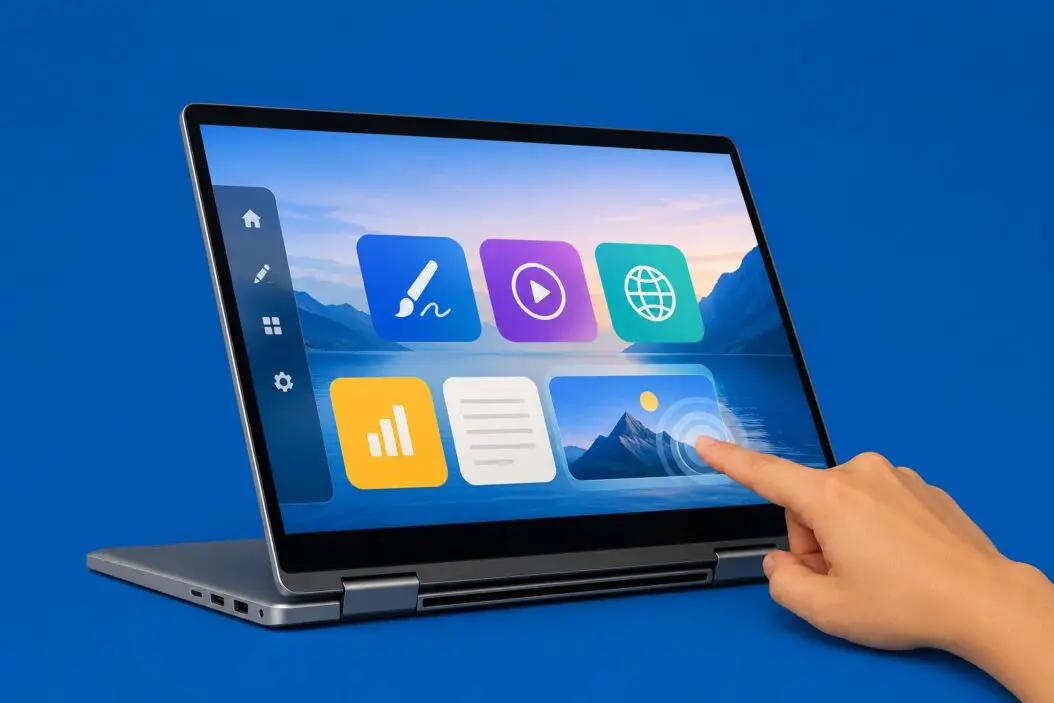
Touchscreen Laptop Advantages That Actually Matter
1. Speed in Everyday Tasks
The biggest advantage nobody talks about enough is raw speed. Tapping a button is faster than moving a cursor to it. Period.
When I’m going through emails, scrolling through a long document, or navigating a website, touching the screen cuts out multiple micro-movements. Over a full workday, that adds up.
Think about how fast you use your phone. That speed is now available on your laptop.
2. Natural Note-Taking and Drawing
If you use a stylus-compatible touchscreen laptop, note-taking becomes completely different.
You write directly on the screen. You draw diagrams in meetings. You annotate PDFs with your own handwriting. Apps like OneNote and Notability on Windows work brilliantly with touch and stylus input.
Students especially benefit here. Instead of switching between typed notes and paper sketches, everything stays in one place.
3. Better for Creative Work
Graphic designers, illustrators, and video editors get real advantages from touch screens.
You can drag and drop elements faster. You can sketch rough ideas before committing. You can scrub through timelines with a swipe. Tools like Adobe Fresco and Clip Studio Paint are built specifically for this kind of input.
A stylus on a touchscreen is closer to drawing on paper than any mouse will ever be.
4. 2-in-1 Flexibility
Many touchscreen laptops are 2-in-1 devices. They fold flat or detach into a tablet.
This means you get:
- A full laptop for work at your desk
- A tablet for reading on the couch
- A presentation mode where the screen faces your audience
- A tent mode for watching videos hands-free
The Microsoft Surface Pro and Lenovo Yoga series are good examples of this done well. You’re essentially buying two devices in one body.
5. Accessibility for All Users
Touchscreens make computers more accessible.
For people with motor difficulties, tapping can be easier than precise trackpad movements. For elderly users transitioning from smartphones, touch is already familiar. For kids learning to use computers, touch is intuitive from day one.
This is a genuine quality-of-life improvement that’s often overlooked.
6. Intuitive Navigation in Tablet and Presentation Modes
When you flip a 2-in-1 into tablet or tent mode, the keyboard is behind the screen or folded away. Touch becomes your only practical input method at that point.
Without touchscreen support, this mode would be useless. With it, you can navigate presentations, browse content, or demonstrate software directly on screen in front of a client or class.
7. Works Great with Modern Operating Systems
Windows 11 and recent versions of ChromeOS were built with touch in mind.
Windows 11 has larger tap targets, touch-friendly menus, and a tablet mode that rearranges the taskbar and spacing. ChromeOS handles touch so naturally that Chromebooks are popular in schools partly because of it.
The operating systems have caught up. Touch on a laptop doesn’t feel like an afterthought anymore.
Who Gets the Most Out of a Touchscreen Laptop
Not everyone needs one equally. Here’s a clear breakdown:
| User Type | Benefit Level | Why |
|---|---|---|
| Students | High | Note-taking, annotating, portability |
| Graphic designers | Very High | Drawing, precision input with stylus |
| Presenters / Sales | High | Direct screen demos, no remote needed |
| Casual home users | Medium | Faster browsing, natural feel |
| Heavy coders | Low | Keyboard-focused work, less gain |
| Data analysts | Low to Medium | Spreadsheet work favors keyboard |
| Teachers | High | Annotation, interactive lessons |
| Travelers | High | Tablet mode for reading and entertainment |
If you’re a student, designer, or someone who presents regularly, the advantages are hard to ignore.
Touchscreen vs Non-Touchscreen Laptop: Real Comparison
Let me put it side by side so you can see clearly.
| Feature | Touchscreen Laptop | Standard Laptop |
|---|---|---|
| Input methods | Touch, stylus, keyboard, trackpad | Keyboard, trackpad |
| Flexibility | 2-in-1 options available | Fixed form factor |
| Note-taking | Handwriting directly on screen | Typed only |
| Creative tools | Excellent with stylus support | Good with mouse |
| Battery life | Slightly lower in most cases | Generally longer |
| Price | Usually higher | Usually lower |
| Weight | Slightly heavier (stronger glass) | Lighter on average |
| Display glare | More (glossy screens) | Less with matte options |
The trade-offs are real. But for the right person, they’re worth it.
What About Battery Life?
This is the most common concern. Touchscreens do use slightly more power because the digitizer layer is always active.
In real-world testing, the difference is usually 30 to 60 minutes less per charge compared to a non-touch version of the same laptop. That’s not huge. Most modern touchscreen laptops still hit 8 to 12 hours of real use.
If battery life is critical for you, look at reviews that test the specific model you’re considering. Don’t assume the worst.
Touchscreen Laptop Advantages for Students
Students are one of the best audiences for touchscreen laptops right now.
Here’s why it works so well:
In class: You can take handwritten notes digitally. No paper, no losing notes, no scanning. Your handwriting syncs to the cloud and is searchable.
At home: Switch to laptop mode for essays, research, and coding assignments.
In the library: Fold it flat and read PDFs and ebooks in a format that feels like a tablet.
Group projects: Rotate the screen toward teammates and tap through slides together.
Apps like Microsoft OneNote, GoodNotes (through Windows), and Notion all support touch input. The experience is genuinely close to a physical notebook.
How Stylus Support Changes Everything
A basic touchscreen works with your fingers. A stylus-compatible screen goes further.
With a stylus you get:
- Pressure sensitivity for drawing and sketching
- Palm rejection so your hand doesn’t create accidental marks
- Precise annotation of documents and diagrams
- Digital signatures that look and feel natural
The Microsoft Surface Pen and Lenovo Active Pen are the gold standard right now. But many laptops support third-party styluses too.
If you plan to draw, design, or write math equations and scientific notation, stylus support is the feature to prioritize. Finger-only touch won’t give you that level of precision.
Are Touchscreen Laptops Good for Business Use?
Yes, in specific scenarios.
Presentations: Walk up to your screen and point directly at what you’re discussing. No laser pointer needed.
Client demos: Show software interactively instead of just explaining it.
Field work: Engineers, healthcare workers, and retail staff use ruggedized touchscreen laptops because holding a tablet while also needing a keyboard is a real workflow.
Document review: Legal and finance professionals annotate contracts and reports directly on screen with a stylus.
For standard office work like email and spreadsheets, the touch advantage is smaller but still there. Scrolling through long spreadsheets with a swipe is just faster.
Common Myths About Touchscreen Laptops
“The screen gets too dirty.” Yes, fingerprints show up. But every laptop screen gets dirty. A microfiber cloth takes five seconds to clean it. This isn’t a real objection.
“Touch on a laptop is awkward because of the angle.” It can be if you’re reaching to a laptop on a desk all day. But on a lap, in a coffee shop, in a meeting, or in tablet mode, the angle is completely natural. Most people adapt within a day.
“It’s just for kids.” This one’s outdated. Professional-grade touchscreen laptops from Dell, HP, Lenovo, and Microsoft are used in hospitals, courtrooms, and architecture firms every day.
“Touch doesn’t work well on Windows.” Windows 11 fixed most of the rough edges. Touch is smooth, responsive, and the gestures actually make sense now.
Things to Check Before Buying
Before you buy a touchscreen laptop, here’s what to look at:
- Touch accuracy: Read reviews that mention finger and stylus responsiveness
- Stylus included or sold separately: Many laptops charge extra for the stylus
- Display quality: Touch screens are almost always glossy, which affects outdoor visibility
- Hinge durability: 2-in-1 hinges need to be tested for long-term reliability
- Weight: Some 2-in-1s are heavier because of reinforced screens and hinges
For detailed hardware specs and current model comparisons, Notebookcheck’s laptop reviews are one of the most thorough sources available.
Summary
Touchscreen laptops are not for everyone. But for students, creatives, presenters, and people who want flexibility, the advantages are concrete and practical.
Here’s what you actually get:
- Faster navigation and scrolling through direct touch
- Handwriting and drawing capabilities with stylus support
- 2-in-1 flexibility between laptop and tablet mode
- Better accessibility for a wide range of users
- A more natural experience for modern apps and operating systems
The trade-offs are a slightly higher price, minor battery reduction, and a glossy screen. For most people who benefit from touch, those are small costs.
If you spend most of your time typing code or crunching data in spreadsheets, a standard laptop probably serves you better. But if you annotate, sketch, present, or want one device that adapts to different situations, a touchscreen laptop in 2026 is genuinely worth it.
Frequently Asked Questions
Does using the touchscreen constantly wear out the display faster?
Modern touchscreen panels are tested for millions of touch cycles. Casual daily use won’t degrade the screen in any noticeable way within a normal laptop lifespan of 4 to 6 years. The digitizer layer adds a bit of thickness but it’s built to last.
Can I disable the touchscreen if I don’t want to use it?
Yes. On Windows 11, you can disable the touch digitizer through Device Manager in about three clicks. Some people do this when doing precision graphic work to avoid accidental palm touches, then re-enable it when needed.
Do touchscreen laptops work with any stylus or only specific ones?
It depends on the technology inside the screen. Wacom AES, Microsoft Pen Protocol (MPP), and USI are the main standards. Always check which standard your laptop supports before buying a stylus separately. A stylus built for one standard often won’t work on another.
Is there a big learning curve switching from a regular laptop to a touchscreen one?
Not really. Most people adapt within one or two days. The keyboard and trackpad still work exactly the same. Touch just becomes an additional option you reach for when it feels natural, like scrolling or tapping a link.
Are there touchscreen laptops that don’t have glossy screens?
Almost all touchscreen displays use glossy glass because the touch layer requires it. A few professional models offer anti-glare coatings on top, which reduces but doesn’t eliminate glare. If you work outdoors regularly, this is worth researching before buying.
