
Linux powers most of the internet, and if you work with servers, development, or even a Raspberry Pi, you’ll run into the terminal. The good news? You don’t need to memorize hundreds of commands to get things done. You need to understand the ones that actually matter, and how they work together.
A Linux command is an instruction you type into the terminal (also called the shell or command line) to tell the system what to do. Every command follows a simple pattern:
command [options] [arguments]For example:
ls -la /home/userHere, ls is the command, -la is the option, and /home/user is the argument. That’s the whole logic behind every Linux command you’ll ever use.
Linux Terminal Basics You Need to Know First
Before jumping into commands, understand a few things about how the terminal works.
The shell interprets what you type. The most common shell is Bash (Bourne Again Shell). Others include Zsh and Fish, but Bash is on almost every Linux system.
Commands are case-sensitive. ls and LS are completely different things.
The prompt tells you where you are. A typical prompt looks like this:
username@hostname:~$The ~ means you’re in your home directory. The $ means you’re a regular user. If you see #, you’re root (administrator).
Navigation Commands
These are the ones you’ll use every single day.
pwd
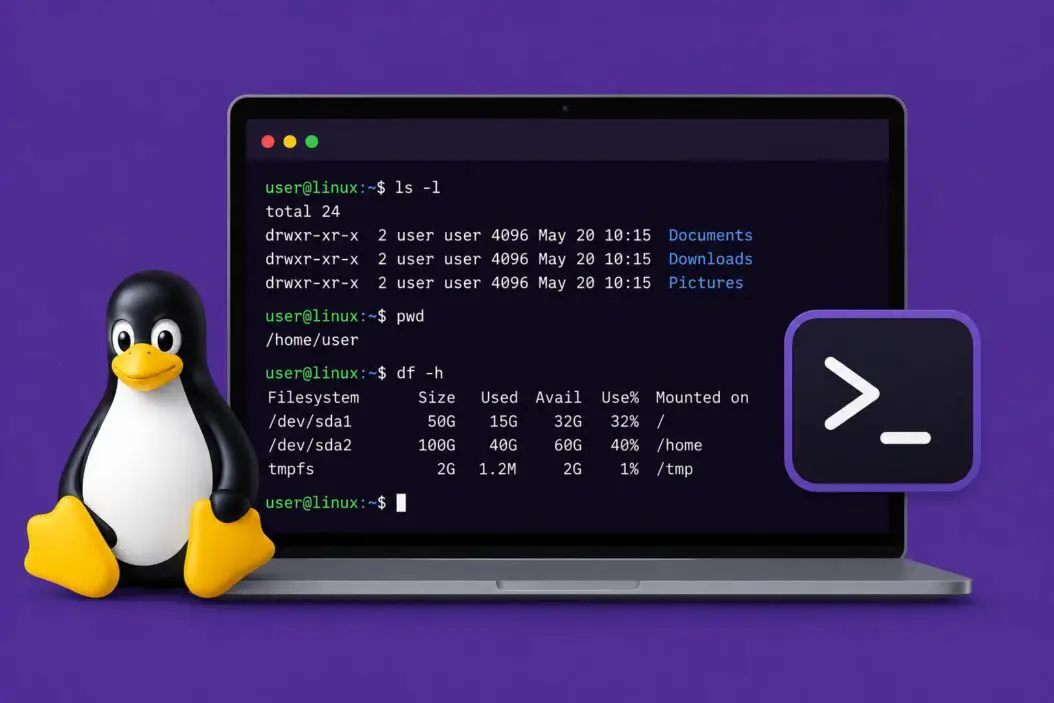
pwd stands for “print working directory.” It tells you exactly where you are in the file system.
pwdOutput:
/home/johncd
cd moves you between directories.
cd /var/log        # go to a specific path
cd ..              # go one level up
cd ~               # go to your home directory
cd -               # go back to the last directory
ls
ls lists files and folders in the current directory.
ls           # basic list
ls -l        # detailed list with permissions, size, date
ls -a        # show hidden files too
ls -lh       # human-readable file sizes
ls -lt       # sorted by modification time
Hidden files in Linux start with a dot, like .bashrc or .ssh. You won’t see them without -a.
File and Directory Management Commands
mkdir
Creates a new directory.
mkdir projects
mkdir -p projects/2026/january   # creates nested directories at once
touch
Creates an empty file or updates the timestamp on an existing one.
touch notes.txt
touch file1.txt file2.txt file3.txt   # create multiple files
cp
Copies files or directories.
cp file.txt backup.txt
cp -r folder/ backup_folder/   # -r is required for directories
mv
Moves or renames files and directories.
mv old_name.txt new_name.txt    # rename
mv file.txt /home/user/docs/    # move to another location
rm
Deletes files. Be careful here, there’s no recycle bin.
rm file.txt
rm -r folder/        # delete a directory and everything inside it
rm -f file.txt       # force delete without asking
rm -rf folder/       # force delete a directory (use with extreme caution)
find
One of the most powerful commands you’ll use. It searches for files and directories.
find / -name "config.txt"                    # search entire system
find /home -name "*.log"                     # find all log files
find /var -type f -mtime -7                  # files modified in last 7 days
find . -size +100M                           # files larger than 100MB
find /tmp -empty -delete                     # find and delete empty files
Viewing and Editing File Content
cat
Displays file content in the terminal.
cat file.txt
cat file1.txt file2.txt    # show multiple files
cat -n file.txt            # show with line numbers
less and more
For reading large files without loading everything at once.
less /var/log/syslogInside less: press q to quit, space to scroll down, b to scroll up, / to search.
head and tail
head -n 20 file.txt      # show first 20 lines
tail -n 50 file.txt      # show last 50 lines
tail -f /var/log/auth.log   # live view of a file as it updates
tail -f is incredibly useful for monitoring log files in real time.
grep
Searches for patterns inside files.
grep "error" /var/log/syslog
grep -i "warning" file.txt          # case-insensitive
grep -r "database" /etc/            # recursive search in directory
grep -n "failed" auth.log           # show line numbers
grep -v "debug" app.log             # show lines that DON'T match
Combine with other commands using pipe:
cat access.log | grep "404"nano
A beginner-friendly text editor that works right in the terminal.
nano filename.txtUse Ctrl+O to save, Ctrl+X to exit.
vim
More powerful but has a learning curve. Open a file with vim filename.txt. Press i to start typing, Esc to stop editing, then :wq to save and quit, or :q! to quit without saving.
File Permissions Commands
Linux permissions control who can read, write, or execute a file.
Every file has three permission groups:
| Group | Description |
|---|---|
| Owner | The user who created the file |
| Group | A group of users |
| Others | Everyone else |
Each group has three permissions: read (r), write (w), execute (x).
When you run ls -l, you see something like:
-rwxr-xr-- 1 john developers 4096 May 10 09:00 script.shBreaking this down:
- rwx r-x r--
| |   |   |
| |   |   others: read only
| |   group: read and execute
| owner: read, write, execute
file type: - means regular file, d means directory
chmod
Changes permissions.
chmod 755 script.sh      # rwxr-xr-x
chmod 644 file.txt       # rw-r--r--
chmod +x script.sh       # add execute permission for everyone
chmod -w file.txt        # remove write permission
chmod u+x,g-w file.txt   # add execute for owner, remove write for group
The numeric values:
| Number | Permission |
|---|---|
| 7 | rwx (read, write, execute) |
| 6 | rw- (read, write) |
| 5 | r-x (read, execute) |
| 4 | r– (read only) |
| 0 | — (no permissions) |
chown
Changes ownership of a file.
chown john file.txt
chown john:developers file.txt    # change owner and group
chown -R john /var/www/           # recursive change
Process Management Commands
ps
Shows running processes.
ps aux              # all processes from all users
ps aux | grep nginx  # find a specific process
top and htop
Real-time process monitoring.
top     # built-in, always available
htop    # better interface, install with: sudo apt install htop
In top, press q to quit, k to kill a process, P to sort by CPU.
kill and killall
Stops a process.
kill 1234           # send SIGTERM to process with PID 1234
kill -9 1234        # force kill (SIGKILL), process can't ignore this
killall nginx       # kill all processes named nginx
Find the PID first with:
pgrep nginx
pidof apache2
bg, fg, and jobs
Manage background and foreground processes.
command &           # run command in background
jobs                # list background jobs
fg %1               # bring job 1 to foreground
bg %2               # send job 2 to background
Ctrl+Z              # suspend current process
Disk Usage Commands
df
Shows disk space usage for mounted file systems.
df -h               # human-readable sizes
df -h /home         # just for the /home partition
du
Shows how much space a directory or file uses.
du -sh /var/log         # total size of /var/log
du -sh *                # size of everything in current directory
du -h --max-depth=1 /   # top-level directory sizes
lsblk
Lists block devices (disks and partitions).
lsblk
lsblk -f            # shows file system types
Networking Commands
ping
Tests connectivity to a host.
ping google.com
ping -c 4 8.8.8.8       # send exactly 4 packets
curl
Transfers data from URLs. Extremely versatile.
curl https://example.com                      # fetch a webpage
curl -O https://example.com/file.zip          # download a file
curl -I https://example.com                   # fetch headers only
curl -X POST -d '{"key":"value"}' https://api.example.com/endpoint
wget
Downloads files from the internet.
wget https://example.com/file.tar.gz
wget -O custom_name.zip https://example.com/file.zip
wget -r https://example.com          # download entire website
ip and ifconfig
Check your network interface information.
ip addr               # show IP addresses
ip route              # show routing table
ifconfig              # older command, still works on many systems
ss and netstat
Show network connections.
ss -tulnp             # show listening ports and what's using them
netstat -tulnp        # older equivalent
ssh
Connect to remote servers securely.
ssh user@192.168.1.100
ssh -p 2222 user@server.com      # connect on non-default port
ssh -i ~/.ssh/mykey.pem user@server.com    # use specific key file
scp
Copy files over SSH.
scp file.txt user@server:/home/user/         # local to remote
scp user@server:/var/log/app.log ./          # remote to local
scp -r folder/ user@server:/backup/          # copy directory
Package Management Commands
Different Linux distributions use different package managers.
Debian/Ubuntu (apt)
sudo apt update                        # update package list
sudo apt upgrade                       # upgrade installed packages
sudo apt install nginx                 # install a package
sudo apt remove nginx                  # remove a package
sudo apt purge nginx                   # remove with config files
sudo apt search keyword                # search for a package
sudo apt show nginx                    # show package details
Red Hat/CentOS/Fedora (dnf or yum)
sudo dnf update
sudo dnf install httpd
sudo dnf remove httpd
sudo yum install package               # older systems
Arch Linux (pacman)
sudo pacman -Syu                       # update everything
sudo pacman -S package                 # install
sudo pacman -R package                 # remove
User Management Commands
whoami and id
whoami          # your current username
id              # full user and group info
sudo
Runs a command as root (administrator).
sudo apt install vim
sudo systemctl restart nginx
sudo -i                    # switch to root shell (be careful)
useradd and passwd
sudo useradd -m newuser              # create user with home directory
sudo passwd newuser                  # set password for user
sudo usermod -aG sudo newuser        # add user to sudo group
sudo userdel -r olduser              # delete user and home directory
su
Switch to another user.
su john               # switch to user john
su -                  # switch to root
Compression and Archiving
tar
Archives and compresses files.
tar -czvf archive.tar.gz folder/         # create compressed archive
tar -xzvf archive.tar.gz                 # extract compressed archive
tar -cjvf archive.tar.bz2 folder/        # create bz2 compressed archive
tar -tf archive.tar.gz                   # list contents without extracting
Breaking down the flags: c creates, x extracts, z uses gzip, j uses bzip2, v is verbose, f specifies the filename.
zip and unzip
zip archive.zip file1.txt file2.txt
zip -r archive.zip folder/
unzip archive.zip
unzip archive.zip -d /destination
System Information Commands
uname
Shows system information.
uname -a              # all info (kernel, hostname, architecture)
uname -r              # just the kernel version
lscpu and free
lscpu                 # CPU information
free -h               # memory usage
uptime
uptime # how long the system has been running and load averagehistory
history               # shows recent commands
history | grep ssh    # search command history
!42                   # re-run command number 42 from history
!!                    # re-run last command
Systemd and Service Management
Most modern Linux systems use systemd to manage services.
sudo systemctl start nginx             # start a service
sudo systemctl stop nginx              # stop a service
sudo systemctl restart nginx           # restart
sudo systemctl reload nginx            # reload config without full restart
sudo systemctl enable nginx            # start automatically at boot
sudo systemctl disable nginx           # don't start at boot
sudo systemctl status nginx            # check if it's running
sudo systemctl list-units --type=service   # list all services
Check logs for a service:
journalctl -u nginx                    # logs for nginx
journalctl -u nginx -f                 # live log feed
journalctl -u nginx --since "1 hour ago"
Redirection and Pipes
These operators make Linux commands incredibly powerful when combined.
| Symbol | Function |
|---|---|
> | Redirect output to file (overwrite) |
>> | Redirect output to file (append) |
< | Redirect file as input |
| | Pipe output of one command to another |
2> | Redirect error output |
2>&1 | Redirect errors to same place as output |
Examples:
ls -l > filelist.txt
echo "new line" >> notes.txt
grep "error" /var/log/syslog | tail -50
cat file.txt | sort | uniq              # sort and remove duplicates
command 2> errors.log                   # save errors to a file
command > output.log 2>&1              # save both output and error
Useful One-Liners and Combinations
Here are practical command combinations you’ll actually use:
Find and kill a process by name:
kill $(pgrep processname)See the most disk-hungry folders:
du -h / --max-depth=2 2>/dev/null | sort -rh | head -20Watch a command run every 2 seconds:
watch -n 2 df -hCount lines in a file:
wc -l file.txtReplace text in a file:
sed -i 's/old_text/new_text/g' file.txtShow unique values from a sorted file:
sort file.txt | uniq -c | sort -rnCheck what’s using a specific port:
sudo ss -tulnp | grep :80Linux Command Cheat Sheet
| Category | Command | What It Does |
|---|---|---|
| Navigation | pwd | Show current directory |
| Navigation | cd /path | Change directory |
| Navigation | ls -lah | List files with details |
| Files | cp, mv, rm | Copy, move, delete |
| Files | find / -name file | Find files |
| Content | cat, less, head, tail | View file content |
| Search | grep -r "text" /dir | Search inside files |
| Permissions | chmod 755 file | Change permissions |
| Permissions | chown user file | Change owner |
| Processes | ps aux | List processes |
| Processes | kill -9 PID | Force kill process |
| Disk | df -h | Disk space |
| Disk | du -sh /dir | Directory size |
| Network | ping, curl, wget | Test and download |
| Network | ssh user@host | Remote login |
| Packages | apt install, dnf install | Install software |
| Services | systemctl start nginx | Manage services |
Conclusion
Linux commands are not as overwhelming as they first look. The real skill is knowing which command to reach for when you need it. Start with navigation and file management. Add process and disk monitoring. Then build up to networking, permissions, and services.
The commands in this article cover the vast majority of real-world Linux tasks. If you want to go deeper into shell scripting and automation, the GNU Bash manual is the authoritative resource: https://www.gnu.org/software/bash/manual/
For a well-maintained reference with examples for almost every command, https://tldr.sh/ is one of the best tools out there. Install it with npm install -g tldr and run tldr ls or tldr find for quick refreshers.
FAQs
How do I run a command I don’t have permission to run?
Prefix it with sudo. This runs the command as the root (administrator) user. You’ll be asked for your password. If sudo doesn’t work, your user account may not be in the sudoers list. Ask your system administrator, or if you have root access, add yourself with usermod -aG sudo yourusername on Debian-based systems.
What happens if I accidentally delete files with rm?
They’re gone. Unlike a graphical interface, rm does not send files to a trash folder. If you deleted something critical, stop using the disk immediately and try a tool like extundelete or photorec for recovery on ext4 file systems. Success isn’t guaranteed, but acting fast improves your chances.
How do I know what a command does without memorizing it?
Use man command to open the manual page. For example, man ls shows every option for ls. If the man page feels dense, try command --help for a shorter summary, or use the tldr tool mentioned above for practical examples.
Can I undo a command in Linux?
Most commands have no built-in undo. File deletions, permission changes, and overwrites are permanent at the command line. The safe habit is to test destructive commands in dry-run mode first. Many tools support --dry-run or -n flags. For rm, you can use rm -i which asks for confirmation before deleting each file.
What’s the difference between a terminal, shell, and command line?
They’re related but different things. The terminal is the application window you type into (like GNOME Terminal or iTerm2). The shell is the program running inside that terminal that interprets your commands (Bash, Zsh, Fish). The command line is just the general concept of typing commands rather than clicking through a graphical interface. In everyday use, people often use these terms interchangeably, and that’s fine.
