
If someone shared their calendar with you in Outlook, you can view it by going to the Calendar section, clicking “Open Calendar” from the Home tab, and selecting “From Address Book” or “Open Shared Calendar”. Type the person’s name and hit OK. Their calendar will appear side by side with yours.
That’s the short version. But there are several ways to do this depending on your situation.
What You Actually Need Before Viewing Someone’s Calendar
Before anything works, one of two things must be true:
- The person has shared their calendar with you directly
- Your IT admin has granted you access (common in organizations)
If neither is true, Outlook won’t show you their calendar. You’ll either see a blank schedule or get a permission error. So if you’re stuck at that point, scroll down to the permissions section first.
How to View Someone’s Calendar in Outlook (Desktop App)
This works in Outlook for Microsoft 365, Outlook 2021, 2019, and 2016.
Step 1: Open Outlook and click the Calendar icon at the bottom left (it looks like a small calendar page).
Step 2: Go to the Home tab in the ribbon at the top.
Step 3: Click “Open Calendar” in the Manage Calendars group.
Step 4: From the dropdown, select “From Address Book” or “Open Shared Calendar“.
Step 5: A search box appears. Type the person’s name or email address.
Step 6: Select their name from the results and click OK.
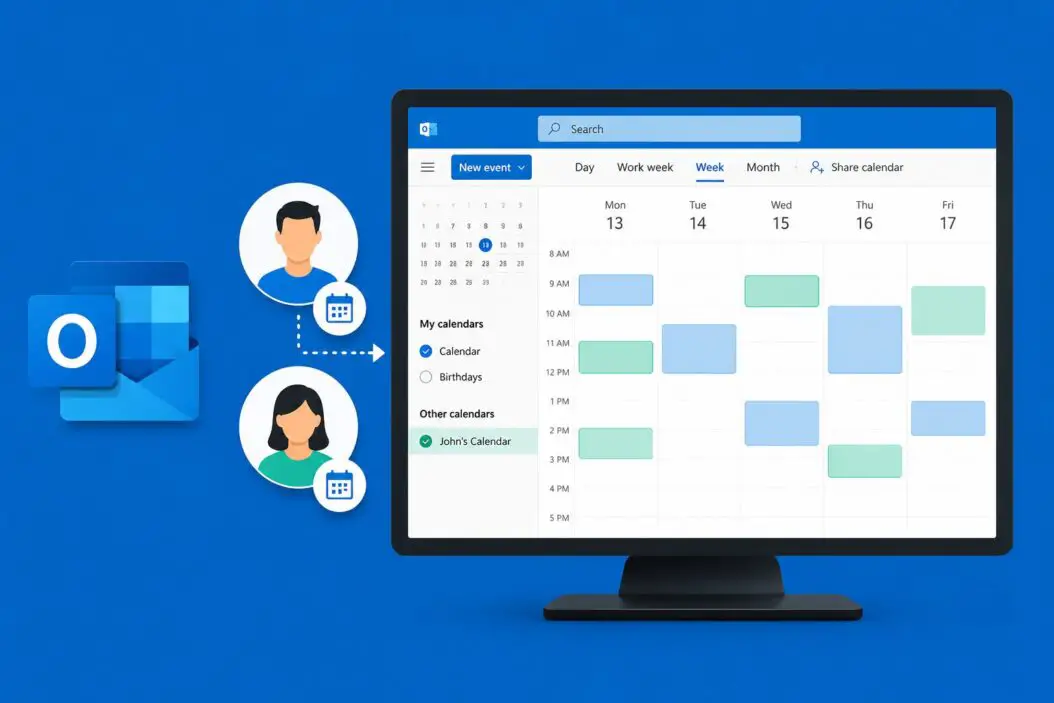
Their calendar now shows up in the left panel under “Other People’s Calendars” and opens side by side with your own.
To toggle it on or off, just check or uncheck the box next to their name in the left sidebar. Outlook remembers it for future sessions.
What the Different Views Mean
Once you can see their calendar, you have a few ways to look at it:
| View | What it shows |
|---|---|
| Day | Their full schedule for one day, hour by hour |
| Work Week | Monday to Friday, appointments in time blocks |
| Week | Full 7-day view including weekends |
| Month | Big picture overview, individual events listed per day |
| Overlay Mode | Their calendar and yours merged into one view |
To switch views, use the buttons in the “Arrange” group on the Home tab.
Overlay Mode is especially useful. Instead of two side-by-side columns, it stacks both calendars so you can instantly see where your schedules overlap. To turn it on, click the left arrow icon that appears on the other person’s calendar tab at the top.
How to View Someone’s Calendar in Outlook Web (OWA)
If you use Outlook through a browser at outlook.office.com or outlook.com, the steps are slightly different.
Step 1: Log into your account and click the Calendar icon in the left navigation bar.
Step 2: In the left sidebar, scroll down and find “Other calendars” or “People’s calendars”.
Step 3: Click the “+” icon or the “Open calendar” option next to it.
Step 4: Type the person’s name or email in the search box.
Step 5: Select their name and click “Open”.
Their calendar appears in the sidebar and loads in the main view. You can click events to see details (if they’ve given you that level of access).
A Note on What You Can See
What shows up depends entirely on the sharing permissions the other person has set. Here’s how it breaks down:
| Permission Level | What You See |
|---|---|
| Free/Busy only | Just colored blocks showing when they’re busy or free, no details |
| Free/Busy + Subject/Location | Busy blocks plus the event title and location |
| Full details | Everything: title, location, description, attendees |
| Editor access | You can see everything and also add or edit events |
| Delegate access | You can manage their calendar as if it were your own |
Most people in a work setting share at the Free/Busy or Free/Busy + Subject level by default.
How to View a Shared Calendar in Outlook Mobile (iOS and Android)
Outlook’s mobile app is a bit more limited, but shared calendars do sync over.
Step 1: Open the Outlook app and tap the Calendar tab at the bottom.
Step 2: Tap the hamburger menu (three lines) in the top left.
Step 3: You’ll see a list of calendars. If the shared calendar has already been added on your desktop or OWA, it should appear here automatically.
Step 4: Toggle it on by tapping the checkbox or circle next to the person’s name.
If it doesn’t appear in the mobile app even though it’s visible on desktop, try removing and re-adding your account in the mobile app. This forces a full resync.
One limitation: you can’t add a new shared calendar directly from the mobile app. You have to add it from the desktop or web version first, and then it syncs to your phone.
Requesting Access to Someone’s Calendar
If you try to open someone’s calendar and get a permission error, you need to request access. Here’s how to do it cleanly.
Via Outlook Desktop:
Go to Home > Open Calendar > From Address Book, search for the person, and when the error appears, Outlook gives you the option to send a sharing request via email. Click that, and it sends them a pre-written request they can approve with one click.
Manually via email:
Just email them and ask them to share their calendar. Tell them what level of access you need. For scheduling purposes, Free/Busy is usually enough.
Via Microsoft 365 admin (for IT):
If you need access to a colleague’s calendar for business reasons and they’re unavailable, an admin can grant delegate access through the Microsoft 365 admin center. This is common for executive assistants or team leads.
How to View Someone’s Calendar Permissions in Outlook
Maybe you’re trying to figure out why you can only see “Busy” instead of full details. You can check what access you have.
In Outlook Desktop:
Right-click on the shared calendar in the left sidebar, select “Properties”, then go to the “Permissions” tab. This shows exactly what permission level is assigned to you.
If you’re the calendar owner and want to see what you’ve shared and with whom:
- Right-click on your own calendar in the sidebar
- Select “Sharing and Permissions”
- A list of everyone you’ve shared with appears, along with their access level
- You can change or remove permissions from this same window
How to View Multiple Calendars at Once
You’re not limited to viewing one person’s calendar. In Outlook, you can open several people’s calendars and view them all simultaneously.
To view them side by side: Just add each person’s calendar using the steps above. They’ll each show up as a separate column in the Day or Work Week view.
To overlay multiple calendars: Click the left arrow icon at the top of each calendar tab one by one. They stack on top of each other, each in a different color, making it easy to spot conflicts and free slots.
You can also color-code each person’s calendar. Right-click their calendar name in the sidebar and choose a color. This helps when you’re juggling three or four schedules at once.
For teams managing complex multi-person scheduling, tools like Microsoft Bookings integrate with Outlook calendars and can make availability checking much more streamlined.
Viewing a Calendar Shared via Email Invitation
Sometimes people share their calendars by sending you an email that contains a calendar link or an .ics subscription.
For an email sharing invitation:
When you receive the email, it usually has a button that says “Open this Calendar” or “Add to Outlook”. Click it, and Outlook adds the calendar automatically.
For an .ics link or file:
- If it’s a file: Double-click the .ics file and Outlook asks if you want to add it to your calendar
- If it’s a URL: Go to Add Calendar > From Internet, paste the URL, and click OK
These subscribed calendars update automatically when the source calendar changes, as long as you’re connected to the internet.
Common Problems and Fixes
“You don’t have permission to view this calendar”
The person hasn’t shared it with you yet. Use the sharing request option in Outlook or email them directly.
Calendar shows but is completely blank
Two possible reasons: they set permissions to “Free/Busy” and have nothing on that day, or they’re on a different Exchange organization and cross-org sharing isn’t enabled. Check with your IT team.
Shared calendar not showing in mobile app
Add it on desktop or web first. Then force-sync the mobile app by going to Settings > Account > Reset Account.
Can see the calendar but events show “Private”
The person marked those specific events as private. Even with full access, private events only show as “Private Appointment” unless you have delegate access.
Calendar disappeared from the sidebar
Outlook sometimes removes calendars that haven’t been opened in a while. Just re-add it using the same steps above.
Viewing a Room or Resource Calendar
This is slightly different but worth knowing. Conference rooms and shared resources in Microsoft 365 also have calendars.
In Outlook Desktop:
Go to Home > Open Calendar > Open Shared Calendar, then type the room name. Outlook searches the directory for resource mailboxes too.
This is useful before booking a room. You can see exactly when it’s available without having to start a meeting invite first.
Conclusion
Viewing someone’s calendar in Outlook comes down to two things: having the right permissions and knowing where to click. In the desktop app, it’s Home > Open Calendar > From Address Book. In the web app, it’s the “+” next to People’s Calendars in the sidebar. On mobile, shared calendars sync automatically from desktop.
The most common issue people run into is not having the right access level. If you can only see busy/free blocks, the calendar owner needs to update their sharing settings. If you can’t see anything at all, you need to request access first.
Once a calendar is added, Outlook keeps it available in your sidebar permanently until you remove it. And with overlay mode, managing multiple people’s schedules at once becomes surprisingly simple.
Frequently Asked Questions
Can I view someone’s Outlook calendar without them knowing?
No. Outlook requires the calendar owner to explicitly share access with you. There’s no way to view another person’s calendar in Microsoft 365 without them granting permission or an admin assigning access on your behalf. Even IT admins need a legitimate business reason to access employee calendars, and audit logs track this activity.
What’s the difference between delegate access and regular calendar sharing in Outlook?
Regular sharing lets you view (and sometimes edit) someone’s calendar. Delegate access goes further. As a delegate, you can send and accept meeting requests on their behalf, and replies go directly to you. It’s essentially acting as that person’s assistant for scheduling purposes. You set this up under File > Account Settings > Delegate Access.
I was given access to a shared calendar but I can’t see the event descriptions. Why?
The calendar owner has most likely set your permission level to “Free/Busy” or “Free/Busy + Subject/Location” only. To see full descriptions, they need to go into their calendar sharing settings and change your access to “Full details.” You can ask them to do this, or if you have a legitimate business need, request it through your IT administrator.
Can I print someone else’s shared calendar from Outlook?
Yes. Once the shared calendar is open and visible in your Outlook, click File > Print, then under the Calendar option, select which calendar to print. Change the dropdown from “My Calendar” to the shared person’s calendar. Choose your date range and print style, then hit Print.
Does viewing someone’s Outlook calendar work if we’re in different organizations?
It depends on how both organizations have configured external sharing. Microsoft 365 supports cross-tenant calendar sharing, but it has to be enabled by the IT admins on both sides. If it’s not enabled, you might only be able to see free/busy information or nothing at all. In that case, the practical workaround is to have the other person export their calendar as an .ics file and share it with you manually.
