
Your Windows PC is running slow. You open File Explorer, and boom, the C: drive is almost full. You have no idea what’s eating up all that space. Sound familiar? I’ve been there, and the fastest fix is a good disk space analyzer.
These tools scan your drives and show you exactly what’s taking up space, broken down by folder, file type, or size. No guesswork. Just clear visuals and actionable data.
What Is a Disk Space Analyzer?
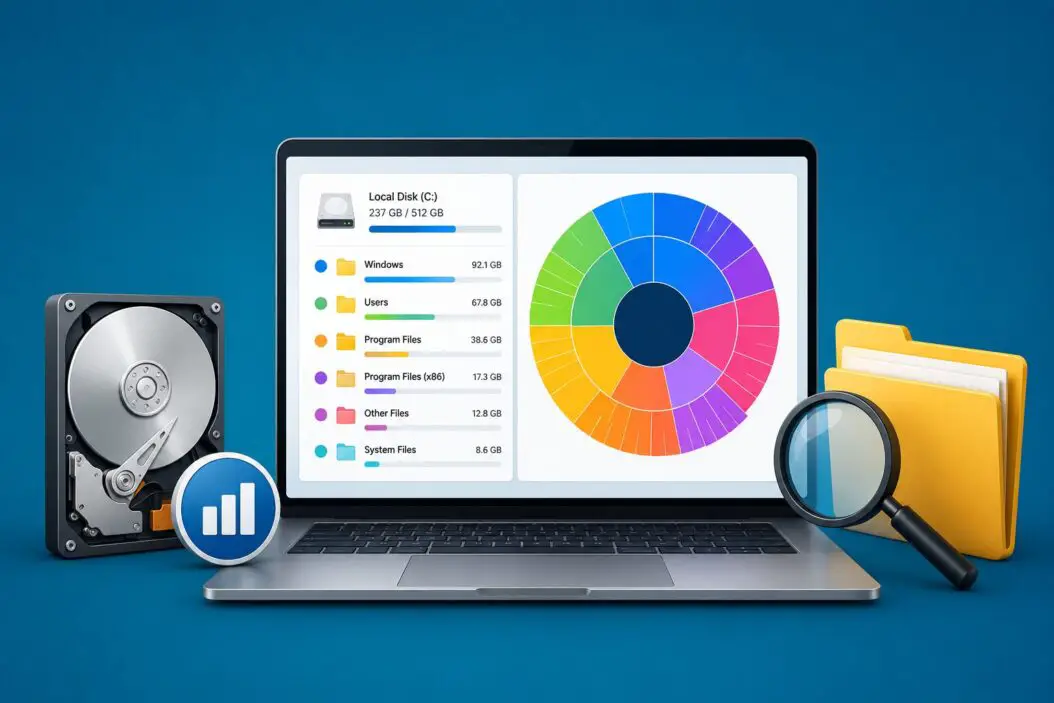
A disk space analyzer scans your hard drive or SSD and maps out storage usage. Instead of manually clicking through folders, you get a visual breakdown, usually a tree map or bar chart, showing which files and folders are the biggest offenders.
Most tools on this list are free or have a generous free tier. A few have paid versions with extra features, but the free versions alone handle 90% of what most users need.
Quick Comparison
| Tool | Price | Scan Speed | Visualization | Best For |
|---|---|---|---|---|
| WinDirStat | Free | Moderate | Tree map | Classic, reliable |
| TreeSize Free | Free/Paid | Fast | Tree list | Professional use |
| SpaceSniffer | Free | Fast | Waffle map | Visual learners |
| WizTree | Free/Paid | Very Fast | Tree map | Speed |
| DiskSavvy | Free/Paid | Fast | Multiple | Power users |
| Disk Drill | Free/Paid | Moderate | Charts | Recovery + analysis |
| Scanner by Steffens | Free | Fast | Sunburst chart | Simplicity |
The 7 Best Disk Space Analyzers for Windows PC
1. WizTree: The Fastest Disk Analyzer I’ve Ever Used
If speed is your priority, WizTree wins by a mile. It reads the NTFS Master File Table (MFT) directly instead of scanning file by file. That means it can analyze a 1TB drive in under 10 seconds.
Key features:
- Reads MFT directly on NTFS drives (incredibly fast)
- Tree map and file list views
- Color-coded file types
- Export results to CSV
- Free version is fully functional; paid version removes ads
Who it’s for: Anyone on an NTFS Windows drive who wants instant results. I ran it on a 500GB SSD and got full results in about 4 seconds.
Download: WizTree official site
Downside: Only reads MFT on NTFS drives. FAT32 or exFAT drives fall back to a slower scan method.
2. WinDirStat: The Classic That Still Holds Up
WinDirStat has been around since 2003 and it’s still one of the most downloaded disk analyzers. The interface looks dated, but the tree map visualization it uses is genuinely useful.
Key features:
- Classic tree map (colored blocks = file types)
- Folder tree on top, visual map on the bottom
- Click a block to jump straight to the file
- Completely free and open source
- Portable, no installation needed
Who it’s for: People who want a trusted, no-frills tool with a visual map. I still use it when I’m on someone else’s PC because it’s portable.
Downside: Scan speed is slower than WizTree, especially on large drives. The UI hasn’t been updated in years, which can feel clunky.
3. TreeSize Free: Best for Professional and Regular Use
TreeSize is made by a German company called JAM Software, and the free version is surprisingly capable. The interface is clean and modern, more like a proper Windows app than most free tools.
Key features:
- Tree-style view with folder sizes and percentages
- Filter by file age, type, or owner
- Search functionality built in
- Portable version available
- Paid version (TreeSize Professional) adds deeper reporting
Who it’s for: Office users, IT admins, or anyone who wants a polished experience. The paid version is worth it if you manage multiple PCs.
Downside: Some advanced features are locked behind the paid tier. The free version still does the job for personal use.
4. SpaceSniffer: Visual and Intuitive
SpaceSniffer uses a “waffle map” layout where each rectangle represents a file or folder. The bigger the rectangle, the more space it’s using. It scans in real time, so the map builds as it goes.
Key features:
- Live scanning (map fills as it scans)
- Zoom in on any folder for a deeper view
- Filter by file type or extension
- Free and portable (no install needed)
- Lightweight, runs well on older hardware
Who it’s for: Visual thinkers who prefer to see storage as a map rather than a list. I find it excellent for spotting random large files hidden deep in folder structures.
Downside: No export feature. Also, the map can get confusing on drives with thousands of tiny files.
5. DiskSavvy: Best for Power Users and Automation
DiskSavvy goes beyond just showing you what’s taking space. It lets you set rules, schedule scans, and categorize files automatically. The free version covers most needs, but the enterprise version is aimed at IT teams.
Key features:
- Multiple view modes (tree, chart, pie)
- File categorization by type, extension, or size
- Command-line support for automation
- Scheduled scans
- Detailed HTML/PDF reports in paid versions
Who it’s for: Power users or sysadmins who need more than a simple scan. If you’re managing storage across multiple users or drives, DiskSavvy handles that well.
Downside: The interface feels a bit overwhelming if you just want a quick look at what’s filling up your drive.
6. Disk Drill: Storage Analysis Plus Recovery
Disk Drill is primarily a data recovery tool, but it includes a solid disk space analyzer. If you think you accidentally deleted something and also want to see what’s eating your space, this handles both.
Key features:
- Visual disk map with usage breakdown
- File type categorization
- Integrates with recovery features
- Clean, modern UI
- Free version available (paid unlocks full recovery)
Who it’s for: Users who need disk analysis and occasionally need to recover deleted files. The all-in-one angle is genuinely useful.
Downside: The analysis features feel secondary to the recovery focus. WizTree or WinDirStat are faster if you only care about disk analysis.
7. Scanner by Steffens: Simplest Option on the List
Scanner uses a sunburst chart where rings represent folder depth and slice size represents storage usage. It’s extremely simple to use, zero configuration needed.
Key features:
- Sunburst circular chart
- Click to drill into subfolders
- No installation required
- Free and tiny (under 1MB)
- Shows file system in a unique radial layout
Who it’s for: Non-technical users who want to quickly spot large folders without learning a complex tool. I’ve recommended this to family members who just need something simple.
Downside: Limited filtering or export options. Not suitable for deep analysis.
How to Choose the Right Tool
You don’t need all seven. Here’s how I’d pick:
You want the fastest scan possible: Go with WizTree. Nothing beats it on NTFS drives.
You want a visual map: SpaceSniffer or WinDirStat both work well. SpaceSniffer is more modern.
You’re a professional or IT admin: TreeSize Professional is worth paying for.
You want simplicity: Scanner by Steffens is the easiest to use with zero learning curve.
You also need file recovery: Disk Drill covers both bases.
You want automation and scripting: DiskSavvy handles that with command-line support.
How I Actually Use These Tools (Workflow)
When my drive starts getting full, here’s what I do:
- Run WizTree first for a quick overview. It tells me the biggest folders in seconds.
- If I need to investigate a specific folder visually, I open SpaceSniffer and zoom in.
- I check the Downloads folder, Temp files, and AppData first. These are almost always the culprits.
- Look at files over 500MB using WizTree’s file size filter.
- Check installed programs via Settings > Apps to see what you can uninstall.
Most of the time, step 1 alone solves the problem. You’ll find some massive file you forgot about.
Common Files That Waste Space on Windows
Running a disk analyzer usually reveals the same suspects:
- Hibernation file (hiberfil.sys): Can be several gigabytes. Disable hibernation if you don’t use it.
- Windows.old folder: Created after major Windows updates. Safe to delete after a few weeks.
- Temp files: Located in C:\Windows\Temp and %AppData%\Local\Temp.
- Duplicate files: Music, photos, and videos downloaded multiple times.
- Game installs: A single game can easily eat 80-150GB.
- Old backups: iTunes, Android, or manual backups left sitting on the main drive.
Built-In Windows Option: Storage Sense
Windows 10 and 11 have a built-in feature called Storage Sense. It’s not as detailed as the tools above, but it’s worth knowing about.
You’ll find it under Settings > System > Storage > Storage Sense.
It can automatically delete temp files, clean the Downloads folder, and manage the Recycle Bin. For light users, it’s enough. For anything deeper, you need one of the dedicated analyzers above.
Conclusion
The best disk space analyzer for Windows in 2026 depends on what you need. For most people, WizTree is the right answer. It’s free, blindingly fast, and shows you exactly where your storage went within seconds. If you’re more visual, SpaceSniffer is a great companion. For professional use, TreeSize steps up the game.
Frequently Asked Questions
Can these tools delete files directly, or just show me what’s taking space?
Most of them, like WizTree, WinDirStat, and SpaceSniffer, can open the file location in Explorer so you can delete manually. Some, like DiskSavvy, let you delete directly from the app. I’d recommend manual deletion for anything important so you don’t accidentally remove something you need.
Is it safe to delete everything WizTree highlights as large?
Not automatically. The tool just shows file sizes. Large files aren’t always safe to delete. Things like hiberfil.sys, pagefile.sys, or files inside C:\Windows\System32 should be left alone. Stick to user folders, downloads, and app data unless you know what you’re doing.
Do any of these work on external drives or USB sticks?
Yes, all seven tools work on any drive Windows can see, including external HDDs, SSDs, USB drives, and SD cards. WizTree’s MFT-based speed advantage only applies to NTFS volumes, so it’ll be slightly slower on FAT32 external drives.
What’s the difference between a tree map and a sunburst chart?
A tree map uses nested rectangles where size equals storage used. A sunburst chart uses rings and pie slices. Both show the same information, just in different layouts. Tree maps like WinDirStat show folders and files together. Sunburst charts like Scanner’s show folder depth more clearly.
I already cleaned up my drive but it filled up again quickly. What should I check?
This usually points to a specific app generating large files in the background. Check browser cache (Chrome and Firefox can each hold several gigabytes), game update files, and video editing or recording software like OBS, which saves footage locally. Run WizTree right after cleanup and check again in a few days to see what’s growing.
