
Windows does not show folder sizes in File Explorer by default. That is the root of the frustration most people hit. You right-click a folder, check Properties, and wait. Or you open File Explorer, enable Details view, and see nothing in the Size column next to folders. Neither behavior is a bug. It is a design choice Microsoft has stuck with for decades.
The Fastest Way: Right-Click Properties
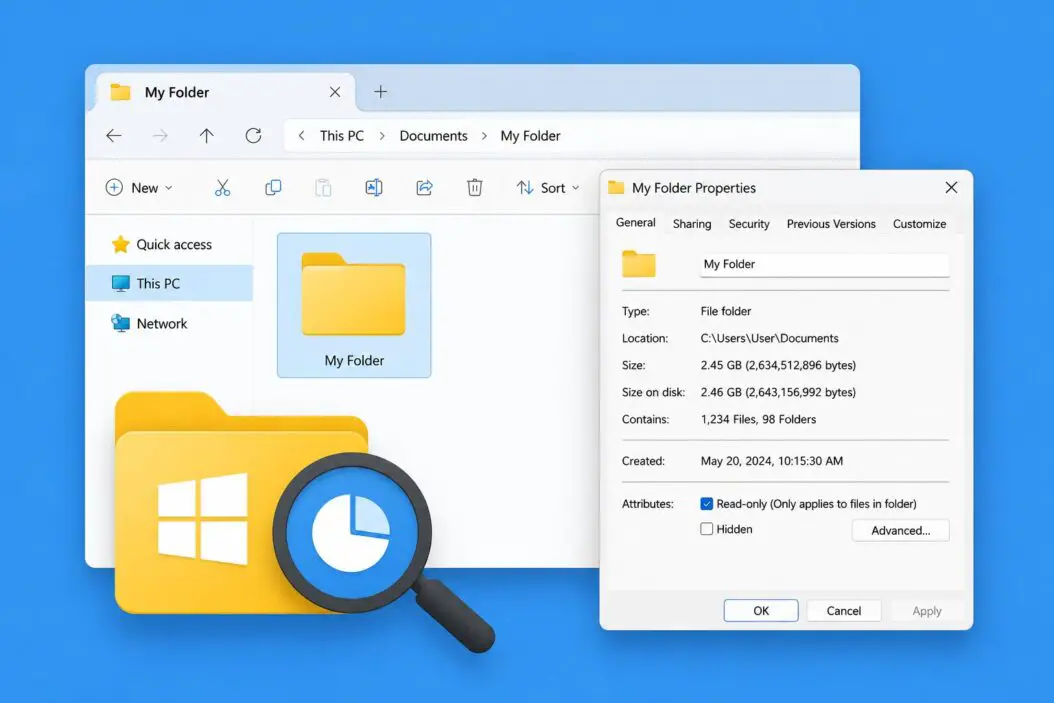
The quickest method requires no extra software. Right-click any folder, select Properties, and Windows will calculate the size on the spot.
Here is what you will see:
- Size shows the actual data size
- Size on disk shows how much space the folder occupies on your drive (slightly larger due to cluster allocation)
- The number of files and subfolders inside
For a folder with thousands of files, this can take 30 to 60 seconds. Windows scans every subfolder recursively to add it all up.
If you need the size of multiple folders at once, select them all, right-click, and choose Properties. Windows calculates them together and shows a combined total.
Limitation: This only works one folder at a time (or a selection), and there is no way to see all folder sizes side by side in File Explorer without a third-party tool.
How to See Folder Sizes in File Explorer Details View
File Explorer has a Details view that shows file sizes in a Size column, but folders show nothing there. Microsoft intentionally left this blank because calculating every folder size on the fly would slow down navigation significantly.
You can still make it work with a workaround:
- Open File Explorer and navigate to the folder you want to inspect
- Click View in the top menu
- Select Details
- You will see a Size column, but it stays empty for folders
The Size column will never auto-populate for folders in standard File Explorer. However, if you use the Search box and type * (an asterisk), File Explorer enters search mode and will show folder sizes in the results. This is inconsistent and not practical for browsing, but it works in a pinch.
Check Folder Size via Command Prompt
If you are comfortable with Command Prompt, this gives you fast, scriptable results without opening any GUI.
Using dir command
Open Command Prompt and run:
dir /s "C:\path\to\your\folder"At the very end of the output, you will see a summary line like:
Total Files Listed:
      1,245 File(s)    4,839,204,123 bytes
That number in bytes is the folder’s total size. To convert it, divide by 1,073,741,824 for gigabytes.
Using robocopy for a cleaner output
robocopy "C:\your\folder" "C:\nonexistent" /L /S /NJH /BYTES /NC /NDL /XJThis does not copy anything. The /L flag tells it to list only. You get a summary with total bytes at the end.
Using PowerShell
PowerShell gives you the cleanest output with the least effort:
"{0:N2} GB" -f ((Get-ChildItem "C:\your\folder" -Recurse | Measure-Object -Property Length -Sum).Sum / 1GB)Replace the path and run it in PowerShell. It prints the size in GB directly. This is particularly useful if you want to automate folder size checks or log them.
Use Windows Settings to Find What Is Taking Space
Windows 11 and Windows 10 both have a built-in Storage analyzer under Settings that shows you space usage by category. It is not a folder-by-folder breakdown, but it is useful for a high-level picture.
- Open Settings
- Go to System > Storage
- Windows shows you a breakdown: Apps, Temporary files, Documents, Desktop, etc.
- Click any category to drill down further
For seeing individual folder sizes across your whole drive, this is not the right tool. But if you are hunting down what ate your storage, it points you in the right direction quickly.
The Best Free Tools for Viewing Folder Size in Windows
The built-in methods have real limits. If you regularly need to see folder sizes, a dedicated tool changes how you work with storage entirely.
WinDirStat
WinDirStat is the most well-known free tool for this. It scans a drive or folder and shows a treemap visualization where each colored block represents a file, sized proportionally to how much space it takes.
How to use it:
- Download and install WinDirStat
- Open it and select the drive or folder to analyze
- Wait for the scan to finish (depends on drive size)
- The top panel shows folder sizes in a tree view with percentages
- The bottom panel shows the visual treemap
You can click any block in the treemap to jump to that file in the tree view. It is genuinely useful for finding what is consuming space.
TreeSize Free
TreeSize Free is faster than WinDirStat and integrates directly into the Windows right-click context menu.
- Install TreeSize Free
- Right-click any folder in File Explorer
- Select Scan with TreeSize Free
- It opens and shows all subfolders sorted by size immediately
The paid version (TreeSize Professional) adds more features, but the free version handles most use cases.
Folder Size for Windows (via PowerToys or standalone)
Microsoft PowerToys does not natively show folder sizes in File Explorer as of 2026, but several lightweight utilities integrate into the shell to add this. Search for “Folder Size” in the Microsoft Store for options that add a panel to File Explorer.
Quick Comparison Table
| Method | Speed | Multiple Folders | Visual | Best For |
|---|---|---|---|---|
| Right-click > Properties | Moderate | Manual selection | No | Quick single-folder check |
Command Prompt dir /s | Fast | No | No | Scripting, CLI users |
| PowerShell | Fast | With scripting | No | Automation |
| WinDirStat | Slow scan | Yes | Yes | Finding large files visually |
| TreeSize Free | Fast | Yes | Partial | Regular folder browsing |
| Windows Storage Settings | Instant | No | Partial | High-level drive overview |
How to Check the Size of System Folders
System folders like C:\Windows or C:\Program Files require administrator access to fully measure. If you right-click and check Properties on these, you may see an undercount because Windows skips files your account cannot read.
To get an accurate count:
- Open Command Prompt as Administrator (search CMD, right-click, Run as administrator)
- Run:
dir /s "C:\Windows"Even then, some protected files might not be counted. WinDirStat run as Administrator gives the most complete picture of system folder sizes.
Why File Explorer Does Not Show Folder Sizes Automatically
It comes down to performance. A folder can contain thousands of nested subfolders and millions of files. Calculating the size of every folder as you browse would require Windows to read the entire directory tree constantly. On a mechanical hard drive, this would make File Explorer feel sluggish and unresponsive.
SSDs make this less of an issue in 2026, but the behavior has not changed. Third-party tools get around this by caching results after an initial scan.
Checking OneDrive and Cloud Folder Sizes
OneDrive folders can be tricky. Files stored only in the cloud (not downloaded locally) show as 0 bytes or placeholder files on disk. If you right-click a OneDrive folder and check Properties, the size shown is only what is physically on your machine.
To see the true size of a OneDrive folder including cloud-only files:
- Open the OneDrive web interface at onedrive.live.com
- Right-click a folder there and choose Details
- You get the actual cloud size
Alternatively, in File Explorer, right-click your OneDrive folder, choose Always keep on this device, wait for everything to download, and then check Properties. This gives you the accurate local size.
Folder Size for Network Drives
Network mapped drives work with all the methods above, but they are slower because every file size query goes over the network. For a shared drive with thousands of files, dir /s can run for minutes.
TreeSize Free handles network drives well and shows progress as it scans. WinDirStat also supports UNC paths like \\server\share.
A Practical Workflow for Freeing Up Space
When your drive fills up and you need to act fast:
- Open WinDirStat or TreeSize Free and point it at your C: drive
- Sort subfolders by size descending
- Look for anything unexpected in
C:\Users\YourName\first (Downloads, Documents, AppData) - Check
C:\Windows\Tempand your user Temp folder (%temp%in Run dialog) - Look inside
C:\Users\YourName\AppData\Localfor bloated app caches
Most of the time, the culprit is either a Downloads folder that never gets cleaned, a game installation, or accumulated Windows update files in C:\Windows\SoftwareDistribution.
Conclusion
Windows gives you the basics: right-click Properties works, PowerShell works, and Command Prompt works. For quick checks, those are enough. But if you work with storage management regularly or need a visual breakdown, TreeSize Free or WinDirStat is worth installing once and keeping around. They do in seconds what File Explorer was never designed to do.
The size column in File Explorer will likely never auto-populate for folders, and that is not going to change. Knowing which tool fits your situation saves you the frustration of waiting for an answer that was never going to appear.
Frequently Asked Questions
Can I add a folder size column permanently in File Explorer?
Not natively. File Explorer does not support persistent folder sizes in the Details view. The column exists for files but stays blank for folders. Some third-party shell extensions claim to add this, but they often slow down File Explorer noticeably because Windows has to calculate sizes on the fly every time you open a directory.
My folder Properties shows a different size than what TreeSize reports. Which one is right?
Both can be correct but measuring different things. Properties typically shows the size of files your user account can access. TreeSize, when run as Administrator, includes system-protected files and folders that a standard account cannot read. Run TreeSize as Administrator for the most complete result.
Is it safe to delete files from AppData to reclaim space?
It depends on which subfolder. AppData\Local\Temp is safe to clear. AppData\Roaming stores app settings and deleting from there can break software. AppData\Local contains app data and caches, some of which is safe to delete and some is not. The safest approach is to use Windows Storage Cleanup or an app’s own uninstaller rather than deleting manually.
Does checking folder size slow down or affect my PC in any way?
Temporarily, yes. Reading folder sizes requires Windows to access disk metadata for every file inside. On large folders with millions of files, this causes noticeable disk activity and can make the system feel slightly slower during the scan. It does not harm your files or system. Once the scan is done, everything returns to normal immediately.
How do I check which user’s folders are taking up the most space on a shared PC?
Open WinDirStat as Administrator and scan C:\Users. It shows each user’s folder as a separate branch in the tree view, sorted by size. Alternatively, run this in an elevated PowerShell window:
Get-ChildItem C:\Users | ForEach-Object {
  $size = (Get-ChildItem $_.FullName -Recurse -ErrorAction SilentlyContinue | Measure-Object Length -Sum).Sum
  [PSCustomObject]@{User=$_.Name; SizeGB=[math]::Round($size/1GB,2)}
} | Sort-Object SizeGB -Descending
This prints each user’s folder size in GB, sorted from largest to smallest.

- How to Create a Presentation with AI (Step-by-Step) - June 19, 2026
- How to Restore Your Favorites List (Edge, Chrome, Firefox, Safari and More) - June 18, 2026
- How to Make Money with AI in 2026 (Real Methods That Actually Work) - June 18, 2026