
Microsoft Teams lets you replace your real background with any image or video you choose. You can do this before joining a call or during one. The process takes less than a minute once you know where to look.
I’ve spent a lot of time setting this up across different devices and versions of Teams, and the steps below cover everything you actually need to know, including what works, what doesn’t, and why things sometimes go wrong.
Getting Started With Custom Backgrounds Before You Even Join a Call
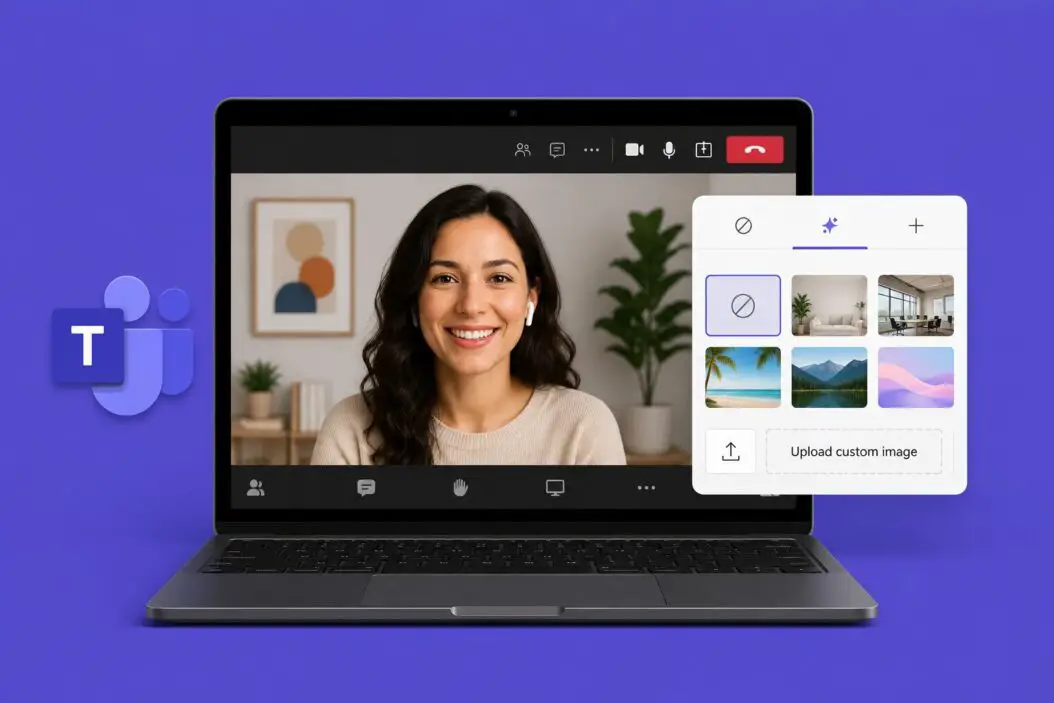
Before your video turns on in a meeting, Teams shows you a preview screen. This is the easiest place to set a background.
Here’s how:
- Click Join on any meeting invite
- On the pre-join screen, look for the Background filters button (it’s near the video preview)
- Click it and a panel opens on the right
- Choose Add new to upload your own image
- Select your image and it appears instantly in the preview
- Click Apply before joining
That’s it. No settings menu, no digging through options. Just the join screen.
How to Change Your Background Mid-Call
If you’re already in a meeting and want to swap backgrounds, it’s still simple.
- Click the three-dot menu (more options) in the meeting toolbar
- Select Video effects or Background effects (depends on your Teams version)
- The same panel opens with your background options
- Upload a new one or pick from what’s already there
The change happens in real time. The other people in the call see the new background within a second or two.
Image Requirements for Custom Backgrounds
This is where a lot of people get stuck. They upload an image and it looks blurry, stretched, or just wrong. Here’s why that happens, and how to fix it.
| Requirement | Recommended Value |
|---|---|
| File format | JPG, PNG, or BMP |
| Aspect ratio | 16:9 (widescreen) |
| Resolution | 1920 x 1080 pixels |
| File size | Under 20 MB |
| Color mode | RGB (not CMYK) |
If your image is in the wrong ratio, Teams will crop or stretch it. A 16:9 image at full HD resolution gives you the cleanest result. I always prepare backgrounds at exactly 1920 x 1080 before uploading them.
Creating Your Own Custom Background Image
You don’t need Photoshop or any paid tool. There are several free ways to make a professional-looking Teams background.
Using Canva (Free)
Canva has a dedicated “Zoom Virtual Background” template which works perfectly for Teams too since the dimensions are 1920 x 1080.
- Go to canva.com and search “virtual background”
- Choose a template or start blank
- Customize with your brand colors, logo, or any text
- Download as PNG or JPG
- Upload directly to Teams
Canva’s free tier is more than enough. You can add your company logo, a blurred office photo, or a clean solid color with a subtle pattern. For teams working remotely, a branded background with a company logo adds a professional touch to every call. Canva covers this use case really well.
Using Microsoft Designer or PowerPoint
PowerPoint actually works great for this. Set the slide size to 33.87 cm x 19.05 cm (which equals 1920 x 1080 at 96 DPI), design your slide, then export it as an image.
- Open PowerPoint, go to Design > Slide Size > Custom Slide Size
- Set Width to 33.87 cm and Height to 19.05 cm
- Add your design
- Go to File > Export > Change File Type > JPEG File Interchange Format
- Save the image and upload to Teams
This method is ideal if you want consistent branding across your team because everyone can use the same PowerPoint file and export their own version.
Using a Simple Photo Editor
If you want to use a real photo as your background, open it in any editor (even the built-in Photos app on Windows) and crop it to 16:9 before uploading. A wide landscape photo, a clean bookshelf, or a simple gradient all work well.
How to Add a Video Background in Teams
Teams also supports video backgrounds. This is a newer feature and not everyone has it yet, but it’s rolling out broadly.
Requirements for video backgrounds:
- MP4 or MOV format
- No audio (Teams strips it anyway)
- Keep it short, 5 to 30 seconds works best, it loops
- File size under 50 MB
- Resolution: 1920 x 1080 recommended
To add one, follow the same steps as adding an image background. In the background panel, click Add new and select your video file. Teams will show it looping behind you.
Keep video backgrounds subtle. A slow parallax effect, gentle motion, or a looping city view works. Fast movement is distracting and can affect call performance.
Setting a Default Background for Every Call
One frustration I hear a lot: “I set my background but it resets every call.” Here’s why that happens and how to fix it.
Teams does not permanently apply a background by default. You have to set it each time. But you can make it stick more reliably:
- Set the background from the pre-join screen before joining. Teams tends to remember this better than mid-call settings in some versions.
- On desktop, the last-used background sometimes persists. This depends on your Teams version.
- In Teams admin-managed environments, your IT team may have locked background options.
If you’re using Teams via a browser, background effects may be limited or unavailable. The desktop app is required for the full experience.
Custom Backgrounds for a Team or Organization
If you manage Teams for a company, you can deploy backgrounds to everyone without each person having to upload their own.
Method 1: Manual Distribution
Package your branded background images into a ZIP file and share them via SharePoint or email. Tell everyone to download and upload them to Teams.
Method 2: Using the IT Admin Policy (Microsoft 365 Admin)
Through the Teams Admin Center, admins can:
- Enable or disable custom backgrounds for specific users or groups
- Restrict background options to only approved images
- Use PowerShell to configure background upload permissions
This is done via Meeting policies in the Teams Admin Center under Audio and Video settings. The relevant setting is “Allow background blur” and “Allow custom backgrounds.”
If you’re an admin and want to enforce company-wide branded backgrounds, Microsoft’s own documentation at learn.microsoft.com covers the exact PowerShell commands and policy settings for this.
Troubleshooting Custom Backgrounds That Won’t Work
Here are the most common issues and what actually fixes them:
| Problem | Likely Cause | Fix |
|---|---|---|
| Background option is grayed out | Admin policy disabled it | Ask your IT team to enable it |
| Image looks pixelated | Resolution is too low | Use 1920 x 1080 minimum |
| Background shows edges or cuts you off | Bad lighting or camera angle | Improve lighting, sit further from wall |
| Option not available at all | Using browser Teams | Switch to the desktop app |
| Upload fails | File too large or wrong format | Convert to JPG under 20 MB |
| Background doesn’t segment properly | Low-end hardware | Enable hardware acceleration in settings |
Background segmentation (the part that separates you from the background) relies on AI processing. On older machines, this can be slow or inaccurate. If the edges around you look jagged or glitchy, try Background blur first. It’s less CPU-intensive and still gives you privacy.
Background Blur as an Alternative
If custom images feel like too much work or your hardware struggles, blur is a solid option.
Teams has had background blur since 2020 and it works reliably across all hardware tiers. It softens everything behind you without needing segmentation to be perfect.
To enable it:
- Go to Background effects (pre-join or mid-call)
- Select the blur option (it looks like a blurred background icon)
That’s it. No image needed. For professional calls where you just want to hide a messy room, blur handles it instantly.
Making Your Background Look Natural
The background is only half the equation. A technically correct background still looks bad if the rest of your setup isn’t right.
Lighting matters most. Face a window or a ring light. If the light is behind you, Teams’ AI struggles to separate you from the background properly, and you end up looking like a floating head.
Distance from camera helps too. Sit about arm’s length from your webcam. Being too close makes background segmentation less accurate.
Solid-colored walls work best. If you’re using a real photo or video background, a plain wall behind you gives the AI less to confuse with your outline.
Avoid clothing that matches your background. If your background is blue and your shirt is also blue, Teams may start treating your shirt as part of the background. That’s as weird as it sounds.
Where to Find Free Professional Backgrounds
You don’t have to design everything yourself. There are good free sources for Teams backgrounds:
- Microsoft’s own background library already includes professional options inside Teams
- Unsplash (unsplash.com) has thousands of high-resolution photos you can use commercially
- Your company’s design team may have brand-approved backgrounds ready to go
For business use, I recommend sticking with your own branded backgrounds or simple, neutral images. Avoid busy patterns, memes, or overly literal “office” backgrounds that look fake. A soft gradient or a clean workspace photo reads more professionally.
Summary
Creating custom backgrounds in Teams is genuinely easy once you know the flow. Upload a 1920 x 1080 JPG or PNG from the background panel, either before joining or during a call. Design your own in Canva or PowerPoint if you want something branded. Use blur if your hardware is older or you just want something quick. Make sure your lighting is good, because that affects how clean the effect looks more than anything else.
Frequently Asked Questions
Can I set a different background for each Teams meeting automatically?
Not automatically, no. Teams doesn’t have a per-meeting background setting that triggers on its own. You have to manually set it each time from the pre-join screen or during the call. The closest workaround is setting your background right before joining, since Teams sometimes remembers the last one you used in that same session.
My co-workers are on Mac and I’m on Windows. Will our custom backgrounds look the same?
The backgrounds themselves will look the same since Teams uses the same rendering engine across platforms. But the quality of the background segmentation can vary. Macs with Apple Silicon chips tend to handle the AI separation better than some Windows machines. Your image will appear the same to everyone, but how cleanly it separates you from it depends on each person’s hardware.
Is there a limit to how many custom backgrounds I can save in Teams?
Microsoft doesn’t publish a strict limit, but in practice Teams stores around 15 to 20 custom backgrounds locally before it starts dropping older ones. If you’ve uploaded a lot, older ones may disappear from your list. To manage this, delete unused backgrounds from the panel before adding new ones.
Can I use animated GIFs as Teams backgrounds?
No. Teams does not support GIF files as backgrounds. It only supports static images (JPG, PNG, BMP) and video files (MP4, MOV). If you want movement, use a short looping MP4 video instead of a GIF.
Why does my background look fine to me but bad on my coworker’s screen?
This usually comes down to your lighting and camera quality, not the background image itself. If you’re backlit or in a dim room, the segmentation AI struggles and creates rough edges around you. That roughness is what your coworker sees. Fix your lighting first and the issue almost always improves without touching any background settings.

- How to Create a Presentation with AI (Step-by-Step) - June 19, 2026
- How to Restore Your Favorites List (Edge, Chrome, Firefox, Safari and More) - June 18, 2026
- How to Make Money with AI in 2026 (Real Methods That Actually Work) - June 18, 2026