
Running a quick poll in Microsoft Teams saves you from scheduling another meeting just to make a decision. You can create a poll directly inside a chat or channel using the built-in Forms integration, and it takes less than a minute.
Here’s the short answer: open a chat or channel, click the + icon in the message box, add Forms, fill in your question and options, then send. Done.
Setting Up a Poll in a Teams Chat or Channel
This is the most common use case. You want to ask your team something and collect responses without leaving Teams.
Step 1: Open the Conversation
Go to any chat (group or individual) or any channel where you want the poll to appear. Make sure you have permission to post. In private channels, you need to be a member.
Step 2: Find the Forms App
Click the + (plus icon) at the bottom of the message compose area. This opens a list of apps you can attach to your message.
If you do not see it immediately, type Forms in the search bar at the top of that panel. Microsoft Forms powers polls inside Teams.
Click on Forms to open the poll builder.
Step 3: Build Your Poll
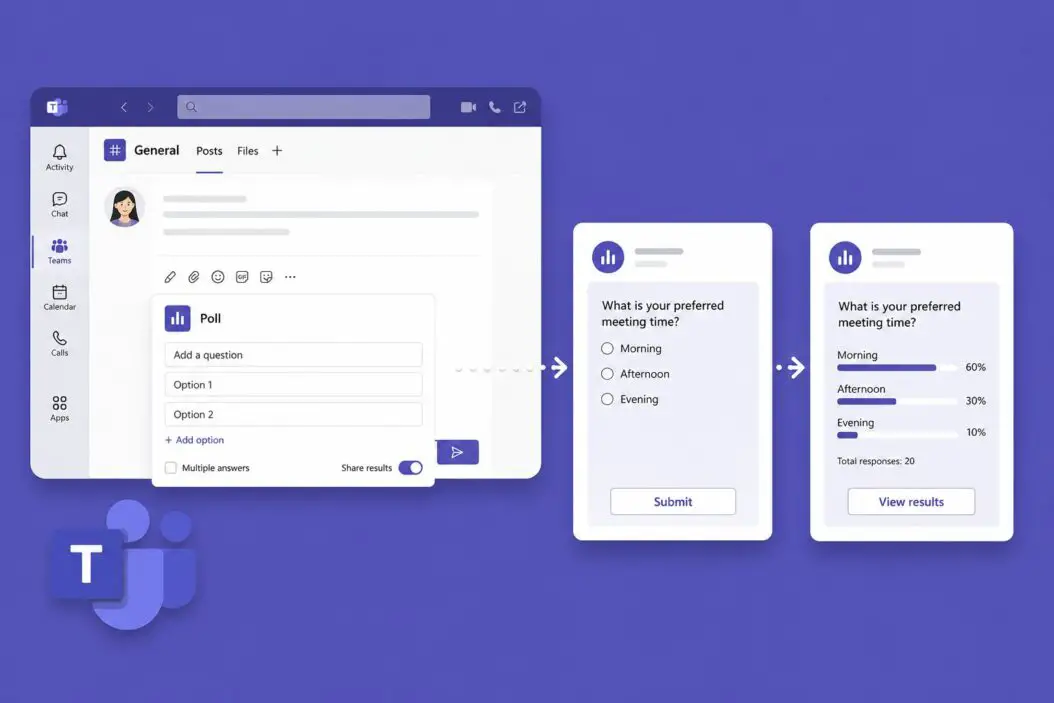
A small panel opens. Here’s what you fill in:
- Question – Type your question. Keep it clear and specific.
- Options – Add at least two answer choices. You can add more by clicking Add option.
- Multiple answers – Toggle this on if you want people to pick more than one option.
- Share results automatically – This lets respondents see the live results after voting.
- Keep responses anonymous – Turn this on if you want honest answers without names attached.
Once everything looks right, click Send.
Step 4: Collect Responses
The poll shows up in the chat or channel as a card. Team members click their choice directly inside Teams without opening any external link. Results update in real time.
You can click View results at any time to see a breakdown of who voted and what they picked (unless you enabled anonymous responses, in which case you only see the counts).
How to Create a Poll During a Teams Meeting
Running a live poll mid-meeting is a slightly different process. This is great for quick decisions, gauging understanding, or making sessions more interactive.
Before the Meeting Starts
You can prepare polls in advance so you are not scrambling during the call.
- Open the meeting in your Teams calendar.
- Click on the meeting to open its details.
- Select the + tab button near the top to add a tab.
- Search for and add Forms.
- Build your poll questions ahead of time and save them.
When the meeting starts, the polls are ready to launch.
During a Live Meeting
- Open the meeting controls at the top or bottom of the screen.
- Click More actions (the three-dot icon).
- Select Polls.
- If you pre-built polls, they appear here. Click Launch to send a poll to all participants.
- If you want a new one on the fly, click Create new poll, fill it in, and launch it.
Participants see the poll pop up on their screen. Results appear live as people vote.
After the Meeting
Poll results are saved. Go back to the meeting chat or the Forms tab to review the data. You can also export responses as a CSV from Microsoft Forms if you need to analyze them further.
Using Polls in Teams Channels vs. Group Chats
There are a few practical differences worth knowing about.
| Feature | Channel Poll | Group Chat Poll |
|---|---|---|
| Who can vote | All channel members | All chat participants |
| Results visibility | Public to channel | Only chat participants |
| Anonymous option | Available | Available |
| Best for | Org-wide decisions | Small team decisions |
| Response tracking | Yes | Yes |
| Works on mobile | Yes | Yes |
Channel polls tend to get more responses because they sit in a shared space where more people land throughout the day. Chat polls are faster for smaller groups.
The Polly App: A More Powerful Alternative
The built-in Forms integration covers most needs, but if you run polls regularly or need more features, Polly is a third-party app built specifically for Teams polling.
You can add Polly from the Teams app store. It supports:
- Scheduled polls that post automatically
- Recurring surveys (useful for weekly check-ins)
- Word clouds and open-ended responses
- More detailed analytics
To add Polly, click the Apps icon in the left sidebar of Teams, search for Polly, and install it. After that, you can use /polly as a command in any chat to create a poll instantly.
For most users, Forms is more than enough. Polly makes sense if polls are a regular part of your workflow.
Creating a Poll on the Teams Mobile App
The mobile experience is nearly identical to desktop.
- Open a chat or channel in the Teams mobile app.
- Tap the + icon in the compose bar.
- Look for Forms in the list of options.
- If it’s not visible, tap More to find it.
- Fill in your question and answer choices.
- Tap Send.
One thing to note: creating polls during a meeting from mobile is possible but slightly buried. Tap More in the meeting controls, then look for Polls.
Permissions and Admin Settings
If the Forms option is not showing up for you or your team, it might be an admin setting.
Microsoft Teams admins can restrict which apps are available in a tenant. If Forms is blocked, you will not see it in the app picker. In that case, check with whoever manages your Teams environment.
Here is what affects poll availability:
- Messaging policies – Admins control which apps appear in the compose box.
- App permission policies – Forms needs to be allowed for users.
- External users – Guests in Teams may not always be able to vote depending on org settings.
If you are an admin and want to enable Forms for everyone, go to the Microsoft Teams Admin Center and check your app setup policies under Teams apps.
Quick Fixes for Common Issues
Forms app not appearing in the + menu This is almost always a permission issue. Ask your Teams admin to enable Microsoft Forms in your app policies.
Poll responses not updating Refresh the chat or channel. Teams sometimes needs a nudge to sync live results, especially on older desktop clients.
Cannot create a poll in a meeting Make sure the meeting organizer or a presenter role is assigned to you. Attendees in large webinars may not have this capability by default.
Anonymous polls still showing names Double-check the toggle before sending. Once the poll is live, you cannot change the anonymity setting retroactively.
Guest users cannot vote This is a known limitation. External guests may have restricted access to Forms depending on your organization’s policies.
Tips for Getting Better Poll Responses
Writing the poll is the easy part. Getting people to actually respond takes a bit more thought.
- Keep questions short. One clear question gets more votes than a paragraph.
- Limit options to five or fewer. Too many choices leads to decision fatigue.
- Pin the poll message in a channel if you need responses over several days.
- Send a follow-up message tagging the team if turnout is low.
- Use the anonymous option for sensitive topics. People vote more when they are not being watched.
What Happens to Poll Data
Poll responses are stored in Microsoft Forms, not just in Teams. That means:
- You can access all your polls at forms.microsoft.com
- You can export responses to Excel anytime
- Polls do not disappear if the Teams chat is deleted (the Forms data stays in your account)
- You can share a direct link to the form if you want responses from people outside the Teams conversation
This is useful to know if you are using polls to collect data for reports or decisions that need a paper trail.
Conclusion
Creating a poll in Microsoft Teams comes down to three steps: open a chat or channel, add the Forms app from the compose bar, and fill in your question. For meetings, use the Polls option in the meeting controls. The whole process takes under a minute once you have done it once.
The built-in Forms integration handles everything most teams need. If you run polls frequently or need scheduled or recurring surveys, look at Polly as an add-on. And if the option is not showing up at all, it is almost certainly an admin permissions issue rather than anything on your end.
Frequently Asked Questions
Can I edit a poll after sending it in Teams?
You can edit a poll after it has been sent, but only if no one has voted yet. Once responses start coming in, editing is locked to protect data integrity. If you need to change something after votes are cast, close the poll and create a new one.
Do Teams polls work in private channels?
Yes, polls created with Microsoft Forms work in private channels just like regular channels. You need to be a member of the private channel to post and vote. Members outside the channel will not see the poll or its results.
Is there a limit on how many options I can add to a Teams poll?
Microsoft Forms allows up to 100 options per question. Practically, anything beyond 10 starts to hurt participation. People rarely scroll through long lists, so keep it focused to four or five choices for the best response rates.
Can I see who voted on a Teams poll even if it’s anonymous?
No. When you enable the anonymous option, Microsoft does not record which account submitted which answer. Not even the poll creator can see individual responses. Only the aggregate count per option is visible. This is enforced at the platform level.
Do polls expire in Microsoft Teams?
Polls created with Forms do not automatically expire. They stay open until you manually close them. You can close a poll from the Forms website or by clicking the poll in Teams and selecting the close option. Closed polls still show results but no longer accept new votes.

- How to Restore Your Favorites List (Edge, Chrome, Firefox, Safari and More) - June 18, 2026
- How to Make Money with AI in 2026 (Real Methods That Actually Work) - June 18, 2026
- How to Create a Poll in Microsoft Teams (A Simple Guide) - June 18, 2026