
Rows disappeared from your spreadsheet and you have no idea where they went. It happens more than you’d think. Someone filtered the data, someone hid a few rows to clean up the view, or Excel just did something unexpected. Whatever the reason, unhiding rows in Excel is straightforward once you know where to look.
The Quick Answer
Select the rows above and below the hidden ones, right-click the selection, and choose Unhide. That’s the fastest way for most situations. If that doesn’t work, keep reading.
Why Rows Get Hidden in the First Place
Before jumping into fixes, it helps to know what caused the hiding. The method that works best often depends on how the rows were hidden.
| Cause | What Happened | Best Fix |
|---|---|---|
| Manual hiding | Someone used Hide Rows | Right-click > Unhide |
| Row height set to zero | Dragged row border to collapse it | Resize via Format menu |
| Filter applied | Active filter excluded those rows | Clear the filter |
| Group collapsed | Rows are in a grouped section | Expand the group |
| Frozen panes hiding rows | Top rows scrolled out of view | Unfreeze panes |
Knowing this saves you time. If you unhide and nothing changes, you’re probably dealing with a filter or a group, not a manually hidden row.
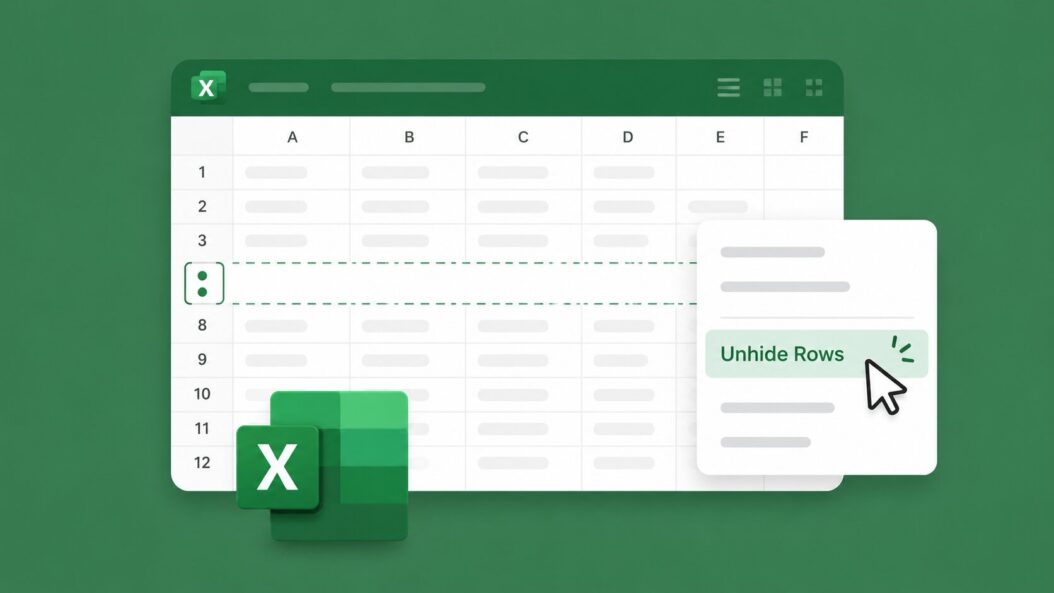
How to Unhide Rows in Excel Using Right-Click
This is the method most people reach for first. It works when rows were hidden manually.
Step 1: Click the row number just above where the hidden rows should be.
Step 2: Hold Shift and click the row number just below the gap. You’re selecting a range that sandwiches the hidden rows.
Step 3: Right-click anywhere in the highlighted selection.
Step 4: Click Unhide from the context menu.
The rows reappear immediately.
What If You Don’t See “Unhide” in the Menu?
If the option is grayed out or missing, the rows might not be hidden in the traditional sense. Check for active filters or grouped rows instead.
Unhide Rows Using the Format Menu
The ribbon method gives you more control and works in situations where right-clicking fails.
Step 1: Select the rows around the hidden section the same way (click above, Shift-click below).
Step 2: Go to the Home tab on the ribbon.
Step 3: In the Cells group, click Format.
Step 4: Hover over Hide & Unhide.
Step 5: Click Unhide Rows.
This approach is reliable across all Excel versions, including Excel for Mac and Excel Online.
Unhide All Rows in Excel at Once
If you want to reveal every hidden row in the entire sheet at once, this is the fastest path.
Step 1: Press Ctrl + A to select the entire worksheet. Or click the small triangle in the top-left corner where the row numbers and column letters meet.
Step 2: Right-click any row number.
Step 3: Click Unhide.
Every hidden row in the sheet comes back. This is useful when you’ve inherited a spreadsheet and have no idea what’s been hidden.
Using a Keyboard Shortcut
Once you’ve selected your rows, press Alt + H + O + U + R in sequence. That navigates through Home > Format > Hide & Unhide > Unhide Rows. It’s a bit long but muscle memory makes it quick.
Unhide Rows When a Filter Is Active
This is the most common reason “Unhide” seems to do nothing. If a filter is hiding rows, those rows aren’t technically hidden. They’re filtered out. The distinction matters.
Step 1: Look at the column headers. If you see small dropdown arrows, a filter is active.
Step 2: Check for blue row numbers on the left. Filtered rows show blue numbers, not sequential ones.
Step 3: Go to the Data tab.
Step 4: Click Clear in the Sort & Filter group. Or click Filter to toggle it off entirely.
All filtered rows return to view immediately.
You can also click the dropdown arrow on a filtered column and select Clear Filter From [Column Name] to remove just that filter while keeping others.
Unhide Rows That Were Grouped
Excel’s Group feature lets users collapse sections of data, which looks identical to hidden rows but works differently.
Signs you’re dealing with grouped rows:
- You see small numbers (1, 2, 3) in the top-left corner of the sheet
- There’s a small + or – button to the left of the row numbers
- Clicking that + button expands the section
To fully ungroup:
Step 1: Select the rows that are grouped.
Step 2: Go to Data > Ungroup > Ungroup.
Or press Shift + Alt + Left Arrow to ungroup selected rows.
If you just want to expand the group temporarily, click the + button or click the number 2 or 3 in the outline area at the top-left.
Fix Rows Hidden by Row Height Set to Zero
This one trips people up. If someone dragged a row border until it collapsed, Excel treats it as a row with a height of 0, not a hidden row. The right-click Unhide option won’t work here.
Step 1: Select the rows surrounding the invisible ones.
Step 2: Go to Home > Format > Row Height.
Step 3: Type a number like 15 and click OK.
The rows snap back to a visible size.
How to Spot This Issue
When you hover your cursor over the row number border where the hidden rows should be, you’ll see the resize cursor (a double arrow). That confirms the row height is zero, not a traditional hide.
Unhide the First Row in Excel
Row 1 is a special case. You can’t click above it to select a range. Here’s how to handle it.
Method 1: Name Box
Click the Name Box (the small box to the left of the formula bar that shows the cell address).
Type A1 and press Enter. This selects cell A1 even though the row is hidden.
Then go to Home > Format > Hide & Unhide > Unhide Rows.
Method 2: Go To Dialog
Press Ctrl + G or F5 to open the Go To dialog.
Type A1 in the Reference field and click OK.
Then use the ribbon to unhide.
Method 3: Drag the Row Border
Click just below the column header area where Row 1 should be. When the resize cursor appears, drag downward to restore the row height.
Unhide Multiple Non-Consecutive Hidden Rows
If rows 3, 7, and 15 are all hidden, you can unhide them all at once by selecting the entire sheet first (Ctrl + A), then right-clicking and choosing Unhide. That’s usually the cleanest approach rather than hunting down each hidden row individually.
How to Find Hidden Rows Before Unhiding
If you’re working with a large spreadsheet and need to locate what’s hidden before revealing it, Excel’s Go To Special feature helps.
Step 1: Press Ctrl + G, then click Special.
Step 2: Select Visible cells only and click OK.
This highlights only the visible cells. The gaps in your selection show exactly where hidden rows exist.
Unhide Rows in Excel on Mac
The process is nearly identical on Mac, with a few small differences in keyboard shortcuts.
| Action | Windows | Mac |
|---|---|---|
| Select all cells | Ctrl + A | Cmd + A |
| Open Go To | Ctrl + G | Ctrl + G or Cmd + G |
| Row height dialog | Alt + H, O, H | No direct shortcut; use Format menu |
| Clear filter | Alt + D, F, S | Cmd + Shift + F |
The right-click menu works the same way on Mac. Select the surrounding rows, right-click, and choose Unhide.
Unhide Rows in Excel Online
Excel for the web has slightly fewer options but the core method still works.
Select the rows surrounding the hidden section. Right-click and choose Unhide Rows. The Format menu ribbon path also works: Home > Format > Hide & Unhide > Unhide Rows.
Filters and groups work the same way in the browser version.
Preventing Accidental Row Hiding
If you’re sharing a spreadsheet and want to stop others from hiding rows, you can protect the sheet.
Go to Review > Protect Sheet. In the protection options, make sure Format rows is unchecked. This prevents users from hiding or unhiding rows without the password.
For teams working with shared Excel files, it’s also worth learning about Excel’s sheet protection features in depth.
Common Issues and Fixes
Unhide does nothing: A filter is probably active. Clear the filter from the Data tab.
Some rows came back, but not all: Multiple causes are at play. You might have both a filter and manually hidden rows. Fix them separately.
Row 1 won’t unhide: Use the Name Box trick. Type A1 and press Enter before using the Unhide option.
Rows are visible in the formula bar but not on screen: Row height is likely zero. Use Format > Row Height to reset it.
Sheet is protected: You’ll need the password to unhide rows if the sheet owner locked formatting. Contact whoever shared the file.
Conclusion
Unhiding rows in Excel comes down to knowing what caused them to disappear. Most of the time, a right-click and Unhide solves it in seconds. When that fails, filters and grouped rows are the usual suspects. Row height set to zero and protected sheets are less common but worth knowing.
The method that works for Row 1 is different from the rest, and filters require a completely separate approach from manually hidden rows. Once you’ve matched the fix to the cause, it takes about ten seconds to get your data back.
FAQs
Can I unhide rows without knowing which row numbers are missing?
Yes. Select the entire sheet with Ctrl + A, then right-click any row number and choose Unhide. This reveals all manually hidden rows at once without needing to know their specific numbers. For filtered rows, head to the Data tab and clear any active filters.
Why do the row numbers skip but I can’t unhide anything?
Skipping row numbers with blue text means a filter is active, not that rows are hidden. Clicking Unhide won’t do anything in this case. Go to Data > Clear to remove the filter and bring back the missing rows.
Is there a way to see all hidden rows in a sheet before deciding to unhide them?
Use Ctrl + G > Special > Visible cells only. This selects only what’s visible, so the gaps in the selection show you exactly where hidden rows exist. You can then decide which ones to reveal.
I unhid rows but the data inside looks blank. Is it gone?
The data is almost certainly still there. Click on one of the cells that appears blank and look at the formula bar. If content shows up there, the text color might be white (matching the background), making it invisible. Select those cells, go to Home > Font Color, and choose a visible color like black.
Does Excel have a way to automatically unhide rows based on a condition?
Not natively through the interface, but you can do it with a macro. A short VBA script can loop through all rows and set their Hidden property to False based on any condition you define. This is useful for spreadsheets where rows get hidden and shown dynamically based on dropdown selections or other inputs.
