
Your Mac froze. The app is spinning the rainbow wheel. Nothing responds. I’ve been there. The fix takes about three seconds once you know it.
Press Command + Option + Esc together. A small window opens. Click the frozen app. Hit Force Quit. Done.
That’s the core answer. But there are five more ways to do this, and some of them work even when your keyboard shortcut doesn’t.
What Force Quit Actually Does
When an app freezes, it’s usually stuck in a loop or waiting for a process that never responds. Force quitting tells macOS to kill that process immediately, without waiting for the app to close normally.
It’s like cutting power instead of shutting something down properly. Any unsaved work in that app is gone. That’s the trade-off.
It does not restart your Mac. It does not affect other apps. It only terminates the one frozen application.
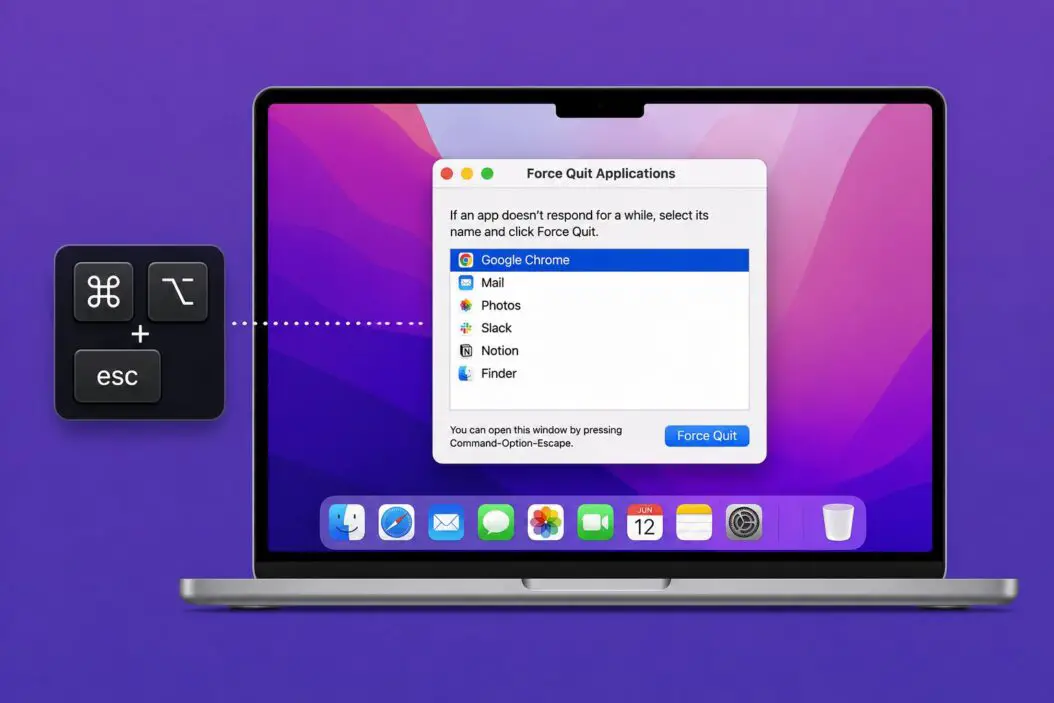
Method 1: The Keyboard Shortcut (Fastest)
Command + Option + Esc
This is the one I use every single time. It opens the Force Quit Applications window instantly.
Here’s what to do:
- Hold down Command (⌘) and Option (⌥) and press Esc
- The Force Quit window opens
- Click the app that says (Not Responding) next to it
- Click Force Quit
- Confirm when prompted
The window lists every open app. If an app is frozen, macOS usually labels it with “(Not Responding)” automatically.
You can reopen the app right after. Force quitting doesn’t uninstall anything or damage the app.
Method 2: Right-Click the Dock Icon
This one is useful when your keyboard feels unresponsive or you prefer using the mouse.
- Find the frozen app’s icon in the Dock at the bottom of your screen
- Hold Option and right-click (or two-finger click) on the icon
- You’ll see Force Quit in the menu
- Click it
Without holding Option, you’ll only see Quit. The Option key is what changes it to Force Quit.
Method 3: Apple Menu Force Quit
- Click the Apple logo in the top-left corner of your screen
- Select Force Quit
- Pick the frozen app from the list
- Click Force Quit
This opens the same Force Quit Applications window as the keyboard shortcut. Same result, different path.
Method 4: Activity Monitor (When You Need More Control)
Activity Monitor is macOS’s built-in task manager. It shows everything running on your Mac, including background processes.
How to open it:
- Press Command + Space, type Activity Monitor, press Enter
- Or go to Finder > Applications > Utilities > Activity Monitor
How to force quit from here:
- Find the app or process in the list
- Click on it once to select it
- Click the X button in the top-left toolbar
- Choose Force Quit
Activity Monitor is useful when:
- The app doesn’t appear in the standard Force Quit window
- A background process is causing slowdowns
- You want to see CPU or memory usage before killing something
The CPU and Memory tabs at the bottom show what’s consuming the most resources. If something is using 90% CPU and it’s not a program you recognize, that’s worth investigating.
Method 5: Terminal (The Power User Way)
If your Mac is so frozen that no windows respond, Terminal might still work. This method requires knowing the app’s process name or finding its Process ID (PID).
Option A: Kill by app name
- Open Terminal (Command + Space, type Terminal)
- Type this command, replacing AppName with the actual app name:
killall AppNameExample: killall Safari or killall Finder
Option B: Kill by Process ID
- In Terminal, type:
ps aux | grep AppName- Find the number in the second column. That’s the PID.
- Type:
kill -9 PIDReplace PID with the actual number.
The -9 flag is a force kill. It’s immediate and gives the process no chance to save anything. Use it when a regular kill doesn’t work.
This is the nuclear option and it’s effective. Apple’s own support documentation references Terminal-based process management for advanced troubleshooting.
Method 6: Log Out or Restart (Last Resort)
If nothing above works and your entire Mac is unresponsive:
Try logging out:
- Press Command + Shift + Q
- This closes all apps and logs you out
Force a restart:
- Hold the Power button for about 5-10 seconds until the Mac shuts off
- Wait a few seconds, then press Power again
A hard shutdown like this should only happen when nothing else works. macOS usually runs a disk check on restart after an unclean shutdown, which is normal.
Which Method Should You Use?
| Situation | Best Method |
|---|---|
| Normal frozen app | Command + Option + Esc |
| Mouse is working, keyboard isn’t | Right-click Dock icon |
| Want to see what’s consuming resources | Activity Monitor |
| Multiple things frozen | Activity Monitor |
| App not showing in Force Quit window | Terminal (killall) |
| Entire Mac unresponsive | Power button restart |
Force Quitting Finder
Finder is different from other apps. You can’t just close it. But you can restart it.
- Press Command + Option + Esc
- Select Finder in the list
- Click Relaunch (not Force Quit)
Relaunching Finder closes and reopens it immediately. This fixes most Finder freezes, including situations where the Desktop or file windows stop responding.
What to Do After Force Quitting
Most of the time, you just reopen the app and continue working. But a few things are worth knowing:
Check for updates. If an app crashes or freezes repeatedly, an update often fixes it. Check the App Store or the app’s website.
Clear the app’s cache. Some apps build up corrupted cache files that cause instability. Go to ~/Library/Caches/ (hold Option and click Go in Finder to access the Library folder) and look for a folder with the app’s name.
Restart your Mac. A full restart clears memory and resolves a lot of persistent issues. If your Mac has been on for weeks without a restart, that alone can stop recurring freezes.
Check storage. A Mac with less than 10-15% free disk space behaves sluggishly and apps are more likely to freeze. Go to Apple menu > About This Mac > Storage to check.
For deeper troubleshooting of persistent app crashes, Apple’s official support page on unexpected quits covers advanced steps including Safe Mode and reinstalling apps.
Why Apps Freeze on Mac
Understanding the cause helps you prevent it.
Memory pressure. When physical RAM fills up, macOS uses the SSD as virtual memory (called swap). This slows everything down and can cause apps to stop responding. Activity Monitor’s Memory tab shows a bar at the bottom. If it’s yellow or red, your Mac needs more free RAM.
Software bugs. Some apps just have code issues. Web browsers in particular can leak memory over long sessions.
Conflicting processes. Two apps trying to access the same file or resource at the same time can cause both to freeze.
Outdated software. An app built for an older version of macOS can behave unpredictably on a newer one.
Hardware problems. Overheating causes throttling and freezes. If your Mac runs hot and apps freeze often, check the vents and consider using a cooling pad if you’re on a MacBook.
macOS Sequoia and later versions have improved memory management significantly, but app-level bugs are outside Apple’s control.
Force Quitting on Different Mac Hardware
The methods work the same way across all Mac hardware in 2026, whether you’re on an M-series MacBook, a Mac mini, a Mac Studio, or an Intel-based older Mac.
One thing that varies: Touch ID Macs use the power button for Touch ID. Holding it down still triggers a force shutdown, but a brief press might just bring up a sleep/restart dialog instead of shutting down. On those machines, hold it for a full 5-8 seconds to force shutdown.
Magic Keyboard users: the keyboard shortcut is the same. The keys are just laid out slightly differently on compact vs. full-size versions.
Conclusion
Force quitting on a Mac is something you’ll do occasionally, and it’s genuinely easy once you know the options. The keyboard shortcut Command + Option + Esc handles about 95% of situations. Activity Monitor and Terminal are there when something more stubborn comes up.
The bigger picture: if you’re force quitting the same app repeatedly, that’s the app’s fault, not your Mac’s. Update it, reinstall it, or find an alternative. Force quitting is a fix for the moment, not a solution for a broken app.
FAQs
Can force quitting on Mac corrupt my files?
It can, but it’s uncommon. If you force quit an app that was actively writing to a file (like saving a document), that file could end up incomplete or corrupted. Most modern apps autosave frequently, so the damage is usually minimal. Apps like Pages and Word have autosave and version history, so you can recover most of your work even after a force quit.
I force quit an app and it keeps reopening by itself. How do I stop that?
This usually means the app is set to reopen at login or it’s part of a background service. Go to System Settings > General > Login Items and remove it from the list. If it still comes back, check if it’s a LaunchAgent by opening Terminal and running launchctl list | grep appname.
Is there a way to force quit all apps at once on Mac?
Not through a single menu click, but you can do it through Terminal. Running sudo killall -u $(whoami) kills all processes owned by your user account, which effectively closes everything. This is extreme and you’ll lose unsaved work in every open app. A regular restart is safer and does the same thing more cleanly.
Why does Command + Option + Esc sometimes not open anything?
If the entire system is frozen and not just one app, the keyboard shortcut may not register. In that case, try clicking the Apple menu at the top left first. If the whole Mac is locked up, use the power button for a force restart. It’s also possible that the keyboard itself has lost its connection, which can happen with Bluetooth keyboards when battery is low.
Does force quitting an app on Mac affect other users on the same machine?
No. Force quitting only affects the app running in your current user session. If you’re using Fast User Switching and another user has the same app open, their session is completely unaffected. macOS keeps user sessions isolated at the process level.
