
Two-factor authentication (2FA) adds a second lock to your account. Even if someone steals your password, they still can’t get in without that second code. I’ll show you exactly how to enable two-factor authentication on the most common platforms, step by step, so you can secure your accounts today.
Why Your Password Alone Is Not Enough
Passwords get leaked. It happens all the time. Data breaches expose millions of credentials every year, and most people reuse passwords across multiple sites. That means one breach can compromise ten accounts.
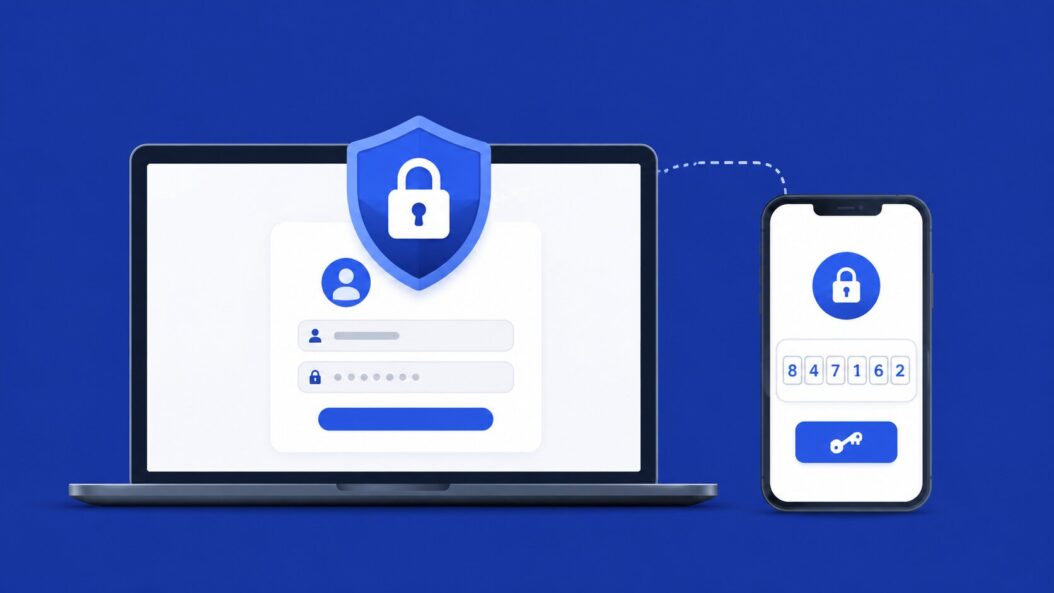
2FA fixes this. When you log in, the site asks for something you know (your password) and something you have (a code from your phone or email). Even if a hacker has your password, they need that second factor too.
According to Google’s own security research, accounts with 2FA enabled block nearly 100% of automated bot attacks and 96% of bulk phishing attacks. It’s the single most effective thing you can do for your account security right now.
What Types of Two-Factor Authentication Exist
Before you start enabling it, you should know what options you’ll see on most platforms.
| 2FA Type | How It Works | Security Level |
|---|---|---|
| Authenticator App | Generates a 6-digit code every 30 seconds | High |
| SMS Text Message | Sends a code to your phone number | Medium |
| Email Code | Sends a code to your email | Medium |
| Hardware Key | Physical USB key you plug in | Very High |
| Backup Codes | One-time codes saved offline | Backup only |
Authenticator apps like Google Authenticator, Authy, or Microsoft Authenticator are your best option in most cases. SMS is convenient but can be intercepted through SIM-swapping attacks. If you’re serious about security, go with an app.
How to Enable Two-Factor Authentication on Google
Google accounts protect Gmail, YouTube, Google Drive, and every other Google service. Here’s how to turn on 2FA.
Step 1: Open Your Google Account Settings
Go to myaccount.google.com. Sign in if you’re not already. Click on the Security tab in the left sidebar.
Step 2: Find the 2-Step Verification Option
Scroll down to the section labeled “How you sign in to Google.” Click on 2-Step Verification. Google may ask you to confirm your password again here.
Step 3: Choose Your Second Factor
Google gives you several options:
- Google Prompt sends a push notification to your phone
- Authenticator App generates offline codes
- SMS or Call sends a code to your number
- Hardware Security Key works with physical keys like YubiKey
For most people, the Google Prompt or Authenticator App is the right pick.
Step 4: Follow the On-Screen Steps
Select your preferred method. Google walks you through the setup with on-screen instructions. If you choose an authenticator app, it will show you a QR code. Open your authenticator app, tap the “+” button, and scan the code.
Step 5: Enter the Verification Code
After scanning, your authenticator app will show a 6-digit code. Type it into Google’s verification field. If it matches, 2FA is now active.
Step 6: Save Your Backup Codes
Google will offer you backup codes. Download them or write them down and keep them somewhere safe. These are your way back in if you lose access to your phone.
How to Enable Two-Factor Authentication on Apple ID
Your Apple ID controls your iPhone, iPad, Mac, iCloud, and App Store purchases. Locking it down is critical.
On iPhone or iPad
- Open the Settings app
- Tap your name at the top
- Tap Sign-In and Security
- Tap Two-Factor Authentication
- Tap Turn On
- Follow the prompts to add and verify a trusted phone number
Apple sends verification codes to your trusted devices or phone number. When you sign into a new device or browser, a code appears on your already-trusted device.
On a Mac
- Click the Apple menu, then System Settings
- Click your name at the top
- Click Sign-In and Security
- Click Turn On next to Two-Factor Authentication
- Follow the prompts
Apple’s 2FA is deeply integrated into their ecosystem. Once enabled, every new device login triggers a prompt on your existing trusted devices.
How to Enable Two-Factor Authentication on Facebook
Step 1: Go to Security Settings
Open Facebook and click your profile picture in the top right. Go to Settings and Privacy, then click Settings. In the left menu, click Accounts Center, then Password and Security.
Step 2: Select Two-Factor Authentication
Click Two-factor authentication, then select the account you want to protect.
Step 3: Pick Your Method
Facebook offers:
- Authentication app (recommended)
- SMS text message
- Hardware security key
- Login codes from a third-party app
Choose Authentication App, then scan the QR code with your app. Enter the 6-digit code to confirm.
Step 4: Save Recovery Codes
Facebook will show recovery codes. Save them somewhere offline. You’ll need them if you lose your phone.
How to Enable Two-Factor Authentication on Instagram
- Go to your profile and tap the three horizontal lines in the top right
- Tap Settings and Privacy
- Tap Accounts Center
- Tap Password and Security
- Tap Two-factor authentication
- Select your account, then choose your preferred method
- Follow the setup instructions
Instagram shares the Accounts Center with Facebook, so the process is nearly identical.
How to Enable Two-Factor Authentication on Microsoft and Outlook
Step 1: Visit Your Microsoft Account
Go to account.microsoft.com and sign in.
Step 2: Open Security Settings
Click Security in the top navigation bar, then click Advanced security options.
Step 3: Add a Verification Method
Under “Two-step verification,” click Turn on. Microsoft walks you through the setup wizard.
You can choose:
- The Microsoft Authenticator app
- A different authenticator app
- Email or phone
The Microsoft Authenticator app is the smoothest option for Windows, Outlook, Teams, and Xbox accounts since it integrates directly.
Step 4: Set Up the App
Download the Microsoft Authenticator app on your phone. Scan the QR code shown on the setup page. Confirm the 6-digit code. Done.
How to Enable Two-Factor Authentication on Twitter / X
- Go to Settings and Support, then Settings and Privacy
- Click Security and account access, then Security
- Click Two-factor authentication
- Choose your method: Text message, Authentication app, or Security key
- For the authenticator app option, scan the QR code and confirm the code
Note: As of 2023, Twitter/X restricted SMS 2FA to paid subscribers. If you’re on a free account, use an authenticator app instead. It’s actually the more secure option anyway.
How to Set Up an Authenticator App (If You Haven’t Already)
Most platforms recommend an authenticator app. Here’s how to get one set up before you start enabling 2FA everywhere.
Download one of these:
- Google Authenticator (iOS and Android)
- Microsoft Authenticator (iOS and Android)
- Authy (iOS, Android, and desktop)
Authy is worth a mention because it backs up your 2FA codes to the cloud. If you get a new phone, you can restore all your codes. Google Authenticator now supports backups too, but Authy has had this feature longer and is well-trusted in the security community.
To add an account in any authenticator app:
- Open the app
- Tap the “+” button or “Add account”
- Choose “Scan a QR code”
- Point your camera at the QR code on the website
- The account appears automatically with a rolling 6-digit code
The code refreshes every 30 seconds. Enter it before it changes, and you’re in.
What Happens If You Lose Access to Your 2FA Method
This is the part most guides skip. Losing your phone when 2FA is enabled can feel like locking yourself out of your house.
Here’s what to do before that happens:
- Save backup codes when the platform offers them. Print them out or store them in a password manager.
- Register a backup phone number on platforms that support it.
- Use Authy instead of Google Authenticator because Authy backs up your codes.
- Store recovery codes in a secure location like a physical safe or an encrypted notes app.
If you’ve already lost access, each platform has an account recovery process. Google, Apple, and Microsoft have identity verification steps that can take a few days. It’s annoying, but they have to be careful because bad actors use account recovery to break in.
For deeper security practices and best-in-class guidance, the National Institute of Standards and Technology (NIST) publishes guidelines on digital identity security that’s worth reading if you manage multiple accounts or handle sensitive data.
2FA on Other Popular Platforms
| Platform | Where to Find 2FA Settings |
|---|---|
| Amazon | Account and Lists > Account > Login and Security |
| PayPal | Settings > Security > 2-Step Verification |
| Dropbox | Settings > Security > Two-step verification |
| GitHub | Settings > Password and authentication |
| Discord | User Settings > My Account > Two-Factor Auth |
| Settings and Privacy > Sign in and Security | |
| Snapchat | Profile > Settings > Two-Factor Authentication |
Every platform has it in slightly different places, but the flow is the same: find the security settings, enable 2FA, scan a QR code or add your phone, confirm with a code.
Common Mistakes People Make with 2FA
Only using SMS. Phone numbers can be hijacked through SIM swapping. A criminal calls your carrier, pretends to be you, and transfers your number to their SIM. Now they receive all your 2FA texts. Use an authenticator app when you can.
Not saving backup codes. This is how people get locked out. Always save the backup codes in a secure place the moment you set up 2FA.
Using the same device for email and 2FA. If someone has your phone and your email 2FA code goes to the same phone, you’ve only got one layer of protection. Keep your authenticator app and email accessible separately if possible.
Setting it up but never testing it. Sign out and sign back in to make sure everything works before you rely on it.
Is 2FA Enough to Keep Accounts Fully Secure?
2FA is a massive improvement over passwords alone. But it’s not a silver bullet. Sophisticated phishing attacks can trick you into entering both your password and your 2FA code on a fake site in real time (this is called a real-time phishing attack).
Hardware security keys, like a YubiKey, are immune to this because they verify the website’s domain automatically. If you manage sensitive financial accounts or business accounts, a hardware key is worth the $30 to $70 cost.
For everyone else, an authenticator app plus strong unique passwords is a solid setup. A good password manager like Bitwarden (open-source and free) handles the password side of things, so you can focus on just the 2FA piece.
Summary
Enabling two-factor authentication is straightforward once you know where to look. The steps are the same on almost every platform: go to security settings, find 2FA, choose an authenticator app, scan a QR code, confirm a code, and save your backup codes.
The authenticator app route beats SMS every time for security. Authy or Microsoft Authenticator are both solid choices. Save your backup codes somewhere you won’t lose them, and test the login once before you walk away.
Do it on your email account first since that’s the master key to everything else. Then your bank, then social media. Thirty minutes of setup now saves you from a nightmare account recovery later.
Frequently Asked Questions
Can I use two-factor authentication if I don’t have a smartphone?
Yes. Some platforms support hardware security keys like YubiKey, which plug into a USB port on any computer. A few platforms also let you use a landline to receive a voice call with your code. Authy also has a desktop app for computers, which can work as your second factor if you don’t have a phone.
Does enabling 2FA slow down my login every single time?
Most platforms let you mark a device as trusted. Once you do that, you only get asked for the 2FA code on new or unrecognized devices. On your personal laptop or phone that you use daily, you’ll rarely see the second prompt after the first time.
I set up 2FA on an account months ago and now I can’t find the code. What happened?
If you used Google Authenticator without enabling backups, and you got a new phone or cleared the app, those codes are gone. Your best path is to use the backup codes you saved during setup. If you didn’t save them, use the platform’s account recovery process. Going forward, switch to Authy which backs up codes automatically, or enable the Google Authenticator cloud sync.
Is 2FA required by law for any type of account?
In some regulated industries, yes. Financial institutions in the US and EU are increasingly required to use multi-factor authentication for customer-facing accounts under regulations like PSD2 in Europe. Businesses handling healthcare data under HIPAA are also expected to use strong access controls. For personal accounts, it’s not legally required but strongly recommended by every major security organization.
What’s the difference between two-factor authentication and two-step verification?
They’re often used interchangeably, but there’s a technical distinction. Two-step verification can use two steps from the same factor type, like two passwords or a password plus a security question. True two-factor authentication uses two different factor types: something you know plus something you have or are. In practice, when a platform says “two-step verification,” they usually mean proper 2FA with a code from your phone. The outcome is effectively the same for most users.
