
Your printer stopped working. You need the IP address to fix it, reconnect it, or set it up on your network. I get it. Let me walk you through every reliable way to find it, starting with the fastest methods first.
Check the Printer’s Control Panel First
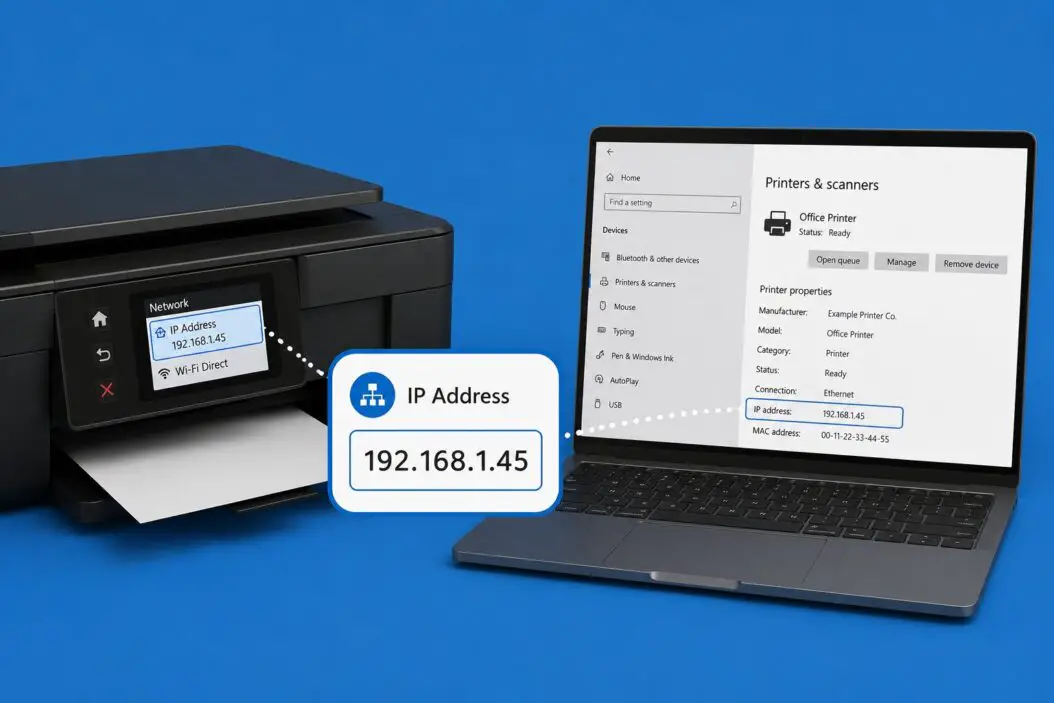
If your printer has a display screen, this is the quickest path.
Go to Settings or Setup on the printer’s screen. Look for Network, Wi-Fi, or Network Status. The IP address is listed there, usually in a format like 192.168.1.45.
On Canon, HP, and Epson printers with touchscreens, the path is typically:
- HP: Setup > Network Setup > Wireless Settings > View Wireless Summary
- Canon: Menu > Network Settings > Confirm Network Settings
- Epson: Settings > Network Settings > Network Status > Wi-Fi Status
Done in under 30 seconds if your printer has a screen.
Print a Network Configuration Page
No screen? No problem. Almost every printer lets you print a network info page directly from the hardware.
For most HP printers: Hold the Wireless button and the Cancel button together for three seconds. A page prints with your IP address on it.
For Brother printers: Press Menu > scroll to Print Reports > select Network Configuration. Press OK.
For Epson printers: Hold the Wi-Fi button for a few seconds. Some models require going to Setup > Network Settings > Print Network Status Sheet.
For Canon printers: Press and hold the RESUME button (the one with the triangle) for about five seconds. A test page with network details prints out.
The printed page shows the IP address, subnet mask, gateway, and MAC address. Keep that page handy.
Find Printer IP Address on Windows
Windows gives you multiple ways to track this down.
Through Windows Settings (Windows 10 and 11)
- Open Settings (Win + I)
- Go to Bluetooth & devices > Printers & scanners
- Click on your printer
- Click Printer properties
- Go to the Ports tab
- Look for the port that’s checked. The IP address appears next to it, something like
192.168.1.45
That’s your printer’s IP.
Through the Control Panel
Some people prefer the old Control Panel route. It works fine.
- Open Control Panel
- Click Devices and Printers
- Right-click your printer > Printer Properties
- Go to the Ports tab
- Find the checked port. The IP is right there.
Using Command Prompt
This method works when you know the printer name but not the IP.
Open Command Prompt (press Win + R, type cmd, hit Enter).
Type this:
netstat -r
Or try:
arp -a
The arp -a command lists all devices on your network with their IP addresses and MAC addresses. You can cross-reference the printer’s MAC address (from the network config page you printed) with the list to confirm which IP belongs to the printer.
Another quick method:
ping printername
Replace “printername” with your actual printer name. If it resolves, it shows the IP address in the ping reply.
Via the Router Admin Page
Every device on your home or office network shows up in your router’s admin panel.
- Open a browser and type
192.168.1.1or192.168.0.1(your router’s default gateway) - Log in with your router credentials
- Find a section called Connected Devices, DHCP Clients, or Device List
- Look for your printer by name or by MAC address
This method works for any device, printer or otherwise, and it’s reliable because the router is the one assigning IP addresses.
Find Printer IP Address on Mac
Mac handles this cleanly.
Through System Settings
- Click the Apple menu > System Settings
- Go to Printers & Scanners
- Click your printer in the left sidebar
- You’ll see a line that says Location or the printer’s connection info. Click Options & Supplies
- Under the General tab, you’ll see the device URI or IP address
If you see something like ipp://192.168.1.45/ipp/print, the numbers in the middle are the IP address.
Using Terminal on Mac
Open Terminal (Applications > Utilities > Terminal).
Type:
lpstat -v
This lists all connected printers and their URIs, which include the IP address.
You can also use:
arp -a
Same as Windows. Lists all devices on the network.
Find Printer IP Address on Linux
Linux users can use the Terminal directly.
Run:
lpstat -v
Or check the CUPS admin interface by opening a browser and going to:
http://localhost:631
Under Printers, you’ll see all configured printers and their device URIs, which include the IP address.
The arp -a command also works here.
Find It Through the Printer’s Web Interface
Once you have a rough idea of your network range (like 192.168.1.x), you can scan for the printer.
Tools like Advanced IP Scanner (Windows) or Angry IP Scanner (cross-platform) scan your network and list all connected devices with their names and IP addresses. Your printer usually shows up clearly by brand name.
You can download Angry IP Scanner from angryip.org for free. It’s lightweight and does the job in seconds.
Once you find the IP, type it into a browser. If the printer has a web interface (most networked printers do), you’ll see a status or settings page load up. That confirms you’ve got the right address.
What If the IP Address Keeps Changing?
This is a common headache. If your printer gets a new IP address every time it restarts, it’s because your router assigns addresses dynamically (DHCP). The printer gets whatever IP is available at the time.
The fix: assign your printer a static IP address or a DHCP reservation.
Static IP on the printer: Go into the printer’s network settings (usually through its control panel or web interface). Change the IP configuration from Automatic/DHCP to Manual. Enter an IP address outside your router’s DHCP range (like 192.168.1.200 if your DHCP range is 192.168.1.1 to 192.168.1.100), along with the subnet mask and gateway.
DHCP reservation on the router: Log into your router admin page. Find the DHCP settings. Add a reservation using your printer’s MAC address. The router will always assign the same IP to that device. This is cleaner because you don’t have to touch the printer’s settings.
Microsoft’s support documentation covers network configuration in more detail at support.microsoft.com.
Quick Reference Table: Methods by Situation
| Situation | Best Method |
|---|---|
| Printer has a display screen | Check printer’s network menu |
| No screen on printer | Print a network configuration page |
| Using Windows PC | Printers & Scanners > Printer Properties > Ports |
| Using Mac | System Settings > Printers & Scanners |
| Using Linux | lpstat -v in Terminal |
| Don’t know printer name or model | Router admin page > Device list |
| IP keeps changing | Set static IP or DHCP reservation |
| Multiple printers, not sure which is which | Angry IP Scanner or Advanced IP Scanner |
Verify the IP Address Is Correct
Once you have an IP address, confirm it actually belongs to your printer.
Open a browser. Type the IP into the address bar. If a printer configuration page loads (it’s usually branded with your printer’s manufacturer logo), you’ve got the right one. You can also use Command Prompt or Terminal:
ping 192.168.1.45
Replace the numbers with your printer’s IP. If you get a reply, the device is online and reachable.
Conclusion
Finding a printer’s IP address takes less than two minutes once you know where to look. Start with the printer itself: either check the display panel or print a network configuration page. If that’s not available, Windows and Mac both show the IP in their printer settings menus. The router admin page is your fallback for any situation.
If you’re dealing with a printer that keeps changing its IP, fix it now by setting up a static IP or DHCP reservation. It saves a lot of future troubleshooting.
FAQs
Can I find my printer’s IP address without printing anything or touching the printer?
Yes. Log into your router’s admin panel (usually 192.168.1.1 or 192.168.0.1 in a browser), then look at the connected devices or DHCP client list. Your printer shows up there by name or MAC address, with its assigned IP right next to it. No need to touch the printer at all.
My printer shows an IP address starting with 169.254. Is something wrong?
Yes. An address starting with 169.254 means the printer couldn’t connect to the network and assigned itself an APIPA address (a self-assigned fallback IP). The printer isn’t properly connected to your Wi-Fi or network. Check the Wi-Fi settings on the printer, make sure it’s connected to the right network, and restart both the printer and router.
Does the IP address change when I move the printer to a different network?
Absolutely. If you take your printer from home to an office, or connect it to a different router, it gets a new IP address from the new network. You’ll need to look it up again using any of the methods above. The printer’s MAC address stays the same, but the IP is assigned by whatever network it joins.
I found two different IP addresses for my printer. Which one is correct?
If one starts with 169.254, ignore that one (it’s a connection error address). If both look like normal network IPs (like 192.168.x.x), type each one into a browser. The correct one will load your printer’s configuration page. The wrong one either won’t load or will show a completely unrelated device.
Can I use the IP address to print directly without installing printer drivers?
Sometimes. Many modern printers support IPP (Internet Printing Protocol), which lets you print directly via IP without full driver installation. On Windows 10 and 11, you can add a printer manually using its IP address and select a generic IPP class driver. It works for basic printing but you might miss features like duplex controls or ink level monitoring that come with the full driver package.
