
Your desktop is blank. Or maybe “This PC” icon disappeared. Either way, I’ve been there, and the fix is usually simpler than you think.
The fastest way to restore desktop icons on Windows is to right-click your desktop, go to View, and make sure Show desktop icons is checked. If that does not bring them back, keep reading because there are several other reasons icons vanish.
Start Here Before Anything Else
Before you run any troubleshooter or dig into settings, do these two checks first. They solve the problem most of the time.
Check if icons are just hidden:
- Right-click anywhere on your desktop
- Hover over View
- Look for Show desktop icons in the submenu
- If it is unchecked, click it
That one click restores everything. If icons are still missing, move to the next fix.
Check if you are in tablet mode (Windows 10):
Tablet mode hides desktop icons by design. Swipe in from the right or click the notification icon in the taskbar, then toggle Tablet mode off.
Restore the “This PC” Icon Specifically
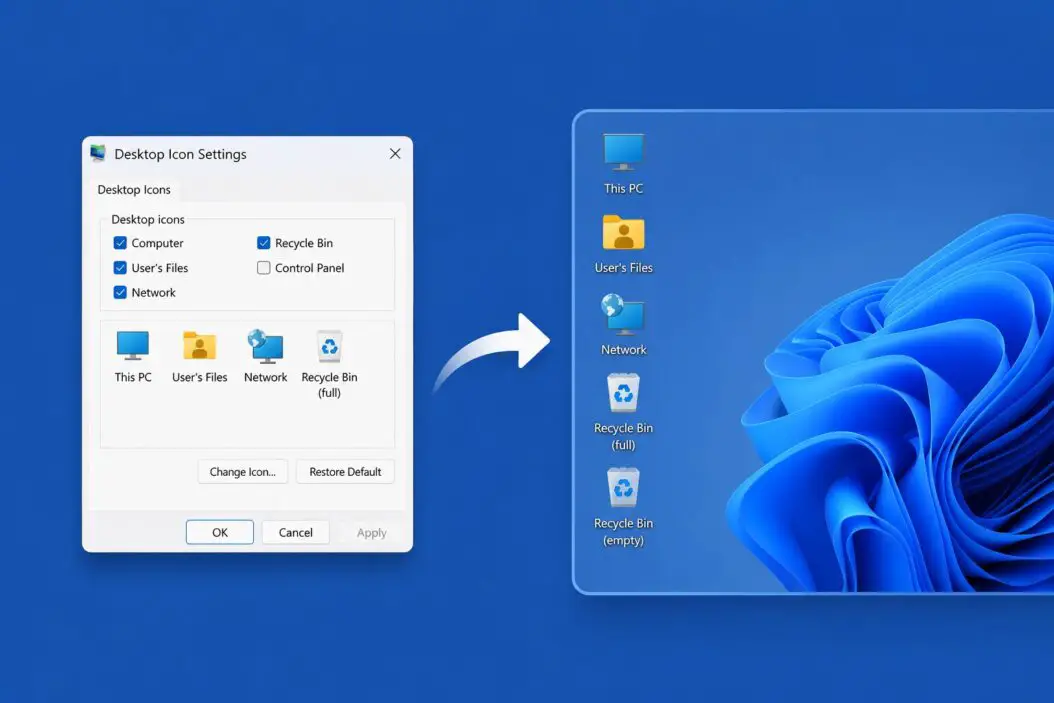
“This PC” is a system icon, not a regular shortcut. You cannot just drag it back from somewhere. You need to enable it through Desktop Icon Settings.
Here is how to get it back:
- Press Windows + I to open Settings
- Go to Personalization
- Click Themes on the left
- Scroll down and click Desktop icon settings (on Windows 11, this is under Related settings)
- Check the box next to Computer
- Click Apply, then OK
Your “This PC” icon will appear on the desktop immediately.
You can also restore other system icons from the same screen, including Recycle Bin, Network, Control Panel, and your user folder. All of them disappeared? Just check all the boxes you want.
Windows 11 Desktop Icon Settings (Slightly Different Path)
Microsoft moved things around in Windows 11. Here is the exact path:
- Right-click the desktop and select Personalize
- Click Themes
- Under Related settings, click Desktop icon settings
- Check the icons you want restored
- Hit Apply
If you do not see Desktop icon settings under Themes, try searching for it directly in the Start menu search bar. Type “desktop icon settings” and it should appear.
What to Do When Icons Are Still Missing
If the above steps did not work, something else is going on. Here are the most common causes and how to fix each one.
Display Driver or Explorer Crash
Windows Explorer is the process that manages your desktop. When it crashes or glitches, icons disappear.
Fix it:
- Press Ctrl + Shift + Esc to open Task Manager
- Find Windows Explorer in the list
- Right-click it and select Restart
Your screen will flicker for a second. Icons usually come back right after.
If Windows Explorer is not running at all:
- In Task Manager, click File then Run new task
- Type
explorer.exeand press Enter
Corrupted System Files
Windows has a built-in tool called SFC (System File Checker) that finds and repairs corrupted files. A corrupted shell32.dll or similar file can wipe your desktop icons.
Run SFC:
- Press Windows + S, type cmd
- Right-click Command Prompt and select Run as administrator
- Type:
sfc /scannow - Press Enter and wait (it takes 10 to 15 minutes)
- Restart your PC when it finishes
If SFC finds and fixes errors, restart and check your desktop.
Icon Cache Is Corrupted
Windows stores a cached version of all your icons. When this cache gets corrupted, icons show as blank, wrong, or disappear entirely.
Clear the icon cache manually:
- Open File Explorer
- Click the View tab, then check Hidden items
- Navigate to:
C:\Users\YourName\AppData\Local - Find the file named IconCache.db
- Delete it
- Restart your computer
Windows rebuilds the cache automatically on the next boot.
Or use Command Prompt:
ie4uinit.exe -showRun that in an admin Command Prompt. It forces Windows to refresh and rebuild the icon cache.
Group Policy Is Hiding Icons (Work or School PCs)
If your PC is managed by a company or school, an IT policy may be hiding desktop icons on purpose. You probably cannot change this yourself. Contact your IT department and ask them to check the Group Policy setting for “Hide and disable all items on the desktop.”
A Recent Windows Update Caused the Issue
This happens occasionally. A Windows update can reset personalization settings or break the desktop shell.
Roll back or repair:
Go to Settings > Windows Update > Update history > Uninstall updates, and remove the most recent update. Test if icons come back.
Alternatively, run DISM to repair Windows image files:
DISM /Online /Cleanup-Image /RestoreHealthRun this in an admin Command Prompt before or after SFC for best results.
Restore Specific App Shortcuts That Disappeared
If system icons like This PC are back but shortcuts to apps are gone, those are a different issue.
Re-pin from Start:
- Click Start and find the app
- Right-click it
- Select Pin to desktop (Windows 10) or drag it to the desktop
Re-create shortcuts manually:
- Right-click the desktop
- Select New > Shortcut
- Browse to the app’s .exe file
- Name it and click Finish
For apps installed from the Microsoft Store, you can also go to Settings > Apps, find the app, and look for an option to create a shortcut.
Desktop Icons Are There but Invisible
Sometimes icons exist but are invisible because they blend into the wallpaper or their labels are white on a white background.
Fix icon text color:
- Right-click desktop, go to Personalize
- Change your desktop background to something with contrast
- If text is still invisible, check your Ease of Access or display contrast settings
Change icon size:
Right-click desktop, hover over View, and try switching between small, medium, and large icons. Sometimes icons are set to very small and look like they are gone.
Quick Reference Table
| Problem | Cause | Fix |
|---|---|---|
| All icons gone | Show desktop icons is off | Right-click > View > Show desktop icons |
| “This PC” missing | System icon disabled | Settings > Personalization > Themes > Desktop icon settings |
| Icons blank or wrong | Corrupted icon cache | Delete IconCache.db and restart |
| Icons flicker and disappear | Explorer crashed | Restart explorer.exe via Task Manager |
| Icons not coming back after fix | Corrupted system files | Run sfc /scannow in admin CMD |
| Managed PC, nothing works | Group Policy restriction | Contact IT admin |
| App shortcuts gone | Shortcut deleted | Re-pin from Start menu or create new shortcut |
Using a System Restore Point
If nothing is working and your icons disappeared after a specific event, like an update or installing software, you can roll Windows back to a point when everything worked.
- Press Windows + S and type System Restore
- Click Create a restore point
- In the System Properties window, click System Restore
- Pick a restore point from before the issue started
- Follow the prompts and restart
This does not delete your personal files, but it does remove apps and updates installed after that restore point.
Microsoft’s official guidance on restore points is worth reading if you want to understand how this process works before you run it: Microsoft System Restore documentation
Prevent This from Happening Again
Once your icons are back, a few habits will help keep them there.
Create regular restore points. Windows does this automatically before updates, but you can also create them manually. Go to System Properties > System Protection > Create.
Avoid third-party “cleanup” tools. Apps like some PC optimizers delete the icon cache, clear AppData folders, and reset personalization settings aggressively. That causes exactly this problem.
Keep Windows updated. Ironically, updates can sometimes cause this, but they also fix it. Staying current means you are on a stable build where these bugs are patched.
Conclusion
Restoring desktop icons on This PC comes down to one of a handful of causes: hidden icons, disabled system icons, a crashed Explorer process, a corrupted icon cache, or damaged system files. Start with the simplest fix, right-click the desktop and check Show desktop icons, then work through the list based on what you are seeing.
The “This PC” icon specifically needs to be turned on through Desktop Icon Settings under Personalization. Everything else responds to either restarting Explorer or running SFC. If you are on a managed work or school device, the answer is almost always your IT department.
Frequently Asked Questions
My desktop comes back after restart but icons disappear again after a few hours. What is causing that?
This usually points to a startup program interfering with the desktop shell, or a scheduled task that clears your icon cache. Open Task Manager and check the Startup tab for anything unfamiliar. Also look in Task Scheduler (search for it in Start) under Microsoft > Windows > Shell for any tasks that run on a schedule. A corrupted user profile can also cause this loop. Try creating a new Windows user account and see if the problem repeats there.
I recovered the icons but they all moved to new positions. Can I lock them in place?
Yes. Right-click the desktop, hover over View, and uncheck Auto arrange icons. Also uncheck Align icons to grid if you want full control over placement. After arranging them where you want, some users install a free tool called DesktopOK that saves and restores icon positions, which is useful if the layout resets after display changes or resolution switches.
Is there a way to restore deleted desktop shortcuts using File History or Backup?
If you had File History enabled, open the folder where shortcuts were stored, which is usually the Desktop folder at C:\Users\YourName\Desktop, right-click it in File Explorer, and select Restore previous versions. Pick a version from before the shortcuts disappeared. If File History was not on, this option will not be available, and you would need to recreate shortcuts manually.
The Recycle Bin is gone from my desktop. How do I get it back without it showing up in search results?
Go to Settings > Personalization > Themes > Desktop icon settings and check the Recycle Bin box. If the Recycle Bin itself is empty and hidden in search, that is separate from the icon. The icon setting and the actual bin are independent. Checking that box always brings the icon back regardless of the bin’s contents.
After running SFC it said “Windows Resource Protection found corrupt files but was unable to fix some of them.” What now?
Run DISM first to repair the Windows repair source, then run SFC again. The commands in order are: DISM /Online /Cleanup-Image /RestoreHealth followed by sfc /scannow after DISM finishes. If that still fails, the last reliable option before a Windows reset is booting from a Windows installation USB and running SFC from the recovery environment, where it can fix files that are locked during normal operation.

- How to Make Money with AI in 2026 (Real Methods That Actually Work) - June 18, 2026
- How to Create a Poll in Microsoft Teams (A Simple Guide) - June 18, 2026
- How to Restore Desktop Icons on This PC (Step by Step) - June 18, 2026