
The taskbar in Windows 10 and 11 can get locked, and when that happens, you can’t move it, resize it, or change anything about it. The fix is simple. Right-click on an empty spot on the taskbar and look for “Lock the taskbar” or “Taskbar settings.” One click usually does it. But if that doesn’t work for you, keep reading because there are several more ways to unlock it depending on your situation.
I’ve seen this confuse a lot of people because Windows 10 and Windows 11 handle the taskbar differently. In Windows 10, you get a direct “Lock the taskbar” toggle. In Windows 11, Microsoft redesigned the taskbar settings entirely, so the process looks a bit different. I’ll cover both.
What Does a Locked Taskbar Actually Mean?
When the taskbar is locked, you can’t:
- Drag it to a different edge of the screen
- Resize the taskbar height or width
- Move toolbars around within the taskbar
- Make any visual adjustments through drag-and-drop
Locking is a feature, not a bug. It prevents accidental changes. But when you actually want to make changes, it becomes a wall. Let’s knock it down.
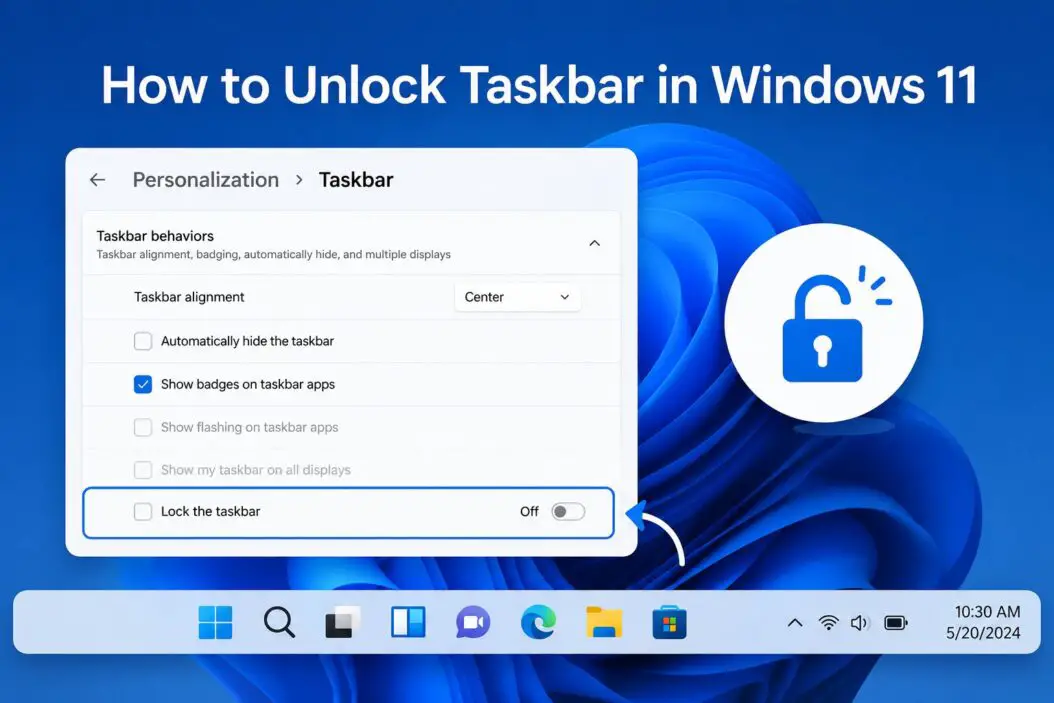
How to Unlock the Taskbar in Windows 10
Method 1: Right-Click the Taskbar Directly
This is the fastest way and works for most people.
- Right-click on any empty area of the taskbar (don’t click on an app icon or the clock)
- Look for the option “Lock the taskbar” in the context menu
- If there’s a checkmark next to it, the taskbar is currently locked
- Click it once to remove the checkmark and unlock it
That’s it. The taskbar is now unlocked. You can drag it, resize it, move it to the side or top of the screen.
Method 2: Through Taskbar Settings
If the right-click method doesn’t show that option clearly:
- Right-click on the taskbar
- Select “Taskbar settings”
- Scroll down to find “Lock the taskbar”
- Toggle it off
In some Windows 10 builds, this toggle sits right at the top of the taskbar settings panel.
Method 3: Using the Registry Editor
If neither of the above works, the setting might be controlled by a registry key. This happens on work or school computers where IT policies have locked the taskbar through Group Policy.
- Press Win + R, type
regedit, hit Enter - Navigate to:
HKEY_CURRENT_USER\Software\Microsoft\Windows\CurrentVersion\Explorer\Advanced - Look for a value called TaskbarSizeMove
- Double-click it and set the value to 1 (1 = unlocked, 0 = locked)
- Restart Explorer or reboot
Important: If you’re on a managed device (company laptop, school PC), the registry key might be overwritten by Group Policy every time you log in. Talk to your IT admin in that case.
How to Unlock the Taskbar in Windows 11
Windows 11 is a different story. Microsoft removed the classic “Lock the taskbar” toggle. The taskbar in Windows 11 is locked to the bottom by default, and you can’t move it to the sides or top using normal settings. But there are still things you can unlock and customize.
What You Can Adjust in Windows 11 Taskbar Settings
- Right-click on an empty area of the taskbar
- Select “Taskbar settings”
- You’ll see options to:
- Show or hide taskbar icons
- Auto-hide the taskbar
- Control taskbar behaviors like showing badges or flashing
These settings don’t require unlocking in the traditional sense. They just toggle features on and off.
Moving the Taskbar in Windows 11 (Registry Method)
If you want to move the taskbar to the top or side in Windows 11, you need to use the registry because there’s no built-in UI option for it.
- Open Registry Editor (Win + R, type
regedit) - Go to:
HKEY_CURRENT_USER\Software\Microsoft\Windows\CurrentVersion\Explorer\StuckRects3 - Find the Settings binary value and double-click it
- Look at the 5th byte in the second row (position 08)
- Change the value:
03= Bottom (default)01= Top00= Left02= Right
- Click OK, then restart Explorer
This is a bit technical. If you’re not comfortable editing binary registry values, there are third-party tools like ExplorerPatcher that give you a simple GUI to move and customize the Windows 11 taskbar.
Using ExplorerPatcher for Full Taskbar Control on Windows 11
ExplorerPatcher is an open-source tool that restores classic taskbar behavior in Windows 11. After installing it:
- You can move the taskbar to any screen edge
- Switch to the Windows 10-style taskbar
- Get the classic “Lock the taskbar” toggle back
It’s widely used and considered safe. Just keep in mind that major Windows updates sometimes break it temporarily until the developer pushes a patch.
Taskbar Still Not Unlocking? Common Fixes
| Problem | Likely Cause | Fix |
|---|---|---|
| Right-click menu missing “Lock taskbar” | Windows 11 (option removed) | Use Registry or ExplorerPatcher |
| Setting reverts after restart | Group Policy on managed device | Contact IT admin |
| Taskbar won’t move even after unlocking | Windows 11 limitation | Registry edit or third-party tool |
| Registry key doesn’t exist | Different Windows version | Create the DWORD value manually |
| Taskbar frozen or unresponsive | Explorer.exe issue | Restart Explorer from Task Manager |
How to Restart Explorer.exe
If your taskbar is frozen and not responding at all:
- Press Ctrl + Shift + Esc to open Task Manager
- Find Windows Explorer under Processes
- Right-click it and select Restart
This refreshes the shell without rebooting. It takes about five seconds and often fixes weird taskbar behavior.
Unlock Taskbar on Multiple Monitors
If you’re running a dual or multi-monitor setup, each screen can have its own taskbar. To manage them:
- Right-click the taskbar on the monitor you want to change
- Go to Taskbar settings
- Scroll to Multiple displays
- Toggle “Show taskbar on all displays” on or off
- Adjust “Show taskbar buttons on” to control which monitor shows which app buttons
Each taskbar on each monitor follows the same locked or unlocked state. Unlocking on one usually applies globally, but check each screen if you have unusual behavior.
Auto-Hide vs Unlock: Know the Difference
A lot of people confuse these two settings.
Unlocking the taskbar means you can move or resize it. It’s still visible at all times.
Auto-hiding the taskbar makes it disappear when you’re not using it and reappear when you hover over that edge of the screen.
They’re separate settings. You can have an unlocked taskbar that auto-hides, or a locked taskbar that always stays visible. To toggle auto-hide:
- Right-click the taskbar
- Go to Taskbar settings
- Turn on “Automatically hide the taskbar”
For a deeper look at all taskbar customization options in Windows 11, Microsoft’s own Windows support documentation covers the official options clearly.
Lock the Taskbar Again After Making Changes
Once you’ve made your changes, it’s smart to lock the taskbar back in place so you don’t accidentally move it.
On Windows 10:
- Right-click the taskbar
- Click “Lock the taskbar” to put the checkmark back
On Windows 11:
- There’s no toggle, but the taskbar is locked by default unless you’ve made registry changes
Taskbar Unlock on Windows 10 vs Windows 11: Quick Comparison
| Feature | Windows 10 | Windows 11 |
|---|---|---|
| Right-click “Lock taskbar” toggle | Yes | No |
| Move taskbar to top/sides | Yes (built-in) | Registry only |
| Taskbar settings page | Yes | Yes |
| Auto-hide option | Yes | Yes |
| Third-party tool needed for full control | Usually not | Often yes |
| Group Policy can override settings | Yes | Yes |
Conclusion
Unlocking the taskbar on Windows 10 is a one-click job from the right-click menu. Windows 11 makes it less obvious because Microsoft removed the toggle, but the registry method still works. If you’re on a company or school device and nothing is working, the issue is almost certainly Group Policy, and only your IT team can change that.
For anyone who wants the classic taskbar experience back on Windows 11 with easy toggles and no registry editing, ExplorerPatcher is worth trying. It’s the most popular solution in the Windows customization community for a reason.
Frequently Asked Questions
Why can’t I see the “Lock the taskbar” option on my Windows 11 PC?
Microsoft removed that option in Windows 11. The taskbar redesign took away the classic right-click toggle. You won’t find it anywhere in the standard interface. To get that kind of control back, you either need to edit the registry manually or use a tool like ExplorerPatcher, which adds it back through a settings panel.
I changed the registry value but the taskbar still won’t move. What’s going on?
A couple of things could cause this. First, make sure you edited the right registry path. There are similar-sounding keys and it’s easy to go one folder too deep or too shallow. Second, the change usually requires restarting Explorer.exe or rebooting for it to take effect. If you’re on a managed device, Group Policy might be writing the value back every time you log in.
Does unlocking the taskbar slow down my computer at all?
No. Locking and unlocking the taskbar is purely a visual and interaction setting. It doesn’t affect system performance, memory usage, or anything under the hood. It just controls whether you can drag and resize the taskbar bar itself.
My taskbar moved to the side of my screen by accident. How do I get it back to the bottom?
On Windows 10, right-click the taskbar, make sure it’s unlocked, then click and drag it back to the bottom. On Windows 11, if it somehow moved (usually through a registry change or third-party tool), go back to that registry key under StuckRects3, set the 5th byte back to 03, and restart Explorer. The taskbar will snap back to the bottom.
Can I lock the taskbar so other users on the same PC can’t move it?
Yes, through Group Policy or by setting the registry value and restricting permissions on that key. On Windows 10 and 11 Pro, open the Local Group Policy Editor (gpedit.msc), navigate to User Configuration > Administrative Templates > Start Menu and Taskbar, and enable “Lock the Taskbar.” This applies to all user accounts on that machine and can’t be overridden from the right-click menu.
