
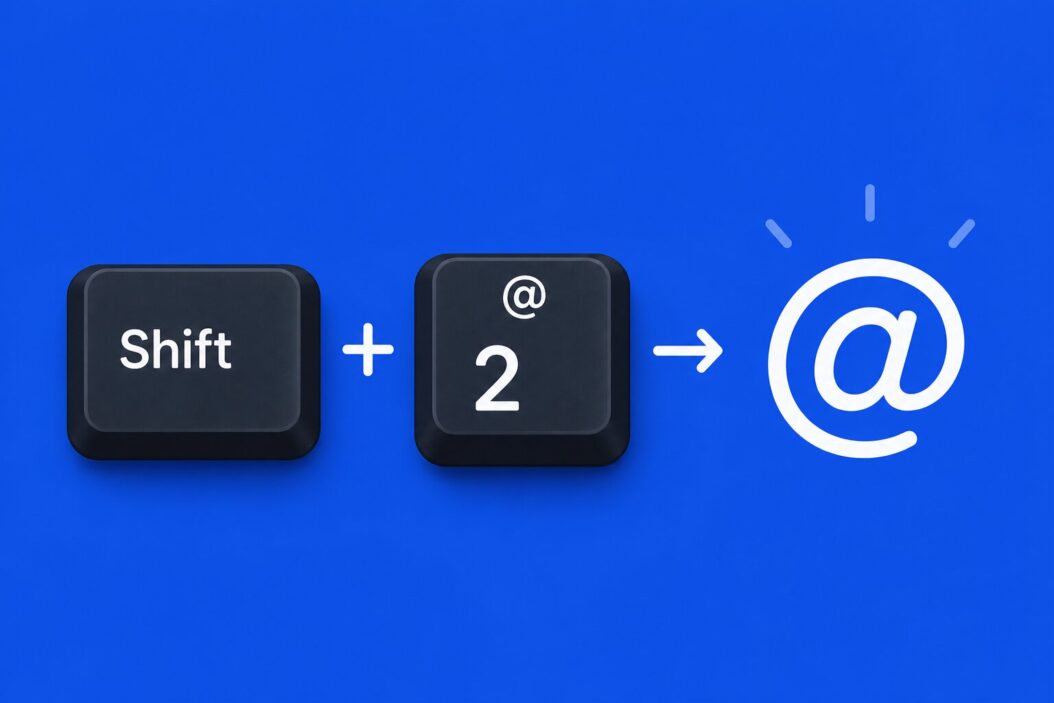
The @ symbol sits on the 2 key on most standard keyboards. Press Shift + 2 and you get @. That’s the short answer. But keyboards vary by device, operating system, and region, and the shortcut changes depending on what you’re using. I’ll walk you through every situation so you can find the exact method that works for yours.
Knowing how to type the at symbol on a keyboard sounds trivial until you’re locked out of a login form on an unfamiliar laptop, using a foreign keyboard layout, or typing on a phone for the first time. It happens more than you’d think.
The @ Symbol on Windows Keyboards
On a standard US English Windows keyboard, the method is simple.
Press: Shift + 2
Hold the Shift key, then press the 2 key at the top of your keyboard. Release both. You’ll see @ appear.
That’s the default for US layout. Most Windows PCs sold in North America, South Asia, and many other regions ship with this layout.
If Shift + 2 Types a Quotation Mark Instead
This is a common problem. If pressing Shift + 2 gives you " instead of @, your keyboard is set to UK English layout.
On UK keyboards, the @ symbol moves to the apostrophe key (the key next to the Enter key). So the shortcut becomes:
Press: Shift + ‘ (the apostrophe/single quote key)
And the " symbol on UK keyboards is accessed with Shift + 2. So the two symbols are simply swapped compared to US layout.
Fixing the Layout in Windows Settings
If your keyboard layout doesn’t match what’s physically printed on your keys, you can fix it:
- Open Settings (Windows key + I)
- Go to Time & Language
- Click Language & Region
- Under your language, click the three dots and select Language Options
- Under Keyboards, make sure the layout matches your physical keyboard
Changing it to English (United States) restores the standard Shift + 2 shortcut.
Using the On-Screen Keyboard on Windows
If your keyboard has a damaged key or you’re troubleshooting:
- Press Windows key + Ctrl + O to open the on-screen keyboard
- Or search for “On-Screen Keyboard” in the Start menu
- Click the Shift key on-screen, then click the 2 key
You can also copy and paste from here if you just need it once.
Alt Code for @ on Windows
Windows supports alt codes for special characters. For the @ symbol:
Hold Alt + type 64 on the numeric keypad, then release Alt
This only works with the numeric keypad (the number pad on the right side of full-size keyboards), not the number row at the top.
The @ Symbol on Mac Keyboards
On a Mac with US English keyboard layout:
Press: Shift + 2
Same as Windows. But Mac keyboards have some differences depending on region.
UK Mac Keyboard
On a UK Mac keyboard, the layout shifts again:
Press: Option (Alt) + 2
Yes, that’s different from the UK Windows layout. Mac handles this with the Option key rather than Shift. This trips people up constantly when switching between Windows and Mac.
How to Type @ on Mac Using Character Viewer
If you’re unsure of your layout:
- Go to Apple Menu > System Settings
- Click Keyboard
- Enable Show Input menu in menu bar
- Click the input menu icon in the menu bar
- Select Show Keyboard Viewer
A virtual keyboard appears on screen showing exactly which key produces which character in your current layout.
The @ Symbol on Chromebook
Chromebooks typically use US layout.
Press: Shift + 2
Same shortcut. No surprises here unless a specific Chromebook is configured for a different region.
The @ Symbol on Laptops (Including No Numpad Models)
Laptops often skip the numeric keypad, which means alt codes won’t work the standard way. But Shift + 2 still works fine on laptop keyboards for the @ symbol. You don’t need a numpad for this specific character.
If your laptop keyboard has a different layout printed on it and Shift + 2 doesn’t give @, the most reliable fix is checking and correcting your OS keyboard layout settings as described above.
Typing @ on International and Non-English Keyboards
This is where things get more complex. The @ symbol position changes significantly across different keyboard layouts.
| Keyboard Layout | Shortcut to Type @ |
|---|---|
| US English | Shift + 2 |
| UK English (Windows) | Shift + ‘ (apostrophe) |
| UK English (Mac) | Option + 2 |
| German (QWERTZ) | AltGr + Q |
| French (AZERTY) | AltGr + 0 (zero) |
| Spanish | AltGr + 2 |
| Italian | AltGr + @ (dedicated key on some) |
| Swedish/Norwegian | AltGr + 2 |
| Brazilian Portuguese | AltGr + 2 |
| Arabic layout (Windows) | Shift + 2 (if Latin layer enabled) |
The AltGr key (Alt Graphics) is the right Alt key on most European keyboards. It unlocks a third layer of characters beyond what Shift provides.
German Keyboard (QWERTZ Layout)
On a German keyboard, keys are rearranged significantly. The 2 key shows " by default and ² with AltGr. The @ symbol is on the Q key.
Press: AltGr + Q
Or equivalently: Right Alt + Q (since AltGr = Right Alt on most systems)
French Keyboard (AZERTY Layout)
French keyboards rearrange letters too. The @ symbol on AZERTY is accessed with:
Press: AltGr + 0 (the zero key)
Using AltGr on European Windows Keyboards
If your keyboard has AltGr but you’re not sure which key gives @:
- Hold AltGr and press keys one at a time to discover what each produces
- Or open the on-screen keyboard while holding AltGr to see the third layer
You can also use Ctrl + Alt as a substitute for AltGr on Windows in most cases. So if AltGr + Q gives @ on a German keyboard, Ctrl + Alt + Q usually works too.
Typing @ on iPhone and iPad
On iOS, the keyboard doesn’t show the @ symbol immediately on the default letter view. Here’s how to access it:
Tap the “123” key in the bottom-left corner of the keyboard. The @ symbol appears on the number/symbol keyboard that opens.
For emails specifically, many apps like Mail and Gmail show a dedicated @ key because they detect you’re in an email address field. So in those apps, you don’t even need to switch.
Tip: If you’re typing an email address, tap and hold the period key (.) and you’ll sometimes get options for common email endings like .com, .net, etc.
Typing @ on Android Phones
Same basic logic as iPhone:
Tap “?123” (or similar label depending on your keyboard app) to switch to the symbols view. The @ key appears there.
On Gboard (Google’s keyboard, default on many Android devices), the @ symbol is in the first symbols panel. Tap ?123 and you’ll see @ right away without needing to scroll.
On Samsung Keyboard, same approach: tap !#1 or ?123 to reach the symbols layer.
Shortcut on some Android keyboards: Long-press the period (.) key. Some keyboards show @ as an option in the popup.
Typing @ on a Tablet (iPad and Android Tablets)
Tablets with external keyboards follow the same rules as laptops. The on-screen keyboard behaves like phone keyboards described above.
If you connected a Bluetooth keyboard to your tablet:
- US layout keyboard: Shift + 2
- UK layout keyboard: Shift + ‘ (apostrophe)
- Other layouts: follow the international table above
How to Type @ in Linux
Linux desktops support multiple keyboard layouts through display server settings.
On a US English layout in any Linux distribution:
Press: Shift + 2
For other layouts, the same logic as Windows applies. You can check or change your layout through:
- GNOME: Settings > Keyboard > Input Sources
- KDE Plasma: System Settings > Input Devices > Keyboard > Layouts
- Command line: Run
setxkbmap usto switch to US layout temporarily
Copy and Paste @ (When Nothing Else Works)
If you’re completely stuck, just copy this: @
Then paste it with Ctrl + V on Windows/Linux, or Cmd + V on Mac.
This works in every situation. It’s not a long-term solution, but it gets the job done when you need to log in or send one email and the keyboard isn’t cooperating.
You can also find the @ symbol using:
- Windows Character Map: Search for “Character Map” in Start menu, find @, click Copy
- Mac Character Viewer: Edit menu > Emoji & Symbols, search for “commercial at”
- Any browser: type “@ symbol” in Google, copy it from the results
Common Problems and Why They Happen
Shift + 2 Types a Number
This usually means Caps Lock is on in a specific way, or you’re using a keyboard shortcut that doesn’t require Shift in a certain context. Check if Num Lock affects anything, though for the number row this is rarely the issue on standard keyboards.
More likely: your keyboard input language is set to a non-Latin script (Arabic, Chinese, Japanese, etc.) and the Latin input mode is not active. Switch your input language to English first.
@ Types as 2 or Shows Nothing
This can happen if a key is physically stuck or damaged. Try the on-screen keyboard to confirm whether the issue is hardware or software.
Remote Desktop or Virtual Machine Issues
When connecting to a remote desktop, keystrokes sometimes get remapped. The remote machine’s keyboard layout might differ from your local machine. Try:
- Using the on-screen keyboard inside the remote session
- Changing the input language on the remote machine to match yours
- Sending Ctrl + Alt + 2 instead of Shift + 2 as some remote desktop clients intercept modifier keys differently
For more details on keyboard layout troubleshooting in Windows, Microsoft’s official support page at support.microsoft.com covers this well.
Typing @ in HTML or Code Editors
In most code editors and text fields, @ types normally. But in some HTML contexts, @ is used in CSS (@media, @import) and sometimes in templating languages. You don’t need to escape @ in regular HTML text. If you need it inside an attribute value in certain frameworks, check the specific framework’s documentation.
Quick Reference Table: @ Symbol by Device
| Device / OS | Layout | Shortcut |
|---|---|---|
| Windows PC | US English | Shift + 2 |
| Windows PC | UK English | Shift + ‘ |
| Windows PC | German | AltGr + Q |
| Windows PC | French | AltGr + 0 |
| Mac | US English | Shift + 2 |
| Mac | UK English | Option + 2 |
| Chromebook | US English | Shift + 2 |
| Linux | US English | Shift + 2 |
| iPhone / iPad | Any | Tap 123, then @ |
| Android | Any | Tap ?123, then @ |
| Any device | Any | Copy and paste @ |
Conclusion
The @ symbol shortcut is Shift + 2 on most keyboards running a US English layout, and that covers the majority of devices in everyday use. If that doesn’t work for you, the most likely reason is a UK or European keyboard layout, where the shortcut shifts to Shift + apostrophe or AltGr + a specific key depending on your region.
The fastest way to diagnose your situation: try Shift + 2. If you get a quote mark or anything other than @, open your OS keyboard settings and check the layout. Switch to US English if you want the standard shortcuts, or use the on-screen keyboard to find where @ lives in your current layout.
On mobile, it’s always in the number/symbol layer, one tap away from the main keyboard.
If all else fails, copy @ from this page and paste it where you need it. Problem solved.
Frequently Asked Questions
Why does my keyboard type a quote mark instead of @ when I press Shift + 2?
Your keyboard input is set to UK English layout. In that layout, Shift + 2 produces " and the @ symbol moves to Shift + apostrophe. You can either use that shortcut or go into your OS language settings and switch to US English layout if you prefer the standard behavior.
Can I type @ without using the Shift key?
Not on a standard physical keyboard with a US or UK layout since @ is a secondary character on the 2 key. On some European keyboards, @ is assigned to a key that requires AltGr, not Shift. On touchscreen keyboards, you access it through the symbols panel without any modifier key.
I’m using a German laptop and none of the shortcuts seem to work. What am I missing?
German keyboards use QWERTZ layout and require AltGr + Q for @. On Windows, AltGr is the right Alt key. If that’s not working, try Ctrl + Alt + Q instead since Windows treats these as equivalent for AltGr combinations. Also confirm your Windows input language is set to German (Germany) to match the physical key layout.
Does the @ symbol have a different name or meaning outside of email?
Yes. In programming and markup languages, @ is used as a decorator in Python, an annotation marker in Java, part of CSS at-rules like @media and @import, and as a mention trigger in social media platforms and collaboration tools. Its formal Unicode name is “commercial at” and it has been in use since at least the 16th century as a commercial shorthand.
My phone keyboard doesn’t show @ anywhere in the symbols panel. What do I do?
This occasionally happens with third-party keyboards or regional keyboard apps. First, scroll through the full symbols panel since @ might be on a second page. If you truly can’t find it, switch to Gboard (Android) or the default iOS keyboard temporarily, or copy @ from a browser search result and paste it where you need it.

- How to Host a Successful LinkedIn Live: Step-by-Step Guide - June 14, 2026
- How to Type the @ Symbol on Any Keyboard (Every Device Covered) - June 14, 2026
- Error Flash Download Failed Target DLL Has Been Cancelled: Full Fix Guide - June 14, 2026