
An app is frozen. Your cursor is spinning. The window won’t close no matter how many times you click X. I’ve been there. Here’s exactly what to do.
The fastest way to force quit an app on Windows 10 or 11 is to press Ctrl + Shift + Esc, find the frozen app in Task Manager, right-click it, and hit End Task. That works 90% of the time. But if that’s not cutting it, there are five other methods below, including ones that work even when Task Manager itself is frozen.
Why Apps Freeze in the First Place
Before jumping in, it helps to know what’s actually happening. When an app stops responding, it usually means one of these things:
- It’s stuck waiting for a process that never finished
- It ran out of memory or hit a resource conflict
- A background service it depends on crashed
- A recent update or driver conflict broke something
Windows labels these as “Not Responding” in Task Manager. Force quitting kills the process entirely, which frees up the memory and CPU it was holding hostage.
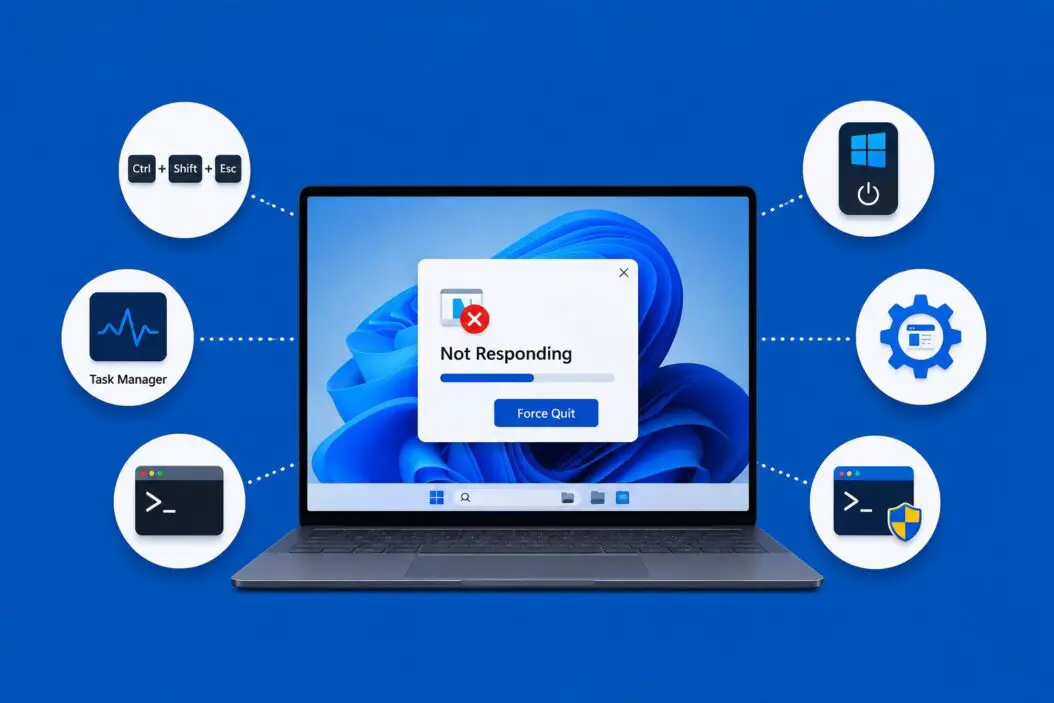
Method 1: Task Manager (The Go-To Method)
This is the most reliable way to force quit any app on Windows 10 or 11.
Step 1: Press Ctrl + Shift + Esc to open Task Manager directly.
Step 2: If you see the compact view, click More details at the bottom.
Step 3: Under the Processes tab, find the frozen app. It usually has (Not Responding) next to its name.
Step 4: Right-click on it and select End Task.
Step 5: If Windows asks for confirmation, click End Process.
That’s it. The app closes immediately.
Tip for Windows 11 users: Task Manager got a visual refresh in Windows 11. It opens in the same way, but the layout uses a left sidebar instead of tabs. The Processes section is still the first option.
Method 2: Alt + F4 (Quickest Keyboard Shortcut)
If the app window is active (you clicked on it), press Alt + F4. This sends a close signal to the window.
The difference between Alt + F4 and force quitting is that Alt + F4 asks the app to close nicely. If the app is deeply frozen, it won’t respond. But for partially frozen apps, it works surprisingly well and it’s faster than opening Task Manager.
Method 3: Right-Click the Taskbar
If you can see the frozen app in your taskbar:
Step 1: Right-click its icon in the taskbar at the bottom of your screen.
Step 2: Select Close window or Close all windows from the menu.
Windows sends a termination command directly to that process. It’s not as powerful as Task Manager’s End Task, but it works for mildly unresponsive apps.
Method 4: Using the Command Prompt (For Power Users)
When Task Manager itself isn’t opening, the Command Prompt is your backup. This method uses the taskkill command.
Step 1: Press Windows key + R, type cmd, and press Enter.
Step 2: Type this command and press Enter:
tasklistThis shows every running process with its name and PID (Process ID number).
Step 3: Find the frozen app in the list. Note its exact name (like chrome.exe or notepad.exe).
Step 4: Type this to kill it by name:
taskkill /IM chrome.exe /FReplace chrome.exe with your app’s actual process name. The /F flag forces termination.
Or, kill it by PID if you know the number:
taskkill /PID 4512 /FThe /F flag is important. Without it, Windows sends a polite close request, which the frozen app will ignore.
Method 5: Using PowerShell
PowerShell gives you more control than the Command Prompt and works the same way on both Windows 10 and 11.
Step 1: Right-click the Start button and choose Windows Terminal or PowerShell.
Step 2: To find the frozen process:
Get-ProcessStep 3: To stop it by name:
Stop-Process -Name "chrome" -ForceNote: No .exe extension needed in PowerShell, unlike taskkill.
Step 4: To stop by PID:
Stop-Process -Id 4512 -ForcePowerShell also lets you kill all instances of an app at once, which is useful if something like a browser spawned multiple processes.
Method 6: When Everything Is Frozen (Including Task Manager)
Sometimes the entire desktop locks up. Here’s what to do in that order:
Try Windows key first. Press the Windows key alone. If the Start menu opens, the system isn’t completely frozen, just slow.
Use Ctrl + Alt + Delete. This keyboard combo is hardwired into Windows at a low level and almost always works even when nothing else does. From the screen that appears, click Task Manager.
Switch to another user session. On Windows 10/11, you can sign into a different user account from the lock screen and open Task Manager from there to kill processes affecting the main account.
Last resort: hold the power button. Press and hold the physical power button on your PC or laptop for 5 to 10 seconds. This performs a hard shutdown. Your unsaved work in the frozen app will be lost, but Windows is generally good at recovering open documents in other apps when you restart.
Comparison of All Methods
| Method | Speed | Works When Everything’s Frozen | Skill Level |
|---|---|---|---|
| Task Manager (Ctrl+Shift+Esc) | Fast | No | Beginner |
| Alt + F4 | Fastest | No | Beginner |
| Taskbar right-click | Fast | No | Beginner |
| Command Prompt (taskkill) | Medium | Yes | Intermediate |
| PowerShell (Stop-Process) | Medium | Yes | Intermediate |
| Ctrl + Alt + Delete | Fast | Yes | Beginner |
| Hard shutdown (power button) | Instant | Yes | Beginner |
Force Quitting Store Apps vs. Desktop Apps
Windows has two types of apps, and they behave slightly differently.
Desktop apps (like Photoshop, VLC, Chrome) show up clearly in Task Manager under Processes. End Task works immediately.
Microsoft Store apps (like the Photos app, Mail, Xbox app) sometimes run under a generic process name like ApplicationFrameHost.exe. If you End Task on that process, it might close multiple Store apps at once. The better approach for Store apps is to find their specific process name. For example, the Photos app runs as Microsoft.Photos.exe.
For Store apps on Windows 11, you also have a built-in option. Go to Settings > Apps > Installed Apps, find the app, click the three dots, and select Advanced options. You’ll see a Terminate button there.
How to Prevent Apps from Freezing
Force quitting is a fix, but these habits reduce how often you need it:
- Keep Windows updated. Many freezes are caused by driver conflicts fixed in updates.
- Don’t run too many heavy apps at the same time, especially if your PC has 8GB of RAM or less.
- Regularly clear browser cache if Chrome or Edge tends to freeze on you.
- Check Startup apps (Task Manager > Startup tab) and disable ones you don’t need. Too many background processes slow everything down.
- For apps that freeze consistently, check the developer’s site for known issues or patches. Microsoft’s support page at support.microsoft.com covers a wide range of Windows-specific app issues.
A Note on Data Loss
Force quitting always risks losing unsaved work in that app. There’s no way around this. When you kill a process, Windows doesn’t give it time to autosave or prompt you to save.
The only way to protect yourself is to save frequently. Most Office apps and browsers have autosave or session recovery built in, so even after a force quit, you often get your work back on the next launch. But apps like Paint, Notepad, or older software won’t recover anything.
Conclusion
Force quitting a frozen app on Windows 10 or 11 takes less than 30 seconds once you know the right method. For most situations, Task Manager via Ctrl + Shift + Esc is all you need. When that doesn’t work, the Command Prompt’s taskkill /F command will get the job done. And when everything locks up at once, Ctrl + Alt + Delete is your safety net.
The methods above cover every scenario from a mildly unresponsive window to a fully locked system. Start with the easiest one and move down the list if needed.
Frequently Asked Questions
Can force quitting an app damage Windows or my files?
Force quitting occasionally corrupts the specific file that was open in the frozen app at the time, since the app didn’t get to save or close it properly. Windows itself is not affected. Your system, other files, and other apps remain completely fine. Modern file systems like NTFS also have journaling built in, which helps recover from sudden process terminations.
My Task Manager says “Access Denied” when I try to End Task. What does that mean?
This happens when the process is running with higher privileges than your current user account. To fix it, close Task Manager, right-click its icon, and choose Run as administrator. Then try End Task again. Some system-level processes will still block termination because Windows protects them intentionally.
Is there a way to force quit apps without using the keyboard or mouse at all?
Yes. If your keyboard and mouse are both unresponsive, and your PC is connected to a network, you can use Remote Desktop or PowerShell Remoting from another device to connect to your PC and kill the frozen process remotely. This is more of an advanced scenario, but it works without touching the frozen machine directly.
Does Windows 11 have any new built-in way to force quit apps compared to Windows 10?
Windows 11 added the Terminate button inside app settings (Settings > Apps > Installed Apps > Advanced Options), which is specifically for Microsoft Store apps. It also made Task Manager slightly more accessible with a redesigned interface. But for desktop apps, the process is essentially the same as Windows 10. No new dedicated force quit shortcut was added.
Why does the same app keep freezing repeatedly even after I force quit it?
Repeated freezing usually points to a deeper issue rather than a one-time glitch. Common culprits are outdated drivers (especially GPU drivers for creative or gaming apps), not enough RAM for what you’re running, a corrupted app installation, or a conflicting background process. Try reinstalling the app first. If it keeps happening, check Event Viewer (search it in Start) under Windows Logs > Application for error entries logged around the time of the freeze.
