
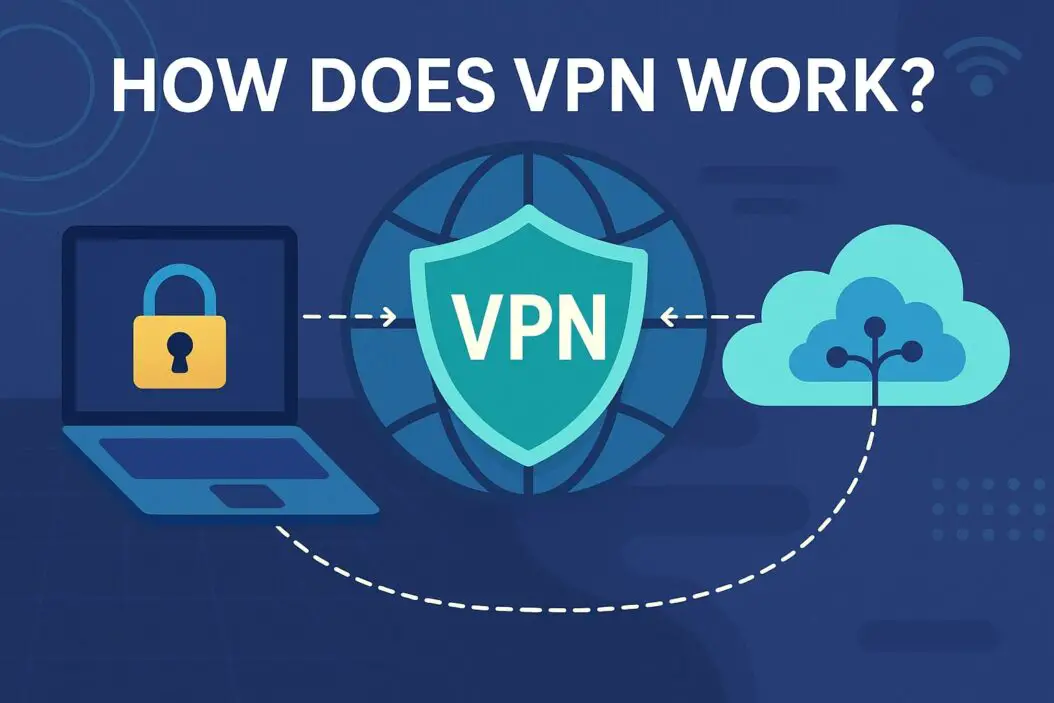
A VPN (Virtual Private Network) works by creating an encrypted tunnel between your device and a remote server. Everything you do online gets routed through this secure tunnel, hiding your real IP address and location from websites and your internet service provider. It’s like mailing a letter inside a locked box instead of sending it in the open.
Your device connects to the VPN server first. Then the VPN server connects to the internet on your behalf. Anyone monitoring your traffic sees only the VPN server’s address, not yours.
Why You Should Care About How VPN Works
Most people use VPNs without understanding what’s actually happening. This matters because:
When you browse without a VPN, your ISP can see every website you visit. Websites can pinpoint your exact location. Hackers on public WiFi can intercept your passwords and personal data. If you’re traveling internationally, many websites block you based on your location.
Understanding how VPNs work helps you make smart choices about online privacy and security. You’ll know what VPNs can actually protect you from, and what they can’t.
The Core Technology: How VPN Encryption Works
The Three-Step Process
Step 1: Your Device Creates a Connection
You open your VPN app and tap connect. Your device sends a login request to the VPN server using encryption. The server verifies your credentials.
Step 2: An Encrypted Tunnel Forms
Once verified, your device and the VPN server establish a secure encrypted tunnel. All your internet traffic passes through this tunnel before leaving your device. The VPN uses protocols (the rules for how data travels) to create this tunnel.
Step 3: The Server Masks Your Identity
The VPN server receives all your traffic. It removes the VPN encryption and forwards your requests to websites. From the website’s perspective, the request came from the VPN server’s IP address, not yours.
What Gets Encrypted
Your VPN encrypts the content of what you’re doing. This means:
- Your browsing activity and search queries
- Passwords and login information
- Messages and emails
- File downloads
- Video streams
What doesn’t get encrypted: The fact that you’re using a VPN. Your ISP knows you’re connected to a VPN server, but they don’t know what you’re doing through it.
Common VPN Protocols Explained
Different VPN services use different protocols. Here’s what matters:
| Protocol | Speed | Security | Best For | Support |
|---|---|---|---|---|
| OpenVPN | Good | Excellent | Most devices | Very common |
| WireGuard | Very Fast | Excellent | Modern devices | Growing rapidly |
| IKEv2 | Fast | Very Good | Mobile users | Common |
| L2TP/IPsec | Moderate | Good | Older systems | Universal |
OpenVPN is the industry standard. It’s been tested for years and works on nearly every device. WireGuard is newer and faster, but available on fewer services. Most people don’t need to pick a protocol. Your VPN app handles this automatically.
How VPN Protects You: Real-World Scenarios
Scenario 1: Using Public WiFi
You’re at a coffee shop using free WiFi. Without a VPN, anyone on the same network could intercept your data. With a VPN, all your traffic is encrypted. Even if someone captures your data, it’s unreadable.
Scenario 2: Hiding from Your ISP
Your internet service provider logs which websites you visit. This data can be sold to advertisers or shared with government agencies. A VPN encrypts your traffic before it reaches your ISP. Your ISP only sees that you’re connected to a VPN server, not the websites you visit.
Scenario 3: Accessing Content from Different Locations
A streaming service blocks content based on your location. When you connect to a VPN server in another country, websites see the VPN server’s location instead of yours. You can access content available in that region.
Scenario 4: Avoiding Location Tracking
Websites place tracking code in your browser. They match your IP address to your location and build profiles about you. A VPN hides your real IP address, making this tracking significantly harder.
What a VPN Actually Cannot Do
Understanding VPN limitations is crucial:
- A VPN cannot make you completely anonymous. Your VPN provider can see your real IP address and traffic. If law enforcement subpoenas your VPN provider, they might be required to hand over your data.
- A VPN doesn’t protect against malware. If you download an infected file, the VPN won’t stop it. Use antivirus software alongside a VPN.
- A VPN cannot decrypt HTTPS traffic. Websites using HTTPS encryption (which most do) are already encrypted. The VPN can’t see what data you send to those sites.
- A VPN cannot hide your online behavior from the websites you visit. If you log into your Facebook account, Facebook knows it’s you, regardless of VPN use.
- A VPN won’t make you invisible to hackers on your own device. Keyloggers or spyware on your computer work regardless of VPN use.
VPN Server Location and Speed
When you connect to a VPN server far from your physical location, your internet speed typically decreases. The farther the data travels, the longer it takes.
Speed impact factors:
- Distance to the VPN server
- Server capacity and load
- Your original internet speed
- The VPN protocol used
A server 100 miles away might slow your speed by 5 percent. A server 3000 miles away might slow it by 20-40 percent. This is normal and expected.
Most VPN services let you choose which server to connect to. If speed is critical, connect to a nearby server. If privacy from your ISP is your priority, location matters less.
Free VPN vs. Paid VPN: What You Need to Know
How Free VPNs Make Money
Free VPNs don’t charge you. They need revenue somehow. Common models include:
- Selling your data. They collect information about your browsing and sell it to advertisers
- Displaying ads. Banner ads appear in the app
- Injecting malware. Some free VPNs deliberately include malicious software
- Throttling speed. They intentionally slow your connection to push you toward paid plans
Free VPNs also typically have:
- Extremely limited server locations
- Data caps (you can only use a certain amount per month)
- Slower servers than paid options
- Fewer privacy protections
Why Paid VPNs Are Different
Paid VPN services make money from your subscription, not from exploiting your data. This means:
- Their business model aligns with protecting your privacy
- They invest in more servers and better infrastructure
- They provide faster speeds
- They offer customer support
- They maintain stronger no-logging policies
A reliable paid VPN typically costs $3-12 per month. Compare this to the actual value of your personal data. Your browsing history, location, and online behavior is worth far more than $10 per month to advertisers.
Setting Up and Using a VPN
Installation Steps
- Choose a reputable VPN provider
- Download the VPN app for your device
- Create an account and log in
- Select a VPN server location
- Tap the connect button
- Wait for the connection to establish (usually 2-5 seconds)
What to Look For in Your VPN App
- Clear on/off button
- Server location selection
- Connection status indicator
- Kill switch feature (disconnects internet if VPN fails)
- Protocol selection options
- Settings for auto-connect on WiFi
Your VPN should feel invisible. Once connected, browse normally. The VPN handles encryption and routing automatically.
VPN and Legal Issues
Using a VPN is legal in most countries. However, some nations restrict VPN use:
- China blocks most VPN services
- Russia has banned many VPN providers
- Iran and UAE restrict VPN access
- Some countries require government approval to use VPNs
In countries where VPNs are legal, you can use them freely. That said, a VPN doesn’t give you permission to break laws. Illegal activity remains illegal, whether you use a VPN or not.
If you’re in a location where VPNs are restricted, use caution. Some people use VPNs in these countries for legitimate privacy reasons. Governments in these regions actively work to block and detect VPN use.
VPN and Your Device
VPN on Windows and Mac
Desktop VPN apps run in the background. Your entire computer’s traffic gets routed through the VPN. Some apps let you choose which programs use the VPN and which don’t.
VPN on iPhone and Android
Mobile VPN apps create a VPN profile on your device. iOS and Android both support VPN connections natively. Once installed, the VPN connects easily from the control center.
Note for iPhone users: Apple requires VPN apps to use the native VPN framework. This is more transparent but also means Apple can theoretically see your VPN connection.
VPN on Routers
Some VPN services let you install a VPN directly on your router. This protects every device that connects to that WiFi network automatically. Router-level VPNs are advanced and technical, but they’re the most comprehensive solution.
How to Know Your VPN Is Working
Simple Tests
- Check your IP address. Before connecting to a VPN, visit ipchicken.com and note your IP. Connect to a VPN server in another country. Refresh the page. Your IP should change to the VPN server’s IP.
- Test with a speed tool. Use speedtest.net to check your speed. Compare results before and after VPN connection. Speed reduction is normal.
- Verify encryption. Some VPN services include a test tool in their app. Use it to confirm your connection is encrypted.
Kill Switch Verification
The kill switch feature disconnects your internet if the VPN fails. To test it (be prepared for brief disconnection):
- Connect to a VPN server
- Open a website in your browser
- Quickly disable the VPN in system settings
- Your internet should disconnect immediately
If your browser continues working after the VPN disconnects, your kill switch isn’t working properly.
Comparing VPN Services: What Actually Matters
When evaluating a VPN provider, focus on these factors:
No-Logging Policy. The provider must not store records of your activity. Look for third-party audits confirming this policy. Read the fine print. Some services claim no-logging but actually keep metadata (connection times, server locations).
Server Network. More servers in more locations means better speeds and more location options. A provider with servers in 50 countries offers more flexibility than one with 10.
Encryption Standard. Look for AES-256 encryption. This is the standard used by governments and banks. It’s considered unbreakable with current technology.
Jurisdiction. Where is the company based? Companies in countries with strong privacy laws (Switzerland, Panama, Romania) are less likely to comply with government data requests than companies in the US or UK.
Speed. Read recent reviews from actual users. Compare reported speeds across providers.
Customer Support. Can you reach support if something goes wrong? Is live chat available? How quick are their responses?
Don’t choose based on marketing claims alone. Read user reviews. Check security audits. Look at recent news about the company.
DNS and Leaks: A Deeper Look
Your device uses DNS (Domain Name System) to convert website names into IP addresses. If your DNS requests bypass the VPN tunnel, your ISP or other observers can see which websites you’re trying to visit.
DNS leak: This happens when your device sends DNS requests outside the VPN tunnel. The VPN fails to route all your traffic properly.
Good VPN services use their own DNS servers and route all DNS requests through the VPN tunnel. Some services even use privacy-focused DNS providers.
Test for DNS Leaks
Visit dnsleaktest.com while connected to your VPN. Run the standard test. You should see only the VPN provider’s DNS servers listed. If you see your ISP’s DNS servers, your VPN has a leak.
A DNS leak doesn’t mean your data is unencrypted. But it does reveal which websites you’re trying to visit.
Summary
A VPN works by encrypting your internet traffic and routing it through a remote server. This hides your IP address, location, and browsing activity from your ISP and the websites you visit.
What VPNs actually do:
- Encrypt your traffic
- Hide your real IP address
- Prevent ISP monitoring of your browsing
- Allow access to location-restricted content
- Protect your data on public WiFi
What VPNs don’t do:
- Make you completely anonymous
- Protect against malware or viruses
- Stop you from being tracked by websites you log into
- Bypass all security threats
- Hide your activity from the VPN provider itself
For most people, a reliable paid VPN is a valuable privacy tool. The small cost is worth the protection. Avoid free VPNs. They typically exploit your data to generate revenue.
Choose a VPN with a strong privacy policy, good server locations, fast speeds, and excellent customer reviews. Test your connection to verify it’s working properly. Use your VPN automatically on public WiFi networks.
A VPN isn’t a complete privacy solution. Use it alongside other security practices. Keep your software updated, use strong passwords, enable two-factor authentication, and practice safe browsing habits.
Privacy online requires multiple layers. A VPN is one important layer.
Frequently Asked Questions
Does a VPN slow down my internet?
Yes, but usually not dramatically. You might notice a 10-30% speed reduction depending on server distance and your original speed. For most people, this slight slowdown is acceptable for the privacy benefits.
Can my VPN provider see what I do online?
Your VPN provider can see your real IP address and which VPN server you connect to. They can theoretically see your encrypted traffic, but they shouldn’t store logs of your activity. Choose providers with audited no-logging policies.
Is it legal to use a VPN?
VPN use is legal in most countries. A few nations restrict or ban VPNs (China, Russia, Iran). Using a VPN doesn’t make illegal activity legal. Laws still apply.
Will a VPN protect me from malware?
No. A VPN encrypts your traffic but doesn’t scan files or block malicious websites. Use antivirus software alongside a VPN for comprehensive protection.
Should I always keep my VPN on?
Keeping your VPN on all the time is a good habit, especially on public WiFi. Some people leave it on constantly for baseline privacy. Others turn it on only when needed. Both approaches are valid depending on your priorities.
