
Desktop computers beat laptops for raw power, affordability, and cooling. Laptops beat desktops for portability and space. If you game in one location and want maximum performance for your money, get a desktop. If you travel, play at friends’ houses, or lack space, get a laptop. Most serious gamers eventually own both because they serve different needs.
Why This Decision Matters
Choosing between a gaming laptop and desktop shapes how you’ll game for years. You’ll spend $1,000 to $4,000 on either option. The wrong choice means frustration, wasted money, or worse—selling the system early at a loss. This guide cuts through marketing language and shows you what actually matters.
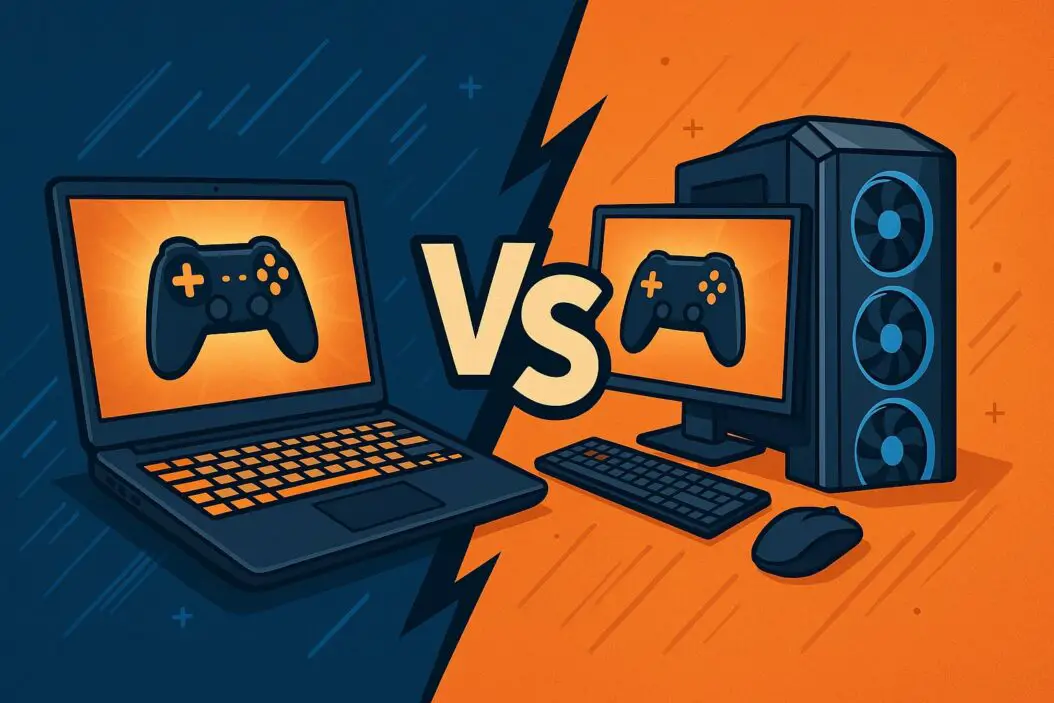
Gaming Desktops: Power and Value
What Makes Desktops Better for Gaming
Desktops deliver more performance per dollar. A $2,000 desktop outperforms a $2,000 laptop by 30 to 50 percent. This happens because desktop components cost less, run cooler, and don’t sacrifice power for size.
Better cooling: Desktops use large fans and open cases. Laptops cram components into tight spaces. Hot components throttle (slow down) to prevent damage. A desktop maintains peak performance for entire gaming sessions. A laptop loses 10 to 20 percent performance after 30 minutes of intense gaming.
Easier upgrades: You can swap out graphics cards, storage, memory, and power supplies in desktops. Laptops are nearly impossible to upgrade. What you buy is what you keep for five years.
Cheaper components: A graphics card costs $400 in a desktop. The same card in a laptop costs $600 or more because manufacturers integrate it into the motherboard and cooling system. CPU prices follow the same pattern.
Bigger displays: Desktop monitors range from 24 to 32 inches. Laptop screens max out at 17 inches. More screen real estate improves aim in shooters and makes strategy games clearer.
Disadvantages of Gaming Desktops
Desktops demand space. A full tower, monitor, keyboard, mouse, and speakers require a dedicated desk. Small apartments or shared rooms make this difficult.
Setup takes time. You must arrange cables, find outlets, and install software before gaming. Moving a desktop means packing multiple components and reconnecting everything.
Electricity costs more. A desktop consumes 400 to 600 watts during gaming. A laptop uses 150 to 250 watts. On average, a desktop costs $100 to $200 more per year in electricity.
Noise is real. Desktop fans create constant background noise. Headphones become nearly mandatory. Laptops are quieter but still produce fan noise.
Gaming Laptops: Portability and Convenience
What Makes Laptops Better for Gaming
Laptops go anywhere. Throw one in a backpack and game at a friend’s house, on a train, or at a coffee shop. No cable hunting required.
Setup is instant. Open the lid, power on, and play. You’re gaming in under a minute.
Space requirements are minimal. A laptop occupies the footprint of a notebook. Perfect for dorms, small apartments, or desk-sharing situations.
Displays are portable too. You don’t need external peripherals. The keyboard and trackpad work for most games (though controllers improve experience).
Disadvantages of Gaming Laptops
Performance drops over time. Dust clogs vents. Thermal paste hardens. After two years, your $2,500 laptop performs like a $1,500 desktop. Cleaning helps, but replacement is difficult and expensive.
Upgrade options don’t exist. Your storage and memory are soldered to the motherboard. A cracked display costs $300 to $600 to repair. You’re trapped with your original specs.
Cost per performance is terrible. A $3,000 gaming laptop matches a $2,000 gaming desktop. You pay extra for portability.
Thermals destroy battery life. Gaming drains a laptop battery in 90 minutes. You’ll need a power adapter at most gaming sessions anyway, eliminating the portability advantage.
Gaming on battery power reduces frame rates. The laptop throttles the CPU and GPU to save power. You get 30 to 50 percent less performance than plugged in.
Keyboard and trackpad aren’t ideal for competitive gaming. You’ll buy external peripherals, eliminating the convenience advantage.
Direct Comparison
| Feature | Desktop | Laptop |
|---|---|---|
| Performance (1440p Ultra) | 120150 FPS | 80110 FPS |
| Cost for equivalent specs | $1,800 | $2,400 |
| Upgrade ability | Easy | Impossible |
| Lifespan (acceptable performance) | 6+ years | 3-4 years |
| Setup time | 30 minutes | 2 minutes |
| Portability | None | Excellent |
| Display size options | 24″ to 32″ | 14″ to 17″ |
| Average power use (gaming) | 500W | 200W |
| Noise level | 40-50dB | 35-45dB |
| Thermal management | Excellent | Good |
Detailed Breakdown by Gaming Type
Competitive Shooters (Valorant, CS2, Apex Legends)
Competitive shooters demand frame rates above 120 FPS and minimal input lag. Response time matters more than visual settings.
Desktop advantage: Delivers consistent 144+ FPS with low latency. Graphics cards and CPUs stay cool, preventing throttling. Most esports players use desktops for this reason.
Laptop consideration: Possible at 1080p with high settings, but expect 90120 FPS and occasional stuttering during intense moments. Not ideal for ranked play above platinum tier.
Winner: Desktop (by a large margin for competitive play)
Single Player Story Games (Dragon’s Dogma 2, Baldur’s Gate 3)
Story games are forgiving. 60 FPS feels smooth. Graphics matter more than frame rate consistency.
Desktop advantage: Maxes settings at 1440p with 80120 FPS. You’ll see every detail the developers intended.
Laptop consideration: Handles 1080p high settings at 60 FPS comfortably. You might lower some settings, but the experience remains engaging.
Winner: Desktop (but laptops are very capable here)
Indie and Retro Games (Hades, Stardew Valley, Hollow Knight)
These games have minimal system requirements. Either platform handles them easily.
Desktop advantage: Any monitor shows performance advantages. But the visual difference is minimal since these games don’t stress hardware.
Laptop consideration: Runs perfectly at highest settings with battery power, achieving 10+ hour battery life since the GPU barely works.
Winner: Laptop (portability provides the only real benefit)
VR Gaming
VR demands high, stable frame rates (90+ FPS minimum, 120 FPS ideal) and low latency. Performance hitches cause motion sickness.
Desktop advantage: Delivers rock solid frame rates. Thermals don’t degrade. You won’t disconnect the headset for cooling breaks.
Laptop consideration: Can technically run VR, but thermals make extended sessions difficult. After 60 minutes, most gaming laptops throttle too much for comfortable VR play.
Winner: Desktop (clearly, for VR safety and comfort)
Cost Analysis Over Five Years
$2,000 Desktop Setup
Initial investment: $1,600 (tower and components)
Peripherals: $200 (monitor, keyboard, mouse)
Upgrades (year 2): $300 (better GPU)
Electricity (5 years): $600
Total cost: $2,700
Cost per year: $540
$2,500 Laptop Setup
Initial investment: $2,500
Peripherals: $150 (mouse, external monitor optional)
Repairs (year 3): $400 (thermal paste, cleaning, minor damage)
Electricity (5 years): $300
Replacement by year 5: $0 (still functions but outdated)
Total cost: $3,350
Cost per year: $670
The desktop saves money even when buying upgrades. Laptops cost 25 percent more over five years and offer less performance throughout.
Space Requirements Breakdown
Desktop Setup
Minimum viable space: 3 feet wide by 2 feet deep desk
Recommended space: 4 feet wide by 2.5 feet deep desk
Additional space needed: One cable management area and room for cooling airflow
Reality: Most people need a dedicated gaming desk or shared desk with clear zones
Laptop Setup
Minimum viable space: Any flat surface, even a lap
Recommended space: Any desk or table
Additional space needed: None, though external monitor and keyboard improve experience
Reality: Works nearly anywhere, including while traveling
For small spaces (under 100 square feet), laptops win. For dedicated gaming setups, desktops maximize performance within the same space.
Thermal Performance Deep Dive
Thermals separate okay gaming from great gaming.
Desktop cooling: Case fans pull cool air in and push hot air out. Large heatsinks dissipate heat to the ambient room air. Temperature sensors regulate fan speed. A well-built gaming desktop runs the GPU at 65 to 75 degrees Celsius under load. The CPU stays around 70 to 85 degrees Celsius.
Laptop cooling: The system pulls air through vents. Heat pipes transfer warmth to fans. Everything runs closer together. A gaming laptop GPU hits 80 to 90 degrees Celsius under load. The CPU reaches 85 to 95 degrees Celsius. Above 95 degrees, the system throttles to protect components.
Impact on gaming: A desktop maintains 100 percent performance for 8+ hours straight. A laptop maintains 100 percent performance for 30 to 45 minutes, then throttles to 70 to 85 percent performance. This throttling creates noticeable frame rate drops in demanding games.
Higher thermals also reduce lifespan. A GPU running 20 degrees hotter will degrade twice as fast. Laptop components age faster due to heat exposure.
Upgrade and Longevity Comparison
Desktop Upgradability (Year 3 Upgrade Scenario)
Your original $1,600 desktop has an RTX 4070 Super. Modern games demand more. You buy an RTX 5080 ($700) and install it in 10 minutes. Total cost: $700. Your system feels brand new.
Alternative: Upgrade the power supply ($200), add storage ($100), and install a better CPU ($400). Total: $700. Your machine lasts another 4 years.
Laptop Upgrade Reality
Your original $2,500 laptop has an RTX 4080. You can’t upgrade anything. The GPU is soldered to the motherboard. The RAM is soldered to the motherboard. The storage is proprietary. Nothing is replaceable without replacing the entire system.
Result: You’re stuck with performance degradation or buying a new $2,500 laptop.
This is the hidden cost of laptops. They look cheaper until year three when you realize nothing upgrades and performance drops.
Practical Buying Scenarios
Choose a Desktop If
You play primarily in one location.
You want maximum performance for your budget.
You plan to use the system for 5+ years.
You play competitive games seriously.
You already own quality peripherals.
You have adequate desk space (3+ feet wide).
Choose a Laptop If
You travel frequently or game at different locations.
You play mostly indie, story, or single player games.
You live in a small space or share a desk.
You need immediate gaming setup with no cable management.
You want quiet performance without active cooling noise.
You value battery portability over peak performance (understanding it’s limited).
Real World Performance Examples
Elden Ring at 1440p Ultra Settings
Desktop (RTX 4080): 95110 FPS, average 102 FPS
Laptop (RTX 4080): 75 FPS first 30 minutes, drops to 55 FPS after thermals peak
Desktop advantage: 85 percent better sustained performance
Final Fantasy XVI at 1440p High Settings
Desktop (RTX 4070 Super): 85100 FPS
Laptop (RTX 4070 Super): 60 FPS first 45 minutes, throttles to 45 FPS in dense areas
Desktop advantage: 100+ percent better performance
Baldur’s Gate 3 at 1080p Ultra Settings
Desktop (RTX 4070 Super): 7085 FPS
Laptop (RTX 4070 Super): 60 FPS first 40 minutes, 45 FPS sustained
Desktop advantage: 70 percent better average performance
These aren’t theoretical. Real users report these numbers consistently. The gap is real and gets worse as games demand more power.
Hidden Costs Nobody Talks About
Laptop Hidden Costs
Display calibration loss: Over time, laptop screens fade from 100 percent color accuracy to 70 to 80 percent. This isn’t a problem for gaming but indicates component aging.
Keyboard reliability: Laptop keyboards fail frequently due to dust and thermal stress. Replacement costs $150 to $400.
Battery degradation: After 500 charging cycles (2 years of regular use), capacity drops to 70 percent. Games drain batteries faster as they age.
Trackpad replacement: Cracked trackpads cost $200 to $400 to replace. Gaming mice prevent this but add cost and eliminate portability advantage.
Desktop Hidden Costs
Monitor dead pixels: After 3 years, most budget monitors develop dead pixels. Replacement costs $150 to $400.
PSU failure: Power supplies occasionally fail. Replacement costs $150 to $300 and requires system downtime during replacement.
Case airflow management: Dust accumulation requires cleaning every 6 months. Improper cooling can shorten component lifespan.
Peripheral wear: Mice develop double-clicking problems. Keyboards wear out keys. Budget $100 to $200 per year for replacements if you game heavily.
Both platforms have hidden costs. Desktops cost more upfront in peripherals. Laptops cost more in repairs as they age.
Environmental Impact Consideration
Desktop computers use more electricity (500W vs 200W during gaming). Over a 5-year lifespan, a desktop consumes roughly 2,000 kWh more than a laptop. At average US electricity costs, that’s $300 more spent on power.
However, laptops require replacement sooner due to thermal degradation. Building a new laptop generates significant e-waste. Desktops last longer, meaning fewer replacements overall.
The net environmental impact is similar. Desktops pollute through power consumption. Laptops pollute through replacement cycles. Neither is clearly superior environmentally.
Making Your Final Decision
Ask yourself these questions in order:
1. Do you move between locations frequently? If yes, lean laptop. If no, skip to question 2.
2. Do you have dedicated desk space? If yes, consider desktop. If no, laptop wins.
3. Do you play competitive games seriously? If yes, desktop is essential. If no, continue.
4. What’s your budget in three years? If you can afford a new system, laptop flexibility matters less. If budget is tight, desktop longevity wins.
5. How much space is your dorm, apartment, or room? Under 150 square feet strongly favors laptop. Over 200 square feet favors desktop.
Answer these honestly and your choice becomes clear.
Summary and Recommendation
Gaming desktops deliver superior performance, longevity, and value over five years. They cost $200 to $400 less total and outperform laptops by 30 to 50 percent consistently. Desktop gaming is the standard for competitive play and demanding AAA games.
Gaming laptops solve the portability problem. They work anywhere and require minimal setup. However, they cost more per performance, age faster due to thermals, and offer zero upgrade paths. They’re best for casual players, students, and travelers who prioritize convenience over power.
Many serious gamers own both. A desktop at home for serious gaming. A laptop for travel and casual play. If budget allows, this hybrid approach maximizes gaming options.
Start with your primary gaming location. If that location is fixed, go desktop. If it varies, go laptop. Your answer guides everything else.
For more information on comparing specific GPU performance,
For thermal management specifics and component longevity data, Tom’s Hardware Reviews offers comprehensive testing of gaming systems under realistic conditions.
Frequently Asked Questions
Can a gaming laptop handle any modern game?
Most gaming laptops handle modern games at reduced settings. Expect 1080p with high-to-medium settings for demanding titles. Competitive shooters run at 1440p high settings on high-end laptops. Single player games work well at high settings 1080p. The limitation isn’t capability but sustained performance due to thermals.
How often should I upgrade a gaming desktop?
You don’t need to upgrade immediately. A $1,800 desktop from 2022 plays new games acceptably in 2026 at reduced settings. By 2027 to 2028, a GPU upgrade ($400 to $700) keeps it competitive. By 2029 to 2030, a full replacement makes sense. That’s 7 to 8 years between full rebuilds.
Is it cheaper to build a desktop or buy prebuilt?
Building saves 10 to 15 percent typically. However, prebuilts offer warranty protection and technical support. If you’re comfortable building, DIY wins. If you’re not, the warranty justifies the markup. Either way, DIY or prebuilt desktops beat laptops on value.
Can I use a gaming laptop for streaming and content creation?
Yes, but thermals become a problem. Streaming and gaming simultaneously demands 350+ watts. Laptop thermals spike quickly. You’ll either reduce game settings or limit stream quality. A desktop handles both simultaneously without compromise.
Should I buy the latest laptop or wait for next generation?
Buy the current generation if it meets your needs. Laptop generations improve 15 to 20 percent year-over-year. Waiting six months for marginal gains doesn’t justify the delay. Buy now if current options fit your budget and performance needs. The performance difference between this year and next year is noticeable but not revolutionary.
