
Your phone dies at 3 PM. Again. You’re not alone. Battery drain is the #1 complaint smartphone users have. This guide shows you exactly how to make your battery last longer, starting today.
Why Your Smartphone Battery Drains So Fast
Your battery dies quickly because of three main reasons:
- Screen brightness – Your display uses 30-50% of your battery
- Background apps – Apps run even when you’re not using them
- Poor settings – Default settings prioritize features over battery life
The good news? You can fix all three in under 10 minutes.
Immediate Battery Saving Tips (Do These First)
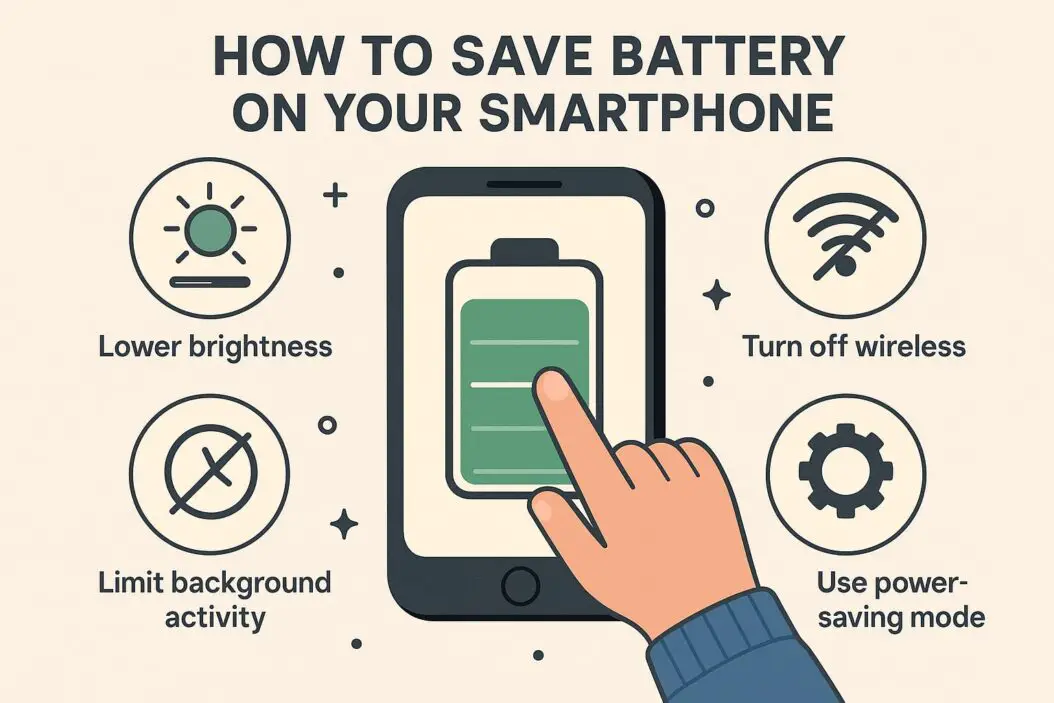
These changes give you instant results.
Lower Your Screen Brightness
Your screen is the biggest battery killer.
What to do:
- Set brightness to 30-50% manually
- Turn off auto-brightness (it often sets brightness too high)
- Use dark mode on OLED screens
Why it works: The display can use up to 50% of your battery. Cutting brightness in half can extend battery life by 2-3 hours daily.
Enable Battery Saver Mode
Every phone has a built-in battery saver.
For iPhone:
- Settings > Battery > Low Power Mode
- Or add it to Control Center for quick access
For Android:
- Settings > Battery > Battery Saver
- Set it to turn on automatically at 20%
What it does: Reduces background activity, lowers screen brightness, limits notifications, and disables some visual effects.
Turn Off Location Services
GPS is a massive battery drain.
How to fix:
- iPhone: Settings > Privacy & Security > Location Services
- Android: Settings > Location
Set apps to “While Using” instead of “Always”
Apps like Facebook, Instagram, and weather apps don’t need your location 24/7. Change them to “While Using App” or “Ask Next Time.”
Advanced Battery Saving Settings
Manage Your Apps Properly
Some apps drain battery even when closed.
Check battery usage:
- iPhone: Settings > Battery (scroll down to see app usage)
- Android: Settings > Battery > Battery Usage
The worst offenders:
- Social media apps (Facebook, Instagram, TikTok)
- Streaming apps (YouTube, Netflix, Spotify)
- Navigation apps (Google Maps, Waze)
- Gaming apps
Solution: Delete apps you rarely use. For apps you need, adjust their settings:
- Disable background refresh
- Turn off auto-play videos
- Limit notifications
Disable Background App Refresh
Apps update content in the background constantly.
iPhone:
- Settings > General > Background App Refresh
- Turn off for apps you don’t need updated constantly
Android:
- Settings > Apps > Select app > Mobile data & Wi-Fi
- Turn off “Background data”
Keep it on for: Messaging apps, email, calendar Turn it off for: Games, social media, shopping apps
Control Your Notifications
Every notification lights up your screen and drains battery.
What to do:
- iPhone: Settings > Notifications
- Android: Settings > Notifications
Turn off notifications for:
- Promotional emails
- Game alerts
- Social media likes and comments
- News apps (unless critical)
Pro tip: Use “Scheduled Summary” on iPhone to batch non-urgent notifications.
Screen and Display Optimization
Use Auto-Lock Effectively
Your screen staying on wastes battery.
Set auto-lock to 30 seconds:
- iPhone: Settings > Display & Brightness > Auto-Lock
- Android: Settings > Display > Screen timeout
Every second your screen stays on unnecessarily drains battery.
Reduce Screen Resolution and Refresh Rate
High-end phones have power-hungry displays.
For Android (Samsung, OnePlus):
- Settings > Display > Screen resolution
- Choose FHD+ instead of QHD+
Refresh rate:
- Settings > Display > Motion smoothness
- Choose 60Hz instead of 120Hz
Trade-off: Slightly less smooth scrolling for 20-30% better battery life.
Disable Always-On Display
Always-on displays show time and notifications when your phone is locked.
Turn it off:
- iPhone: Settings > Display & Brightness > Always On Display (iPhone 14 Pro and newer)
- Android: Settings > Lock screen > Always On Display
Battery saved: Up to 1 hour per day
Network and Connectivity Settings
Use Wi-Fi Instead of Mobile Data
Wi-Fi uses less power than 4G or 5G.
Why: Cellular connections constantly search for signals, especially in areas with weak coverage.
Tip: Connect to Wi-Fi whenever available. Your phone works less hard to maintain connection.
Turn Off 5G When You Don’t Need It
5G drains battery 20-30% faster than 4G.
How to switch:
- iPhone: Settings > Cellular > Cellular Data Options > Voice & Data > LTE
- Android: Settings > Network & Internet > Mobile network > Preferred network type > 4G
When to use 5G: Only when you need maximum download speeds.
Disable Bluetooth and NFC
Wireless connections drain battery even when not actively used.
Turn off when not needed:
- Swipe down from top (Control Center/Quick Settings)
- Tap Bluetooth and NFC icons to disable
Or:
- iPhone: Settings > Bluetooth
- Android: Settings > Connected devices > Connection preferences
Use Airplane Mode in Low-Signal Areas
Weak signal = massive battery drain. Your phone constantly searches for better connection.
Use airplane mode:
- When traveling through rural areas
- In basements or buildings with poor reception
- During meetings when you don’t need connectivity
Battery saved: Up to 2 hours in a 6-hour period with poor signal.
Battery Health and Charging Habits
Optimal Charging Practices
How you charge affects long-term battery health.
| Bad Habit | Better Practice | Why |
|---|---|---|
| Charging to 100% overnight | Charge to 80-85% | Reduces battery degradation |
| Letting battery hit 0% | Keep between 20-80% | Prevents stress on battery cells |
| Using phone while fast charging | Let it charge undisturbed | Reduces heat buildup |
| Cheap third-party chargers | Use original or certified chargers | Prevents voltage inconsistencies |
Enable Optimized Battery Charging
Modern phones learn your charging patterns.
iPhone:
- Settings > Battery > Battery Health & Charging > Optimized Battery Charging
Android:
- Settings > Battery > Adaptive charging (Pixel)
- Settings > Device care > Battery > More battery settings > Protect battery (Samsung)
How it works: Your phone delays charging past 80% until you need it, reducing battery wear.
Avoid Extreme Temperatures
Batteries hate heat and extreme cold.
Keep your phone:
- Out of direct sunlight
- Away from heaters and radiators
- Out of hot cars
Temperature range: 32°F to 95°F (0°C to 35°C) is ideal.
Warning signs: If your phone gets hot during normal use, something’s wrong. Check for problematic apps or consider a factory reset.
App-Specific Battery Saving Tips
Social Media Apps
Facebook, Instagram, and TikTok are battery vampires.
Solutions:
- Use mobile browser versions instead of apps
- Disable auto-play videos in Settings
- Turn off “Upload HD” in cellular settings
- Limit daily usage with screen time controls
Alternative: Use lite versions like Facebook Lite or Instagram Lite (Android).
Email Apps
Constant email checking drains battery.
Change sync frequency:
- Manual sync instead of Push
- Or set fetch to every 30 minutes instead of every 5 minutes
Path:
- iPhone: Settings > Mail > Accounts > Fetch New Data
- Android: Gmail app > Settings > Account > Sync frequency
Streaming Apps
Video streaming uses massive battery.
Tips:
- Download content on Wi-Fi for offline viewing
- Lower video quality settings (720p instead of 1080p)
- Avoid background playback when possible
Hidden Battery Drainers Most People Miss
Disable Haptic Feedback
Vibrations use motor power.
Turn off:
- iPhone: Settings > Sounds & Haptics > System Haptics
- Android: Settings > Sound & vibration > Vibration & haptics
What to keep: Phone calls and alarms What to disable: Keyboard clicks, system sounds, touch feedback
Limit Widgets
Widgets constantly refresh data.
iPhone: Long-press home screen > Edit > Remove widgets you don’t actively use Android: Same process
Keep essential ones only: Calendar, weather, task list
Turn Off AirDrop and Hotspot
These features constantly scan for connections.
iPhone:
- AirDrop: Settings > General > AirDrop > Receiving Off
- Personal Hotspot: Settings > Personal Hotspot > Off when not in use
Android:
- Nearby Share: Settings > Google > Devices & sharing > Nearby Share > Off
- Hotspot: Settings > Network & Internet > Hotspot & tethering
Disable Raise to Wake
Your screen turns on every time you pick up your phone.
Turn off:
- iPhone: Settings > Display & Brightness > Raise to Wake
- Android: Settings > Display > Lock screen > Lift to wake
Battery Saving Myths (What Doesn’t Actually Work)
Myth 1: Closing apps saves battery Truth: iOS and Android manage apps efficiently. Constantly force-closing and reopening apps uses more battery.
Myth 2: You need to fully drain your battery regularly Truth: Modern lithium-ion batteries don’t have “memory.” Partial charges are actually better.
Myth 3: Overnight charging damages your battery Truth: Phones stop charging at 100%. Optimized charging features make overnight charging safe.
Myth 4: Third-party battery apps help Truth: Most are scams or provide minimal benefit. Built-in battery settings are sufficient.
When to Replace Your Battery
Battery capacity degrades over time. Here’s when to consider replacement:
Check battery health:
- iPhone: Settings > Battery > Battery Health
- Android: Use AccuBattery app or Settings > Battery > Battery usage
Replace when:
- Maximum capacity drops below 80%
- Phone randomly shuts down at 20-30%
- Charging takes significantly longer
- Phone overheats during normal use
Cost: $50-$100 at authorized service centers. Worth it for phones under 3 years old.
Emergency Battery Saving Mode
Phone at 5% with no charger nearby? Do this:
- Enable Low Power/Battery Saver mode immediately
- Close all apps except what you need
- Turn off cellular data and use Wi-Fi only (or vice versa)
- Set brightness to minimum
- Put phone in airplane mode between uses
- Turn off vibration completely
This can stretch 5% to last 45-60 minutes for essential calls/texts.
Quick Reference: Daily Battery Saving Checklist
Morning (2 minutes):
- Unplug at 80-85% if possible
- Check battery usage for rogue apps
- Disable features you won’t need (Bluetooth, NFC)
During the day:
- Connect to Wi-Fi when available
- Keep brightness at 30-50%
- Use battery saver mode proactively at 40-50%
Evening:
- Close battery-heavy apps
- Enable optimized charging before bed
- Check tomorrow’s battery drainers in battery settings
Battery Capacity Over Time
| Phone Age | Expected Battery Health | What to Expect |
|---|---|---|
| New – 1 year | 95-100% | Full-day battery life |
| 1-2 years | 85-95% | Need charging by evening |
| 2-3 years | 75-85% | May need midday charge |
| 3+ years | Below 75% | Consider battery replacement |
These numbers assume average daily use (3-4 hours screen time). Heavy users will see faster degradation.
Tools and Resources for Battery Management
Built-in tools:
- iPhone Battery menu provides detailed usage stats
- Android Digital Wellbeing shows screen time and app usage
- Battery usage graphs help identify problem periods
Useful resources:
- Apple’s Battery and Performance Guide – Official guidance on iPhone battery optimization
- Android Battery Management – Google’s comprehensive battery help center
Summary
Your smartphone battery doesn’t have to die before dinner. Here’s what matters most:
Immediate actions (biggest impact):
- Lower screen brightness to 30-50%
- Enable battery saver mode proactively
- Turn off location for apps that don’t need it
- Disable background app refresh for non-essential apps
- Set auto-lock to 30 seconds
Long-term habits:
- Charge between 20-80% when possible
- Use Wi-Fi instead of cellular data
- Keep phone out of extreme temperatures
- Uninstall battery-draining apps you rarely use
- Check battery health every 3 months
Average results: Most users gain 2-4 hours of extra battery life by implementing these tips.
The single most effective change? Screen brightness. Start there, then add other optimizations based on your usage patterns.
Frequently Asked Questions
Does closing background apps save battery?
No. Modern smartphones manage background apps efficiently. Force-closing apps actually uses more battery because the phone has to reload the entire app next time you open it. Let iOS and Android manage apps automatically unless an app is clearly malfunctioning.
How often should I charge my phone to maximize battery lifespan?
ACharge whenever convenient, but try to keep battery between 20-80% most of the time. Avoid letting it drop to 0% regularly or keeping it at 100% for extended periods. Partial charges throughout the day are perfectly fine and actually better for battery health than one full 0-100% charge.
Will using my phone while charging damage the battery?
Not usually, but it generates extra heat, which does reduce battery lifespan over time. It’s fine occasionally, but avoid intensive tasks (gaming, video recording) while charging, especially with fast chargers. If your phone gets noticeably hot, let it charge undisturbed.
Do dark mode and dark wallpapers actually save battery?
Yes, but only on phones with OLED or AMOLED screens (most newer iPhones and Android flagships). On these screens, black pixels are actually turned off, saving significant power. On LCD screens (older iPhones, budget Androids), dark mode saves minimal battery. Dark wallpapers are more effective than dark mode in apps because your wallpaper appears frequently.
My battery drains fast after a software update. What should I do?
This is common and usually temporary. After updates, your phone reindexes files, updates apps, and adjusts settings in the background for 24-48 hours. Give it 2-3 days. If battery drain continues, try these steps in order: (1) restart your phone, (2) check for problem apps in battery settings, (3) reset network settings, (4) as a last resort, factory reset and restore from backup. Contact support if issues persist.

- How to Check If Your Phone Is Unlocked: Step-by-Step Guide - April 10, 2026
- How to Know if Someone Blocked You on WhatsApp? - April 10, 2026
- How to Improve Wi-Fi Signal on My Phone (2026 Guide) - March 17, 2026