
Windows sound settings control everything from your speaker volume to microphone sensitivity, audio output devices, and app-specific sound levels. If your audio is broken, too loud, too quiet, or simply not working, this guide walks you through every setting you need to know.
Why Windows Sound Settings Matter More Than You Think
Most people only open sound settings when something breaks. But understanding these settings helps you prevent problems, get better audio quality, and take full control of how your PC handles sound.
Windows 11 (and Windows 10) has two sound control panels: the modern Settings app and the classic Sound Control Panel. Both are useful. Some options only live in one of them.
How to Open Windows Sound Settings
There are several ways to get there fast.
Method 1: Right-click the speaker icon Right-click the speaker icon in your taskbar. Select “Sound settings.” Done.
Method 2: Via the Settings app Press Windows + I to open Settings. Go to System, then Sound.
Method 3: The classic Control Panel Press Windows + R, type mmsys.cpl, and hit Enter. This opens the old Sound Control Panel, which has options the newer settings page still lacks.
Method 4: Search Press Windows + S, type “Sound settings,” and click the top result.
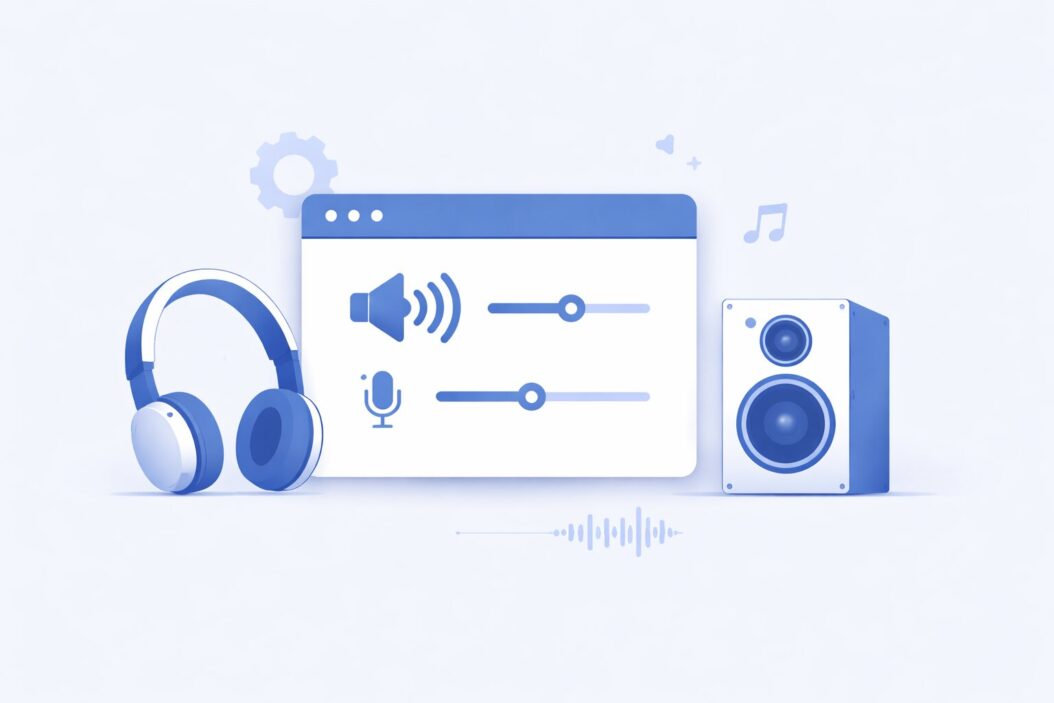
Understanding the Windows Sound Settings Page
Once you open Sound settings in Windows 11, here is what you see.
Output Section
This controls where your audio plays.
| Setting | What It Does |
|---|---|
| Output device | Selects which speaker or headphone to use |
| Volume | Master volume for all output |
| Mono audio | Merges stereo channels into one |
| Enhance audio | Applies Windows audio enhancements |
Choose the right output device first. If you plug in headphones and sound still plays through your speakers, this is why. Click the dropdown and select the correct device.
Input Section
This controls your microphone.
| Setting | What It Does |
|---|---|
| Input device | Selects which mic to use |
| Volume | Sets mic sensitivity |
| Test your microphone | Shows a live level bar |
Speak into your mic and watch the bar. If it moves, your mic is working. If it doesn’t move at all, your input device might be wrong or muted.
Advanced Sound Options
Scroll down in Sound settings and you find two important sections.
App volume and device preferences This lets you control volume per app. Chrome can be loud while Spotify stays quiet. You can even route different apps to different audio devices.
All sound devices Click this to see every audio input and output on your system. You can enable or disable devices here. If a device shows as disabled, Windows will not use it.
The Classic Sound Control Panel: Why You Still Need It
The classic panel at mmsys.cpl gives you deeper control. Here is a breakdown of each tab.
Playback Tab
Lists all your output devices. Right-click any device to:
- Set as default device
- Set as default communication device
- Enable or disable it
- Open Properties
Set as default vs. set as default communication device: Windows uses two separate defaults. One for general audio (music, videos). One for calls and communication apps like Teams or Zoom. You can assign different devices to each.
Recording Tab
Same idea but for input devices. Right-click your microphone and open Properties for deeper settings.
Inside mic Properties you can:
- Adjust levels and boost
- Enable or disable audio enhancements
- View the device’s status and driver info
Sounds Tab
This controls Windows system sounds, like the startup chime, error beep, and notification sounds. You can select a sound scheme, customize individual sounds, or turn them all off by selecting “No Sounds.”
Communications Tab
This tab controls what Windows does to your audio when you receive a call. Options include:
- Mute all other sounds
- Reduce volume by 80%
- Reduce volume by 50%
- Do nothing
If your music keeps ducking down during video calls, this is where to fix it. Set it to “Do nothing.”
Windows Sound Settings: Common Problems and How to Fix Them
No Sound at All
Start here before doing anything else.
- Check that your output device is set correctly in Sound settings
- Make sure volume is not at zero and not muted
- Right-click the speaker icon and click “Troubleshoot sound problems”
- Check the Playback tab in
mmsys.cpland make sure your device is not disabled - Restart the Windows Audio service: Press
Windows + R, typeservices.msc, find “Windows Audio,” right-click, and select Restart
Sound Cuts Out or Glitches
This usually comes from driver issues or audio enhancements.
- Open the Playback tab in
mmsys.cpl - Right-click your default device and open Properties
- Go to the Enhancements tab
- Check “Disable all enhancements” and click Apply
- Go to the Advanced tab and lower the audio format quality (try 16-bit, 44100 Hz)
If that doesn’t help, update or reinstall your audio driver from Device Manager.
Microphone Not Working
- Open Sound settings and check if your mic is selected as the input device
- Check mic permissions: Go to Settings, Privacy and Security, Microphone. Make sure mic access is on for apps
- In the Recording tab, make sure your mic is not disabled
- Right-click your mic in the Recording tab, open Properties, and check the Levels tab. Boost may be at zero
Audio Is Distorted or Crackling
- Disable audio enhancements (see above)
- Change the audio format in the Advanced tab to a lower bit depth
- Update audio drivers
- Check USB cables or audio jack connections
- Try a different port on your PC
Apps Playing Through Wrong Device
Go to Sound settings, scroll to App volume and device preferences. Find the app and change its output device manually.
Volume Mixer: App-Level Control
The Volume Mixer gives you per-app volume control. Right-click the speaker icon and select “Open Volume Mixer.”
Here you can:
- Raise or lower volume for each open app independently
- Mute a single app without muting everything
- See which apps are producing audio right now
This is useful when one app is way louder than others, or when you want to mute notifications while watching a video.
Spatial Audio and Audio Enhancements
Windows supports spatial audio formats like Windows Sonic and Dolby Atmos (if licensed). These create a more immersive, 3D sound experience, especially with headphones.
To enable spatial audio:
- Right-click the speaker icon
- Click Spatial sound
- Select Windows Sonic for Headphones (free) or another option if installed
You can also access this from the Playback tab in mmsys.cpl, right-click your device, open Properties, and find the Spatial sound tab.
Audio enhancements include:
- Bass Boost
- Virtual Surround
- Room Correction
- Loudness Equalization
Loudness Equalization is particularly useful. It levels out volume differences between loud and quiet content. Great for watching videos where dialogue is quiet but action scenes blast.
To enable it: Go to Properties of your output device, click Enhancements, check Loudness Equalization.
Audio Drivers: The Foundation of Everything
Bad or missing drivers cause most serious audio problems. Your sound card or onboard audio needs the right driver to work properly.
How to check your audio driver:
- Press
Windows + Xand select Device Manager - Expand “Sound, video and game controllers”
- Right-click your audio device and select Properties
- Check the Driver tab for the driver version and date
To update: Right-click the device and click “Update driver.” Choose “Search automatically” first. If that doesn’t help, go to your PC or motherboard manufacturer’s website and download the latest driver directly.
For Realtek audio (very common on desktops and laptops), you can download the latest drivers from the Realtek official site.
Windows 11 vs Windows 10: Sound Settings Differences
| Feature | Windows 10 | Windows 11 |
|---|---|---|
| Settings app sound page | Basic | More detailed |
| App volume per device | Yes (limited) | Yes (improved) |
| Spatial audio | Yes | Yes |
| Bluetooth audio codec control | Limited | Better |
| Quick Settings volume control | Taskbar only | Redesigned panel |
Windows 11 moved some settings around. The Quick Settings panel (click the Wi-Fi/speaker area in taskbar) now has a dropdown arrow next to the volume slider where you can switch output devices without opening full settings.
Keyboard Shortcuts and Quick Controls
| Action | Shortcut |
|---|---|
| Open Volume Mixer | Right-click speaker icon |
| Open Sound settings | Right-click speaker icon, Sound settings |
| Open classic panel | Win + R, then mmsys.cpl |
| Mute system (some keyboards) | Fn + mute key |
| Adjust volume (media keys) | Volume Up / Down keys |
Headphones vs Speakers: Switching Between Devices
If you switch between headphones and speakers often, here is the fastest workflow.
In Windows 11: Click the Wi-Fi/speaker area in the taskbar. Click the arrow next to the volume slider. A list of audio devices appears. Click to switch.
In Windows 10: Click the speaker icon. Click the name of the current device. A list drops down. Click the one you want.
You can also right-click any device in the Playback tab and set it as default manually.
Bluetooth Audio Settings
Bluetooth audio devices sometimes appear with two entries in the Playback tab:
- Stereo (high quality audio)
- Hands-Free AG Audio (lower quality, for calls with mic)
Always select the Stereo option for music and video. Windows sometimes auto-switches to the Hands-Free profile when an app opens the mic, which tanks audio quality.
Fix: Set your desired profile as default and disable the Hands-Free entry if you don’t need it for calls.
Sample Rates and Bit Depth: Does It Matter?
In the Advanced tab of your device Properties, you can set the audio format.
Common options:
- 16-bit, 44100 Hz (CD quality, standard)
- 24-bit, 48000 Hz (better, used in video production)
- 24-bit, 192000 Hz (overkill for most users)
For most people, 24-bit 48000 Hz is a good balance. If you have audio glitches, try lowering to 16-bit 44100 Hz.
Allow applications to take exclusive control: This setting in the Advanced tab lets apps bypass Windows audio mixing and talk directly to the hardware. Some audio software needs this. If you notice one app mutes all others, this setting is why. Uncheck it if that’s a problem.
Tips for Better Audio Quality on Windows
- Keep audio drivers updated
- Use the 3.5mm front panel jack only if it has good shielding, back panel jacks on desktops are usually cleaner
- Use USB DAC/amp if your onboard audio sounds poor
- Disable audio enhancements if you notice quality degradation
- Enable Loudness Equalization for consistent volume across content
- Use spatial audio (Windows Sonic) for a wider soundstage with headphones
Conclusion
Windows sound settings give you a lot of control once you know where to look. The modern Settings app handles basic tasks. The classic Sound Control Panel goes deeper. Between the two, you can fix almost any audio problem, fine-tune your setup, and get the best sound your hardware can deliver.
Start with the basics: correct output device, correct volume, correct driver. Most problems are solved at that level. If you need more, the enhancements, formats, and per-app controls are all there waiting.
Frequently Asked Questions
Why is there no sound even though the volume is up?
The most common reason is that the wrong output device is selected. Open Sound settings and check the Output device dropdown. Also check the Playback tab in mmsys.cpl and make sure your device is enabled and set as default.
How do I stop Windows from lowering volume during calls?
Open mmsys.cpl and go to the Communications tab. Set it to “Do nothing.” This stops Windows from automatically ducking audio during voice calls.
Why does my microphone sound bad or quiet?
Open the Recording tab in mmsys.cpl, right-click your mic, and open Properties. Go to Levels and increase the microphone volume. You can also add a small amount of Microphone Boost, though too much boost adds noise.
How do I make different apps use different audio devices?
Go to Sound settings in Windows and scroll to “App volume and device preferences.” You can assign each open app to a specific output or input device independently.
Should I use audio enhancements in Windows?
It depends. Enhancements like Loudness Equalization are genuinely useful. But Bass Boost or Virtual Surround can degrade quality with good headphones or speakers. Try them and decide based on what sounds better to your ears. If enhancements cause glitches, turn them all off.
