
Windows 11 hides desktop icons by default on some systems, leaving your screen clean but making it harder to access your files. If you can’t see your desktop icons, you’re not alone. This guide shows you exactly how to display them, customize what appears, and troubleshoot common problems.
Enable Desktop Icons in 3 Steps
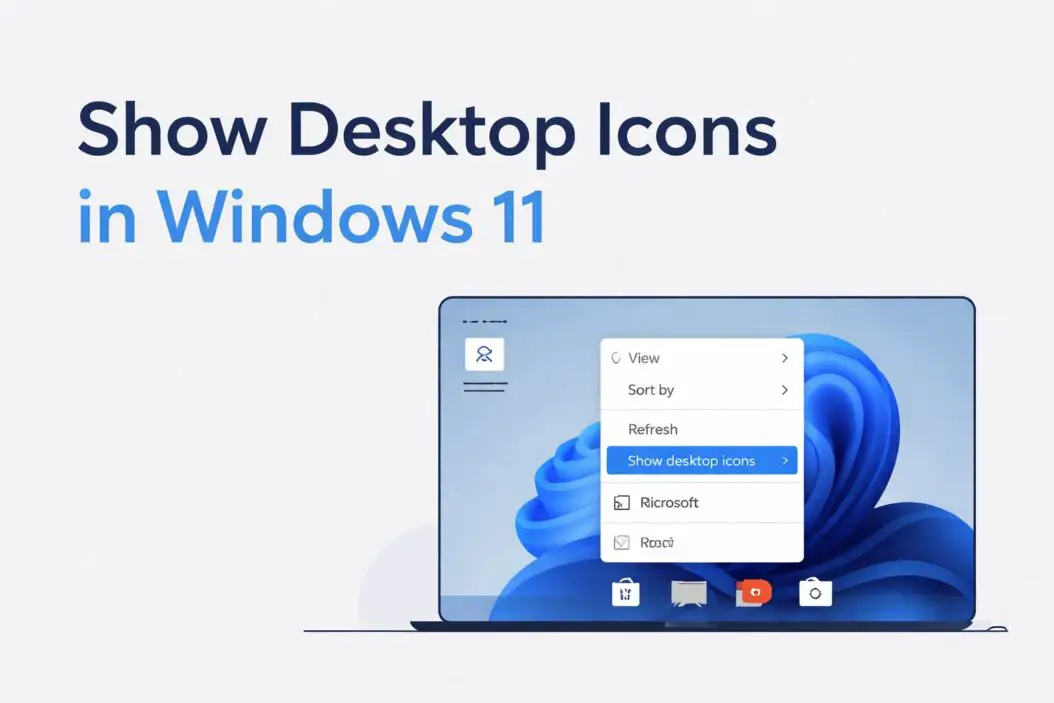
- Right-click any empty space on your desktop
- Hover over “View” in the menu
- Click “Show desktop icons” to toggle them on
That’s it. Your icons should appear immediately. If this doesn’t work or you need more control, keep reading.
Why Desktop Icons Disappear in Windows 11
Windows 11 changed how desktop icons work compared to Windows 10. Microsoft wants users to rely on the Start menu and taskbar instead. Sometimes icons vanish after:
- Fresh Windows 11 installation
- System updates
- Accidental toggling of the view setting
- Graphics driver issues
- Display setting changes
Understanding the cause helps prevent future issues.
Complete Method to Show All Desktop Icons
Step 1: Access Desktop Settings
Right-click anywhere on your desktop where there’s empty space. Don’t click on the wallpaper image itself if you have one. A context menu appears with several options.
Step 2: Navigate to View Options
Move your cursor to “View” in the menu. Don’t click yet. A submenu expands to the right showing display options.
Step 3: Toggle Desktop Icons On
Look for “Show desktop icons” in the submenu. If there’s no checkmark next to it, click once. The checkmark appears and your icons display instantly.
If icons were already enabled but you can’t see specific ones, continue to the next section.
How to Choose Which System Icons Appear
Windows 11 lets you control which default system icons show on your desktop. Here’s how to customize them:
- Right-click the desktop
- Select “Personalize” at the bottom of the menu
- Click “Themes” in the left sidebar
- Scroll down and click “Desktop icon settings”
A small window opens with checkboxes for these icons:
- Computer (This PC)
- User’s Files
- Network
- Recycle Bin
- Control Panel
Check the boxes for icons you want visible. Uncheck those you want hidden. Click “Apply” then “OK.”
Customizing Desktop Icon Size and Spacing
Adjust Icon Size
Right-click the desktop, hover over “View,” and choose from:
- Large icons
- Medium icons (default)
- Small icons
Pick the size that works best for your screen resolution and eyesight.
Change Icon Spacing
Windows 11 doesn’t offer easy spacing controls like older versions. Icons automatically arrange based on your size selection. For more control:
- Press Windows key + I to open Settings
- Go to Accessibility
- Select “Visual effects”
- Adjust “Text size” slider (affects icon label spacing indirectly)
Showing Hidden Files and Folders on Desktop
If you saved files to your desktop but can’t see them, they might be hidden. Here’s how to reveal hidden items:
- Open File Explorer (Windows key + E)
- Click the three dots menu at the top
- Select “Options”
- Go to the “View” tab
- Under “Hidden files and folders,” select “Show hidden files, folders, and drives”
- Click “Apply” then “OK”
Hidden desktop items now become visible with slightly faded icons.
Troubleshooting Missing Desktop Icons
Icons Still Don’t Appear After Enabling
Try these solutions in order:
Restart Windows Explorer
- Press Ctrl + Shift + Esc to open Task Manager
- Find “Windows Explorer” in the process list
- Right-click it and select “Restart”
Your desktop refreshes and icons should reappear.
Check Tablet Mode Settings
Windows 11 removed traditional tablet mode, but similar settings can hide icons:
- Open Settings (Windows key + I)
- Go to System > Display
- Ensure “Scale” is set appropriately (100% to 150% typically)
Update Graphics Drivers
Outdated display drivers cause icon problems:
- Right-click the Start button
- Select “Device Manager”
- Expand “Display adapters“
- Right-click your graphics card
- Choose “Update driver”
- Select “Search automatically for drivers”
Restart your computer after updating.
Specific Icons Missing
If only certain icons vanish:
Recycle Bin disappeared: Check Desktop icon settings (covered earlier). Ensure “Recycle Bin” is checked.
Custom app shortcuts gone: The shortcuts may have been deleted. Recreate them by finding the program in Start menu, right-clicking, and selecting “Show more options” then “Open file location.” Right-click the .exe file, choose “Send to” then “Desktop (create shortcut).”
OneDrive files missing: OneDrive might be syncing. Check the OneDrive icon in your system tray for sync status.
Auto-Arrange vs Manual Desktop Organization
Windows 11 offers two organization methods:
Auto-Arrange Icons
Right-click desktop > View > Auto arrange icons
This feature:
- Automatically organizes icons in a grid
- Prevents manual positioning
- Fills empty spaces when you delete icons
- Works well for minimal desktop setups
Manual Arrangement
Turn off auto-arrange to drag icons anywhere. This gives complete control but icons may scatter after resolution changes.
Align to Grid (also in View menu) is a middle ground. It lets you move icons manually but snaps them to invisible grid lines for cleaner appearance.
Creating Desktop Shortcuts Effectively
Add Program Shortcuts
- Open Start menu
- Find the application
- Drag it directly to desktop (creates shortcut)
Or:
- Right-click the program in Start
- Select “More” then “Open file location”
- Right-click the application
- Choose “Show more options”
- Select “Send to” then “Desktop (create shortcut)”
Create Folder or File Shortcuts
Navigate to the folder or file in File Explorer. Right-click it, select “Show more options,” then “Send to” and choose “Desktop (create shortcut).”
Make Website Shortcuts
- Open your browser
- Go to the website
- Click the padlock or site icon in the address bar
- Drag it to your desktop
This creates a clickable link that opens in your default browser.
Desktop Icon Best Practices for Windows 11
Keep it minimal: Too many icons slow down desktop rendering and make finding things harder. Limit yourself to 15-20 icons maximum.
Use folders: Group related shortcuts into desktop folders. Right-click desktop, select “New” then “Folder.”
Regular cleanup: Remove unused shortcuts monthly. They don’t delete the actual programs.
Backup important files: Don’t store critical work files only on desktop. Desktop files are vulnerable during system crashes.
Name shortcuts clearly: Default names like “New Folder” or “shortcut (2)” create confusion. Rename everything descriptively.
Differences From Windows 10 Desktop Icons
Windows 11 changed several desktop behaviors:
| Feature | Windows 10 | Windows 11 |
|---|---|---|
| Default icon visibility | Usually on | Often off by default |
| Right-click menu | Compact | Two-tier (simplified first) |
| Tablet mode | Separate mode hides icons | No dedicated tablet mode |
| Icon settings location | Easier to find | Buried deeper in Settings |
| Snap layouts | Basic | Enhanced with desktop support |
The streamlined approach means fewer visible options initially, but the same functionality exists in Windows 11.
Advanced Desktop Customization Options
Change Desktop Icon Images
You can replace default icon images:
- Right-click desktop and select “Personalize”
- Go to Themes > Desktop icon settings
- Select an icon (like This PC)
- Click “Change Icon”
- Choose from built-in options or browse for custom .ico files
- Click OK twice
Use Desktop Management Tools
Third-party applications offer advanced control:
- Fences: Groups icons into labeled containers
- DesktopOK: Saves and restores icon layouts
- Stardock’s tools: Comprehensive desktop customization
These aren’t necessary for most users but help if you manage complex desktop setups.
Enable Desktop Peek
Windows 11 still has desktop peek (temporarily hiding windows to see desktop):
- Right-click the taskbar
- Select “Taskbar settings”
- Scroll to “Taskbar behaviors”
- Check “Select the far corner of the taskbar to show the desktop”
Now clicking the thin line at the bottom-right corner shows your desktop temporarily.
Impact of Multiple Monitors on Desktop Icons
If you use multiple displays, desktop icons behave differently:
- Each monitor has its own desktop space
- Icons appear on your primary monitor by default
- You can drag icons to any screen
- Disconnecting a monitor moves its icons to remaining screens
- Reconnecting usually (but not always) restores icon positions
To set your primary monitor:
- Open Settings (Windows key + I)
- Go to System > Display
- Click the monitor you want as primary
- Scroll down and check “Make this my main display”
Security Considerations for Desktop Icons
Desktop icons can pose security risks if you’re not careful:
Verify shortcut targets: Malicious shortcuts can point to harmful files. Right-click any suspicious shortcut, select “Properties,” and check the “Target” field. It should point to legitimate program locations.
Don’t run unknown .exe files: Even if an icon looks like a document, check the file extension. Files ending in .exe, .bat, .cmd, or .scr are executable and potentially dangerous.
Keep desktop clean during screen sharing: Remove sensitive documents before sharing your screen. People often forget their desktop is visible during presentations.
Use strong passwords: If others access your computer, desktop shortcuts provide quick access to applications and files. Consider encryption for sensitive data.
For comprehensive Windows 11 security guidance, visit Microsoft’s Windows Security documentation.
Performance Impact of Desktop Icons
Desktop icons use minimal system resources, but excessive icons can cause issues:
Memory usage: Each icon requires small amounts of RAM for thumbnail generation and display. Most users won’t notice impact until exceeding 100+ icons.
Startup time: Windows loads desktop icons during boot. More icons mean slightly longer startup.
Graphics performance: Desktop rendering uses GPU resources. On older integrated graphics, reducing icons may improve performance marginally.
File indexing: Windows continuously indexes desktop files for search. Large numbers of desktop files slow down indexing.
For optimal performance, store most files in Documents, Downloads, or other folders rather than desktop.
Conclusion
Showing desktop icons in Windows 11 requires just a few clicks: right-click your desktop, hover over “View,” and select “Show desktop icons.” For additional control, access Desktop icon settings through Personalize > Themes to choose which system icons appear.
Most icon visibility issues resolve through simple toggles or Windows Explorer restarts. If problems persist, check display settings, update graphics drivers, or verify files aren’t hidden by system settings.
Keep your desktop organized with minimal icons, clear naming, and regular cleanup. This maintains both visual clarity and system performance while giving you quick access to frequently used programs and files.
Frequently Asked Questions
Why can’t I see any icons on my Windows 11 desktop?
The “Show desktop icons” setting is likely disabled. Right-click your desktop, hover over “View,” and click “Show desktop icons” to enable them. If this doesn’t work, restart Windows Explorer through Task Manager or check if you’re in a special display mode that hides icons.
How do I get the This PC icon on my Windows 11 desktop?
Right-click your desktop and select “Personalize.” Click “Themes,” then scroll down to find “Desktop icon settings.” Check the box next to “Computer” (This PC) and click Apply. The This PC icon appears on your desktop immediately.
Can I make desktop icons larger in Windows 11?
Yes. Right-click an empty area of your desktop, hover over “View,” and select either “Large icons,” “Medium icons,” or “Small icons.” Large icons work well for high-resolution displays or accessibility needs. You can also hold Ctrl and scroll your mouse wheel while on the desktop to resize icons incrementally.
What should I do if my desktop icons keep disappearing after restart?
This usually indicates a corrupted user profile or graphics driver issue. First, update your graphics drivers through Device Manager. If that doesn’t help, create a new user account to test if the problem persists. You may also need to check for Windows updates or run System File Checker by typing “sfc /scannow” in Command Prompt as administrator.
How many desktop icons is too many for Windows 11?
While there’s no hard limit, keeping desktop icons under 20 maintains good organization and performance. Excessive icons (100+) can slow desktop rendering slightly and make finding specific items difficult. Use folders to group related shortcuts and store most files in your Documents or Downloads folders instead of cluttering your desktop.
