
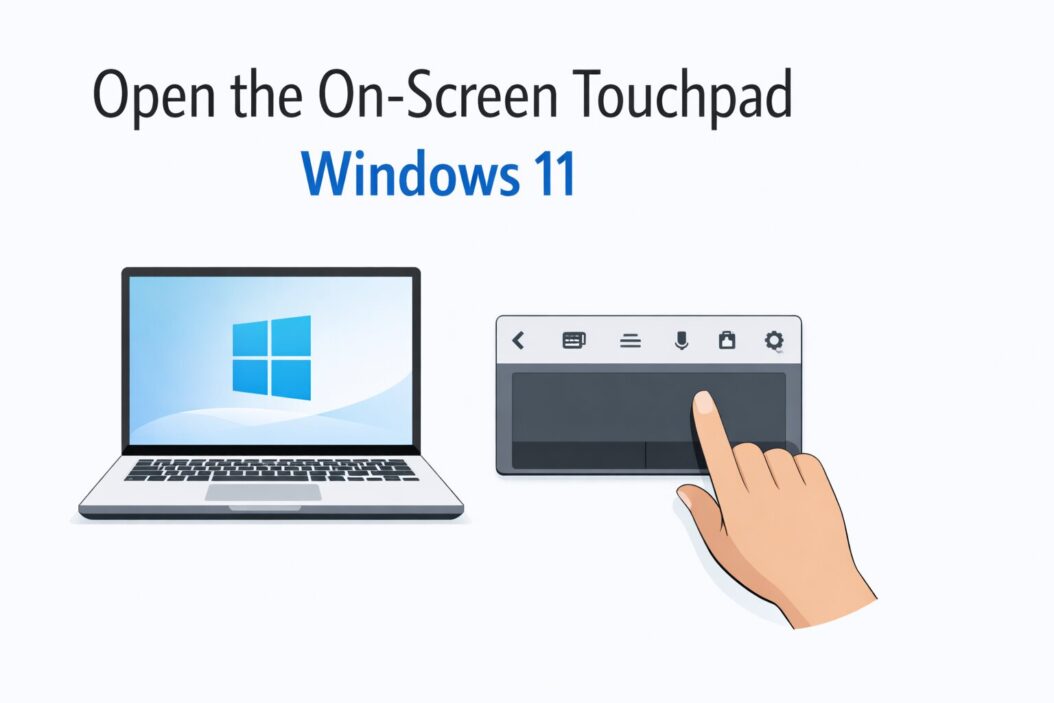
The on-screen touchpad in Windows 11 is a virtual touchpad that appears on your screen, letting you control your cursor without a physical mouse or touchpad. You can open it through Settings > Bluetooth & devices > Touch, or by pressing Windows key + Ctrl + O when enabled. This feature helps when your mouse breaks, your laptop touchpad stops working, or you’re using a tablet without a physical pointing device.
What Is the On-Screen Touchpad?
The on-screen touchpad is different from the on-screen keyboard. It’s a virtual touch surface that mimics your laptop’s physical touchpad. You can tap, click, drag, and perform multi-finger gestures right on your screen.
This tool works best on touchscreen devices like Surface tablets or 2-in-1 laptops. You can still use it with a mouse on non-touch devices, but that defeats the purpose.
Key features:
- Left and right click buttons
- Two-finger scrolling simulation
- Drag and drop support
- Customizable size and position
How to Enable the On-Screen Touchpad
Before you can open the on-screen touchpad, you need to enable it in Windows 11 settings. Here’s the exact process.
Method 1: Through Windows Settings
- Click the Start button or press the Windows key
- Type “touchpad” in the search box
- Select “Touchpad settings” from the results
- Scroll down to find “On-screen touchpad”
- Toggle the switch to “On”
If you don’t see the on-screen touchpad option, your device might not support it. This feature typically appears only on devices with touchscreen capabilities.
Method 2: Quick Settings Panel
- Click the notification icon in the taskbar (bottom right corner)
- Look for the “On-screen touchpad” tile
- Click it to toggle on or off
If you don’t see this tile, you may need to add it:
- Click “Edit quick settings” at the bottom of the panel
- Click “Add”
- Find and select “On-screen touchpad”
- Click “Done”
Opening the On-Screen Touchpad: Step-by-Step Methods
Once enabled, you have several ways to actually open and use the virtual touchpad.
Using the Keyboard Shortcut
The fastest method is the keyboard shortcut:
Press Windows key + Ctrl + O
This shortcut works instantly if you’ve already enabled the feature. Press the same combination again to close it.
Using the Taskbar Icon
- Look at your taskbar (usually at the bottom of the screen)
- Find the touchpad icon (looks like a small rectangle with a finger)
- Click the icon once
The touchpad appears in the center of your screen. You can drag it to any position you want.
Through the Action Center
- Press Windows key + A to open the Action Center
- Click the “On-screen touchpad” button
- The touchpad appears on your screen
Using Voice Commands
If you have voice access enabled:
- Say “Open on-screen touchpad”
- Windows 11 will launch the virtual touchpad
This method requires setting up Windows voice typing first through Settings > Accessibility > Speech.
Customizing Your On-Screen Touchpad Experience
The default settings work fine, but you can adjust the touchpad to fit your needs better.
Changing Size and Position
- Open the on-screen touchpad
- Look for the resize handles at the corners
- Drag any corner to make it larger or smaller
- Click and drag the top bar to move it anywhere on screen
The touchpad remembers your preferred size and position between sessions.
Adjusting Transparency
Some versions let you adjust how see-through the touchpad is:
- Right-click the touchpad’s title bar
- Look for opacity or transparency options
- Adjust the slider to your preference
This helps when you need to see content behind the touchpad while using it.
Gesture Settings
Access gesture controls through:
- Settings > Bluetooth & devices > Touch
- Scroll to “Related settings”
- Click “Advanced gesture configuration”
- Choose which gestures to enable
Common gestures include two-finger scrolling, pinch to zoom, and three-finger swipes.
Using the On-Screen Touchpad Effectively
Understanding how to interact with the virtual touchpad makes it much more useful.
Basic Touch Actions
| Action | How to Do It | What It Does |
|---|---|---|
| Single tap | Tap once with one finger | Left click |
| Double tap | Tap twice quickly | Double click |
| Tap and hold | Press and hold for 1 second | Right click |
| Drag | Tap, hold, then slide | Move items |
| Two-finger scroll | Slide two fingers up or down | Scroll pages |
Advanced Gestures
Two-finger tap: Right-click alternative Two-finger pinch: Zoom in or out (in supported apps) Three-finger swipe up: Show all open windows Three-finger swipe down: Show desktop Four-finger swipe left/right: Switch between virtual desktops
Clicking the Physical Buttons
The on-screen touchpad includes visual left and right click buttons at the bottom. Tap these for traditional clicking when gestures feel awkward.
Troubleshooting Common Issues
The On-Screen Touchpad Won’t Open
Check if your device supports it:
- Open Device Manager (Windows key + X, then select Device Manager)
- Look under “Human Interface Devices”
- You should see “HID-compliant touch screen” listed
Restart the Touch Keyboard service:
- Press Windows key + R
- Type “services.msc” and press Enter
- Find “Touch Keyboard and Handwriting Panel Service”
- Right-click it and select “Restart”
Update your drivers:
- Go to Settings > Windows Update
- Click “Check for updates”
- Install any available updates, especially for touchscreen drivers
The Touchpad Appears But Doesn’t Respond
This usually means touch input isn’t working properly.
- Check if your touchscreen works elsewhere (try tapping the Start button)
- Clean your screen with a microfiber cloth
- Restart your computer
- Calibrate your touchscreen:
- Settings > System > Display
- Scroll to “Advanced display”
- Click “Display adapter properties”
- Navigate to the “Monitor” tab
- Look for calibration options
The Keyboard Shortcut Doesn’t Work
If Windows key + Ctrl + O does nothing:
- Verify the feature is enabled in Settings
- Check if another program is using this shortcut
- Try creating a custom shortcut:
- Right-click desktop and select “New > Shortcut”
- Enter this location:
C:\Windows\System32\cmd.exe /c osk - Name it “On-Screen Touchpad”
- Right-click the shortcut, select Properties
- Click in the “Shortcut key” field
- Press your preferred key combination
Touchpad Disappears Randomly
This happens when:
- You connect a physical mouse (Windows auto-hides it)
- The tablet mode changes
- Power settings put the touchscreen to sleep
To prevent this:
- Settings > System > Power
- Click “Screen and sleep”
- Set longer timeout periods
When to Use the On-Screen Touchpad
Understanding the right situations helps you decide when this tool makes sense.
Emergency Mouse Replacement
Your physical mouse died and you need to finish work immediately. The on-screen touchpad bridges the gap until you get a replacement.
Touchscreen-Only Work
You’ve detached your 2-in-1 laptop keyboard and want to work in pure tablet mode. The on-screen touchpad gives you precision that finger taps can’t match.
Accessibility Needs
Some users find the larger virtual touchpad easier to use than tiny physical touchpads, especially those with motor control challenges.
Presentation Mode
When presenting and you need to control your computer from the screen itself, the on-screen touchpad lets you navigate without reaching for the keyboard.
Alternatives to Consider
The on-screen touchpad isn’t your only option when facing mouse problems.
On-Screen Keyboard with Mouse Keys
The regular on-screen keyboard includes limited mouse functionality:
- Windows key + Ctrl + O opens the keyboard
- Look for the mouse keys option
- Enable it to control the cursor with keyboard
This works but offers less precision than the touchpad.
Windows Accessibility Features
Mouse Keys lets you control the cursor with your number pad:
- Settings > Accessibility > Mouse
- Toggle on “Mouse keys”
- Use the numeric keypad to move the cursor
According to Microsoft’s accessibility documentation, this feature has been helping users since early Windows versions.
Third-Party Touch Solutions
Apps like TouchMousePointer or Mobile Mouse offer enhanced virtual touchpad features with more gesture options and customization. Search the Microsoft Store for “virtual touchpad” to explore options.
Performance Tips for Smooth Operation
Making the on-screen touchpad responsive improves your experience significantly.
Reduce Visual Effects
Windows 11 animations can slow down touch response:
- Settings > Accessibility > Visual effects
- Toggle off “Transparency effects”
- Toggle off “Animation effects”
This makes the touchpad appear and respond faster.
Close Background Apps
Too many running programs consume resources:
- Press Ctrl + Shift + Esc to open Task Manager
- Check the “Memory” and “CPU” columns
- Right-click unnecessary programs
- Select “End task”
The touchpad works better with more available system resources.
Keep Your Screen Clean
Fingerprints and smudges interfere with touch accuracy. Wipe your screen daily with a microfiber cloth. For stubborn marks, slightly dampen the cloth with water (never spray liquid directly on the screen).
Update Windows Regularly
Microsoft constantly improves touch input handling. Regular updates bring performance enhancements:
- Settings > Windows Update
- Click “Check for updates”
- Install everything available
- Restart when prompted
Security and Privacy Considerations
The on-screen touchpad is a built-in Windows feature, so it’s safe. However, keep these points in mind:
Screen recording risk: If someone records your screen, they can see exactly where you tap and click. Be careful when using the touchpad during screen sharing sessions.
Public display caution: In public spaces, people can watch your touchpad interactions. Use privacy screens or position yourself carefully.
No data collection: The on-screen touchpad doesn’t send usage data to Microsoft beyond standard Windows telemetry. You can verify this in Settings > Privacy & security > Diagnostics & feedback.
Comparing Physical vs. On-Screen Touchpads
| Feature | Physical Touchpad | On-Screen Touchpad |
|---|---|---|
| Precision | High | Medium |
| Speed | Fast | Moderate |
| Availability | Requires hardware | Always available |
| Battery impact | Minimal | Higher (screen on) |
| Gesture support | Full | Limited |
| Learning curve | Familiar | Slight adjustment |
| Screen real estate | None used | Takes up space |
The physical touchpad wins in most categories, but the on-screen version excels in emergency situations and accessibility scenarios.
Advanced Configuration Options
Power users can dig deeper into touchpad settings through the Registry Editor. Warning: Only attempt this if you’re comfortable with registry edits. Mistakes can cause system issues.
Enabling Hidden Options
- Press Windows key + R
- Type “regedit” and press Enter
- Navigate to:
HKEY_CURRENT_USER\Software\Microsoft\TabletTip\1.7 - Look for touchpad-related DWORD values
- Modify values to adjust behavior
Always create a system restore point before editing the registry.
Creating Desktop Shortcuts
For quick access without keyboard shortcuts:
- Right-click your desktop
- Select New > Shortcut
- Enter:
ms-settings:tabletmode - Click Next, name it “Touchpad Settings”
- Click Finish
This creates instant access to enable/disable the touchpad.
The Future of On-Screen Input in Windows
Microsoft continues developing touch input methods. Windows 11 version 24H2 introduced improved haptic feedback simulation and better gesture recognition. Future updates will likely bring:
- AI-powered gesture prediction
- Customizable touchpad layouts
- Better multi-monitor support
- Enhanced accessibility features
Stay updated by checking Windows Insider Program previews if you want early access to new features.
Summary
The on-screen touchpad in Windows 11 solves immediate problems when your physical pointing device fails. Enable it through Settings > Bluetooth & devices > Touch, then open it with Windows key + Ctrl + O. The feature works best on touchscreen devices but functions on any Windows 11 computer.
Use it for emergency mouse replacement, tablet mode work, or accessibility needs. While not as precise as physical touchpads, it provides reliable cursor control when you need it most. Customize the size, position, and gestures to match your workflow.
Keep your system updated, your screen clean, and your background apps minimal for the best experience. The on-screen touchpad isn’t perfect, but it’s an essential backup tool every Windows 11 user should know how to access.
Frequently Asked Questions
Can I use the on-screen touchpad without a touchscreen?
Yes, but it’s impractical. You can click the on-screen touchpad with your mouse, but that defeats the purpose since you already have a working mouse. The feature is designed specifically for touchscreen devices or situations where your physical mouse and touchpad both fail.
Why doesn’t my Windows 11 PC show the on-screen touchpad option?
Not all Windows 11 devices support this feature. It typically only appears on computers with touchscreen hardware. Check if your device has a touchscreen by opening Device Manager and looking under “Human Interface Devices” for “HID-compliant touch screen.” If it’s not listed, your hardware doesn’t support the on-screen touchpad.
Does the on-screen touchpad drain more battery than a regular mouse?
Yes, significantly more. The on-screen touchpad keeps your display active and requires touch input processing, both of which consume more power than a Bluetooth mouse or physical touchpad. If battery life is critical, use a physical pointing device instead. The on-screen version is best for short-term emergency use.
Can I customize the on-screen touchpad’s appearance or add buttons?
Customization options are limited in Windows 11. You can resize and reposition the touchpad, and some devices allow transparency adjustments, but you cannot add custom buttons or change colors. Microsoft designed it as a standardized tool rather than a customizable interface. Third-party applications offer more customization if you need specific features.
Will the on-screen touchpad work with all my applications and games?
The on-screen touchpad works with most standard Windows applications because it sends the same input signals as a physical touchpad. However, some games (especially full-screen games) may not recognize it properly. Games that require rapid, precise mouse movements perform poorly with the on-screen touchpad. Use it primarily for productivity apps, web browsing, and basic navigation rather than gaming.
