
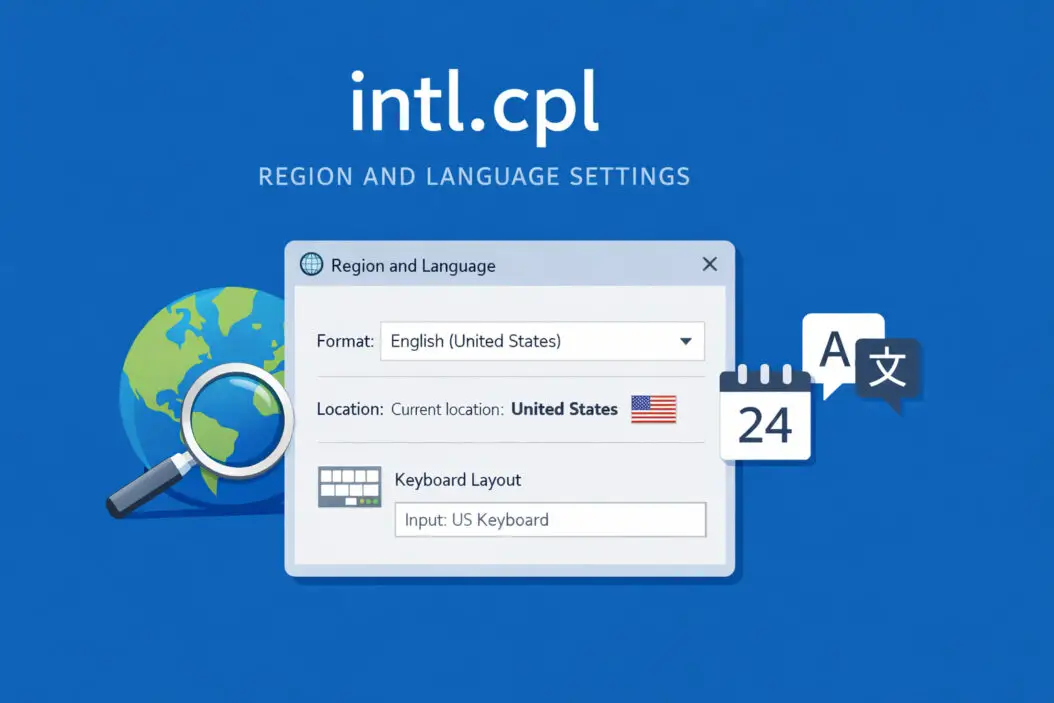
When you need to change your keyboard layout, adjust date formats, or switch your system language in Windows, you’re dealing with intl.cpl. This Control Panel applet controls how your computer handles regional and language settings.
What is intl.cpl? It’s a Windows system file that opens the Region settings dialog. The “.cpl” extension stands for Control Panel, and “intl” is short for international. When you run intl.cpl, Windows opens a window where you can customize formats for dates, times, currency, and numbers based on your location and preferences.
This matters because incorrect regional settings can cause problems with software, make your computer harder to use, or display information in formats you don’t understand. Let’s fix that.
What Intl.cpl Actually Does
The intl.cpl file sits in your Windows System32 folder (typically C:\Windows\System32\intl.cpl). When you launch it, Windows opens the Region settings control panel.
Here’s what you can control through intl.cpl:
Format Settings:
- How dates appear (MM/DD/YYYY vs DD/MM/YYYY)
- Time format (12-hour vs 24-hour clock)
- Currency symbols and decimal separators
- Number formatting (comma vs period for decimals)
- First day of the week in calendars
Location Settings:
- Your home location for location-based services
- Regional content recommendations
Administrative Settings:
- System locale for non-Unicode programs
- Copy settings to system accounts
- Language for welcome screen and new user accounts
The file itself is about 150 KB and has been part of Windows since Windows 95. Microsoft continues to include it in Windows 11 alongside newer Settings app options.
How to Open Intl.cpl in Windows
You have multiple ways to access intl.cpl, depending on which Windows version you’re running.
Method 1: Run Dialog (Fastest)
Press Windows key + R to open the Run dialog.
Type intl.cpl and press Enter.
The Region settings window opens immediately.
This works on Windows 7, 8, 10, and 11.
Method 2: Command Prompt or PowerShell
Open Command Prompt or PowerShell.
Type intl.cpl and press Enter.
The same Region window appears.
Method 3: File Explorer
Navigate to C:\Windows\System32
Scroll down to find intl.cpl
Double-click the file
Method 4: Search
Click the Start button or Windows icon.
Type “Region settings” or “intl.cpl” in the search box.
Select “Region settings” from the results.
On Windows 11, this might open the newer Settings app instead. If you specifically need the classic Control Panel version, use the Run dialog method.
Changing Your Region Settings Through Intl.cpl
Once intl.cpl is open, you’ll see several tabs. Here’s how to adjust each setting type.
Adjusting Date and Time Formats
Click the Formats tab at the top.
Look at the Format dropdown menu. This shows your current region format (like “English (United States)” or “English (United Kingdom)”).
To change formats:
Select a different region from the dropdown to adopt all its conventions at once.
OR
Click Additional settings for granular control.
In Additional settings, you’ll find tabs for:
Numbers: Decimal symbol, digit grouping, negative number format, leading zeros
Currency: Currency symbol, positive/negative formats, decimal digits
Time: Time format, AM/PM symbols, time separator
Date: Short date format, long date format, calendar type
For example, if you want dates to show as “16 January 2026” instead of “January 16, 2026”, you’d:
- Click Additional settings
- Go to the Date tab
- Change “Long date” format to
dd MMMM yyyy
Setting Your Location
The Location tab tells Windows and apps where you physically are.
Click the Location tab.
Under “Home location,” select your country or region from the dropdown.
This setting affects:
- Regional content in Microsoft Store
- News and weather in widgets
- Location-based services that use your general region
Your home location doesn’t need to match your format preferences. You can use UK date formats while living in the United States, for instance.
Administrative Options (Advanced Users)
The Administrative tab contains system-wide settings that affect how older programs work.
Change system locale:
This setting determines which code page Windows uses for programs that don’t support Unicode. If you’re running older software designed for a different language, you might need to change this.
Click “Change system locale”
Select the appropriate language
Restart your computer
Warning: Changing system locale can cause text to display incorrectly in programs designed for your original locale. Only change this if you’re having specific compatibility issues with foreign language software.
Copy settings:
The “Copy settings” button lets you apply your current user settings to:
- The welcome screen
- New user accounts
- System accounts
This ensures everyone who uses the computer sees consistent formats.
Common Problems and Solutions
Date Format Won’t Change
You changed the format, but programs still show the old format.
Solution: Most programs need to be restarted to recognize new regional settings. Close the application completely and reopen it. Some programs ignore Windows regional settings and use their own format preferences.
Intl.cpl Won’t Open
You double-click intl.cpl but nothing happens.
Possible causes:
File corruption: Run System File Checker by opening Command Prompt as administrator and typing sfc /scannow
Permission issues: Make sure you have administrator rights on the computer
Antivirus interference: Some security software blocks .cpl files. Temporarily disable antivirus and try again
Settings Reset After Updates
Windows updates sometimes reset regional settings to defaults.
Solution: After major Windows updates, recheck your intl.cpl settings. Consider documenting your preferred settings so you can quickly reconfigure them.
Wrong Currency Symbol
Your currency shows $ but you need €, £, or another symbol.
Solution:
- Open intl.cpl
- Go to Formats > Additional settings
- Click the Currency tab
- Change “Currency symbol” to your preferred symbol
- Adjust decimal and grouping as needed
Programs Display Gibberish Text
Non-English programs show squares, question marks, or random characters.
Solution: This typically means the system locale doesn’t match the program’s language.
- Open intl.cpl
- Go to Administrative tab
- Click “Change system locale”
- Select the language that matches your program
- Restart the computer
According to Microsoft’s official documentation, this setting specifically affects non-Unicode programs that were designed before universal character encoding became standard.
Intl.cpl vs Settings App
Windows 10 and 11 include a modern Settings app that duplicates some intl.cpl functionality. Here’s the difference:
| Feature | Intl.cpl (Classic) | Settings App |
|---|---|---|
| Date/time format customization | Full control with Additional settings | Limited presets |
| System locale for legacy apps | Yes | No |
| Copy settings to system accounts | Yes | No |
| Touch-friendly interface | No | Yes |
| Detailed number formatting | Yes | Basic only |
| Calendar type selection | Yes | Limited |
When to use intl.cpl:
- You need detailed control over formats
- You’re configuring legacy program compatibility
- You want to copy settings to all users
When to use Settings app:
- You’re using a touchscreen device
- You only need basic format changes
- You prefer the modern Windows 11 interface
To access the modern version, go to Settings > Time & Language > Language & Region.
The Settings app is gradually replacing Control Panel applets, but as of 2026, intl.cpl still offers capabilities the Settings app doesn’t provide.
Security Considerations
Intl.cpl is a legitimate Windows system file. However, malware sometimes disguises itself with similar names.
Verify your intl.cpl file:
The genuine file is located at C:\Windows\System32\intl.cpl
File size should be around 150-160 KB
The file properties should show Microsoft Corporation as the publisher
If you find intl.cpl in other folders (like Downloads, Documents, or Temp), don’t open it. Scan your computer with Windows Defender or your antivirus software.
Safe practices:
- Don’t download intl.cpl from third-party websites
- Only open it through Windows Run dialog or System32 folder
- Keep Windows updated to ensure system files remain secure
Regional Settings for Specific Scenarios
Developers and Programmers
If you develop software, you might need to test how your applications behave with different regional settings.
Testing workflow:
- Open intl.cpl
- Change formats to target region
- Test your application
- Check date parsing, number formatting, and currency display
- Reset to your normal settings
Consider creating separate Windows user accounts with different regional settings for testing purposes.
Multilingual Users
If you work in multiple languages or travel frequently:
Option 1: Multiple user accounts
- Create separate Windows accounts for each region
- Each account maintains its own intl.cpl settings
- Switch accounts when changing contexts
Option 2: Quick switching
- Keep your most common format as default
- Use intl.cpl to switch when needed
- Document your settings for each context
Business and Accounting
Accurate currency and number formats prevent costly errors in financial work.
Recommended settings for accounting:
- Set currency symbol to your business currency
- Use period for decimal separator (standard in most accounting software)
- Set date format to match your accounting software’s expectations
- Enable four-digit years to avoid Y2K-type issues
- Test that Excel, QuickBooks, or your accounting software displays correctly
International Teams
Remote teams working across borders face format mismatches.
Team coordination:
- Document which regional format your team uses as standard
- Include region settings in onboarding documentation
- When sharing files, specify the date format used
- Consider using ISO 8601 format (YYYY-MM-DD) for dates in filenames
The ISO 8601 standard provides an unambiguous date format that works globally, though implementing it requires custom configuration in intl.cpl’s Additional settings.
Advanced Customization
Beyond the basic dropdowns, intl.cpl allows deep customization through the Additional settings dialog.
Creating Custom Date Formats
Standard date formats might not match your needs. You can create custom patterns.
Date format codes:
- d = day without leading zero (1, 2, 3…)
- dd = day with leading zero (01, 02, 03…)
- M = month without leading zero (1, 2, 3…)
- MM = month with leading zero (01, 02, 03…)
- MMM = abbreviated month (Jan, Feb, Mar…)
- MMMM = full month name (January, February, March…)
- yy = two-digit year (26)
- yyyy = four-digit year (2026)
Example custom formats:
yyyy-MM-ddproduces 2026-01-16dd MMM yyyyproduces 16 Jan 2026MMMM d, yyyyproduces January 16, 2026
Enter these in the short or long date fields under Formats > Additional settings > Date tab.
Custom Number Formats
The Numbers tab in Additional settings offers specific controls:
Decimal digits: How many digits after the decimal point (2 for currency, varies for measurements)
Digit grouping: How numbers are grouped (1,000,000 vs 10,00,000)
Grouping symbol: The character used for grouping (comma, period, or space)
Negative number format: How to display negative numbers (minus sign, parentheses, or red color)
These settings affect how Windows displays numbers in File Explorer (file sizes), Calculator, and other system components.
Custom Time Formats
Time format customization uses similar codes:
- h = hour without leading zero (1, 2, 3…)
- hh = hour with leading zero (01, 02, 03…)
- H = 24-hour format without leading zero
- HH = 24-hour format with leading zero
- m = minute without leading zero
- mm = minute with leading zero
- s = second without leading zero
- ss = second with leading zero
- tt = AM/PM designator
Example formats:
HH:mm:ssproduces 14:30:45 (24-hour)h:mm ttproduces 2:30 PM (12-hour)HH.mmproduces 14.30 (European style)
Performance Impact
Intl.cpl itself uses minimal system resources. Changing settings through intl.cpl requires no restart except when changing system locale.
Resource usage:
- Opening intl.cpl: Negligible CPU and memory
- Changing format settings: Instant, no performance impact
- Changing system locale: Requires restart, one-time impact
Your regional settings are stored in the Windows Registry under HKEY_CURRENT_USER\Control Panel\International. Programs read these values when they start or when refreshing display information.
Backup and Restore Settings
If you’ve spent time customizing your regional settings, you might want to back them up.
Manual Export Method
Open Registry Editor (Windows + R, type regedit)
Navigate to HKEY_CURRENT_USER\Control Panel\International
Right-click “International” and select Export
Save the .reg file with a descriptive name like “my-regional-settings.reg”
To restore, double-click the .reg file.
Warning: Editing the registry incorrectly can damage your Windows installation. Only follow these steps if you’re comfortable with registry editing, and create a system restore point first.
Scripting for IT Professionals
System administrators managing multiple computers can script regional settings deployment using PowerShell’s Set-WinSystemLocale, Set-WinHomeLocation, and Set-WinCultureFromLanguageListOptOut cmdlets.
Troubleshooting Checklist
When intl.cpl settings don’t behave as expected, work through this checklist:
Step 1: Verify you’re running intl.cpl as administrator
- Right-click the Start button
- Select “Run”
- Type
intl.cpland press Ctrl+Shift+Enter
Step 2: Check if programs are using their own regional settings
- Some software (Adobe products, professional apps) ignores Windows settings
- Look for language or regional preferences within the application itself
Step 3: Confirm your user account has permission to change settings
- Standard users can change their own formats
- Changing system locale requires administrator privileges
Step 4: Test in a clean user account
- Create a new Windows user account
- Check if the issue persists there
- This isolates whether the problem is system-wide or user-specific
Step 5: Run System File Checker
- Open Command Prompt as administrator
- Type
sfc /scannowand press Enter - This repairs corrupted system files including intl.cpl
Step 6: Check Windows Updates
- Go to Settings > Update & Security
- Install any pending updates
- Updates sometimes fix bugs in regional settings
Summary
Intl.cpl gives you control over how Windows displays dates, times, numbers, and currency. The fastest way to open it is pressing Windows + R and typing intl.cpl.
Use the Formats tab for date and time preferences, the Location tab for your geographic region, and the Administrative tab only when dealing with legacy software compatibility.
The Additional settings button unlocks detailed customization with format codes that let you create exactly the display format you need. Remember that most programs need to be restarted to recognize new settings.
While Windows 11’s Settings app handles basic regional changes, intl.cpl remains essential for advanced configuration, system locale changes, and applying settings across all user accounts.
Keep your intl.cpl file verified in System32, back up custom settings through registry export, and test changes before applying them to production environments.
Frequently Asked Questions
What is the difference between intl.cpl and timedate.cpl?
Intl.cpl controls how dates, times, and numbers are formatted and displayed, while timedate.cpl (also called Date and Time settings) controls the actual system time and time zone. Think of it this way: timedate.cpl sets what time it is, and intl.cpl sets how that time appears on screen. You need timedate.cpl to change from Eastern to Pacific time, but you need intl.cpl to switch between 12-hour and 24-hour clock display.
Can I use intl.cpl to change Windows display language?
No. Intl.cpl only changes regional formats like date and number display. To change the entire Windows interface language (menus, dialog boxes, system messages), you need to go to Settings > Time & Language > Language & Region, then add and set a different display language. However, intl.cpl’s Administrative tab does control the language for the welcome screen and new user accounts.
Why do my changes in intl.cpl not affect Microsoft Office?
Microsoft Office applications (Word, Excel, PowerPoint) have their own language and regional settings separate from Windows. After changing intl.cpl settings, you need to adjust Office settings independently. In Office 2016 and later, go to File > Options > Language to change display and proofing languages, or File > Options > Advanced > General to change date and number format behaviors.
Is it safe to delete intl.cpl?
Never delete intl.cpl. It’s a critical Windows system file. Deleting it prevents you from accessing regional settings and can cause system instability. If intl.cpl is corrupted or missing, Windows will restore it through System File Checker (sfc /scannow) or Windows Update. The file only occupies about 150 KB, so there’s no storage benefit to removing it.
How do I reset intl.cpl to default settings?
Windows doesn’t have a built-in “reset to default” button for regional settings. To return to defaults, open intl.cpl, go to the Formats tab, and select your country from the Format dropdown (like “English (United States)”). Click Apply. This resets date, time, currency, and number formats to that region’s standards. For system locale, go to Administrative > Change system locale and select your region, then restart. If you’ve made many custom changes and want a complete reset, creating a new Windows user account gives you fresh default settings.
