
SharePoint permissions control who can access, view, edit, and delete your files and sites. Getting permissions right saves time, prevents accidental data loss, and keeps sensitive information secure. Most people struggle with SharePoint permissions because there are multiple layers to understand. This guide breaks it down into practical, actionable steps.
The core answer is simple: you manage SharePoint permissions through site settings, library/list settings, or by directly sharing individual items. But understanding the permission structure matters more than memorizing steps. Once you grasp how inheritance and permission levels work, you’ll handle any situation confidently.
SharePoint Permission Basics
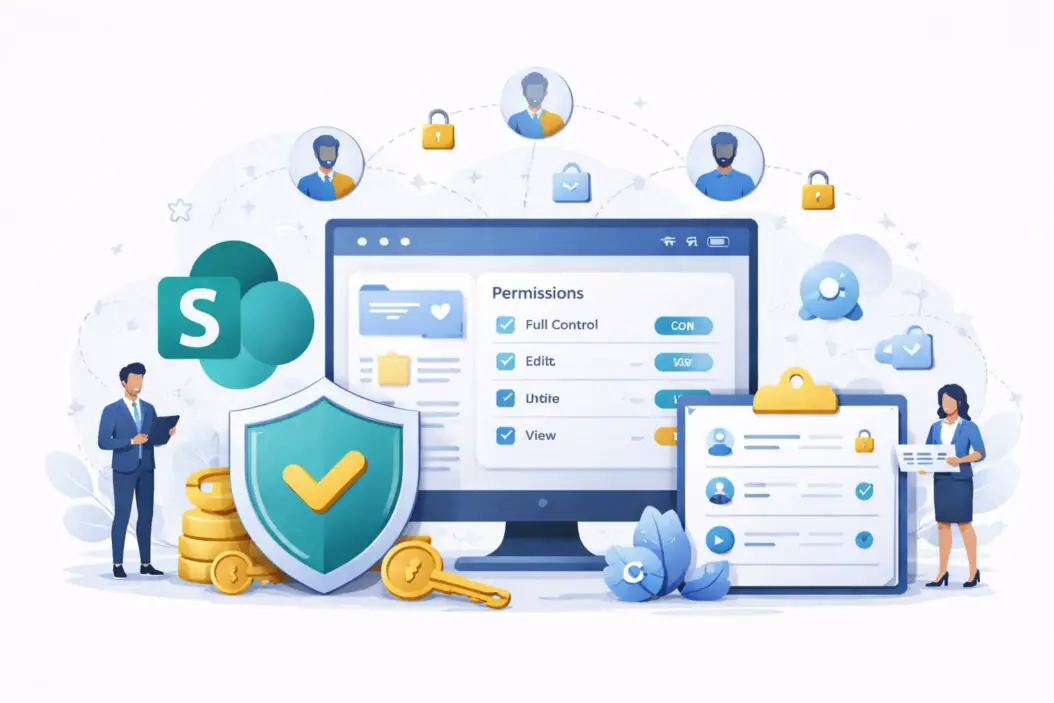
What Are Permissions in SharePoint?
Permissions determine what users can do within SharePoint. They’re assigned to individuals, groups, or sites. Every file, folder, library, and site in SharePoint has its own permission settings.
Think of permissions like keys to rooms in a building. A master key (site owner) opens everything. A department key opens specific rooms. A temporary visitor pass opens only one room. SharePoint works the same way.
The Permission Hierarchy
SharePoint uses a cascading system. Permissions flow from top to bottom:
- Site level permissions (highest)
- List or library permissions
- Folder permissions
- Individual item permissions (lowest)
By default, permissions at lower levels inherit from higher levels. If someone has read access to a site, they have read access to everything in that site unless you override that permission somewhere down the line.
Permission Levels Explained
SharePoint comes with built-in permission levels. These are preset combinations of permissions grouped by role.
| Permission Level | What They Can Do | Best For |
|---|---|---|
| Full Control | Everything: create, edit, delete, manage permissions | Site owners, administrators |
| Design | Add/modify pages and lists, edit site | Designers, power users |
| Edit | View, add, edit, delete items | Contributors, content creators |
| Contribute | View, add, edit own items | Team members who create content |
| Read | View only, cannot make changes | Viewers, stakeholders, clients |
| Limited Read | View items but no list access | External partners with limited scope |
Your organization might create custom permission levels for specific needs. Check with your SharePoint administrator if you need something specialized.
Managing Permissions at the Site Level
Access Site Permissions Settings
Start here when granting access to your entire SharePoint site.
Go to your SharePoint site. Click the settings icon (gear) in the top right corner. Select “Site permissions” from the dropdown menu. You’re now in the permissions management area.
Alternatively, click “Site settings” and then find “People and groups” in the left navigation. This shows all members and their permission levels.
Granting Site Access to Users
Click “Grant permissions” or “Share” (location varies by SharePoint version).
Type the user’s name or email address. Select them from the suggestions that appear. Choose their permission level from the dropdown. You can assign Full Control, Design, Edit, Contribute, or Read.
Add a welcome message if you want. Click “Share” to send the invitation.
The user receives an email with a link to your site. They can accept and start working immediately.
Creating SharePoint Groups
Groups simplify permission management. Instead of adding each person individually, add a group. Everyone in that group gets the same permissions automatically.
Click “Create Group” in the Site Permissions area. Give your group a name like “Marketing Team” or “Finance Reviewers”. Select what permission level members will have. Decide if owners can edit the group or only admins can. Add members by typing their names.
Now whenever you need to grant permission to your marketing team, you add them to the “Marketing Team” group instead of finding each person individually.
Removing User Access
Click the user’s name in the People and Groups list. Click “Remove Users” at the top. Confirm the removal.
They lose access to the site and all content within it, unless permissions are broken somewhere below the site level. Always verify they have access to other resources they need before removing site access.
Managing Permissions at the Library and List Level
When to Set Permissions Here
You rarely want entire sites open to everyone. More commonly, you’ll have specific libraries (document storage) or lists (databases) that different groups should access.
For example, your HR library contains sensitive employee data. Only HR staff should access it. Finance has a budget list that only finance team members should see. Set these permissions at the library/list level, not the site level.
Changing Library Permissions
Open the library you want to secure. Click the settings icon or go to Library Settings. Find “Permissions for this library” or similar option (exact wording varies by version).
You’ll see all current permissions. You can modify who has access and what they can do. Click on a user to edit their permission level. Click the trash icon to remove access.
Breaking Permission Inheritance
By default, a library inherits permissions from the site above it. If your site gives “Edit” access to everyone, all libraries inherit that access unless you specifically break inheritance.
To set unique permissions for a library, click “Stop inheriting permissions” or “Break inheritance.” SharePoint asks you to confirm. You’re now in control of this library’s permissions completely.
Breaking inheritance is powerful but requires maintenance. If you add a new person to your site, they won’t automatically get library access. You must add them to the library specifically.
Use inheritance breaks carefully. Document why you broke them. Too many breaks make your system hard to manage.
Setting Permissions for Lists
Lists work the same as libraries. Lists are databases in SharePoint. They store contacts, tasks, calendars, or custom data.
The same process applies: go to List Settings, find permissions, modify as needed. You can break inheritance for a list just like a library.
Managing Permissions at the Folder and Item Level
Folder-Level Permissions
You can set unique permissions for specific folders within a library. This is helpful when a library has multiple projects and different teams should see different projects.
Right-click the folder. Select “Sharing” or “Share.” Specify which users or groups can access just that folder. Your main library inherits from the site, but this folder can have different rules.
Item-Level Permissions
You can also set permissions on individual documents or list items. This is the most granular control available.
Click the file or item. Select “Share” or “Manage Access.” Add specific users or groups for just that item.
Item-level permissions are powerful but slow down performance if overused. Use them sparingly, like when one document contains highly sensitive information.
When to Use Folder and Item Level Permissions
Use these when your content needs very specific access rules. Examples include:
A shared library where different projects need different access levels. Instead of creating five separate libraries, use one library with folder permissions for each project.
A decision document that only executives should see, but it lives in a shared library. Set item-level permissions instead of moving it elsewhere.
A budget spreadsheet that finance can edit but accounting can only read. Set item permissions to achieve this.
However, every permission you override adds complexity. If you find yourself breaking permission inheritance constantly, your site structure might need redesign. Speak with your SharePoint administrator about better organization.
Applying Permission Inheritance
How Inheritance Works
Permission inheritance means permissions flow downward. A site’s permissions automatically apply to all libraries, folders, and items unless you specifically say “no” by breaking inheritance.
Example: Your Finance site gives Edit permissions to the Finance team. Every library, list, and document in that site is automatically editable by the Finance team. No additional configuration needed.
When Inheritance Breaks
Inheritance breaks when you explicitly set unique permissions at any level. Your new unique permissions apply only to that level and below (unless further breaks occur).
If you break inheritance on the “Budget” folder within your Finance library, that folder now has its own permissions independent of the library. But subfolders within “Budget” still inherit from “Budget” unless you break again.
Breaking Inheritance Strategically
Breaking inheritance gives you control but creates maintenance work. Before breaking, ask: do I really need unique permissions here?
Good reasons to break inheritance:
You have one sensitive project in a shared library that only specific people should see. Sensitive client information mixed with general content. A folder that’s being transferred to a different team. You’re testing access for new hires before full site access.
Poor reasons to break inheritance:
It’s slightly easier than reorganizing your site structure. You’re adding just one person temporarily. You haven’t documented why you’re breaking inheritance.
Document every inheritance break. Use a simple spreadsheet listing what permissions you broke, why, and who owns the decision. This saves frustration later.
Fixing Inherited Permissions
If you inherit bad permissions from a site level, fix the source, not the symptom. If everyone has too much access to a site, reduce site-level permissions. Don’t break inheritance on five libraries to compensate.
Sharing with External Users
Guest Access in SharePoint
You can invite people outside your organization to access SharePoint sites. They’re called “guest users.” They receive a guest account and can access only what you explicitly share with them.
Go to Site Permissions. Click “Share Site.” Type the external user’s email address. They can have Read or Edit permissions typically (Full Control is rarely granted to guests). Send the invitation.
The guest receives an email with a link. They may need to authenticate with a Microsoft account or their own organization account. Once verified, they can access the shared content.
External Sharing Restrictions
Your organization’s SharePoint administrator controls how much you can share externally. Some organizations allow guest access freely. Others restrict it heavily for security reasons.
Check your organization’s external sharing policy before inviting outsiders. If you can’t find it, ask your IT department.
Security Considerations for Guest Access
Guests should only access what they need. Don’t give a guest Full Control or Design permissions. Use Read or Edit only.
Set expiration dates if possible. Some organizations let you set when guest access automatically expires.
Manage guest access from a central location if your organization permits. Know who has external access and why.
Practical Scenarios and Solutions
Scenario 1: A New Employee Needs Access to Multiple Libraries
Instead of adding them individually to each library, add them to a SharePoint group. Create a group like “All Employees” that has Read access to all shared libraries. Add new hires to this group once. They’re set up for the future.
Scenario 2: A Project Is Ending. Remove Access Cleanly.
Don’t just delete the project folder. Remove project-specific people from the project library or folder. Keep the documentation in case you need to reference it later. Archive completed project sites if your organization supports archiving.
Scenario 3: Sensitive Data Needs Limited Access
Create a separate library with strict permissions. Add only those who absolutely need access. Don’t mix sensitive and general content in the same library. Separate libraries are easier to secure and audit.
Scenario 4: Users Complain They Can’t Access Something
Check three places in order:
- Site level: Do they have site access?
- Library/list level: Do they have permission to this specific library?
- Inheritance breaks: Is there a folder or item with unique permissions blocking them?
Usually the issue is a broken inheritance at a level they shouldn’t have restricted access.
Scenario 5: You Need to Grant Temporary Access
Give temporary access at the lowest possible level. Instead of adding someone to the site, add them to just the folder they need. Instead of folder access, add them to the specific item if possible.
Set a reminder to remove their access when the temporary need ends. Use your calendar or a task list.
Troubleshooting Permission Issues
User Says They Have No Access
Have them clear their browser cache and cookies. Log them out completely and back in. Sometimes access takes a few minutes to propagate through SharePoint’s systems.
Check that they’re using the correct account if they have multiple email addresses.
Verify the actual permissions assigned to them. Don’t rely on what they think they should have. Go to the permission settings and look.
User Has Too Much Access
Check site-level permissions first. If they have Edit at the site level, removing library-level access won’t help. Fix the source.
Permission Changes Aren’t Taking Effect
Permissions propagate through the system but not instantly. Wait 15 minutes and have the user try again.
If you changed site-level permissions, those changes take longer to flow through all libraries and items, especially if inheritance hasn’t been broken.
Clear browser cache. Permissions are sometimes cached on the user’s device.
“Access Denied” Errors on Shared Items
The item itself might have unique permissions that exclude the user. Check item-level permissions.
If you recently deleted the user from a group, old permissions might linger. You may need to manually remove their individual access.
Best Practices for SharePoint Permission Management
Keep Permissions Simple
Use site-level permissions and groups whenever possible. Avoid breaking inheritance unless absolutely necessary.
Simpler permission structures are easier to manage, audit, and troubleshoot.
Document Your Permission Structure
Create a simple diagram or spreadsheet showing your sites, libraries, and permission levels. Include who owns each library. When you break inheritance, document why.
This becomes invaluable when someone leaves or when you need to audit access.
Review Permissions Quarterly
Quarterly, review who has access to what. Remove people who’ve left your team. Verify permissions still match the current organization structure.
SharePoint access grows over time. Regular reviews prevent accumulating unnecessary permissions.
Use Groups for Everything
Don’t assign permissions to individual users whenever possible. Use groups instead.
When someone joins the team, add them to the appropriate groups. When someone leaves, remove them from groups. This is much faster than updating individual permissions everywhere.
Principle of Least Privilege
People should have the minimum permissions needed to do their job. A read-only viewer shouldn’t have Edit permissions.
This reduces accidents and improves security.
Summary
Managing SharePoint permissions isn’t complicated once you understand the basics: permissions flow from site to library to folder to item. Use inheritance when possible. Break it only when necessary. Use groups to manage access at scale. Document your choices.
Start by organizing your sites and libraries logically. Clear structure makes permission management straightforward. Use site-level and group permissions for 80% of your needs. Reserve library, folder, and item permissions for special cases.
When problems arise, check the hierarchy in order: site, library, folder, item. The issue almost always appears at one of these levels.
Most importantly, permissions aren’t a one-time setup. Review them regularly. Remove old access. Update groups as your team changes. A well-maintained permission structure is the foundation of a secure SharePoint environment.
Test your access changes before relying on them. When in doubt, ask your SharePoint administrator. They understand your organization’s specific policies and can guide you toward the best solution.
Frequently Asked Questions
Can I undo breaking permission inheritance?
Yes. Go to the library/folder/item settings, find inheritance options, and click “Restore inherited permissions” or “Stop inheriting, then revert to inherited.” This reinstates the parent’s permissions.
What’s the difference between a site and a team site?
Team sites connect to Microsoft Teams and allow real-time collaboration. Classic sites are standalone. Both use the same permission system, though team sites integrate more closely with Teams channels.
Do I need to change permissions when someone’s role changes within the same team?
Only if their access needs change. If they’re promoted within the same team and need the same libraries, no permission change is necessary. If they move to a different team, remove them from old groups and add them to new ones.
How do I share a document with someone outside my organization
Use external sharing. Go to the document, click Share, type their email address, choose Read or Edit permission, and send. They’ll receive an invitation email. Check your organization’s external sharing policy first.
What’s the fastest way to give access to many people?
Create a group, add all the people to the group once, then assign the group permission to your library or site. Any new members added to the group automatically get access. This scales far better than adding individuals.
