
Finding where a file actually lives on your computer sounds simple, but it’s one of those tasks that trips up even experienced users. Whether you need to locate a program’s executable, find where a downloaded file went, or access a shortcut’s target folder, knowing how to open file location saves time and frustration.
This guide shows you exactly how to find any file’s location on your system, with clear steps for Windows, Mac, and Linux.
What Does “Open File Location” Mean?
Opening a file location means navigating to the actual folder where a file is stored on your hard drive. When you open file location, your operating system opens the containing folder and highlights the specific file you’re looking for.
This is different from just opening the file itself. Instead of launching the document or program, you’re viewing where it exists in your file system’s folder structure.
Why you’d want to do this:
You need to delete or move the actual file, not just a shortcut You’re troubleshooting why a program won’t launch You want to find other files in the same folder You need to verify which version of a program is running You’re cleaning up disk space and hunting large files
How to Open File Location in Windows
Windows offers several methods to open file location, depending on where you’re starting from.
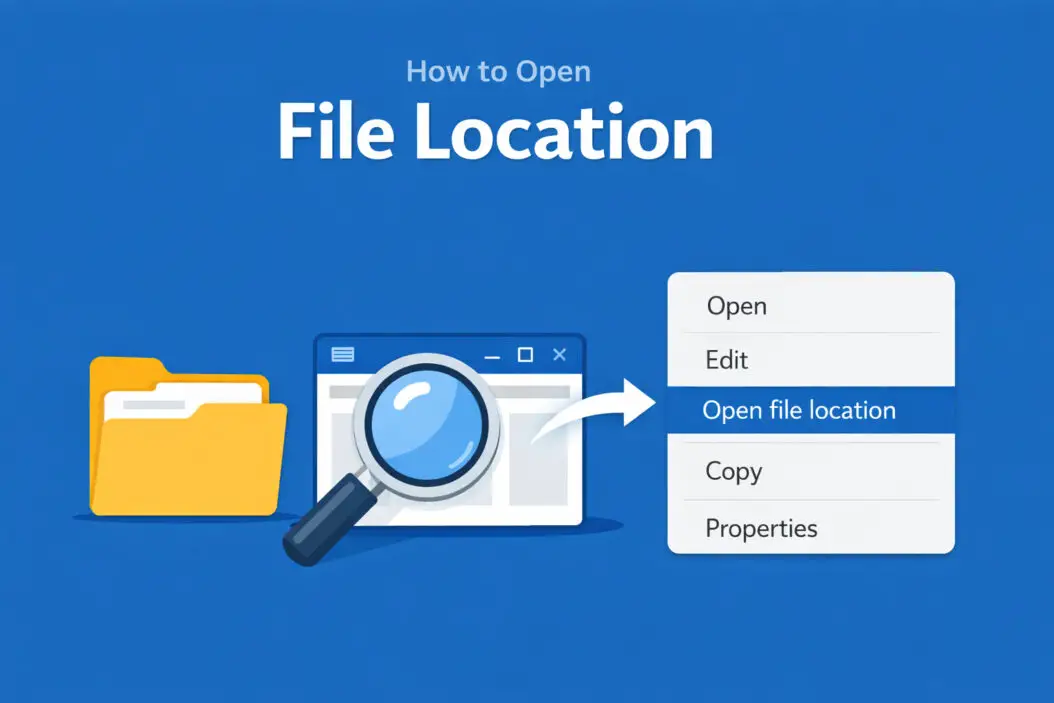
From the Start Menu
When you see an application in your Start menu, you can find its actual location in seconds.
- Click the Start button or press the Windows key
- Find the program you want to locate
- Right-click on the program name
- Select “Open file location”
Windows opens File Explorer and highlights the file. If you see a shortcut arrow on the icon, that means you’re looking at a shortcut, not the actual program file.
For shortcuts, right-click the highlighted shortcut again and choose “Open file location” one more time. This takes you to the real executable file.
From the Taskbar
Programs pinned to your taskbar also hide their true location.
- Right-click the program icon on your taskbar
- Right-click the program name in the menu that appears
- Select “Open file location”
The actual folder opens immediately.
From Task Manager
Task Manager shows every running process, and you can jump straight to any program’s location.
- Press Ctrl + Shift + Esc to open Task Manager
- Click “More details” if you see the simple view
- Find the program in the Processes tab
- Right-click the program name
- Select “Open file location”
This method works perfectly when a program is running but you don’t know where it came from.
From File Explorer Search Results
When you search for files in File Explorer, the results don’t always show the full path clearly.
- Search for your file in File Explorer
- Right-click the file in search results
- Choose “Open file location”
File Explorer opens the containing folder with your file selected.
Using Properties Dialog
Every file and folder has properties that show its exact location.
- Right-click any file or folder
- Select “Properties”
- Look at the “Location” field
You’ll see the full path. You can copy this path or click “Open File Location” if that button appears.
Through Command Prompt or PowerShell
For advanced users who prefer command-line tools, you can find files using built-in commands.
Using Command Prompt:
where filename.exe
This shows the full path to any executable in your system PATH.
Using PowerShell:
Get-ChildItem -Path C:\ -Filter filename.* -Recurse -ErrorAction SilentlyContinue
This searches your entire C: drive for matching files.
How to Open File Location on Mac
Mac handles file locations differently than Windows, but the concept remains the same.
From Finder Search
Spotlight and Finder search make locating files quick.
- Open Finder
- Use the search box in the top right
- Type your filename
- Right-click (or Control-click) the file in results
- Select “Show in Enclosing Folder”
Finder jumps to that folder immediately. According to Apple’s support documentation, this works for any searchable file on your system.
From Applications Folder
Finding where an app is installed takes one click.
- Open Finder
- Go to Applications folder
- Right-click any application
- Select “Show Package Contents” to see inside the app bundle
Mac applications are actually folders (called packages) disguised as single files. Showing package contents reveals the internal structure.
From Dock
Apps in your Dock can reveal their location instantly.
- Right-click (or Control-click) an app icon in the Dock
- Hold down the Option key
- The menu changes to show “Show in Finder”
- Click it
The Applications folder opens with your app highlighted.
Using Spotlight
Spotlight is the fastest way to locate files anywhere on your Mac.
- Press Command + Space to open Spotlight
- Type your filename
- When you see the file, hold Command and press Return
This opens the parent folder instead of opening the file itself.
Through Terminal
Terminal gives you precise control over file searches.
find /Applications -name "AppName.app"
This finds applications. For documents:
mdfind -name filename
The mdfind command uses Spotlight’s index for blazing-fast searches.
How to Open File Location on Linux
Linux distributions vary, but most modern desktops use similar approaches.
From Application Menu
Most Linux desktop environments let you inspect application shortcuts.
- Open your application menu (varies by desktop environment)
- Right-click the application
- Select “Properties” or “Edit Application”
You’ll see the command that launches the app, showing where the executable lives.
From File Manager (Nautilus, Dolphin, etc.)
Linux file managers work similarly to Windows Explorer.
- Open your file manager
- Search for your file
- Right-click the file in results
- Select “Open Containing Folder” or “Show in Folder”
The exact wording depends on your file manager.
Using Terminal Commands
Linux terminal offers the most powerful file location tools.
Find executable programs:
which program-name
This shows where executable programs are installed.
Search entire filesystem:
find / -name "filename" 2>/dev/null
This searches everywhere, hiding permission errors.
Locate using database:
locate filename
The locate command searches a pre-built database, making it much faster than find. Update the database first with sudo updatedb.
From Running Processes
See where running programs live on disk.
ps aux | grep program-name
This shows the full path of running processes.
Common File Locations by Operating System
Understanding default file locations helps you find things faster.
| File Type | Windows Location | Mac Location | Linux Location |
|---|---|---|---|
| User Documents | C:\Users[Username]\Documents | /Users/[Username]/Documents | /home/[username]/Documents |
| Downloaded Files | C:\Users[Username]\Downloads | /Users/[Username]/Downloads | /home/[username]/Downloads |
| Program Files | C:\Program Files or C:\Program Files (x86) | /Applications | /usr/bin, /usr/local/bin, /opt |
| System Files | C:\Windows | /System | /bin, /sbin, /usr/sbin |
| Temporary Files | C:\Users[Username]\AppData\Local\Temp | /Users/[Username]/Library/Caches | /tmp, /var/tmp |
Hidden File Locations
Many important files hide in folders your operating system conceals by default.
Windows hidden folders:
AppData contains program settings and data. Enable hidden files in File Explorer:
- Open File Explorer
- Click View tab
- Check “Hidden items”
Mac hidden folders:
The Library folder stores app preferences and support files. Reveal it:
- Open Finder
- Click Go menu while holding Option key
- Select Library
Linux hidden folders:
Any folder or file starting with a dot is hidden. Show them:
- Open file manager
- Press Ctrl + H
Troubleshooting File Location Issues
Sometimes you can’t open file location even when following steps correctly.
File or Program Not Found
If “Open file location” is grayed out or does nothing, the target file may have been deleted or moved. The shortcut or reference still exists, but points nowhere.
Fix this by:
Searching your entire drive for the filename Checking the Recycle Bin or Trash Reinstalling the program if it’s an application
Permission Denied Errors
You might lack permission to view certain folders, especially system directories.
On Windows:
Run File Explorer as administrator for system files. Right-click File Explorer icon and choose “Run as administrator.”
On Mac:
System Integrity Protection blocks access to protected areas. You typically shouldn’t modify these files.
On Linux:
Use sudo before terminal commands to access restricted directories.
Broken Shortcuts
A shortcut can exist after its target file is deleted.
Verify the shortcut target by checking Properties (Windows) or Get Info (Mac). If the path shows an error, the original file is gone. Delete the broken shortcut and recreate it if needed.
Network or Cloud Files
Files stored on network drives or cloud services may not have a traditional file location.
Cloud synced files (OneDrive, Google Drive, Dropbox) usually sync to a local folder. Open file location shows this synced folder, not the cloud storage itself.
Advanced File Location Techniques
Power users can leverage more sophisticated methods.
Creating Custom Shortcuts
After finding a file location you access frequently, create a shortcut for instant access.
Windows:
Right-click the folder, select “Send to” then “Desktop (create shortcut).”
Mac:
Drag the folder to Finder sidebar while holding Command + Option.
Linux:
Right-click desktop, create launcher with the folder path.
Using Environment Variables
Operating systems use variables to reference common locations.
Windows environment variables:
%USERPROFILE% points to C:\Users[YourName] %APPDATA% points to application data folder %TEMP% points to temporary files folder
Type these directly into File Explorer’s address bar.
Mac/Linux environment variables:
$HOME points to user directory $TMPDIR points to temp folder
Echo them in Terminal: echo $HOME
Symbolic Links
Symbolic links (symlinks) create references to files in other locations. When you open file location on a symlink, you see where the link is, not where it points.
To find the target of a symlink:
Windows: Right-click, Properties, look for Target field Mac/Linux: Use terminal command ls -l filename to see the arrow pointing to the real location
Security Considerations When Opening File Locations
Understanding file locations helps protect your system.
Verify Program Sources
Before running unknown programs, open their file location. Programs installed to unusual locations (like Temp folders or hidden user directories) could be malware.
Legitimate programs install to:
- C:\Program Files on Windows
- /Applications on Mac
- /usr/bin or /usr/local/bin on Linux
Protecting Sensitive Files
When you know exactly where files are stored, you can better protect them.
Sensitive documents should never live in:
- Desktop (easily visible to others)
- Downloads (temporary location)
- Temp folders (may be auto-deleted)
Move important files to dedicated, backed-up folders.
Understanding File Paths in Scripts
Scripts and programs use file paths to access resources. If a script fails, checking whether the file path exists helps diagnose the problem.
Absolute paths specify the complete location: C:\Users\John\file.txt Relative paths specify location relative to current directory: .\Documents\file.txt
File Location Tools and Utilities
Third-party tools enhance file location capabilities beyond built-in methods.
Everything Search (Windows)
Everything is a search utility that instantly locates files by name. It indexes your entire drive in seconds and updates in real-time. Download from voidtools.com.
Right-click any result to open file location instantly.
Easy Find (Mac)
Easy Find searches Mac drives more thoroughly than Spotlight, finding files Spotlight misses. Free from Devon Technologies.
fd and ripgrep (Cross-platform)
For command-line enthusiasts, fd is a modern replacement for find, and ripgrep searches file contents blazingly fast.
Both are faster and more user-friendly than traditional Unix tools.
Conclusion
Opening file location is an essential skill that helps you maintain control over your computer. Whether you need to troubleshoot a program, clean up disk space, or understand where your files actually live, these methods work across all major operating systems in 2026.
The fastest methods are:
- Windows: Right-click Start menu items or taskbar icons
- Mac: Command + Return in Spotlight or right-click Dock items
- Linux: Use
whichorlocatecommands in terminal
Master these techniques and you’ll navigate your file system with confidence, finding any file in seconds rather than minutes.
Frequently Asked Questions
Why can’t I find a program’s file location in Windows 11?
Windows 11 apps from the Microsoft Store are packaged differently than traditional programs. They install to protected WindowsApps folders with restricted access. To view these, enable hidden files in File Explorer, navigate to C:\Program Files\WindowsApps, and take ownership of the folder through security settings. However, Microsoft designs these apps to be managed through Settings, not direct file access.
What’s the difference between Show Package Contents and Open File Location on Mac?
“Show Package Contents” appears only for Mac app bundles and reveals the internal structure of the application itself. “Show in Enclosing Folder” navigates to the folder containing the app. For most purposes, you want the enclosing folder to see where the app is installed. Package contents are mainly useful for developers or when modifying app resources.
How do I find file locations for files stored in cloud services?
Cloud services like OneDrive, Google Drive, and Dropbox sync files to specific local folders on your computer. Open file location on a synced file shows this local folder path. The files exist both locally and in the cloud. If you’re using Files On-Demand (OneDrive) or similar features, some files may only exist as placeholders until you open them, which then downloads the full file.
Can I change where programs install on Windows?
Yes, during installation most programs let you choose the destination folder. For programs already installed, you usually need to uninstall and reinstall to change location. Some programs offer a “move” or “relocate” feature in their settings. Changing install location after installation by manually moving files often breaks the program because registry entries and shortcuts still point to the old location.
Why does opening file location show a different file than I expected?
You’re probably looking at a shortcut rather than the actual file. Shortcuts are small files that point to other files. When you open file location on a shortcut, Windows shows you where the shortcut itself is stored. Right-click that shortcut and choose “Open file location” again to find the actual target file. You can identify shortcuts by the small arrow icon on Windows or the curved arrow badge on Mac.
