
Your MAC address is a unique identifier assigned to your network adapter. Whether you need it for router settings, network troubleshooting, or IT configuration, finding it takes less than 30 seconds using Command Prompt.
Here is the fastest way, and everything else you need to know.
The Quick Answer
Open Command Prompt and type this:
ipconfig /all
Press Enter. Look for Physical Address under your network adapter. That is your MAC address. It looks like this: A1-B2-C3-D4-E5-F6
Done. But keep reading if you want to understand what you are looking at, or if that command did not give you what you expected.
What Is a MAC Address
MAC stands for Media Access Control. Every network adapter, whether wired or wireless, has one. It is hardcoded into the hardware by the manufacturer.
Unlike an IP address, which can change, a MAC address stays the same. It operates at Layer 2 of the network model, meaning it works at the local network level, not across the internet.
You will need your MAC address when:
- Setting up MAC filtering on a Wi-Fi router
- Registering a device on a university or corporate network
- Troubleshooting network conflicts
- Checking if your device is on an approved list
- Identifying devices connected to your network
How to Open Command Prompt
Before running any command, you need to open the right tool.
Method 1: Search Bar
- Click the Start menu or press the Windows key
- Type
cmd - Click Command Prompt
Method 2: Run Dialog
- Press
Windows + R - Type
cmd - Press Enter
Method 3: Right-Click Start Menu
- Right-click the Start button
- Select Terminal or Command Prompt
You do not need administrator privileges just to find your MAC address.
How to Find MAC Address Using Command Prompt
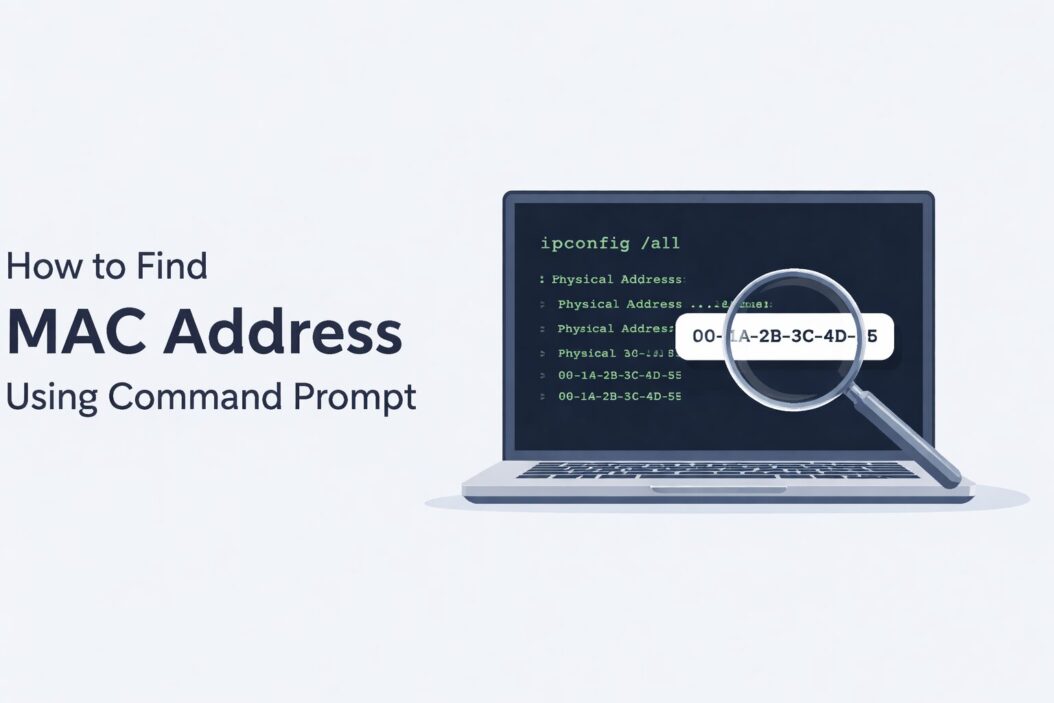
Method 1: ipconfig /all (Most Common)
This is the command most people use. It shows detailed information about all network adapters on your system.
ipconfig /all
What you will see:
The output lists every network adapter. For each one, look for the Physical Address field.
Example output:
Ethernet adapter Ethernet:
   Physical Address. . . . . . : A1-B2-C3-D4-E5-F6
   DHCP Enabled. . . . . . . . : Yes
   IPv4 Address. . . . . . . . : 192.168.1.10

Wireless LAN adapter Wi-Fi:
   Physical Address. . . . . . : 7C-8D-9E-0F-1A-2B
   DHCP Enabled. . . . . . . . : Yes
   IPv4 Address. . . . . . . . : 192.168.1.11
The first one is your Ethernet (wired) adapter. The second is your Wi-Fi adapter. Both have different MAC addresses.
Method 2: getmac (Cleaner Output)
If you want a simpler, focused result, use:
getmac
This shows only MAC addresses and their transport type. Less noise, faster to read.
Example output:
Physical Address    Transport Name
=================== ==========================================================
A1-B2-C3-D4-E5-F6  \Device\Tcpip_{XXXXXXXX-XXXX-XXXX-XXXX-XXXXXXXXXXXX}
7C-8D-9E-0F-1A-2B  \Device\Tcpip_{YYYYYYYY-YYYY-YYYY-YYYY-YYYYYYYYYYYY}
You can also use getmac /v for verbose output that includes the adapter name and connection name.
getmac /v
Method 3: wmic nic get MACAddress (For Specific Adapters)
This command uses Windows Management Instrumentation and gives you a clean list of MAC addresses by adapter name:
wmic nic get MACAddress, Name
Example output:
MACAddress           Name
A1-B2-C3-D4-E5-F6   Intel(R) Ethernet Connection
7C-8D-9E-0F-1A-2B   Intel(R) Wi-Fi 6 AX201
This is useful when you have multiple adapters and want to match each MAC to a specific one.
Method 4: PowerShell (Bonus Option Inside Terminal)
If you are in Windows Terminal or PowerShell instead of classic CMD, this works well:
Get-NetAdapter | Select-Object Name, MacAddress
Output is clean and easy to copy.
MAC Address Format Explained
A MAC address is 12 hexadecimal characters, written in pairs. On Windows, those pairs are separated by hyphens.
| Format | Example | Platform |
|---|---|---|
| Hyphen separated | A1-B2-C3-D4-E5-F6 | Windows |
| Colon separated | A1:B2:C3:D4:E5:F6 | Linux, macOS |
| Dot separated | A1B2.C3D4.E5F6 | Cisco devices |
The first 6 characters (3 pairs) identify the manufacturer. This is called the OUI, or Organizationally Unique Identifier. The last 6 are unique to the specific device. You can look up any OUI using the IEEE OUI database to identify who made a network adapter.
Which Adapter Do You Need
Most computers have at least two adapters: one for Ethernet and one for Wi-Fi. Some have more, especially if you have a VPN, virtual machine software, or a USB network adapter installed.
Here is how to identify which one is which:
| Adapter Name in Output | What It Is |
|---|---|
| Ethernet adapter Ethernet | Wired LAN port |
| Wireless LAN adapter Wi-Fi | Built-in Wi-Fi |
| Ethernet adapter VirtualBox | Virtual machine adapter |
| Ethernet adapter TAP | VPN adapter |
| Bluetooth Network Connection | Bluetooth adapter |
If you only care about Wi-Fi, look for the Wireless LAN adapter section. If you need the wired adapter, look for Ethernet adapter Ethernet.
Ignore adapters that say Media disconnected if you need an active one.
Save or Export Your MAC Address
If you need to share or save this information, you can export it directly from Command Prompt.
ipconfig /all > C:\Users\YourName\Desktop\macinfo.txt
This saves the full output to a text file on your desktop. Replace YourName with your actual Windows username.
Or for just the MAC addresses:
getmac /v > C:\Users\YourName\Desktop\macaddress.txt
Common Issues and Fixes
You see multiple MAC addresses and do not know which one to use
Match the adapter name to how you connect. If you are on Wi-Fi, use the MAC under Wireless LAN. If plugged in, use Ethernet.
The Physical Address shows as all zeros (00-00-00-00-00-00)
This usually means the adapter is disabled or not functioning correctly. Go to Device Manager and check if the adapter has an error.
You cannot find an Ethernet adapter in the list
Your Ethernet port might be disabled or no driver is installed. Check Device Manager under Network Adapters.
The MAC address you see does not match what your router shows
Windows 10 and 11 have a feature called Randomized Hardware Addresses for Wi-Fi. This changes the MAC your device broadcasts. To check, go to Settings, Network and Internet, Wi-Fi, and look for Hardware Properties. You can turn off randomization there.
This is an important point. If you are setting up MAC filtering on your router and your Windows device uses a randomized address, the actual MAC from ipconfig /all might not be what your router sees. Disable randomization first, then confirm the MAC.
MAC Address vs IP Address
People sometimes confuse these two. Here is a simple breakdown:
| Feature | MAC Address | IP Address |
|---|---|---|
| Assigned by | Hardware manufacturer | Router or ISP |
| Changes | Rarely (fixed in hardware) | Can change often |
| Format | A1-B2-C3-D4-E5-F6 | 192.168.1.10 |
| Layer | Data Link (Layer 2) | Network (Layer 3) |
| Scope | Local network only | Local or internet-wide |
| Used for | Device identification on LAN | Routing traffic |
Can You Change a MAC Address
Yes. This is called MAC spoofing. You are not changing what is burned into the hardware, but you can override what Windows broadcasts.
This is done through Device Manager or third-party tools. It is legal in most contexts and used for privacy, testing, and network access workarounds.
However, it is outside the scope of this guide since the question here is about finding your MAC address, not changing it.
Conclusion
Finding your MAC address using Command Prompt is simple once you know the right command. Use ipconfig /all for the full picture, getmac for a quick list, or wmic nic get MACAddress, Name when you need to match an address to a specific adapter.
The key things to remember:
- Your MAC address is under Physical Address in
ipconfig /all - Wi-Fi and Ethernet adapters have different MAC addresses
- Windows 10 and 11 may show a randomized MAC for Wi-Fi connections
- Use
getmac /vwhen you want a cleaner, faster output - Export the results to a text file if you need to save or share them
Once you have the right address, you can move forward with whatever network task brought you here in the first place.
Frequently Asked Questions
Does every network adapter have its own MAC address?
Yes. Each adapter has a unique MAC address assigned by the manufacturer. A laptop with both Ethernet and Wi-Fi has two separate MAC addresses, one for each adapter.
Is it safe to share my MAC address?
Sharing your MAC address within a trusted network environment such as with your IT team or router admin is generally fine. Avoid sharing it publicly since it can be used to impersonate your device on a local network.
Why does my router show a different MAC address than ipconfig?
Windows 10 and 11 use a randomized hardware address feature for Wi-Fi by default. Your device may be broadcasting a fake MAC to protect privacy. Go to your Wi-Fi settings and disable this feature to see and use your real MAC address.
Can I find the MAC address of another device on my network?
Yes. Open Command Prompt and run arp -a after pinging the target device. This shows a table of IP-to-MAC address mappings for devices your computer has recently communicated with on the same network.
What does it mean if my MAC address starts with a specific pattern?
The first three pairs of a MAC address identify the manufacturer through the OUI system. For example, adapters starting with 8C-16-45 are often Intel devices. You can look up any OUI on the IEEE registry to identify who made the adapter.
