
Your graphics card works hard. Sometimes too hard. Knowing how to check GPU usage statistics helps you spot performance problems, optimize games, troubleshoot crashes, and decide when to upgrade.
This guide shows you exactly how to monitor your GPU, what the numbers mean, and how to use that information to solve real problems.
What GPU Usage Statistics Tell You
GPU usage shows how much of your graphics card’s processing power is currently active. It’s measured as a percentage, where 0% means idle and 100% means fully loaded.
Key metrics include:
Core Usage: The main GPU chip’s activity level
Memory Usage: How much VRAM is occupied
Temperature: Current heat level in Celsius
Clock Speed: Current operating frequency
Power Draw: How many watts the card consumes
Fan Speed: Cooling system activity
These numbers reveal whether your GPU is bottlenecking performance, overheating, or underutilized.
Method 1: Windows Task Manager (Built-In)
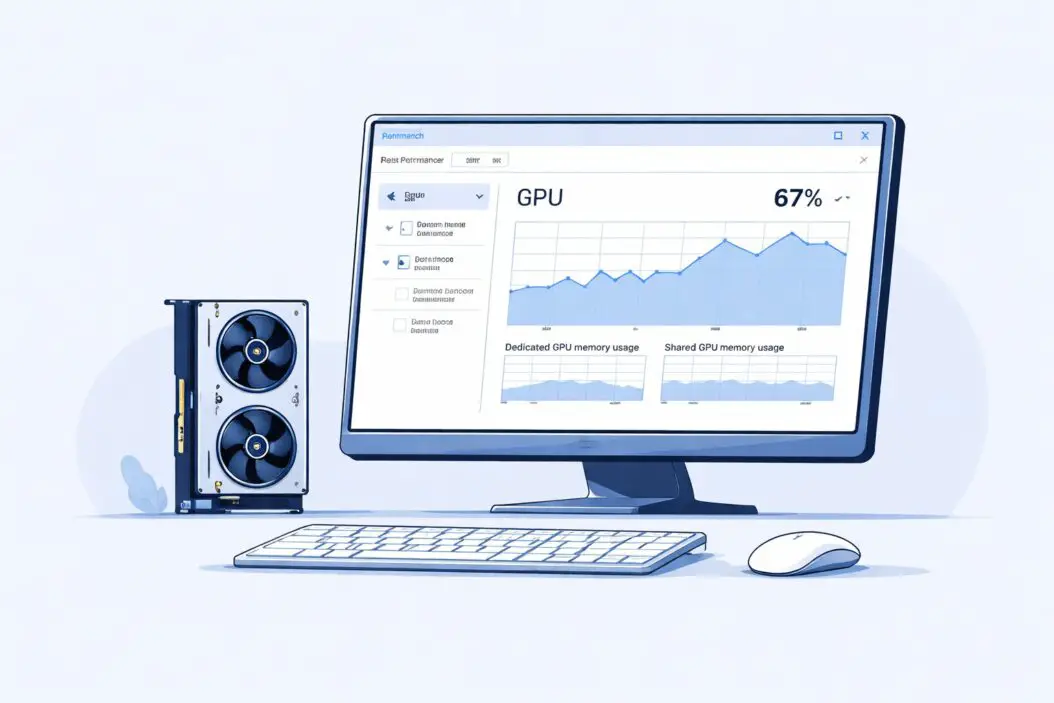
Windows 11 and 10 include GPU monitoring in Task Manager. No extra software needed.
Opening Task Manager
Press Ctrl + Shift + Esc simultaneously. Or right-click the taskbar and select Task Manager.
Finding GPU Statistics
Click the Performance tab on the left side.
Scroll down to find GPU 0 (or GPU 1 if you have multiple graphics cards).
You’ll see:
- GPU utilization percentage graph
- Dedicated GPU memory usage
- Shared GPU memory
- Current video encode/decode activity
- Driver version
Reading the Numbers
The graph shows real-time usage over 60 seconds. Spikes indicate demanding moments. Sustained high usage during gaming is normal. High usage while idle suggests background processes.
3D usage shows gaming and graphics applications.
Copy usage indicates memory transfer operations.
Video Encode/Decode tracks streaming or video playback.
Click Copy at the bottom to capture current stats for troubleshooting.
Limitations
Task Manager provides basic overview but lacks detailed sensors. No per-process GPU usage. Temperature not always shown. Clock speeds absent.
For serious monitoring, you need dedicated tools.
Method 2: GPU-Z (Detailed Real-Time Monitoring)
GPU-Z is free software that displays comprehensive GPU information. Download from TechPowerUp’s official GPU-Z page.
Installation Steps
- Download the standard version (not ASUS ROG edition unless you have ROG hardware)
- Run the installer
- Launch GPU-Z
No restart required.
Understanding the Interface
The Graphics Card tab shows specifications:
- GPU name and architecture
- Memory size and type
- Bus interface (PCIe generation)
- BIOS version
The Sensors tab displays live statistics:
- GPU Core Clock (current frequency)
- GPU Memory Clock
- GPU Temperature
- GPU Load (usage percentage)
- Memory Controller Load
- Video Engine Load
- Power Consumption
- Fan Speed (RPM and percentage)
Monitoring While Gaming
Click the Sensors dropdown at the bottom. Select any metric. Click the small icon to show it in your system tray.
Enable Log to file to record statistics over time. Useful for finding patterns or proving a problem to support.
Creating Benchmark Logs
Start logging before launching a game. Play for 10-15 minutes. Stop logging. Review the file in Excel or a text editor.
Look for:
- Maximum temperatures (should stay under 80-85°C for most GPUs)
- Sustained 100% usage (indicates GPU bottleneck)
- Clock speed throttling (drops from rated speed)
- Memory saturation (near 100% VRAM usage)
Method 3: MSI Afterburner with RivaTuner (In-Game Overlay)
MSI Afterburner pairs with RivaTuner Statistics Server to show GPU stats while gaming. Essential for performance tuning.
Download from MSI’s official website.
Setup Process
Install MSI Afterburner first. The installer includes RivaTuner. Accept both.
Launch Afterburner. The interface shows:
- GPU clock controls
- Memory clock controls
- Voltage settings (locked on some cards)
- Fan curve editor
- Monitoring graphs
Enabling On-Screen Display
Click Settings (gear icon).
Go to the Monitoring tab.
Select metrics to display:
- GPU temperature
- GPU usage
- Memory usage
- Framerate
- Frametime
- CPU temperature
- CPU usage
For each metric, check Show in On-Screen Display.
Click OK.
Customizing the Overlay
In RivaTuner Settings (opens automatically or find it in system tray):
Adjust On-Screen Display zoom for size.
Change Framerate limit if you want to cap FPS.
Select Show On-Screen Display to enable/disable.
Position the overlay by dragging the corner anchors while a game runs.
Reading In-Game Stats
Green numbers mean healthy operation.
Yellow indicates moderate load.
Red signals concerning values (high temps, throttling).
Watch for:
- FPS drops when GPU usage isn’t at 100% (CPU bottleneck)
- GPU at 100% with low FPS (need better GPU or lower settings)
- Temperature climbing above 85°C (cooling problem)
Method 4: NVIDIA GeForce Experience (NVIDIA GPUs Only)
NVIDIA users get built-in overlay through GeForce Experience.
Accessing Performance Overlay
Press Alt + R in-game to open the overlay menu.
Click Performance in the toolbar.
The panel shows:
- FPS counter
- GPU temperature
- GPU utilization
- CPU utilization
- System memory usage
Customization
Click the Settings gear in the overlay.
Choose metric positions (corner placement).
Select Performance Panel Layout for detailed or minimal views.
Enable Performance Monitoring to keep stats visible during gameplay.
Method 5: AMD Software Adrenalin Edition (AMD GPUs Only)
AMD provides comprehensive monitoring through Radeon Software.
Opening Performance Metrics
Press Alt + R to open Radeon Software overlay.
Click the Performance tab.
Toggle Metrics to overlay.
Options include:
- Tracking tab shows realtime graphs
- Overlay shows in-game display
- Logging records sessions for analysis
Metric Options
AMD offers four overlay presets:
Basic: FPS only
Advanced: FPS, GPU usage, temperature, VRAM
Expert: All metrics including power, fan speed, clocks
Custom: Choose specific metrics
Performance Tuning Panel
The Tuning section lets you:
- Monitor temperatures
- Check power consumption
- View clock speeds
- Adjust fan curves
- Enable performance logging
Method 6: Command Line Tools (Advanced)
For automation or remote monitoring, command line tools work best.
NVIDIA SMI (NVIDIA Cards)
NVIDIA GPUs include nvidia-smi utility.
Open Command Prompt or PowerShell.
Type:
nvidia-smiOutput shows:
- GPU name
- Temperature
- Power draw
- Memory usage
- GPU utilization
- Running processes
For continuous monitoring:
nvidia-smi -l 1This updates every second. Press Ctrl+C to stop.
Extracting Specific Values
Query specific metrics:
nvidia-smi --query-gpu=utilization.gpu,temperature.gpu,memory.used --format=csvPipe to a file for logging:
nvidia-smi --query-gpu=timestamp,utilization.gpu,temperature.gpu --format=csv -l 5 > gpu_log.csvRecords every 5 seconds to a CSV file.
AMD Equivalent
AMD provides fewer command line options. Use third-party tools like RadeonTop (Linux) or stick with GUI applications.
Understanding GPU Usage Patterns
Different activities produce distinct usage signatures.
Gaming
Expect 90-100% GPU usage at high settings. Lower usage with FPS caps or V-Sync enabled.
Fluctuating usage between 40-80% suggests CPU bottleneck. The GPU waits for the CPU to prepare frames.
Video Editing
GPU usage varies by codec and effects. H.264/H.265 encoding uses dedicated video engines, showing low 3D usage but high encoder usage.
Effects rendering (GPU acceleration) shows high compute usage.
3D Rendering
Programs like Blender use GPU compute. Expect 95-100% sustained usage during renders.
OptiX or CUDA renders show different metrics than gaming loads.
Cryptocurrency Mining
Mining produces 100% sustained usage. Temperatures should stabilize under 75°C with proper cooling.
Memory-intensive algorithms (Ethereum) show high memory controller usage.
Idle Desktop
Modern GPUs idle at 0-5% usage. Windows Desktop Window Manager uses minimal GPU for window composition.
20%+ idle usage indicates background applications or malware.
Troubleshooting Common GPU Issues
Problem: Low GPU Usage in Games
Symptoms: GPU sits at 30-60% while FPS is low.
Causes:
- CPU bottleneck (check CPU usage)
- FPS cap or V-Sync enabled
- Power saving mode active
- Background applications limiting performance
Solutions:
Check CPU usage in Task Manager. If CPU cores hit 100%, upgrade CPU or lower settings that stress CPU (draw distance, NPC count).
Disable frame rate limits in game settings and GPU control panel.
Set Windows power plan to High Performance.
Close unnecessary background apps.
Problem: 100% GPU Usage But Low FPS
Symptoms: GPU maxed out but frame rate below expectations.
Causes:
- Settings too high for GPU capability
- Insufficient VRAM (texture streaming issues)
- Driver problems
- Thermal throttling
Solutions:
Lower graphics settings, especially texture quality, shadows, and anti-aliasing.
Check VRAM usage. If near maximum, reduce texture settings.
Update GPU drivers to latest version.
Monitor temperatures. If above 85°C, improve case airflow or clean GPU fans.
Problem: GPU Temperature Too High
Symptoms: 90°C+ temperatures, stuttering, crashes.
Causes:
- Dust buildup on heatsink
- Failed or slow fan
- Poor case ventilation
- Dried thermal paste
- Overclocking instability
Solutions:
Clean GPU with compressed air. Remove dust from fans and heatsink fins.
Check fan speed in GPU-Z. Should be 40-60% under load. If stuck at low RPM, adjust fan curve in Afterburner.
Verify case fans are working. Positive air pressure helps.
Repaste GPU if warranty expired and temperatures persist after cleaning.
Reset any overclocks. Test at stock settings.
Problem: GPU Usage Drops to 0% Intermittently
Symptoms: Game freezes briefly, usage drops, then resumes.
Causes:
- Driver crash and recovery (TDR)
- Power supply insufficient
- Unstable overclock
- Hardware failure
Solutions:
Check Windows Event Viewer for “Display driver stopped responding” errors.
Test with different power cables to GPU. Ensure PSU meets wattage requirements.
Remove overclocks. Test stability at stock settings.
Run GPU stress test (FurMark, 3DMark). If crashes persist, RMA the card.
Comparing GPU Monitoring Tools
| Feature | Task Manager | GPU-Z | MSI Afterburner | NVIDIA/AMD Overlay | nvidia-smi |
|---|---|---|---|---|---|
| Free | Yes | Yes | Yes | Yes | Yes |
| Temperature | Sometimes | Yes | Yes | Yes | Yes |
| Clock Speed | No | Yes | Yes | Limited | Yes |
| Power Draw | No | Yes | Yes | Limited | Yes |
| In-Game Overlay | No | No | Yes | Yes | No |
| Logging | No | Yes | Yes | Limited | Yes |
| Fan Control | No | No | Yes | No | No |
| Per-Process Usage | Yes | No | No | No | Yes |
| Learning Curve | Easy | Easy | Medium | Easy | Advanced |
Choose based on needs. Quick checks use Task Manager. Detailed monitoring needs GPU-Z or Afterburner. Gaming requires overlay tools. Automation demands command line.
Optimizing Based on GPU Statistics
Monitoring reveals optimization opportunities.
When GPU Usage Is Too Low
Increase graphics settings. You’re leaving performance on the table.
Enable higher resolution or refresh rate if monitor supports.
Disable FPS caps unless screen tearing occurs.
Consider upgrading CPU if it’s bottlenecking.
When GPU Usage Hits 100% Constantly
This is often ideal during gaming. But if FPS isn’t satisfactory:
Lower demanding settings: shadows, ambient occlusion, ray tracing.
Reduce resolution slightly (1440p to 1080p, or use resolution scaling).
Update drivers for performance improvements.
Consider GPU upgrade for future-proofing.
When Temperatures Run Hot
Ensure case has adequate airflow. Two intake fans, one exhaust minimum.
Create custom fan curve in Afterburner. Increase fan speed at lower temperatures.
Undervolt the GPU to reduce heat without performance loss.
Improve case cable management for better airflow.
When Memory Usage Maxes Out
Reduce texture quality settings. This has biggest VRAM impact.
Lower resolution or disable high-resolution texture packs.
Close background applications using VRAM.
Consider GPU with more VRAM for future games.
Advanced Monitoring Techniques
Logging for Pattern Analysis
Enable logging in GPU-Z or Afterburner before starting a gaming session.
Play for 30-60 minutes, covering different game areas and activities.
Stop logging. Open the CSV file.
Calculate averages:
- Average temperature
- Maximum temperature
- Average GPU usage
- Minimum FPS (by examining frame time)
This reveals if occasional stutters correlate with temperature spikes or VRAM saturation.
Multi-GPU Monitoring
Systems with multiple GPUs need per-card monitoring.
Task Manager shows each GPU separately (GPU 0, GPU 1).
GPU-Z has dropdown to select which card to monitor.
Afterburner monitors primary GPU by default. Install multiple instances to track each card.
For SLI/CrossFire, check both cards run at similar utilization. Imbalance suggests scaling problems.
Remote Monitoring
Use nvidia-smi over SSH for headless systems or remote servers.
Windows Remote Desktop supports Task Manager viewing.
Web-based monitoring tools like Grafana can display GPU metrics from multiple machines.
Useful for render farms, machine learning clusters, or remote gaming PCs.
Summary
Checking GPU usage statistics helps diagnose performance problems, prevent hardware damage, and optimize settings. Windows Task Manager provides quick basic stats. GPU-Z offers detailed sensor readings. MSI Afterburner enables in-game overlay monitoring with customization. NVIDIA and AMD provide brand-specific tools with good feature sets. Command line tools support automation and remote monitoring.
Normal GPU usage varies by task. Gaming should show 90-100% usage at appropriate settings. Video editing shows varied patterns depending on acceleration. Idle should be under 5%. High temperatures above 85°C need attention. Investigate sustained low usage during demanding tasks.
Use the right tool for your purpose. Casual users need Task Manager. Enthusiasts benefit from Afterburner overlays. Troubleshooters require detailed logging in GPU-Z. Automated monitoring demands command line tools.
Regular monitoring prevents problems before they cause crashes or damage. Check your GPU stats monthly at minimum. Keep drivers updated. Clean hardware annually. Monitor temperatures during summer months when ambient heat rises.
Frequently Asked Questions
What is normal GPU usage while gaming?
Normal GPU usage during gaming ranges from 90-100% when graphics settings match your card’s capability. Lower usage (60-80%) often indicates a CPU bottleneck where your processor can’t feed frames fast enough to the GPU. If usage stays below 50% with low FPS, check for frame rate caps, V-Sync, or power saving modes limiting performance.
How hot should my GPU get under load?
Most modern GPUs safely operate up to 83-87°C under heavy load. NVIDIA cards typically throttle around 83°C. AMD cards may run slightly warmer. Ideal temperatures stay between 65-80°C during gaming. Anything above 90°C requires immediate attention through better cooling, cleaning, or reduced overclocking. Idle temperatures should be 30-45°C.
Why does my GPU usage spike when idle?
Brief GPU spikes on idle desktop are normal from Windows background processes, browser hardware acceleration, or Windows updates. Sustained 20%+ idle usage suggests crypto-mining malware, a stuck background application, or driver issues. Check Task Manager’s GPU section to identify which process consumes resources. Disable hardware acceleration in browsers if needed.
Can I damage my GPU by monitoring it constantly?
No. Monitoring tools read sensor values without affecting hardware operation. They consume minimal system resources (under 1% CPU). GPU-Z, Afterburner, and similar applications are safe to run continuously. The sensors are designed for constant polling. However, stress testing tools that intentionally max out your GPU can generate excess heat if cooling is inadequate.
Should GPU usage be 100% when rendering video?
Video rendering GPU usage depends on software and codec. CPU-based rendering shows minimal GPU usage. GPU-accelerated encoding (NVENC, AMD VCE) shows 15-40% usage as dedicated video encoder handles the work rather than main GPU cores. GPU compute rendering (Blender OptiX, DaVinci Resolve) should show 95-100% usage. Check your software’s GPU acceleration settings if usage seems low during exports.
