
Every developer hits a wall with Git at some point. You run a command, something breaks, and suddenly you’re Googling “how to undo git commit without losing work” at 2am. I’ve been there. This article covers every Git command you actually need, explained plainly, with real examples you can copy and use right now.
What Are Git Commands?
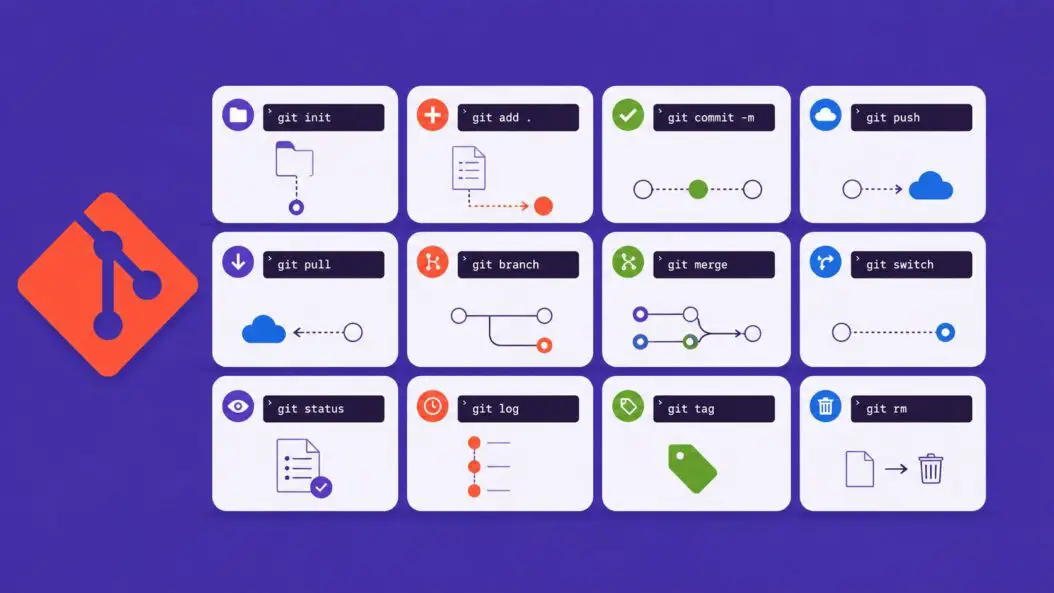
Git commands are instructions you type in your terminal to manage source code. Git tracks every change you make to your files, lets you collaborate with other developers, and saves you when something goes wrong. Every command starts with git followed by a subcommand like commit, push, or merge.
If you’re just starting out, think of Git as a time machine for your code. Every save point is a commit. Every alternate timeline is a branch. The commands below are how you control that machine.
Setting Up Git for the First Time
Before anything else, tell Git who you are. Every commit you make gets tagged with this info.
git config --global user.name "Your Name"
git config --global user.email "you@example.com"
Check your settings anytime:
git config --listSet your default branch name to main (modern standard):
git config --global init.defaultBranch mainSet your preferred editor (VS Code example):
git config --global core.editor "code --wait"Starting a Repository
git init
Creates a new Git repository in your current folder:
git initA hidden .git folder appears. That’s where Git stores everything.
git clone
Downloads an existing repository from a remote source like GitHub:
git clone https://github.com/username/repo-name.gitClone into a specific folder name:
git clone https://github.com/username/repo-name.git my-folderClone a specific branch:
git clone -b develop https://github.com/username/repo-name.gitThe Core Workflow: Stage, Commit, Push
This is what you do every single day. Understand this loop and you understand Git.
git status
Shows what’s changed in your working directory:
git statusShort output (cleaner):
git status -sRun this constantly. It tells you what’s staged, what’s modified, and what Git doesn’t know about yet.
git add
Moves changes into the staging area, ready to be committed:
# Stage a single file
git add index.html

# Stage multiple files
git add index.html style.css app.js

# Stage everything in the current directory
git add .

# Stage parts of a file interactively
git add -p filename
The -p flag is underused. It lets you pick exactly which lines of a file to stage, not the whole thing. Useful when one file has two unrelated fixes.
git commit
Saves staged changes as a permanent snapshot:
git commit -m "Add login form validation"Stage all tracked files and commit in one step:
git commit -am "Fix typo in navbar"Note: -am only works on files Git already knows about. New files still need git add first.
Write a longer commit message in your editor:
git commitGood commit messages matter. Keep the subject under 72 characters and write it like a command: “Add feature” not “Added feature” or “Adding feature.”
git push
Sends your commits to the remote repository:
git push origin mainPush and set the upstream branch at the same time:
git push -u origin mainAfter using -u once, you can just type git push for that branch.
Force push (use carefully, rewrites remote history):
git push --force-with-leasePrefer --force-with-lease over --force. It checks if someone else pushed since your last pull and stops you from overwriting their work.
git pull
Fetches changes from the remote and merges them into your current branch:
git pull origin mainPull with rebase instead of merge (keeps history cleaner):
git pull --rebase origin mainWorking With Branches
Branches let you work on features without touching the main codebase. They cost nothing in Git. Make them freely.
git branch
List all local branches:
git branchList all branches including remote:
git branch -aCreate a new branch:
git branch feature/user-authDelete a branch (safe, only if merged):
git branch -d feature/user-authForce delete (even if not merged):
git branch -D feature/user-authRename a branch:
git branch -m old-name new-namegit switch
Switch to an existing branch (modern replacement for git checkout):
git switch mainCreate and switch to a new branch:
git switch -c feature/dark-modeGo back to the previous branch:
git switch -git checkout
The older way to switch branches, still widely used:
git checkout develop
git checkout -b feature/new-nav
git checkout also restores files, which is why git switch and git restore were introduced as separate, clearer commands.
git merge
Merges another branch into your current one:
# Make sure you're on the target branch
git switch main
git merge feature/dark-mode
Merge with a commit even if fast-forward is possible (keeps history clear):
git merge --no-ff feature/dark-modeAbort a merge that went wrong:
git merge --abortgit rebase
Moves your branch on top of another, creating a linear history:
git switch feature/new-nav
git rebase main
Interactive rebase to clean up your last 3 commits:
git rebase -i HEAD~3This opens an editor. You can squash, reword, or drop commits. Incredibly useful before merging a feature branch.
Merge vs Rebase at a glance:
| Feature | Merge | Rebase |
|---|---|---|
| History | Preserves branch history | Creates linear history |
| Safety | Safer on shared branches | Risky on shared branches |
| Commit graph | Shows where branch split | Looks like straight line |
| Use case | Integrating finished features | Cleaning up local commits |
Never rebase commits that have been pushed to a shared branch. You’ll cause headaches for your whole team.
Viewing History and Changes
git log
Shows commit history:
git logOne line per commit:
git log --onelineVisual branch graph:
git log --oneline --graph --allShow commits by a specific author:
git log --author="Jane"Show commits that changed a specific file:
git log -- path/to/file.jsSearch commit messages:
git log --grep="fix"git diff
Shows what changed but hasn’t been staged:
git diffShows what’s staged and ready to commit:
git diff --stagedCompare two branches:
git diff main..feature/dark-modeCompare two commits:
git diff abc1234 def5678git show
Shows the changes made in a specific commit:
git show abc1234Show just the files changed:
git show --stat abc1234Undoing Things
This is where Git saves you. Know these commands and you’ll never lose sleep over a bad commit again.
git restore
Discard changes in your working directory:
git restore index.htmlUnstage a file (keep changes, just remove from staging):
git restore --staged index.htmlgit reset
Undo commits while keeping changes:
# Undo last commit, keep changes staged
git reset --soft HEAD~1

# Undo last commit, keep changes unstaged
git reset --mixed HEAD~1

# Undo last commit, throw away all changes
git reset --hard HEAD~1
Reset modes compared:
| Mode | Commits | Staging area | Working directory |
|---|---|---|---|
--soft | Undone | Unchanged | Unchanged |
--mixed (default) | Undone | Cleared | Unchanged |
--hard | Undone | Cleared | Cleared |
--hard deletes your work permanently (unless you have the commit hash). Use it intentionally.
git revert
Creates a new commit that undoes a previous one. Safe for shared branches:
git revert abc1234Revert without immediately committing:
git revert --no-commit abc1234When you’ve already pushed a bad commit and others have pulled it, use git revert, not git reset.
git stash
Temporarily saves uncommitted changes so you can switch branches:
git stashStash with a description:
git stash push -m "half-done login form"List all stashes:
git stash listApply the most recent stash:
git stash popApply a specific stash without removing it:
git stash apply stash@{2}Drop a stash:
git stash drop stash@{0}Clear all stashes:
git stash clearWorking With Remotes
git remote
List remotes:
git remote -vAdd a remote:
git remote add origin https://github.com/username/repo.gitChange remote URL:
git remote set-url origin https://github.com/username/new-repo.gitRemove a remote:
git remote remove origingit fetch
Downloads changes from remote without merging:
git fetch originFetch all remotes:
git fetch --allFetch and clean up deleted remote branches:
git fetch --prunegit fetch is safer than git pull when you want to inspect changes before integrating them.
Advanced Git Commands Worth Knowing
git cherry-pick
Apply a specific commit from another branch to your current one:
git cherry-pick abc1234Cherry-pick a range:
git cherry-pick abc1234..def5678git bisect
Binary search through history to find which commit introduced a bug:
git bisect start
git bisect bad           # current commit is broken
git bisect good v1.2.0   # this tag was fine
Git checks out the midpoint. Test it, then tell Git:
git bisect good   # or
git bisect bad
Repeat until Git identifies the exact commit. Then:
git bisect resetThis is one of the most powerful debugging tools Git has. For large codebases, it can find a bug in seconds instead of hours.
git tag
Mark a release:
git tag v1.0.0Annotated tag with message:
git tag -a v1.0.0 -m "First stable release"Push tags to remote:
git push origin --tagsList all tags:
git taggit clean
Remove untracked files from your working directory:
# Preview what will be removed
git clean -n

# Remove untracked files
git clean -f

# Remove untracked files and directories
git clean -fd
git blame
See who last modified each line of a file:
git blame filename.jsShow blame for specific lines:
git blame -L 10,25 filename.jsUseful for understanding why a line exists, not for pointing fingers.
git reflog
Shows every action you’ve taken in Git, even ones that moved HEAD:
git reflogThis is your safety net. If you ran git reset --hard and lost commits, git reflog can recover them. It keeps history for 90 days by default.
# Recover a lost commit
git checkout -b recovery-branch abc1234
For a deeper technical reference on Git internals, the official Git documentation covers every command in exhaustive detail.
Git Aliases: Work Faster
Set up shortcuts for commands you use constantly:
git config --global alias.st status
git config --global alias.co checkout
git config --global alias.br branch
git config --global alias.lg "log --oneline --graph --all"
git config --global alias.unstage "restore --staged"
Now git lg gives you a clean visual commit graph.
The .gitignore File
Tell Git to ignore files you never want tracked:
# Dependencies
node_modules/
vendor/

# Environment files
.env
.env.local

# Build output
/dist
/build

# OS files
.DS_Store
Thumbs.db

# IDE files
.vscode/
.idea/
Place .gitignore in the root of your repository. GitHub maintains a collection of useful .gitignore templates for every major language and framework.
Untrack a file you’ve already committed:
git rm --cached filenameCommon Git Workflows
Feature Branch Workflow
git switch main
git pull origin main
git switch -c feature/payment-gateway

# ... do your work ...

git add .
git commit -m "Add Stripe payment integration"
git push -u origin feature/payment-gateway

# Open a pull request, then after review:
git switch main
git merge feature/payment-gateway
git push origin main
git branch -d feature/payment-gateway
Fixing a Bug on Production
git switch main
git pull origin main
git switch -c hotfix/login-crash

# ... fix the bug ...

git commit -am "Fix null pointer in auth middleware"
git switch main
git merge hotfix/login-crash
git tag -a v1.0.1 -m "Hotfix: login crash"
git push origin main --tags
git branch -d hotfix/login-crash
Quick Reference Table
| Task | Command |
|---|---|
| Initialize repo | git init |
| Clone a repo | git clone <url> |
| Check status | git status |
| Stage all changes | git add . |
| Commit with message | git commit -m "message" |
| Push to remote | git push origin main |
| Pull from remote | git pull origin main |
| Create branch | git switch -c branch-name |
| Switch branch | git switch branch-name |
| Merge branch | git merge branch-name |
| Stash changes | git stash |
| View log | git log --oneline |
| Undo last commit (keep changes) | git reset --soft HEAD~1 |
| Discard file changes | git restore filename |
| View differences | git diff |
| Find bug commit | git bisect start |
| Recover lost commits | git reflog |
Conclusion
Git commands feel overwhelming at first because there are so many of them. But in practice, you use maybe 10 commands 90% of the time: status, add, commit, push, pull, switch, merge, stash, log, and diff. Learn those cold first.
Then layer in the others as you need them. rebase -i when you want clean history before a PR. bisect when you’re chasing a bug. reflog when something goes badly wrong.
The best way to get comfortable with Git is to use it on real projects, break things on purpose in a test repo, and practice recovering. Git almost always has a way out, as long as you committed your work first.
FAQs
Can I undo a git push after I’ve already pushed to GitHub?
Yes, but it depends on the branch. If it’s your own feature branch and no one else has pulled it, you can run git reset --hard HEAD~1 locally then git push --force-with-lease. If it’s a shared branch like main, use git revert instead. That creates a new commit undoing the bad one, which is safe because it doesn’t rewrite history that others already have.
What’s the actual difference between git fetch and git pull?
git fetch downloads commits from the remote but leaves your local branch alone. You get to look at the changes before doing anything with them. git pull does a fetch and then immediately merges those changes into your current branch. I prefer git fetch followed by git merge when I want to know what changed before integrating it.
How do I connect a local repo to GitHub after creating it locally?
Create the repo on GitHub first (without any files), then run these three commands in your local repo: git remote add origin https://github.com/username/repo.git, git branch -M main, and git push -u origin main. After that, your local and remote repos are linked and regular git push works.
Is it possible to recover files after git reset –hard?
Usually yes, as long as you committed those files at some point. Run git reflog to see a log of every HEAD movement. Find the commit hash from before the reset and run git checkout -b recovery abc1234 with that hash. If the files were never committed, git reset --hard permanently deletes them and there’s no recovery path inside Git itself.
Why do I keep getting merge conflicts and how do I actually fix them?
Merge conflicts happen when two branches changed the same lines of a file differently. Git marks the conflict in the file with <<<<<<<, =======, and >>>>>>> markers. Open the file, decide which version (or a combination) you want to keep, delete those markers, then run git add filename and git commit. Tools like VS Code show conflicts visually with Accept Current/Incoming buttons, which makes the process much faster than editing raw markers.
