
Screen savers aren’t just relics from the past. They still serve a purpose in 2026, especially for privacy and quick visual personalization of your Windows PC. If you want to change what appears on your screen during idle time, add a password lock, or disable screen savers entirely, you’re in the right place.
Quick answer: Open Settings > Personalization > Lock screen > Screen saver settings. Choose your preferred screen saver, set the wait time, and configure password protection options.
This guide walks you through every customization option available in Windows 10 and Windows 11, from basic setup to advanced tweaks that most people miss.
Why Screen Savers Still Matter
Before we dive into the how-to, let’s address what screen savers do in modern Windows:
Privacy protection. They hide your work when you step away from your desk.
Visual appeal. Some people enjoy the aesthetic of animated bubbles or photo slideshows.
Energy settings complement. They work alongside sleep mode to manage your display.
Modern monitors don’t suffer from burn-in like old CRT screens did, so the original purpose is obsolete. But the security and personalization benefits remain valuable.
How to Access Screen Saver Settings in Windows 11
Windows 11 changed where settings live compared to Windows 10. Here’s the fastest path:
- Right-click anywhere on your desktop
- Select “Personalize” from the menu
- Click “Lock screen” in the left sidebar
- Scroll down and click “Screen saver” (it’s near the bottom)
Alternative method: Press Windows key + R, type control desk.cpl,,1 and hit Enter. This opens the Screen Saver Settings dialog directly.
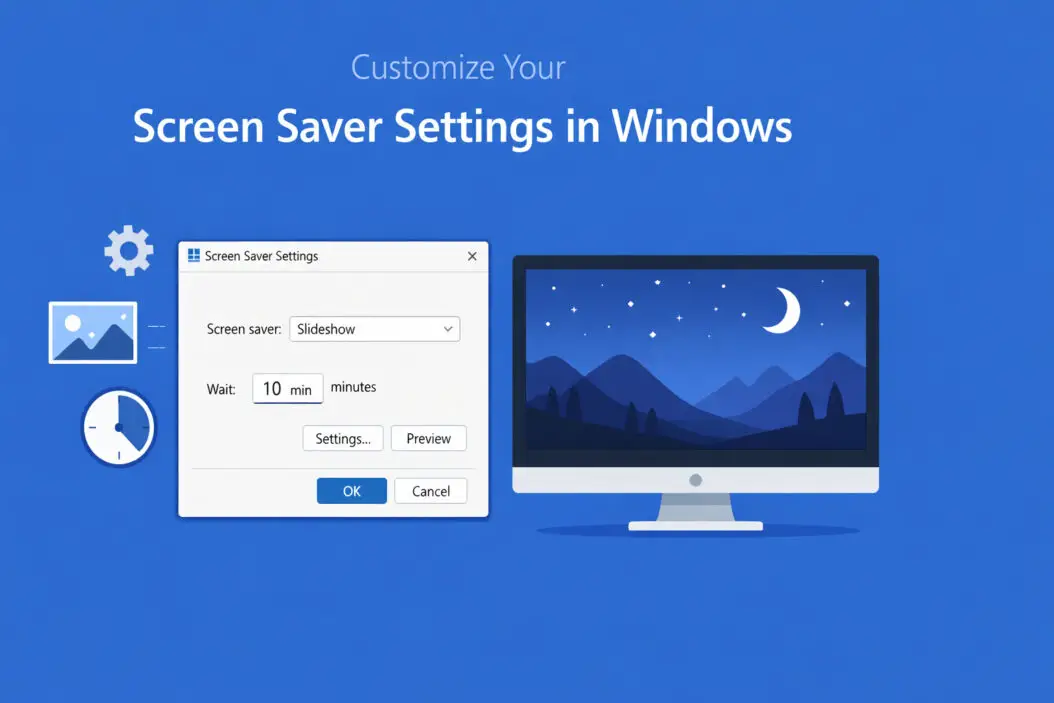
The Screen Saver Settings window appears as a classic dialog box, not the modern Settings interface. Microsoft kept this old-style window because it works perfectly.
How to Access Screen Saver Settings in Windows 10
The path differs slightly in Windows 10:
- Click Start and select “Settings” (gear icon)
- Go to “Personalization”
- Click “Lock screen” from the left menu
- Scroll to the bottom and click “Screen saver settings”
You can also use the Run command method (control desk.cpl,,1) mentioned above. It works identically in Windows 10.
Complete Screen Saver Configuration Options
The Screen Saver Settings dialog gives you several customization choices. Let’s break down each element.
Screen Saver Selection
The dropdown menu shows available options:
None. Disables the screen saver completely. Your screen stays on until Windows sleep settings kick in.
3D Text. Displays rotating 3D text you can customize. Click “Settings” to change the text, font, size, and rotation speed.
Blank. Turns your screen black after the wait time. Simple and effective for privacy.
Bubbles. Animated transparent bubbles float across your screen. The Settings button lets you adjust bubble density and transparency.
Mystify. Colorful lines twist and turn in geometric patterns. You can modify colors and line speed through Settings.
Photos. Creates a slideshow from your Pictures folder. This is the most popular choice for personalization. Settings let you choose which folder to use and slideshow speed.
Ribbons. Similar to Mystify but with ribbon-like flowing shapes instead of sharp lines.
Each screen saver has its own Settings button that unlocks additional customization. Always check what options are available for your chosen style.
Wait Time Configuration
The “Wait” field determines how many minutes of inactivity trigger the screen saver.
Default is 10 minutes. You can set anywhere from 1 to 999 minutes.
Best practice: Match this to slightly less than your display sleep time. If your monitor sleeps after 15 minutes, set screen saver to 10 or 12 minutes.
Short wait times (1-3 minutes) work well in offices where you frequently step away. Longer times (20+ minutes) suit home use where interruptions are less frequent.
On Resume, Display Logon Screen
This checkbox adds password protection when the screen saver activates.
Checked: When you return and move the mouse, Windows asks for your password before showing your desktop.
Unchecked: Moving the mouse immediately returns you to your desktop with no authentication.
This setting only appears if you have a password set on your Windows account. Local accounts without passwords won’t see this option.
Security-conscious users should enable this feature. It prevents unauthorized access when you’re away from your desk.
Preview Button
Click “Preview” to see your selected screen saver immediately at full screen. Move your mouse or press any key to exit the preview.
This helps you decide if the screen saver looks good before committing to the settings.
Power Settings Link
The “Change power settings” link at the bottom opens Power Options. This is where you configure when your display turns off and when your computer sleeps.
Screen savers and power settings work together but serve different purposes:
- Screen saver activates during idle time (aesthetic/privacy)
- Display sleep turns off your monitor to save energy
- Computer sleep puts the entire system into low-power mode
Configure both for optimal results. Microsoft’s official power management documentation explains advanced power options in detail.
Setting Up a Photo Slideshow Screen Saver
The Photos screen saver deserves special attention because it’s the most customizable and popular option.
Step by Step Configuration
- Select “Photos” from the screen saver dropdown
- Click the “Settings” button next to the dropdown
- In the Photos Screen Saver Settings window, click “Browse”
- Navigate to the folder containing your images
- Select the folder and click “OK”
- Choose slideshow speed (Slow, Medium, or Fast)
- Check “Shuffle pictures” if you want random order
- Click “Save” to confirm
Supported Image Formats
The Photos screen saver works with:
- JPG/JPEG files
- PNG images
- BMP files
- GIF files (static, not animated)
- TIFF images
Keep images in a dedicated folder for best results. The screen saver scans the folder you select and includes all compatible images.
Slideshow Speed Recommendations
Slow: Changes every 6 seconds. Good for detailed photos or artwork you want to appreciate.
Medium: Changes every 3 seconds. Balanced option that works for most users.
Fast: Changes every 1.5 seconds. Better for large photo collections where variety matters more than viewing time.
The shuffle option randomizes order each time the screen saver starts. Without shuffle, photos appear alphabetically by filename.
Advanced Screen Saver Customization
Beyond the basic settings, Windows offers deeper customization through additional methods.
Editing the Registry for Extended Options
Warning: Registry editing can break Windows if done incorrectly. Create a system restore point before proceeding.
- Press Windows + R and type
regedit - Navigate to
HKEY_CURRENT_USER\Control Panel\Desktop - Look for
ScreenSaveTimeOutvalue (time in seconds) ScreenSaveActivevalue (1 = enabled, 0 = disabled)
Most users won’t need registry tweaks, but this shows where Windows stores screen saver preferences.
Using Third-Party Screen Savers
Windows accepts custom screen saver files with the .scr extension. You can download or create your own.
To install third-party screen savers:
- Download the
.scrfile from a trusted source - Right-click the file and select “Install”
- Or manually copy to
C:\Windows\System32(requires admin rights) - The new screen saver appears in your dropdown list
Popular third-party options include Fliqlo (flip clock), Electric Sheep (collaborative abstract animation), and Really Slick Screensavers (various high-quality animations).
Security note: Only install screen savers from reputable sources. Malicious .scr files can contain malware.
Creating a Custom 3D Text Message
The 3D Text screen saver lets you display custom messages:
- Select “3D Text” from the dropdown
- Click “Settings”
- Choose between “Custom Text” or “Current Time”
- For custom text, type your message in the text field
- Select font, size, and style
- Choose rotation speed and surface style
- Click “OK” to save
This works great for office desks where you want to display your name, department, or a fun message when you’re away.
Troubleshooting Common Screen Saver Problems
Screen Saver Won’t Activate
Check wait time. Make sure you’re actually idle for the full duration you set.
Verify active status. Ensure you selected a screen saver (not “None”) and clicked Apply.
Audio and downloads prevent activation. Playing music or active downloads count as activity. Windows assumes you’re using the computer.
Running apps may interfere. Video players, games, and presentation software often prevent screen savers to avoid interruption.
Check power settings. If your display sleeps before the screen saver wait time, you’ll never see the screen saver activate.
Screen Saver Ends Immediately
Mouse sensitivity issues. Overly sensitive mice can trigger small movements. Try a mouse pad or adjust sensitivity.
Background apps sending input. Some software sends virtual keyboard or mouse events that Windows interprets as activity.
Wireless mouse interference. Nearby devices or vibrations can cause wireless mice to send movement signals.
Photos Screen Saver Shows Wrong Images
Check folder path. The selected folder may have moved or been renamed.
Image format issues. Ensure images are in supported formats (JPG, PNG, BMP).
Corrupted image files. One corrupted image can cause the slideshow to skip or fail. Test by removing images one by one.
Permissions problems. The folder needs read permissions for your user account.
Password Protection Not Working
No password on account. The “On resume, display logon screen” option only works if your Windows account has a password.
Fast user switching enabled. Sometimes conflicts with screen saver password protection.
Group policy restrictions. Work computers may have IT policies that override personal screen saver settings.
To add a password to your account:
- Open Settings > Accounts > Sign-in options
- Under Password, click “Add” or “Change”
- Follow the prompts to create a secure password
Screen Savers vs. Display Sleep: What’s the Difference?
Many people confuse screen savers with display sleep. They’re separate features:
| Feature | Screen Saver | Display Sleep |
|---|---|---|
| Purpose | Privacy and aesthetics | Energy saving |
| Screen state | Active, showing animation | Off, black screen |
| Power usage | Normal consumption | Minimal consumption |
| Wake method | Any input | Any input |
| Configurable time | 1-999 minutes | 1 minute to never |
| Password option | Yes (if account has password) | Controlled by general lock settings |
Recommendation: Use both features together. Set screen saver for 5-10 minutes and display sleep for 15-20 minutes. This gives you visual privacy first, then energy savings if you’re gone longer.
Power settings live in Settings > System > Power & sleep (Windows 11) or Settings > System > Power & sleep (Windows 10).
When to Disable Screen Savers Completely
Screen savers aren’t necessary for everyone. Consider disabling them if:
You use automatic locking. Windows can lock your PC after idle time without a screen saver. Settings > Accounts > Sign-in options > “Require sign-in” dropdown.
Display sleep happens quickly. If your monitor sleeps after 5 minutes, a screen saver is redundant.
You want maximum performance. Screen savers use GPU and CPU resources. Gaming or video editing rigs might skip them.
Presentation mode is common. If you regularly present or share your screen, screen savers cause interruptions.
To disable completely, select “None” from the screen saver dropdown and click Apply.
Privacy and Security Considerations
Screen savers play a role in workplace security and personal privacy.
Best Practices for Office Use
Always enable “On resume, display logon screen.” This prevents coworkers from accessing your unlocked computer.
Set short wait times (3-5 minutes). Office environments have frequent foot traffic and security concerns.
Use Blank screen saver. It provides privacy without distraction or revealing personal information through photos.
Coordinate with company IT policies. Some organizations enforce specific screen saver settings through group policy.
Home Use Recommendations
Longer wait times are fine (10-15 minutes). Home environments don’t need aggressive privacy measures.
Photo slideshows personalize your space. Use family photos, vacation pictures, or artwork.
Password protection depends on household. If others use your PC, enable it. If it’s solely yours, your choice.
Consider smart home integration. Some users disable screen savers entirely because smart displays and tablets handle ambient information.
Screen Saver Settings for Multiple Monitors
Windows applies screen saver settings across all connected displays simultaneously. You cannot set different screen savers per monitor through standard Windows settings.
All monitors show the same screen saver at the same time when the wait period expires. This is a Windows limitation, not a configuration oversight.
Workaround for different screen savers: Third-party utilities like DisplayFusion or Actual Multiple Monitors offer per-monitor screen saver control. These paid tools extend Windows’ native multi-monitor capabilities.
For most users, unified screen savers across monitors work perfectly fine. The main concern is ensuring the screen saver looks good at different resolutions if your monitors don’t match.
Impact on System Performance and Energy Usage
Screen savers consume resources while running:
CPU usage: 2-10% depending on complexity. 3D Text and Ribbons use more than Blank.
GPU usage: Animated screen savers engage your graphics card, especially on high-resolution displays.
Power consumption: Your display stays at full brightness and refresh rate. No energy savings occur.
Heat generation: Continuous animation keeps components active, generating heat.
This is why display sleep is the preferred energy-saving option. Sleep mode cuts power to the display entirely, saving significantly more energy than any screen saver.
According to ENERGY STAR guidelines, enabling display sleep saves far more energy than screen savers ever could.
If energy efficiency is your goal, skip screen savers and configure aggressive display sleep times instead.
Conclusion
Customizing your Windows screen saver takes less than two minutes but offers meaningful benefits for privacy, security, and personalization. Access the settings through Personalization > Lock screen > Screen saver, choose your preferred style, set an appropriate wait time, and enable password protection for security.
Remember these key points:
- Screen savers provide privacy and visual interest, not energy savings
- The Photos slideshow is most popular and highly customizable
- Password protection only works if your account has a password set
- Display sleep and screen savers serve different purposes; use both
- Third-party screen savers expand your options beyond Windows defaults
Match your screen saver settings to how you use your computer. Office workers benefit from short wait times and password protection. Home users can enjoy longer times and personal photo slideshows. Either way, Windows gives you full control over this simple but useful feature.
Frequently Asked Questions
Can I set different screen savers for different times of day?
No, Windows doesn’t include built-in scheduling for screen savers. You would need third-party software or custom scripting to change screen savers based on time. Most users find a single screen saver configuration works for all situations.
Do screen savers damage modern monitors?
No, modern LCD, LED, and OLED monitors are not damaged by screen savers or static images. The original purpose of screen savers was preventing burn-in on old CRT monitors, which is not a concern with today’s display technology.
Why doesn’t my screen saver work when watching videos?
Media players tell Windows to prevent screen savers and display sleep during video playback. This is intentional behavior to avoid interrupting your viewing. The screen saver will resume normal operation when you close the video player or pause playback for the configured wait time.
Can I password protect my screen saver differently from my login?
No, the “On resume, display logon screen” option uses your standard Windows account password. There’s no separate password just for screen saver unlock. This is a security feature to maintain consistent authentication across Windows.
Will screen savers run when my laptop lid is closed?
No, closing your laptop lid typically triggers sleep mode, which takes priority over screen saver settings. Screen savers only activate when your computer is on, unlocked, and idle with the display active. When the lid closes, Windows follows your power plan’s lid closure action instead.
