
Windows Hello facial recognition lets you unlock your computer just by looking at it. No passwords. No typing. Just sit down, and you’re in.
This technology uses your device’s infrared camera to scan your face and verify your identity in under two seconds. It’s faster than typing a password, more secure than a PIN, and actually convenient to use every day.
This guide shows you exactly how to set up Windows Hello facial recognition, use it effectively, troubleshoot common problems, and get the most value from this security feature.
What Is Windows Hello Facial Recognition and Why Use It?
Windows Hello is Microsoft’s biometric authentication system built into Windows 10 and Windows 11. The facial recognition component uses specialized infrared cameras to create a detailed map of your face.
Here’s what makes it different from a regular webcam:
The IR camera projects thousands of invisible infrared dots onto your face. It measures the distance of each point to create a 3D depth map. This means it can’t be fooled by a photograph or video of your face.
Why you should use it:
You’ll save time every single day. The average person unlocks their computer 15-20 times per workday. Windows Hello does this in 1-2 seconds versus 5-10 seconds for typing a password.
It’s more secure than passwords. Facial data stays encrypted on your device. It never goes to Microsoft’s servers. Even if someone steals your computer, they can’t extract your face scan.
You can’t forget your face at home. Password managers are great, but they require you to remember a master password. Your face is always with you.
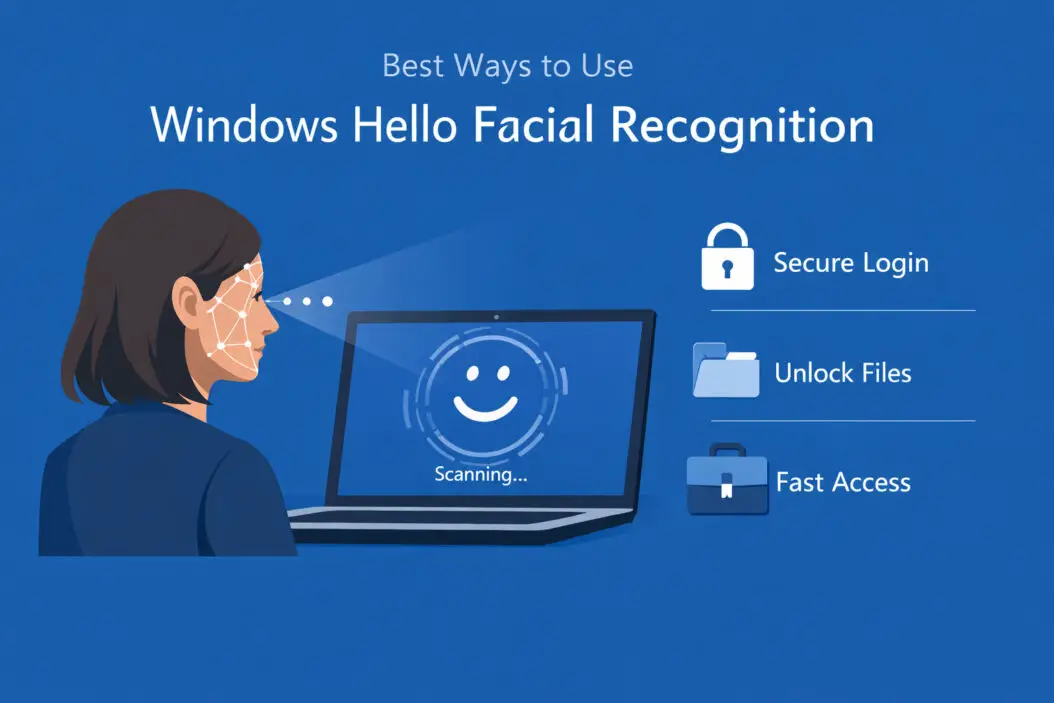
Setting Up Windows Hello Facial Recognition Properly
Most modern Windows laptops and tablets from 2019 onward include compatible IR cameras. Surface devices, many Dell XPS models, HP Spectre and Elite series, and Lenovo ThinkPad X1 series typically have this hardware.
Check if your device supports it:
- Open Settings (Windows key + I)
- Click on Accounts
- Select Sign-in options
- Look for “Facial recognition (Windows Hello)”
If you see this option, your device has the required hardware. If not, you’ll need an external Windows Hello compatible camera like the Logitech Brio or Microsoft’s own webcam models.
Step-by-step setup process:
- Go to Settings > Accounts > Sign-in options
- Under “Ways to sign in,” click “Facial recognition (Windows Hello)”
- Click “Set up”
- Enter your PIN (you need a PIN as a backup method)
- Click “Get started” in the Windows Hello setup window
- Position your face in the frame
- Look directly at the camera while it scans
- The scan takes about 10 seconds
- Click “Close” when it says “All set”
Important setup tips:
Wear your glasses during setup if you wear them regularly. Windows Hello can recognize you with or without glasses, but initial setup works better when you’re wearing what you normally wear.
Ensure good lighting. Don’t sit with a bright window behind you. The camera needs to see your face clearly. Normal office or home lighting works fine.
Sit at your normal distance from the screen. Don’t lean in close. Windows Hello learns what you look like from your typical working position.
Improving Recognition Accuracy and Speed
Windows Hello gets better the more you use it. The system uses machine learning to adapt to small changes in your appearance over time.
Make recognition faster:
Clean your camera lens. Dust and smudges slow down recognition. Wipe the IR camera gently with a microfiber cloth once a week.
Update your facial data if you change your look significantly. Got a new beard? Cut your long hair? Go to Settings > Accounts > Sign-in options > Facial recognition > Improve recognition. This adds a second scan without deleting your original one.
Position your laptop at a consistent height. Windows Hello works best when your face is at roughly the same angle each time. If you use an external monitor, keep your laptop at a fixed position.
Use “Improve recognition” when:
- You grow or shave facial hair
- You get new glasses with different frames
- Your hairstyle changes dramatically
- Recognition becomes slower or fails occasionally
- You’ve gained or lost significant weight
This feature adds supplementary data to your existing profile. It doesn’t replace your original scan, so there’s no risk in using it.
Best Practices for Daily Use
Windows Hello facial recognition works in several everyday scenarios beyond just unlocking your computer.
Lock your PC automatically when you walk away:
Windows 11 includes Dynamic Lock. Pair your phone via Bluetooth, then enable this feature in Settings > Accounts > Sign-in options > Dynamic Lock. When you walk away with your phone, your PC locks automatically after 30 seconds.
Combined with Windows Hello, you get automatic locking and instant unlocking. You sit down, it unlocks. You stand up and walk away, it locks.
Use it for app authentication:
Many Microsoft apps use Windows Hello instead of passwords. The Microsoft Store, OneDrive, and Office apps can all authenticate with your face.
Some third-party apps support it too. Password managers like 1Password and Bitwarden can use Windows Hello to unlock your vault. Banking apps increasingly support it for secure login.
Sign into websites:
Windows Hello works with websites that support FIDO2 authentication. This includes Microsoft accounts, Google accounts, Dropbox, GitHub, and many others.
When you see “Sign in with Windows Hello” on a supported site, you can use your face instead of a password.
Multiple user accounts:
Each person who uses the computer can set up their own Windows Hello profile. When someone sits down, Windows Hello recognizes them and logs into their account automatically.
This works great for families sharing a computer or offices with hot-desking arrangements.
Privacy and Security Considerations
Your facial recognition data deserves protection. Here’s how Windows Hello keeps it safe and what you should know.
Where your data lives:
Your face scan never uploads to the cloud. It stays encrypted in a secure area of your computer’s hardware called the Trusted Platform Module (TPM). Even administrators on your computer can’t access this data.
Microsoft cannot reset your Windows Hello facial recognition remotely. If you forget your PIN backup, you’ll need to use your Microsoft account password to regain access.
What happens if someone steals your laptop:
Thieves can’t extract your facial data from the TPM chip. They can’t use a photo of you. They can’t use a video. The infrared camera detects depth, so flat images don’t work.
If you’re extremely concerned about physical theft, enable BitLocker encryption on your drive. This adds another security layer that works alongside Windows Hello.
Spoofing attempts:
Windows Hello has anti-spoofing technology. It won’t unlock for:
- Printed photos of your face
- Digital photos displayed on a phone or tablet
- Video recordings of you
- Masks or 3D-printed faces (in most cases)
The system specifically looks for infrared reflection patterns that only living human skin produces. However, very sophisticated attacks using detailed 3D models and infrared makeup might theoretically work, but these require significant resources and technical knowledge.
Privacy toggle:
You can temporarily disable facial recognition without deleting your data. Go to Settings > Accounts > Sign-in options > Facial recognition > Remove. Your data deletes immediately.
Or simply use your PIN instead when you want privacy. Windows Hello won’t scan unless you’re actively trying to unlock the device.
Troubleshooting Common Problems
Windows Hello facial recognition usually works flawlessly, but occasionally you’ll hit problems. Here’s how to fix the most common issues.
Recognition fails or is very slow:
First, check the obvious things. Is something blocking the camera? Are you wearing a hat that shadows your face? Is the room very dark?
Update your camera drivers. Go to Device Manager > Cameras > right-click your IR camera > Update driver. Outdated drivers cause most recognition problems.
Delete and re-setup your face. Sometimes the facial data gets corrupted. Remove your existing face scan, restart your computer, then set it up again fresh.
“Camera can’t turn on” error:
Another app might be using the camera. Close Zoom, Teams, or any video conferencing software. Windows can’t use the camera for Hello if another program has claimed it.
Check camera permissions. Go to Settings > Privacy & security > Camera. Make sure “Camera access” is turned on and “Let apps access your camera” is enabled.
Run the Windows Update troubleshooter. Sometimes Windows Update fails to install important camera firmware updates. Go to Settings > System > Troubleshoot > Other troubleshooters > Windows Update.
Works poorly in certain lighting:
Windows Hello needs infrared light to work. Direct sunlight contains IR and can overwhelm the camera’s sensor. Close blinds or reposition your desk.
Complete darkness also causes problems. While the IR camera projects its own light, having at least dim ambient light helps the system work faster.
Face changes not recognized:
If you’ve changed your appearance and Windows Hello stops working, you have two options:
Use “Improve recognition” to add your new look to the existing profile. This works for moderate changes like growing a beard or getting glasses.
For dramatic changes (major surgery, significant weight change, aging), delete your old face scan and create a new one from scratch.
Windows Hello vs Other Security Methods
Understanding how facial recognition compares to other sign-in options helps you choose the right security approach.
| Security Method | Speed | Convenience | Security Level | Best For |
|---|---|---|---|---|
| Windows Hello Face | Excellent (1-2 sec) | Excellent | Very High | Daily use, shared devices |
| Fingerprint | Excellent (1 sec) | Very Good | Very High | Laptops, consistent users |
| PIN | Good (3-5 sec) | Moderate | Moderate | Backup method |
| Password | Poor (5-10 sec) | Poor | High (if complex) | Remote access |
| Security Key | Good (2-3 sec) | Moderate | Highest | Maximum security needs |
When to use Windows Hello facial recognition:
You share a computer with family members. Each person gets recognized automatically without selecting a user account first.
You unlock your computer many times per day. The time savings add up significantly.
You want security without inconvenience. Strong passwords are secure but annoying. Windows Hello gives you both.
When fingerprint might be better:
Your device has a reliable fingerprint reader but no IR camera. Many older laptops fall into this category.
You work in extremely bright outdoor environments where infrared cameras struggle.
You want the absolute fastest unlock time. Fingerprint readers are typically 0.5-1 second faster than facial recognition.
When to stick with a PIN or password:
Your device lacks biometric hardware entirely.
You need to unlock remotely via Remote Desktop (biometrics don’t work for remote sessions).
You’re in an environment where someone might watch you unlock your device and you want obscured input.
Advanced Features and Integration
Windows Hello connects with many business and personal productivity tools. Here’s how to leverage these integrations.
Microsoft 365 integration:
If you use Microsoft 365 for work, Windows Hello can replace passwords across all Microsoft services. Once you authenticate with your face, you stay signed in to Outlook, Teams, SharePoint, and OneDrive.
Administrators can require Windows Hello for accessing sensitive business applications. This enforces strong authentication without burdening users with complex passwords.
Passwordless Microsoft account:
You can make your entire Microsoft account passwordless. Go to your Microsoft account security settings online and enable passwordless sign-in. From that point forward, your face becomes your password for everything Microsoft.
This works across devices. On your phone, you’ll use your phone’s biometrics. On your Windows PC, you’ll use Windows Hello.
Third-party app support:
Popular password managers including 1Password, Bitwarden, and LastPass support Windows Hello for unlocking your vault. Instead of typing your master password, just look at the camera.
Banking and financial apps increasingly support Windows Hello. Check if your bank’s Windows app offers biometric authentication in its settings.
Development tools like Visual Studio and GitHub Desktop can authenticate with Windows Hello instead of personal access tokens.
Windows Hello for Business:
Organizations can deploy Windows Hello for Business, which uses public-key or certificate-based authentication instead of passwords. This provides enterprise-grade security with the same convenience.
IT administrators control policies like PIN complexity requirements, biometric usage permissions, and TPM requirements. Users still get the simple experience of unlocking with their face.
Optimizing Windows Hello on Different Devices
Different device types require slightly different approaches to get the best Windows Hello experience.
Laptop users:
Position your laptop at eye level when possible. Having the camera at the right height improves recognition angles.
If you use an external monitor and keyboard, keep your laptop open and positioned where the camera can see you. Consider a laptop stand that elevates it to camera height.
For privacy, some laptops include physical camera shutters. Slide these open before trying to use Windows Hello.
2-in-1 and tablet users:
Windows Hello works in any orientation on devices with rotation-capable screens. The camera automatically adjusts as you rotate the device.
In tablet mode, hold the device at a comfortable viewing angle. The camera has a wide field of view, so you don’t need to position it precisely.
Some 2-in-1 devices have cameras on both sides. Windows Hello typically uses the front-facing camera, but check your settings if recognition seems inconsistent.
Desktop users with external cameras:
Position your external Windows Hello camera at the top center of your primary monitor. This provides the most natural viewing angle.
Secure the camera firmly. Any movement or vibration can cause recognition failures.
Run the setup process at your normal sitting distance. External cameras often have different focal lengths than laptop cameras, so distance matters more.
Multi-monitor setups:
Windows Hello only uses one camera. Position it on the monitor you look at most frequently when unlocking your computer.
If you move between monitors regularly, position the camera centrally where it can see you regardless of which screen you’re viewing.
Frequently Asked Questions
Can Windows Hello recognize me with a mask on?
No. Windows Hello needs to see enough of your face to verify your identity. Masks covering your nose and mouth prevent successful recognition. If you regularly wear masks, use your PIN or fingerprint reader instead. Some newer Windows 11 versions improve recognition with partial face coverage, but full masks still won’t work.
Does Windows Hello work in the dark?
Yes. The infrared camera projects its own IR light, so it works in complete darkness. You might see a faint red glow from the IR LEDs when Windows Hello activates. This is normal and indicates the system is working. In fact, Windows Hello sometimes works better in low light than in bright sunlight.
What happens if my face changes due to aging or medical reasons?
Windows Hello adapts gradually to small changes through continuous machine learning. For significant changes, use the “Improve recognition” feature to update your profile. After major medical procedures affecting your face, delete your old scan and create a new one. Keep your PIN backup active in case you need an alternative sign-in method during recovery.
Can someone unlock my computer while I’m sleeping?
This is theoretically possible but difficult. Windows Hello uses liveness detection that checks for natural eye movement and responsiveness. It won’t unlock for most sleeping people because their eyes are closed or have different reflection patterns. However, if you’re concerned, enable “Require Windows Hello sign-in for Microsoft accounts” and set your PC to lock quickly when idle.
Is Windows Hello safe enough for banking and sensitive work?
Yes. Windows Hello meets FIDO2 security standards and provides multi-factor authentication (your device + your face). Major banks, government agencies, and enterprises trust it for secure authentication. The biometric data never leaves your device and stays encrypted in the TPM chip. For maximum security, combine Windows Hello with BitLocker disk encryption.
Conclusion
Windows Hello facial recognition provides fast, secure, and convenient authentication for Windows devices. Setting it up takes just two minutes, but the daily time savings and security improvements continue for years.
Start by verifying your device has compatible hardware. Follow the setup process carefully with good lighting and your normal appearance. Use the “Improve recognition” feature whenever your look changes significantly. Enable it for apps and websites that support FIDO2 authentication.
Remember that Windows Hello works alongside other security methods, not as a replacement for all of them. Keep your PIN backup active. Use strong passwords for remote access. Enable BitLocker for sensitive devices.
The technology continues improving with each Windows update. Microsoft adds better liveness detection, faster recognition algorithms, and broader app compatibility. Your face remains your most convenient password.
