
You don’t need every gaming accessory on the market. But the right ones make a real difference in how you play, how comfortable you stay during long sessions, and how much you enjoy gaming.
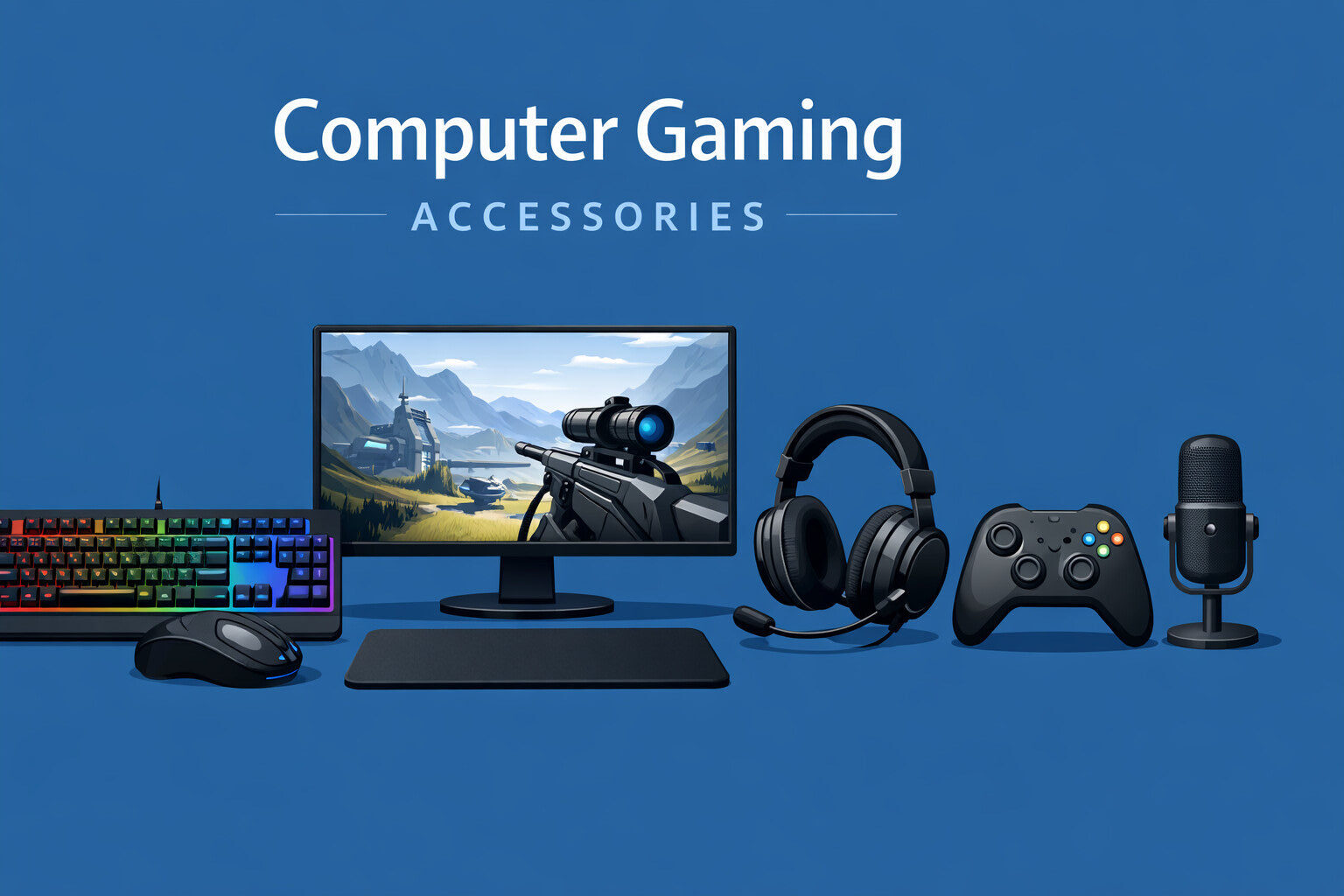
This guide covers 17 accessories that solve actual problems gamers face. Some improve performance. Others protect your health. A few just make gaming more enjoyable.
I’ve focused on accessories that provide genuine value, not flashy gear that looks cool but does nothing.
Why Gaming Accessories Matter in 2026
Gaming has changed. Competitive play demands precision. Streaming requires quality audio and video. Long sessions need ergonomic support.
The right accessories address these needs:
- Better accuracy in competitive games
- Reduced physical strain and fatigue
- Clearer communication with teammates
- More immersive gaming experiences
- Protection for your expensive equipment
Let’s look at what actually helps.
Essential Input Devices
1. Gaming Mouse with Adjustable DPI
Your mouse is your primary control tool in most PC games.
Why it matters: Different games need different sensitivity levels. A high DPI mouse lets you switch between precise aiming in shooters and fast movement in strategy games.
What to look for:
- DPI range of 800 to 16,000
- Programmable buttons (at least 5)
- Comfortable grip for your hand size
- Quality sensor (optical or laser)
A good gaming mouse reduces hand fatigue and improves aim. The difference between a standard mouse and a proper gaming mouse is immediately noticeable in first-person shooters.
2. Mechanical Keyboard
Membrane keyboards work, but mechanical keyboards respond faster and feel better.
Key benefits:
- Faster actuation (how quickly keypresses register)
- Tactile feedback so you know when you’ve pressed a key
- Better durability (50+ million keystrokes vs 5 million)
- Customizable switches for different feel and sound
Choose switches based on your preference. Red switches are quiet and linear. Blue switches are clicky and tactile. Brown switches sit in the middle.
For gaming, reds or browns work best because they don’t require much force to activate.
3. Large Gaming Mouse Pad
A small mouse pad limits your movement range.
Why size matters: Low DPI settings (which many competitive players prefer) require more physical mouse movement. A large pad gives you room to move without running out of space.
Get a pad at least 36 inches wide. Extended pads that fit under your keyboard and mouse create a unified surface and look cleaner.
Quality mouse pads provide consistent tracking and don’t fray at the edges.
Audio Equipment for Gaming
4. Gaming Headset with Good Microphone
Audio gives you competitive advantages. Footsteps, gunshots, and voice chat all matter.
Critical features:
- Clear positional audio (you need to know where sounds come from)
- Comfortable ear cups for long sessions
- Decent microphone (your teammates need to hear you clearly)
- Inline volume control
Wireless headsets offer freedom of movement but need charging. Wired headsets never die mid-game.
Over-ear designs are more comfortable than on-ear for extended use.
5. Desktop Microphone for Streamers
If you stream or create content, your headset mic isn’t good enough.
A USB condenser microphone produces broadcast-quality audio. Your viewers will notice the difference immediately.
Popular options include:
- Blue Yeti (versatile, multiple pickup patterns)
- Audio-Technica AT2020 (clear sound, affordable)
- Shure MV7 (professional quality)
Position the mic 6 to 8 inches from your mouth and slightly off to the side to reduce plosives (hard P and B sounds).
6. Boom Arm for Microphone
A boom arm gets your microphone off your desk.
Benefits:
- Frees up desk space
- Positions mic at optimal distance
- Reduces vibration noise from keyboard and mouse
- Looks professional on camera
Shock mounts further isolate the mic from desk vibrations. This matters when you’re typing or clicking during recording.
Display and Visual Accessories
7. Monitor Light Bar
Eye strain is real during long gaming sessions.
Monitor light bars sit on top of your display and illuminate your desk without creating screen glare. They reduce the contrast between your bright monitor and dark room, which causes eye fatigue.
Why not a desk lamp? Regular lamps create reflections on your screen. Light bars angle downward to avoid this.
Your eyes will thank you after a 4-hour session.
8. Second Monitor
A second screen changes how you game and stream.
Use cases:
- Keep Discord, Spotify, or guides open while gaming
- Monitor chat and alerts while streaming
- Research strategies without alt-tabbing
For gaming, your primary monitor should be high refresh rate (144Hz+). Your secondary can be a standard 60Hz display for non-gaming content.
Mount both monitors on arms to adjust height and angle perfectly.
9. Webcam for Streaming
Built-in laptop cameras are terrible. Desktop PCs don’t have cameras at all.
If you stream, video chat, or create content, you need a dedicated webcam.
Minimum specs for 2026:
- 1080p resolution at 60fps
- Good low-light performance
- Auto-focus capability
- Wide field of view (70-90 degrees)
The Logitech C920 remains a solid budget choice. The StreamCam or Razer Kiyo Pro offer better quality.
Position your webcam at eye level, not looking up at you from below your monitor.
Comfort and Ergonomics
10. Gaming Chair with Lumbar Support
You’ll spend hours in this chair. It needs to support your back properly.
Essential features:
- Adjustable lumbar support (lower back)
- Adjustable armrests (height and width)
- Tilt mechanism with tension control
- Breathable material (mesh backs are cooler than leather)
“Gaming” chairs with racing-style designs are fine, but ergonomic office chairs often provide better long-term comfort. Check out recommendations from experts at Wirecutter who test chairs extensively.
Your feet should sit flat on the floor with thighs parallel to the ground when seated properly.
11. Wrist Rest for Keyboard
Keyboard wrist rests prevent strain during extended play.
How they help: They keep your wrists in a neutral position instead of bent upward. This reduces pressure on the median nerve, lowering risk of carpal tunnel syndrome.
Get a rest that matches your keyboard width. Memory foam provides good support while staying comfortable.
Some gaming keyboards include integrated wrist rests, but separate rests let you position them exactly where you need.
12. Footrest for Better Posture
If your feet dangle when seated, you need a footrest.
The problem with dangling feet: Puts pressure on the back of your thighs, restricts blood flow, and throws off your posture.
A simple angled footrest fixes this. Adjustable models let you change the angle and height.
This seems minor but makes a real difference over 3+ hour sessions.
Cable Management and Organization
13. Cable Management System
Tangled cables look messy and make cleaning difficult.
Solutions that work:
- Cable raceways (channels that hide cables along desk edges)
- Cable sleeves (zip-up tubes that bundle cables together)
- Velcro cable ties (reusable, adjustable)
- Under-desk cable trays (hold power strips and excess cable length)
Good cable management also improves airflow around your PC and prevents accidentally unplugging something.
Route cables behind your desk and along edges. Group cables by destination (all monitor cables together, all peripheral cables together).
This takes an hour to set up properly but makes your setup look and function better.
Power and Connectivity
14. Uninterruptible Power Supply (UPS)
Power outages and surges can damage your PC and lose your progress.
A UPS provides:
- Battery backup during outages (enough to save and shut down properly)
- Surge protection for all connected devices
- Power conditioning that smooths electrical fluctuations
Sizing a UPS: Add up the wattage of everything you’ll connect (PC, monitors, modem, router). Multiply by 1.25. That’s the minimum VA rating you need.
A 1500VA UPS handles most gaming setups and provides 10-15 minutes of backup power.
Connect your PC, monitors, and internet equipment. Don’t connect printers or speakers (they draw too much power).
15. USB Hub with Individual Switches
Modern gaming setups use lots of USB devices: mouse, keyboard, headset, webcam, microphone, controller, RGB lighting.
Most motherboards have 6-8 USB ports. That’s not enough.
Get a powered USB hub:
- 7+ ports minimum
- Individual power switches for each port
- USB 3.0 or higher for fast data transfer
- Solid construction (cheap hubs fail)
Individual switches let you turn off RGB devices at night without unplugging them. This also prevents phantom power draw.
Input Enhancements
16. Controller for Specific Games
Some games play better with a controller than keyboard and mouse.
Controller works better for:
- Racing games (analog triggers for precise throttle control)
- Fighting games (directional pad for special moves)
- Platformers (analog stick for movement)
- Sports games (designed for controller input)
Xbox controllers work natively with Windows. PlayStation controllers work but may need additional software.
Get a wired controller to avoid input lag in competitive games. Wireless works fine for casual play.
17. Gaming Controller Charging Dock
If you use wireless controllers, you need a charging solution.
Why docks beat cables:
- Controllers always ready when you need them
- No fumbling with cables
- Looks cleaner on your desk
- Some include battery packs that last longer than standard batteries
Dual charging docks hold two controllers, useful if you play local multiplayer or want a backup ready.
Quick Reference: Accessory Priority List
Not everyone needs all 17 accessories. Here’s how to prioritize based on your situation:
| Priority Level | Accessories | Who Needs These |
|---|---|---|
| Essential | Gaming mouse, mechanical keyboard, headset, large mouse pad | All PC gamers |
| High Priority | Gaming chair, monitor light bar, cable management | Anyone gaming 2+ hours daily |
| Streamers/Creators | Desktop microphone, boom arm, webcam, second monitor | Content creators |
| Competitive Players | Controller (for specific games), UPS, high-quality headset | Esports and ranked players |
| Comfort/Health | Wrist rest, footrest, ergonomic chair | Anyone experiencing discomfort |
| Convenience | USB hub, controller charging dock | Users with many peripherals |
What to Avoid When Buying Gaming Accessories
The gaming accessory market has plenty of overpriced junk.
Red flags:
- “Pro” or “Elite” in the name doesn’t mean better quality
- Excessive RGB lighting adds cost without improving performance
- “Gaming” versions of standard items often just cost more
- Sponsored reviews can’t always be trusted
Read reviews from multiple sources. Check PC Gamer for detailed hardware testing and real-world performance data.
Pay attention to build quality. A cheaper accessory that lasts two years costs less than an expensive one that breaks in six months.
Setting Up Your Gaming Accessories Properly
Buying accessories is step one. Setting them up correctly matters just as much.
Desk ergonomics:
- Monitor at eye level, arm’s length away
- Keyboard directly in front, mouse at same height
- Chair adjusted so feet are flat, thighs parallel to floor
- Elbows at 90 degrees when hands are on keyboard
- Top of monitor at or slightly below eye level
Cable management:
- Route all cables to one side of desk
- Use velcro ties to bundle similar cables
- Secure bundles under desk with adhesive clips
- Leave some slack for adjustments
- Label cables at both ends
Audio setup:
- Headset properly positioned over ears
- Microphone 6-8 inches from mouth
- Test audio levels before gaming or streaming
- Use push-to-talk in noisy environments
- Enable spatial audio if your headset supports it
Lighting:
- Position monitor light bar to eliminate glare
- Add bias lighting behind monitor (reduces eye strain)
- Keep room lighting soft and indirect
- Avoid lights directly in your field of view
- RGB is fine but dim it for serious gaming
Maintenance Tips for Gaming Accessories
Quality accessories last years with basic care.
Weekly:
- Wipe down mouse and keyboard with microfiber cloth
- Clean mouse pad (remove dust and debris)
- Adjust chair mechanisms (keep them moving freely)
Monthly:
- Deep clean keyboard (remove keycaps, clean underneath)
- Clean mouse sensor and feet
- Dust all surfaces and equipment
- Check cables for damage
Every 3-6 months:
- Update device firmware and drivers
- Replace worn mouse feet
- Clean headset ear cups and microphone foam
- Tighten loose screws on chair and desk accessories
Proper maintenance prevents premature failure and keeps everything performing well.
Budget Considerations: What to Spend Where
You can build a complete accessory setup for $300-800 depending on priorities.
Suggested budget allocation:
- Mouse and keyboard: $150-250 (these matter most)
- Headset: $80-150 (audio quality impacts gameplay)
- Chair: $200-400 (health is worth the investment)
- Mouse pad: $20-40 (simple but effective)
- Cable management: $30-50 (one-time purchase)
- Remaining accessories: $100-200 (add as needed)
Buy the best mouse and keyboard you can afford first. These directly impact your performance.
Save money on cable management, monitor accessories, and organizational items. Functionality matters more than brand names here.
Conclusion: Build Your Setup Gradually
You don’t need all 17 accessories immediately.
Start with the essentials: a good mouse, mechanical keyboard, quality headset, and proper mouse pad. These four items create a functional gaming setup.
Add comfort accessories next if you game regularly. A proper chair, wrist rest, and monitor light bar prevent physical problems.
Streamers and content creators should prioritize audio and video equipment.
Competitive players benefit most from high-quality input devices and stable power.
The best gaming setup is one that fits your specific needs, games, and budget. Choose accessories that solve problems you actually have, not ones marketing tells you to want.
Every accessory in this guide serves a real purpose. Some improve performance. Others protect your health. All of them make gaming more enjoyable when chosen and set up correctly.
Build your setup over time. Buy quality items that last. Take care of your equipment. Your gaming experience will improve with each thoughtful addition.
Frequently Asked Questions
Do I really need a gaming chair or can I use a regular office chair?
You don’t need a “gaming” chair specifically. What matters is ergonomic support: adjustable lumbar support, proper armrests, and good build quality. Many high-quality office chairs actually provide better ergonomics than racing-style gaming chairs. Look for chairs with multiple adjustment points and good reviews for comfort during extended sitting, regardless of whether they’re marketed as gaming chairs.
What’s the difference between a gaming headset and regular headphones with a separate mic?
Gaming headsets combine headphones and microphone in one unit with optimized spatial audio for gaming. Regular headphones with a separate mic often provide better audio quality for the same price but require more desk space and cable management. Gaming headsets are more convenient. Audiophile headphones plus a desktop mic give better sound and voice quality. Choose based on whether you value convenience or maximum quality.
How much DPI do I actually need on a gaming mouse?
Most gamers use 400-3200 DPI. Higher numbers (16,000+) are marketing more than practical necessity. What matters more is having adjustable DPI so you can find your comfortable sensitivity. Professional esports players often use lower DPI (400-800) with large mouse movements for precision. Casual gamers prefer higher DPI (1600-3200) for less physical movement. Test different settings to find what works for your games and playstyle.
Is a second monitor worth it if I only game and don’t stream?
A second monitor helps even if you don’t stream. You can keep Discord, Spotify, game guides, or YouTube open while gaming without alt-tabbing. This matters most in games where you frequently need to reference information or stay connected with friends. If you only play single-player games with full focus and never multitask, a second monitor provides less value. Consider your actual gaming habits before buying.
Should I get wireless or wired gaming accessories?
Wired accessories provide consistent performance, never need charging, and cost less. Wireless accessories offer freedom of movement and cleaner desk aesthetics but require battery management. For mice and keyboards, modern wireless gaming gear has eliminated input lag, so either works well. For headsets, wireless is convenient but wired ensures you never run out of battery mid-game. Choose based on whether you value convenience or simplicity.
