
ACPI.sys is a critical Windows system file that manages power and hardware communication on your computer. When it fails, you’ll see blue screen errors that can stop your PC from working properly.
This guide explains what ACPI.sys does, why it causes problems, and how to fix those problems yourself.
What Is ACPI.sys?
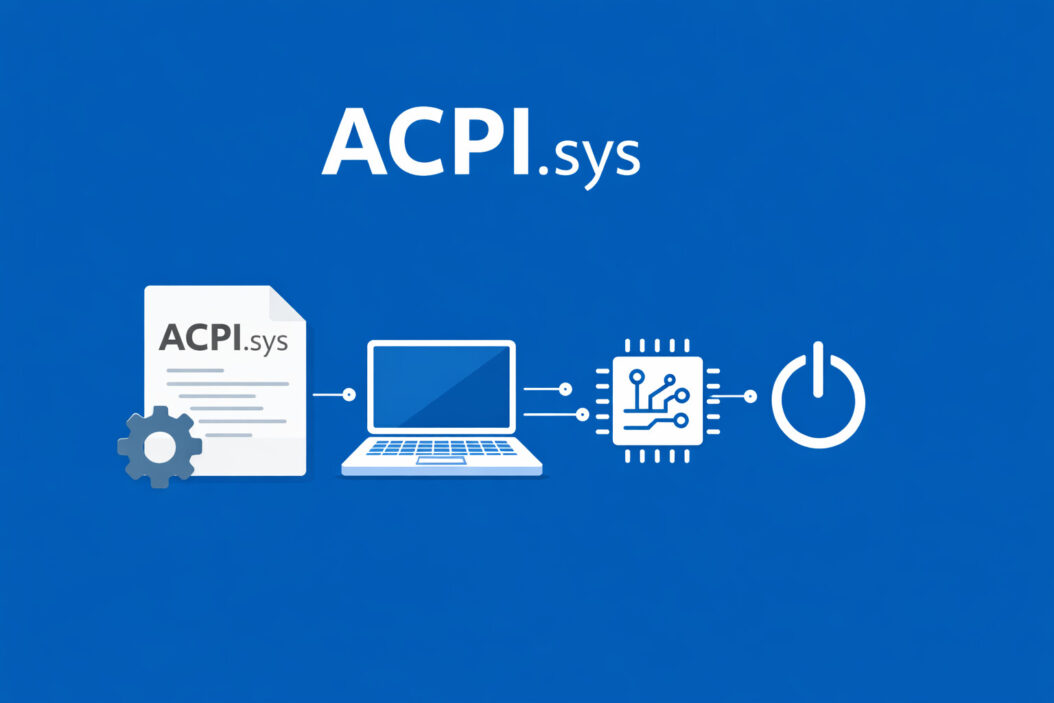
ACPI.sys is a Windows driver file that controls the Advanced Configuration and Power Interface (ACPI) on your computer. Think of it as the translator between your operating system and your hardware.
Here’s what it actually does:
Power Management ACPI.sys controls sleep mode, hibernation, shutdown, and startup processes. When you close your laptop lid or click “Sleep,” this file manages what happens next.
Hardware Communication It helps Windows talk to your motherboard, processors, fans, and other core components. Without it, your operating system couldn’t control basic hardware functions.
System Resource Allocation ACPI.sys assigns system resources like memory addresses and interrupt requests to different hardware devices so they don’t conflict with each other.
The file sits in your Windows\System32\drivers folder and loads every time you start your computer. It’s essential, which means Windows won’t boot properly if it’s corrupted or misconfigured.
Why ACPI.sys Causes Blue Screen Errors
When ACPI.sys fails, Windows displays a blue screen with error codes. These crashes happen for specific reasons:
Outdated or Incompatible Drivers
Your motherboard chipset drivers, BIOS firmware, or other system drivers might conflict with ACPI.sys. This is the most common cause of ACPI-related crashes.
Driver conflicts often happen after:
- Windows updates that change system files
- Installing new hardware without proper drivers
- Using drivers designed for different Windows versions
Corrupted System Files
If the ACPI.sys file itself becomes corrupted, Windows can’t manage power or hardware properly. File corruption happens from:
- Improper shutdowns or power failures
- Hard drive errors or bad sectors
- Malware that modifies system files
- Failed Windows updates
Hardware Failures
Physical problems with your computer’s components can trigger ACPI.sys errors:
- Failing hard drives or SSDs
- Defective RAM modules
- Overheating processors
- Malfunctioning motherboards
Incorrect BIOS Settings
BIOS or UEFI firmware controls hardware before Windows loads. Wrong settings here can cause ACPI.sys to fail when Windows tries to take control of power management.
Common ACPI.sys Error Messages
You’ll recognize ACPI.sys problems by these blue screen error codes:
| Error Code | What It Means |
|---|---|
| ACPI_BIOS_ERROR | BIOS firmware doesn’t properly support ACPI standards |
| ACPI_DRIVER_INTERNAL | Internal driver error in ACPI.sys itself |
| DRIVER_IRQL_NOT_LESS_OR_EQUAL (mentioning ACPI.sys) | Driver tried to access memory it shouldn’t |
| SYSTEM_THREAD_EXCEPTION_NOT_HANDLED (ACPI.sys) | ACPI driver crashed while handling a system operation |
Each error points to different underlying causes, but the fixes often overlap.
How to Fix ACPI.sys Errors: Step-by-Step Solutions
Work through these solutions in order. Each one addresses different causes of ACPI.sys problems.
Solution 1: Update Your Chipset and ACPI Drivers
Outdated motherboard drivers are the number one cause of ACPI errors.
Step 1: Identify your motherboard model
- Press Windows + R, type
msinfo32, press Enter - Look for “BaseBoard Manufacturer” and “BaseBoard Product”
Step 2: Download the latest chipset drivers
- Visit your motherboard manufacturer’s website (ASUS, MSI, Gigabit, ASRock, etc.)
- Find your exact motherboard model in their support section
- Download the newest chipset driver package for Windows
Step 3: Install the drivers
- Run the downloaded installer as administrator
- Restart your computer when prompted
- Check if the blue screen errors continue
For laptop users, visit your laptop manufacturer’s support site (Dell, HP, Lenovo) and download system drivers for your specific model.
Solution 2: Update Your BIOS/UEFI Firmware
BIOS updates fix compatibility issues between hardware and Windows.
Warning: Updating BIOS carries risks. If done incorrectly, it can make your computer unbootable. Follow your manufacturer’s instructions exactly.
Step 1: Check your current BIOS version
- Press Windows + R, type
msinfo32, press Enter - Note the “BIOS Version/Date”
Step 2: Download the latest BIOS
- Go to your motherboard or laptop manufacturer’s website
- Find BIOS updates for your exact model
- Download if a newer version exists
Step 3: Install the BIOS update
- Follow the manufacturer’s installation guide carefully
- Ensure your laptop is plugged in (never update BIOS on battery)
- Don’t interrupt the process or turn off your computer
After updating, boot into BIOS (usually by pressing Delete, F2, or F10 during startup) and load default settings before booting Windows.
Solution 3: Run Windows System File Checker
This built-in tool repairs corrupted system files, including ACPI.sys.
Step 1: Open Command Prompt as administrator
- Click Start, type
cmd - Right-click “Command Prompt,” select “Run as administrator”
Step 2: Run the repair commands
sfc /scannow
Wait for the scan to complete (this takes 15-30 minutes). If it finds and fixes problems, restart your computer.
Step 3: Run DISM if SFC fails
DISM /Online /Cleanup-Image /RestoreHealth
This deeper scan repairs Windows component corruption. After it finishes, run sfc /scannow again.
Solution 4: Check for Memory Problems
Faulty RAM causes system crashes that Windows might attribute to ACPI.sys.
Step 1: Run Windows Memory Diagnostic
- Press Windows + R, type
mdsched.exe, press Enter - Select “Restart now and check for problems”
- Your computer will restart and test memory
Step 2: Review the results
- After restart, check the notification area for results
- If errors are found, you have bad RAM that needs replacement
Step 3: Test individual RAM sticks (if problems found)
- Shut down and unplug your computer
- Open the case and remove all but one RAM stick
- Boot and test for stability
- Repeat with each stick to identify the faulty one
Solution 5: Disable Automatic Driver Updates
Sometimes Windows installs incompatible drivers automatically, causing ACPI problems.
Step 1: Open Device Installation Settings
- Press Windows + R, type
SystemPropertiesHardware, press Enter - Click “Device Installation Settings”
Step 2: Change the setting
- Select “No (your device might not work as expected)”
- Click “Save Changes”
Step 3: Roll back problematic drivers
- Open Device Manager (Windows + X, then select Device Manager)
- Expand “System devices”
- Right-click any ACPI-related devices, select “Properties”
- Go to “Driver” tab, click “Roll Back Driver” if available
Solution 6: Adjust BIOS Power Settings
Incorrect ACPI settings in BIOS cause conflicts with Windows power management.
Step 1: Enter BIOS setup
- Restart computer and press Delete, F2, or F10 (varies by manufacturer)
Step 2: Find ACPI settings
- Look for “Power Management,” “ACPI Configuration,” or similar menus
- Exact location varies by BIOS version
Step 3: Try these settings
- Set “ACPI Suspend Type” to S3 (if available)
- Enable “ACPI APIC Support”
- Disable “ErP Support” or “EuP Support” temporarily to test
Step 4: Save and exit
- Press F10 to save changes and restart
If problems persist, reset BIOS to defaults and try booting Windows normally.
Solution 7: Perform a Clean Windows Installation
When all else fails, a fresh Windows installation eliminates software-related ACPI.sys problems.
Before reinstalling:
- Back up all important files to external storage
- Make note of programs you need to reinstall
- Have your Windows license key ready
You can keep your files during installation by choosing the “Keep personal files” option, but a completely clean install often works better for driver-related issues.
Preventing Future ACPI.sys Errors
Once you’ve fixed the problem, these practices help prevent recurrence:
Keep Drivers Updated Check for motherboard chipset updates every few months. Enable Windows Update to get driver updates automatically, but watch for problems after updates.
Monitor System Temperatures Overheating causes hardware instability that triggers ACPI errors. Use free tools like HWMonitor to check temperatures. Clean dust from fans and vents regularly.
Use a UPS or Surge Protector Power fluctuations corrupt system files. A UPS (uninterruptible power supply) protects against outages and dirty power that can damage hardware or corrupt ACPI.sys.
Avoid Forced Shutdowns Holding the power button to shut down risks file corruption. Always use Windows shutdown options when possible.
Regular System Maintenance Run Disk Cleanup monthly to remove temporary files. Check your hard drive health using tools like CrystalDiskInfo. Run sfc /scannow quarterly to catch corruption early.
According to Microsoft’s Windows hardware documentation at https://docs.microsoft.com/en-us/windows-hardware/drivers/kernel/acpi-driver, ACPI drivers must be compatible with both the operating system and motherboard firmware to function properly. This is why keeping both Windows and BIOS updated matters so much.
When to Seek Professional Help
Some ACPI.sys problems require expert diagnosis:
Persistent Errors After All Fixes If you’ve tried every solution here and still get blue screens, your hardware might have deeper problems that need professional testing.
Multiple Hardware Failures When several components fail simultaneously (RAM, hard drive, and system crashes together), your motherboard or power supply might be dying.
Errors Only in Specific Programs If ACPI.sys crashes happen only when using certain software, that program might have driver conflicts beyond your ability to fix.
A computer repair technician has diagnostic tools to test motherboards, power supplies, and other components that are difficult to test at home.
Understanding ACPI Technology
ACPI replaced older power management systems in the late 1990s. Before ACPI, BIOS controlled all power functions, which limited what operating systems could do.
ACPI shifted control to the operating system, allowing:
- Better laptop battery management
- USB device power control
- Wake-on-LAN functionality
- Thermal zone monitoring
The ACPI specification (currently at version 6.5 as of 2024) is maintained by the UEFI Forum at https://uefi.org/specifications. This standard ensures hardware from different manufacturers works with Windows, Linux, and other operating systems.
Modern Windows versions (Windows 10 and 11 in 2026) rely heavily on ACPI.sys for power management features like Modern Standby, where your computer stays connected to the internet even when the screen is off.
ACPI.sys in Different Windows Versions
The file works slightly differently across Windows versions:
Windows 11 (Current in 2026) Most stable implementation with best hardware support. Includes fixes for older ACPI bugs and better handling of modern hardware like NVMe drives and Thunderbolt devices.
Windows 10 Mature and reliable. Most ACPI.sys problems on Windows 10 come from outdated drivers, not the file itself.
Windows 8/8.1 Introduced Fast Startup feature that sometimes conflicts with ACPI.sys. Many users found disabling Fast Startup fixed their blue screen problems.
Windows 7 Still used on some systems but lacks modern ACPI features. Newer motherboards might not have Windows 7 ACPI drivers, causing inevitable problems.
If you’re running Windows 7 on newer hardware (manufactured after 2020), upgrading to Windows 10 or 11 will likely solve ACPI-related issues permanently.
Related System Files That Work With ACPI.sys
ACPI.sys doesn’t work alone. These files interact with it:
| File Name | Purpose | Why It Matters |
|---|---|---|
| hal.dll | Hardware Abstraction Layer | Translates between Windows and hardware |
| ntoskrnl.exe | Windows kernel | Core operating system that uses ACPI.sys |
| storport.sys | Storage driver | Works with ACPI for drive power management |
| usbport.sys | USB controller driver | Manages USB device power states |
Problems with any of these files can cause errors that appear to involve ACPI.sys, even when ACPI.sys itself is fine.
Summary
ACPI.sys is a critical Windows driver that manages power and hardware communication. When it fails, your computer crashes with blue screen errors that point to driver conflicts, corrupted files, or hardware problems.
The most effective fixes are:
- Updating motherboard chipset drivers
- Updating BIOS firmware
- Running system file repair tools
- Testing hardware components
- Adjusting BIOS power settings
Most ACPI.sys problems are fixable at home with these solutions. The key is working through them systematically, starting with the simplest (updating drivers) before moving to more complex solutions (BIOS updates or hardware testing).
Keep your system maintained with regular driver updates, proper shutdowns, and temperature monitoring to prevent future ACPI.sys errors. When problems persist after trying all solutions, professional diagnosis can identify hardware failures that need replacement.
Frequently Asked Questions
Can I Delete or Replace ACPI.sys?
No, you should never manually delete ACPI.sys. It’s a protected system file that Windows needs to boot. If it’s corrupted, use System File Checker (sfc /scannow) to repair it automatically. Windows will restore the correct version from its protected file cache. Manually replacing system files can make your computer unbootable.
Why Does ACPI.sys Crash During Sleep or Shutdown?
ACPI.sys manages power state transitions, so crashes during sleep or shutdown usually mean driver conflicts. Your graphics card, network adapter, or USB device drivers might not properly support ACPI power states. Update all device drivers, especially chipset and graphics drivers. Also check BIOS settings and ensure “S3 Sleep State” is enabled if available.
Does ACPI.sys Affect Gaming Performance?
ACPI.sys itself doesn’t directly impact gaming performance, but ACPI settings can. If Windows power management is set to “Power Saver,” ACPI.sys will throttle your processor and graphics card. Set power plan to “High Performance” in Windows power settings. Also ensure your motherboard’s BIOS isn’t limiting CPU power states, which ACPI.sys would enforce.
Can Malware Disguise Itself as ACPI.sys?
Real ACPI.sys is always located in C:\Windows\System32\drivers and is digitally signed by Microsoft. Malware can’t replace the real file due to Windows File Protection. However, malware might use similar names like “acpi.sys.exe” or place files in wrong folders. If you suspect malware, run Windows Defender or Malwarebytes. Check the file location and digital signature in file properties.
Will Upgrading to Windows 11 Fix ACPI.sys Errors?
Sometimes yes, sometimes no. If errors come from outdated Windows code, upgrading helps because Windows 11 has newer ACPI drivers and better hardware support. But if problems are hardware-related (failing RAM, outdated BIOS, or incompatible motherboard), upgrading won’t fix them. Try updating your current Windows version’s drivers and BIOS first. Upgrading the operating system should be your last software-based solution before considering hardware replacement.
