
Your computer slowing down? Files taking forever to open? You might need to defragment your hard drive.
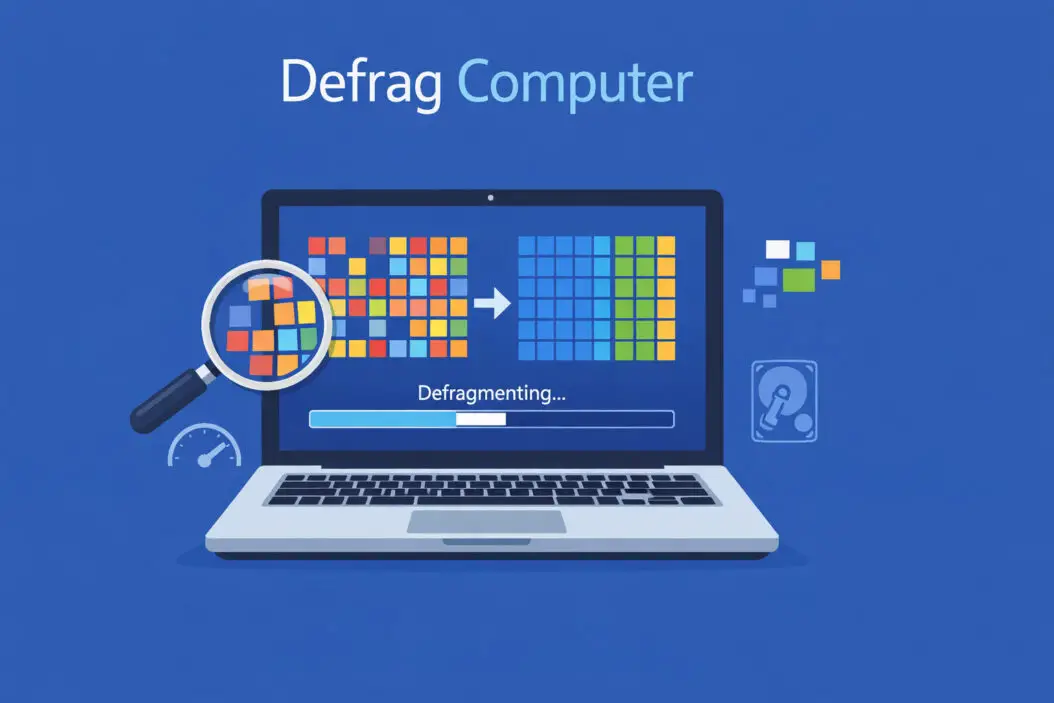
Defragmentation reorganizes scattered data on your hard drive so your computer can access files faster. Think of it like organizing a messy closet where your clothes are scattered everywhere. When everything’s in the right place, you find what you need quickly.
Quick answer: For Windows users with traditional hard drives (HDD), open the Start menu, type “Defragment and Optimize Drives,” select your drive, and click “Optimize.” For SSDs, Windows handles optimization automatically. Mac users don’t need to defrag manually.
This guide walks you through everything you need to know about defragmentation in 2026, from understanding what it does to running it safely on your system.
What Does Defragmenting a Computer Actually Do?
When you save, delete, and modify files, your hard drive doesn’t store data in neat, continuous blocks. Instead, it splits files into fragments and scatters them across the disk wherever there’s free space.
Here’s what happens:
Your hard drive has a read/write head that moves across spinning platters to access data. When a file is fragmented into 10 different locations, that head must jump around 10 times to read one file. This mechanical movement takes time.
Defragmentation moves these fragments back together. After defragging, each file sits in one continuous location. Your hard drive’s read/write head makes fewer movements, which means faster file access and better overall performance.
Real world impact:
A heavily fragmented drive can make your computer feel sluggish. Programs take longer to start. Documents lag when opening. Games stutter during loading screens. Defragmentation fixes these symptoms by reducing the physical work your hard drive performs.
Do You Actually Need to Defrag Your Computer?
The answer depends entirely on what type of storage drive you have.
Traditional Hard Drives (HDD)
Yes, you should defrag these regularly.
HDDs use spinning magnetic platters and moving read/write heads. Fragmentation directly impacts their performance because of physical movement. Windows HDDs benefit from monthly defragmentation, or more often if you frequently install and uninstall large programs.
Solid State Drives (SSD)
No, never manually defrag an SSD.
SSDs have no moving parts. They access data electronically, so fragmentation doesn’t slow them down. More importantly, defragmenting an SSD wastes its limited write cycles and can shorten its lifespan.
Windows 10 and 11 know the difference. The built-in optimization tool runs TRIM commands on SSDs instead of defragmentation. TRIM tells the SSD which data blocks are no longer in use, helping maintain performance without the harmful effects of traditional defragmentation.
How to Check Your Drive Type
Windows:
- Press Windows key + E to open File Explorer
- Right-click your C: drive
- Select Properties
- Click the Hardware tab
- Look at the drive name (SSD will usually say “SSD” or “Solid State”)
Or use this faster method:
- Press Windows key + S
- Type “defragment”
- Open “Defragment and Optimize Drives”
- Check the Media type column (shows “Hard disk drive” or “Solid state drive”)
How to Defrag Your Computer on Windows 10 and 11
Windows makes defragmentation straightforward with its built-in tool.
Step-by-Step Defragmentation Process
Step 1: Open the Optimization Tool
Press the Windows key, type “defragment,” and click “Defragment and Optimize Drives.” You can also find it by searching for “optimize drives” in the Start menu.
Step 2: Analyze Your Drive
Before defragmenting, check if you actually need it:
- Select your C: drive (or whichever drive you want to check)
- Click “Analyze”
- Wait for the analysis to complete
- Check the Current status column
If fragmentation is above 10%, defragmentation will help performance. Below 10%, you can skip it.
Step 3: Run the Defragmentation
- Select the drive you want to optimize
- Click “Optimize”
- Wait for the process to complete (this can take 30 minutes to several hours depending on drive size and fragmentation level)
Don’t turn off your computer during defragmentation. You can use your computer for light tasks, but heavy operations will slow down the process.
Step 4: Set Up Automatic Optimization
Windows should already have scheduled optimization enabled, but verify it:
- In the Optimize Drives window, check “Scheduled optimization”
- If it says “Off,” click “Change settings”
- Check “Run on a schedule”
- Choose weekly or monthly frequency
- Click “Choose” to select which drives to optimize
- Click OK
Understanding the Results
After optimization completes, the Current status column shows 0% fragmented. Your drive is now organized efficiently.
The Last run column tells you when optimization last occurred. If you’ve enabled scheduled optimization, Windows handles this automatically going forward.
How to Defrag Using Command Prompt (Advanced Method)
Power users might prefer the command line for more control over defragmentation.
Basic Command Line Defragmentation
Step 1: Open Command Prompt as Administrator
- Press Windows key
- Type “cmd”
- Right-click Command Prompt
- Select “Run as administrator”
Step 2: Run Defragmentation Commands
To analyze a drive:
defrag C: /A
To defragment a drive:
defrag C: /O
To defragment all drives:
defrag /C /O
Useful Command Options
| Command | What It Does |
|---|---|
| defrag C: /A | Analyzes drive C without defragmenting |
| defrag C: /O | Optimizes drive C (normal defrag) |
| defrag C: /U | Displays progress in the command window |
| defrag C: /V | Shows detailed verbose output |
| defrag C: /X | Performs free space consolidation |
Example for thorough defragmentation with progress:
defrag C: /O /U /V
This command optimizes drive C, shows progress updates, and displays detailed information about what’s happening.
Third-Party Defragmentation Software Worth Considering
While Windows built-in tools work fine for most users, third-party options offer additional features.
Defraggler by Piriform
Free software that lets you defragment specific files or folders instead of entire drives. Useful when you want to optimize just your games folder or documents directory.
Key features:
- Quick defrag of specific files
- Boot-time defragmentation for locked system files
- Visual map showing fragmented files
- Completely free for personal use
Download from the official CCleaner website (Piriform’s parent company): https://www.ccleaner.com/defraggler
Auslogics Disk Defrag
Another free option with a clean interface and fast performance.
Key features:
- Faster than Windows native tool for large drives
- Can defragment and optimize system files
- Offline defragmentation for system-critical files
- Includes disk cleanup tools
Smart Defrag by IObit
Free version available with some advanced features locked behind a paid upgrade.
Key features:
- Game optimization mode (prioritizes game files)
- Auto defrag runs when computer is idle
- Boot-time defrag for system files
- Decent free version without payment pressure
A word of caution: Always download defragmentation software from official sources. Many download sites bundle unwanted programs with installers. Stick with the developer’s official website.
Common Problems When Defragmenting and How to Fix Them
Defragmentation Takes Forever
Long defragmentation times are normal for heavily fragmented or very full drives.
Solutions:
- Close all programs before starting (reduces file locks)
- Disable your antivirus temporarily (it scans files as they move)
- Run defragmentation overnight
- Free up disk space (drives over 85% full take much longer)
If a drive takes more than 24 hours, something’s wrong. Restart your computer and try again.
“Cannot Defragment” Error Messages
Windows might refuse to defragment for several reasons.
Common causes and fixes:
File system errors: Run Check Disk first:
- Open Command Prompt as administrator
- Type
chkdsk C: /F /R - Restart when prompted
- Let Check Disk complete (takes 1-5 hours)
- Try defragmentation again
Insufficient permissions: Make sure you’re running the defragmentation tool as administrator.
Drive is an SSD: Don’t defragment it. Windows correctly prevents this.
Defragmentation Keeps Stopping or Restarting
This usually happens because programs are accessing files while defragmentation runs.
Solutions:
- Boot into Safe Mode (defragment with minimal programs running)
- Disable scheduled tasks temporarily
- Close cloud storage programs (Dropbox, OneDrive, Google Drive)
- Stop any backup software
- Use third-party software with boot-time defragmentation
To boot into Safe Mode:
- Press Windows key + R
- Type “msconfig” and press Enter
- Click the Boot tab
- Check “Safe boot”
- Click OK and restart
- Defragment in Safe Mode
- Reverse these steps to boot normally
Computer Slower After Defragmentation
This shouldn’t happen, but occasionally does.
Possible reasons:
Prefetch data was cleared: Windows creates prefetch files to speed up program launches. Defragmentation might reorganize these. Give Windows 2-3 days to rebuild prefetch data. Performance should return to normal.
Something else is wrong: Run a malware scan. Check for Windows updates. Verify your hard drive health using CrystalDiskInfo (free tool that shows drive condition).
You defragged an SSD by mistake: This doesn’t cause lasting damage, but Windows might have disabled TRIM temporarily. Run optimization again through the Optimize Drives tool to re-enable TRIM.
How Often Should You Defrag Your Hard Drive?
Defragmentation frequency depends on how you use your computer.
Recommended Schedule
| Usage Pattern | Defragmentation Frequency |
|---|---|
| Light use (web browsing, documents) | Every 2-3 months |
| Moderate use (photo editing, programming) | Monthly |
| Heavy use (video editing, gaming, constant file changes) | Every 2 weeks |
| Servers or always-on systems | Weekly to monthly |
Let Windows handle it: The scheduled optimization feature works well for most users. Set it to monthly and forget about it.
Signs you need to defrag sooner:
- Computer noticeably slower
- Programs take longer to launch
- File operations feel sluggish
- Hard drive makes excessive noise (lots of clicking and seeking)
Mac Users: Why You Don’t Need to Defrag
macOS handles fragmentation differently than Windows.
The technical reason: Apple’s HFS+ and APFS file systems include automatic defragmentation. When macOS detects a fragmented file under 20MB, it automatically defragments that file in the background during normal operation.
Additional factors:
- macOS writes files more efficiently to begin with
- The system reserves more empty space on the drive
- Modern Macs ship with SSDs, which don’t need defragmentation
Bottom line for Mac users: Don’t waste time or money on defragmentation tools. They’re unnecessary and won’t improve performance.
For detailed information on how macOS handles file systems, see Apple’s developer documentation: https://developer.apple.com/documentation/foundation/file_system
Understanding Fragmentation: The Technical Details
Knowing why fragmentation happens helps you prevent excessive buildup.
How Hard Drives Store Data
Hard drives organize data in clusters (small chunks, typically 4KB each). When you save a 100KB file, it needs 25 clusters.
Ideally, these 25 clusters sit next to each other. Your file is contiguous. The read/write head moves to the starting cluster, reads all 25 in sequence, and your file loads quickly.
When Fragmentation Occurs
Scenario 1: Deleting Files Creates Gaps
You save File A (25 clusters), File B (30 clusters), and File C (20 clusters) in sequence. Then you delete File B. Now there’s a 30-cluster gap between File A and File C.
When you save File D (50 clusters), Windows puts 30 clusters in the gap and the remaining 20 clusters somewhere else. File D is now fragmented.
Scenario 2: Files That Grow
You create a document and save it (10 clusters). You add more content and save again (now needs 40 clusters). Windows doesn’t have 30 free clusters immediately after the original 10, so it puts the new data elsewhere. Your document is fragmented.
Scenario 3: Download Incomplete Files
Torrent clients and download managers write data as it arrives. A 2GB file might download in thousands of small pieces from different sources. Without defragmentation, this file remains scattered across the drive.
Why SSDs Don’t Care About Fragmentation
SSDs access any location in the same amount of time (typically under 0.1 milliseconds). There’s no physical movement involved. Whether data is in cluster 1 or cluster 1,000,000 doesn’t matter.
What SSDs need instead: TRIM commands tell the SSD which clusters contain deleted data. The SSD can then erase these clusters during idle time, maintaining write performance. Windows handles this automatically through the same Optimize Drives tool.
Performance Gains: What to Expect From Defragmentation
Set realistic expectations before defragmenting.
Measurable Improvements
Heavily fragmented drives (30%+ fragmentation):
- Boot time: 15-30% faster
- Program launch: 20-40% faster
- File operations: 25-50% faster
- General system responsiveness improves noticeably
Moderately fragmented drives (10-30% fragmentation):
- Boot time: 5-15% faster
- Program launch: 10-20% faster
- File operations: 15-25% faster
- Subtle but real improvement
Lightly fragmented drives (under 10% fragmentation):
- Minimal measurable difference
- Small improvements to worst-case scenarios
- Better long-term performance maintenance
When Defragmentation Won’t Help
Don’t expect miracles. Defragmentation fixes one specific problem: scattered file storage on traditional hard drives.
It won’t fix:
- Insufficient RAM (computer slow because of too little memory)
- CPU bottlenecks (processor too slow for tasks)
- Malware infections
- Too many startup programs
- Full hard drive (over 90% capacity)
- Failing hardware
- Outdated drivers
If defragmentation doesn’t improve performance, look for these other issues.
Safety Considerations When Defragmenting
Defragmentation is generally safe, but take basic precautions.
Back Up Important Data First
While modern defragmentation tools are reliable, they move large amounts of data around. If something goes wrong (power failure, hardware failure, software bug), you could lose files.
Before defragmenting:
- Back up critical documents, photos, and files
- Create a system restore point
- Ensure you have installation media for Windows if needed
Creating a restore point takes 30 seconds:
- Type “create a restore point” in the Start menu
- Click Create
- Name it “Before defrag”
- Click Create again
Don’t Interrupt the Process
Let defragmentation complete once started. Interrupting it mid-process can cause:
- File corruption (rarely, but possible)
- Incomplete optimization (wasted time)
- File system errors that need repair
If you must stop it:
- Close the defragmentation window (safer than forcing shutdown)
- Windows will stop at the next safe point
- Restart the process later
Never force shutdown your computer during defragmentation unless absolutely necessary (system frozen, emergency).
Watch Drive Health
Old or failing drives shouldn’t be defragmented. The intensive read/write operations might push a dying drive over the edge.
Check drive health before defragmenting:
Download CrystalDiskInfo (free, open source) and check your drive’s health status. If it shows “Caution” or “Bad,” backup your data immediately and replace the drive. Don’t defragment.
Alternatives and Complementary Maintenance Tasks
Defragmentation is one part of drive maintenance. These other tasks help keep your system fast.
Disk Cleanup
Remove temporary files, old Windows updates, and system junk that waste space.
Run Disk Cleanup:
- Type “disk cleanup” in the Start menu
- Select your C: drive
- Click “Clean up system files”
- Check all boxes except “Downloads”
- Click OK
This often frees 5-20GB on older systems.
Check Disk for Errors
File system errors slow down your drive and cause instability.
Run Check Disk:
- Open Command Prompt as administrator
- Type
chkdsk C: /F - Press Y when asked to schedule the scan
- Restart your computer
- Let the scan complete (don’t interrupt it)
Run this every few months or if your computer crashes frequently.
Upgrade to an SSD
The single best performance upgrade for any computer with a traditional hard drive is switching to an SSD.
Performance difference:
- Boot time: 2 minutes → 15 seconds
- Program launch: Seconds → Nearly instant
- File operations: Much faster
- Overall responsiveness: Night and day difference
SSDs have dropped in price significantly. A 500GB SSD costs $40-60 in 2026. Installation is straightforward, and cloning software can copy your entire Windows installation to the new drive.
This upgrade makes a bigger difference than defragmentation ever could.
Summary
Defragmentation improves performance on traditional hard drives by reorganizing scattered file fragments into continuous blocks. This reduces the physical movement your drive’s read/write head must make, resulting in faster file access and better overall system responsiveness.
Key takeaways:
Windows 10 and 11 include built-in defragmentation that works well for most users. Enable scheduled optimization and let Windows handle it automatically monthly.
Never manually defragment SSDs. Windows optimizes them using TRIM commands instead of defragmentation. Forcing defragmentation on an SSD wastes write cycles without improving performance.
Expect modest but real improvements from defragmentation on fragmented traditional drives: 15-30% faster boot times, quicker program launches, and better file operation speeds.
Defragmentation is safe when done correctly. Back up important data first, don’t interrupt the process, and verify your drive is healthy before starting.
For the best performance improvement, consider upgrading from a traditional hard drive to an SSD. This single change makes a far bigger difference than any amount of defragmentation.
Frequently Asked Questions
Can defragmentation damage my hard drive?
No, defragmentation doesn’t damage healthy traditional hard drives. Modern defragmentation tools are designed to safely reorganize files. However, never defragment SSDs as this wastes their limited write cycles. Always check your drive type before defragmenting. If your traditional hard drive is already failing (making clicking sounds, showing errors), defragmentation might accelerate the failure, so backup your data and replace the drive instead.
How long should defragmentation take?
Defragmentation time varies based on drive size, fragmentation level, and how full the drive is. A 500GB drive with 20% fragmentation typically takes 30 minutes to 2 hours. Heavily fragmented or very full drives can take 4-8 hours. If defragmentation exceeds 24 hours, something is wrong. Cancel it, restart your computer, free up disk space, and try again.
Will defragmentation delete my files?
No, defragmentation moves files but never deletes them. The process reorganizes where files are stored on the disk without removing any data. However, as a precaution, always back up important files before defragmenting. While extremely rare, power failures or hardware problems during defragmentation could potentially cause data loss.
Do I need to defrag if I have a new computer?
It depends on your drive type. New computers with SSDs don’t need manual defragmentation ever. New computers with traditional hard drives benefit from defragmentation, but new drives start with zero fragmentation. Enable Windows scheduled optimization and let it handle defragmentation automatically as fragmentation builds up over time from normal use.
Can I use my computer while defragmenting?
Yes, but it’s not ideal. Using your computer during defragmentation slows down the process significantly. Light tasks like web browsing are fine, but avoid heavy operations like installing programs, moving large files, or gaming. For best results, start defragmentation before bed and let it run overnight when you’re not using the computer.
