
You’re wasting hours every week reaching for your mouse. Learning keyboard shortcuts can cut your daily computer tasks by 30% or more. This guide shows you exactly which shortcuts to learn first and how to make them automatic.
What Are Keyboard Shortcuts and Why Should You Care?
Keyboard shortcuts are key combinations that trigger commands instantly. Instead of clicking through menus, you press two or three keys together.
The math is simple. Moving your hand from keyboard to mouse takes about 2 seconds. Do that 100 times daily and you’ve lost 3+ minutes. Over a year, that’s 13 hours of pure wasted motion.
The real benefit isn’t just speed. When you stop breaking focus to find menu options, your work flows better. Your thoughts stay connected. You finish tasks while they’re still fresh in your mind.
The 15 Universal Shortcuts Every Computer User Must Know
These work on both Windows and Mac, across almost every program. Learn these first.
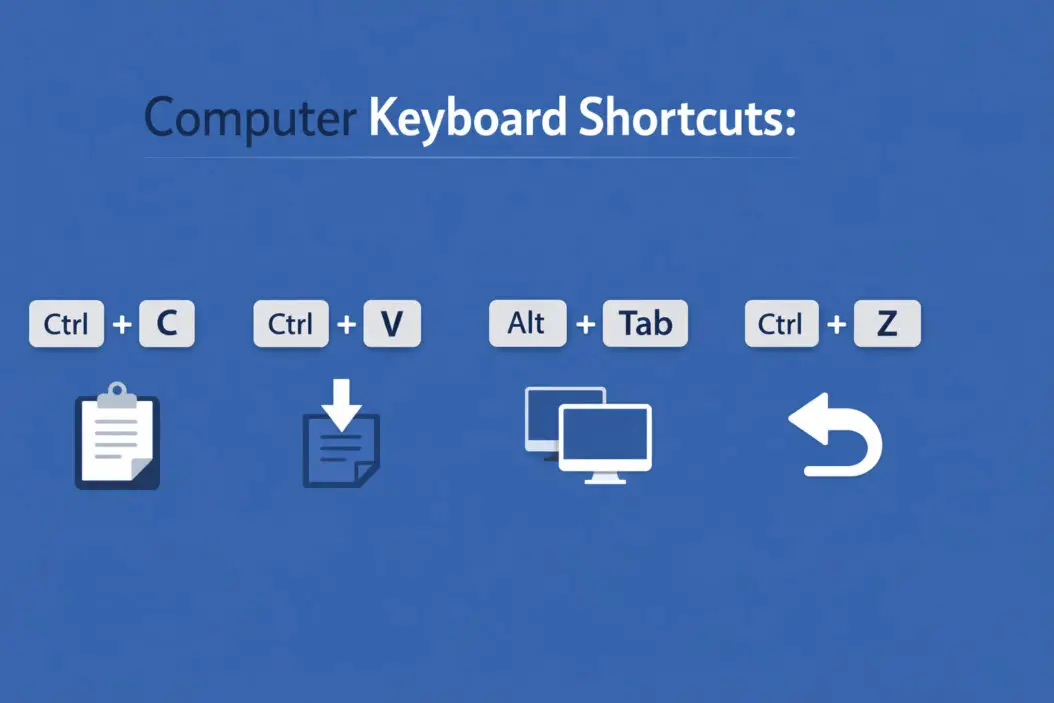
Copy, Cut, and Paste
Windows: Ctrl + C (copy), Ctrl + X (cut), Ctrl + V (paste)
Mac: Cmd + C, Cmd + X, Cmd + V
This trio saves more time than any other shortcut combination. You’ll use them dozens of times per hour once they become habit.
Pro tip: Ctrl/Cmd + Z undoes your last action. Made a mistake? Hit this immediately.
Select All Content
Windows: Ctrl + A
Mac: Cmd + A
Highlights everything in your current document or folder. Essential for quick deletions or formatting changes.
Save Your Work
Windows: Ctrl + S
Mac: Cmd + S
Press this every few minutes. Programs crash. Power fails. This shortcut has saved countless hours of lost work.
Find Text Anywhere
Windows: Ctrl + F
Mac: Cmd + F
Opens a search box in documents, websites, and most applications. Stop scrolling through 50 pages looking for one phrase.
Switch Between Open Programs
Windows: Alt + Tab
Mac: Cmd + Tab
Cycles through your open applications. Hold the first key and tap the second to browse your options.
Close Current Window
Windows: Alt + F4
Mac: Cmd + Q
Shuts down the active program instantly. Faster than hunting for the X button.
Open New Tab (Browsers)
Windows: Ctrl + T
Mac: Cmd + T
Creates a fresh browser tab without touching your mouse.
Close Current Tab
Windows: Ctrl + W
Mac: Cmd + W
Removes the active tab. Your hands never leave the keyboard.
Reopen Last Closed Tab
Windows: Ctrl + Shift + T
Mac: Cmd + Shift + T
Accidentally closed an important tab? This brings it back with full history.
Bold, Italic, Underline Text
Windows: Ctrl + B (bold), Ctrl + I (italic), Ctrl + U (underline)
Mac: Cmd + B, Cmd + I, Cmd + U
Format text in seconds across word processors and email clients.
Print Document
Windows: Ctrl + P
Mac: Cmd + P
Opens print dialog immediately.
Select Browser Address Bar
Windows: Ctrl + L
Mac: Cmd + L
Highlights the URL so you can type a new address. No clicking required.
Refresh Page
Windows: F5 or Ctrl + R
Mac: Cmd + R
Reloads the current webpage instantly.
Take Screenshot
Windows: Windows + Shift + S (Snipping Tool)
Mac: Cmd + Shift + 3 (full screen) or Cmd + Shift + 4 (selection)
Captures your screen without opening any applications.
Lock Computer
Windows: Windows + L
Mac: Control + Cmd + Q
Secures your computer when stepping away. Takes half a second.
Windows Specific Shortcuts That Boost Productivity
Window Management
Windows + D: Show desktop (minimizes everything)
Windows + E: Open File Explorer
Windows + L: Lock your PC
Windows + I: Open Settings
Windows + Number (1-9): Open the app pinned to that taskbar position
Windows + Arrow Keys: Snap windows to sides or corners of your screen. Right arrow snaps to right half, left to left half, up maximizes, down restores.
Task and Virtual Desktop Control
Windows + Tab: Opens Task View to see all windows and virtual desktops
Ctrl + Windows + D: Create new virtual desktop
Ctrl + Windows + Left/Right Arrow: Switch between virtual desktops
Windows + Ctrl + F4: Close current virtual desktop
Quick Access Commands
Windows + X: Opens Quick Link menu (Device Manager, Task Manager, etc.)
Windows + A: Open Quick Settings
Windows + V: Open clipboard history (must enable in Settings first)
Windows + Period (.): Opens emoji picker
Mac Specific Shortcuts That Save Hours
System Navigation
Cmd + Space: Opens Spotlight search
Cmd + Option + Esc: Force quit applications
Cmd + , (comma): Open preferences in most apps
Cmd + H: Hide current application
Cmd + Option + H: Hide all other applications
Window Management
Cmd + M: Minimize window
Cmd + ` (backtick): Switch between windows of the same app
Control + Up Arrow: Mission Control (see all windows)
Control + Down Arrow: Application windows (current app only)
File and Finder Operations
Cmd + Delete: Move to Trash
Cmd + Shift + Delete: Empty Trash
Cmd + Option + V: Move (cut and paste) files
Cmd + I: Get Info on selected file
Spacebar: Quick Look preview of selected file
Text Editing Shortcuts
Option + Delete: Delete previous word
Cmd + Delete: Delete to beginning of line
Option + Left/Right Arrow: Move cursor by word
Cmd + Left/Right Arrow: Move cursor to start/end of line
Browser Shortcuts for Chrome, Firefox, Edge, and Safari
These work across all major browsers with minor variations.
Tab Management
Ctrl/Cmd + 1-8: Jump to specific tab number
Ctrl/Cmd + 9: Jump to last tab
Ctrl/Cmd + Shift + Tab: Move to previous tab
Ctrl/Cmd + Tab: Move to next tab
Navigation and Page Control
Spacebar: Scroll down one page
Shift + Spacebar: Scroll up one page
Home: Jump to top of page
End: Jump to bottom of page
Alt/Option + Left Arrow: Go back
Alt/Option + Right Arrow: Go forward
Advanced Browser Features
Ctrl/Cmd + D: Bookmark current page
Ctrl/Cmd + Shift + B: Show/hide bookmarks bar
Ctrl/Cmd + Shift + N: Open incognito/private window
Ctrl/Cmd + Shift + Delete: Clear browsing data
Ctrl/Cmd + Click: Open link in new tab
Microsoft Office Shortcuts That Actually Matter
Word Processing Essentials
Ctrl/Cmd + Home: Jump to document start
Ctrl/Cmd + End: Jump to document end
Ctrl/Cmd + Enter: Insert page break
Shift + F3: Change text case (lowercase, UPPERCASE, Title Case)
Ctrl/Cmd + K: Insert hyperlink
Excel Power Shortcuts
Ctrl/Cmd + ; (semicolon): Insert current date
Ctrl/Cmd + Shift + ;: Insert current time
Ctrl/Cmd + Arrow Keys: Jump to edge of data region
F2: Edit active cell
Ctrl/Cmd + Page Down/Up: Switch between worksheets
Alt + = (Windows) or Cmd + Shift + T (Mac): AutoSum selected cells
PowerPoint Quick Commands
F5: Start presentation from beginning
Shift + F5: Start from current slide
B: Black screen during presentation
W: White screen during presentation
Ctrl/Cmd + M: Insert new slide
You can find more detailed Office shortcuts in Microsoft’s official documentation.
Text Editing Shortcuts for Writers and Editors
Advanced Selection Techniques
Shift + Arrow Keys: Select character by character
Shift + Ctrl/Cmd + Arrow Keys: Select word by word
Shift + Home: Select to beginning of line
Shift + End: Select to end of line
Shift + Ctrl/Cmd + Home: Select to beginning of document
Shift + Ctrl/Cmd + End: Select to end of document
Formatting and Manipulation
Ctrl/Cmd + ]: Increase font size
Ctrl/Cmd + [: Decrease font size
Ctrl/Cmd + Shift + >: Increase font size by preset amounts
Ctrl/Cmd + Shift + <: Decrease font size by preset amounts
Ctrl/Cmd + E: Center align
Ctrl/Cmd + L: Left align
Ctrl/Cmd + R: Right align
Ctrl/Cmd + J: Justify text
File Management Shortcuts Everyone Needs
Basic File Operations
Ctrl/Cmd + N: New file/folder (context dependent)
Ctrl/Cmd + O: Open file
Ctrl/Cmd + Shift + N: New folder
F2: Rename selected file (Windows), Enter (Mac)
Delete: Move to Recycle Bin/Trash
Navigation in File Explorer/Finder
Alt + Up Arrow (Windows) or Cmd + Up Arrow (Mac): Go to parent folder
Alt + Left/Right Arrow (Windows): Navigate back/forward
Backspace (Windows) or Cmd + [ (Mac): Go back
Ctrl/Cmd + Down Arrow: Open selected item
Quick Search and Access
Windows + E (Windows) or Cmd + Shift + N (Mac): New Finder window
Ctrl/Cmd + Shift + F: Show all files
Type filename while in folder: Quick search for that file
How to Actually Remember Keyboard Shortcuts
Start With Five Shortcuts
Don’t try to learn everything at once. Pick these five and use only these for one week:
- Copy (Ctrl/Cmd + C)
- Paste (Ctrl/Cmd + V)
- Undo (Ctrl/Cmd + Z)
- Save (Ctrl/Cmd + S)
- Find (Ctrl/Cmd + F)
Force yourself to use them even when using the mouse feels faster.
Add One New Shortcut Per Week
After the first week, add one new shortcut to your routine. Print it on a sticky note and place it on your monitor. Use it 20 times that week.
Practice During Low Stakes Tasks
Learn new shortcuts while doing routine work, not during urgent deadlines. Your brain needs relaxed repetition to build muscle memory.
Use Cheat Sheets Strategically
Keep a reference list nearby, but only for shortcuts you’re actively learning. Remove shortcuts once they become automatic.
Here’s a useful keyboard shortcut reference guide for multiple operating systems.
Disable Menu Access Temporarily
This sounds extreme, but it works. Unplug your mouse for 30 minutes while doing routine tasks. You’ll be forced to learn keyboard navigation.
Common Mistakes People Make With Keyboard Shortcuts
Switching Shortcuts Between Systems
Windows and Mac use different modifier keys (Ctrl vs Cmd). Don’t try to use both systems’ shortcuts simultaneously. Pick one and stick with it.
Ignoring Application Specific Shortcuts
Every program has unique shortcuts. Gmail, Slack, Photoshop, and VS Code all have powerful shortcuts that don’t work anywhere else. Learn the shortcuts for tools you use daily.
Not Customizing When Needed
You can remap almost any shortcut. If the default doesn’t make sense to you, change it. Your comfort matters more than arbitrary defaults.
Forgetting About Right Click Menus
Right clicking shows available commands and their shortcuts. It’s a built in learning tool most people ignore.
Shortcuts for Specific Professional Tools
Gmail
C: Compose new email
R: Reply
A: Reply all
F: Forward
E: Archive
#: Delete
/ (forward slash): Search mail
G then I: Go to Inbox
G then S: Go to Starred
Enable keyboard shortcuts in Gmail settings first.
Slack
Ctrl/Cmd + K: Quick switcher (jump to any channel or person)
Ctrl/Cmd + Shift + A: View all unread messages
Alt + Up/Down Arrow: Navigate between channels
Ctrl/Cmd + /: View all shortcuts
Ctrl/Cmd + Shift + Y: Set status
Photoshop
B: Brush tool
V: Move tool
Ctrl/Cmd + J: Duplicate layer
Ctrl/Cmd + Shift + N: New layer
Ctrl/Cmd + Alt/Option + Z: Step backward multiple times
Spacebar (hold): Hand tool for navigation
[ and ]: Decrease/increase brush size
VS Code (For Programmers)
Ctrl/Cmd + P: Quick file open
Ctrl/Cmd + Shift + P: Command palette
Ctrl/Cmd + /: Toggle comment
Alt + Up/Down Arrow: Move line up/down
Ctrl/Cmd + D: Select next occurrence
Ctrl/Cmd + Shift + L: Select all occurrences
F12: Go to definition
Keyboard Shortcut Comparison Table
| Action | Windows | Mac | Purpose |
|---|---|---|---|
| Copy | Ctrl + C | Cmd + C | Duplicate selected item |
| Paste | Ctrl + V | Cmd + V | Insert copied item |
| Cut | Ctrl + X | Cmd + X | Remove and copy item |
| Undo | Ctrl + Z | Cmd + Z | Reverse last action |
| Redo | Ctrl + Y | Cmd + Shift + Z | Reapply undone action |
| Save | Ctrl + S | Cmd + S | Save current document |
| Select All | Ctrl + A | Cmd + A | Highlight all content |
| Find | Ctrl + F | Cmd + F | Search in document |
| New Tab | Ctrl + T | Cmd + T | Open browser tab |
| Close Window | Alt + F4 | Cmd + Q | Quit application |
| Screenshot | Win + Shift + S | Cmd + Shift + 4 | Capture screen area |
| Switch Apps | Alt + Tab | Cmd + Tab | Navigate open programs |
Advanced Productivity Tips With Shortcuts
Chain Shortcuts Together
Combine multiple shortcuts for complex actions. For example, Ctrl + A (select all) followed by Ctrl + C (copy) then Ctrl + V (paste) in another document copies entire files instantly.
Create Text Expansion Shortcuts
Tools like TextExpander or built in features let you create custom shortcuts. Type “addr” and it expands to your full address. Type “sig” and your email signature appears.
Use Function Keys Strategically
Function keys (F1-F12) do different things in different programs:
F1: Help in most applications
F2: Rename files in Windows
F3: Search in many programs
F5: Refresh browsers and presentations
F11: Fullscreen mode in browsers
F12: Save As in Office, Developer Tools in browsers
Master The Windows Key or Cmd Key Combinations
These OS level shortcuts control your entire system:
Windows + Shift + S: Screenshot tool
Windows + V: Clipboard history
Cmd + Option + Esc: Force quit on Mac
Cmd + Shift + 5: Screenshot controls on Mac
Accessibility Shortcuts Everyone Should Know
Screen Magnification
Windows + Plus: Zoom in
Windows + Minus: Zoom out
Ctrl/Cmd + Mouse wheel: Zoom in browsers and most apps
Screen Reading and Contrast
Windows + Ctrl + Enter: Start Narrator
Cmd + Option + F5: Accessibility options on Mac
Alt + Shift + Print Screen: High contrast mode (Windows)
Speech and Dictation
Windows + H: Voice typing
Cmd + Spacebar (double tap): Siri on Mac
Fn + Fn (double press): Dictation on Mac
Measuring Your Productivity Gains
Track your improvement with these methods:
Time specific tasks before and after learning shortcuts. Open 10 files, format a document, or compile a report. Measure the difference after two weeks of shortcut use.
Count mouse movements during a 30 minute work session. Note how often you reach for the mouse. Repeat after practicing shortcuts for a week.
Monitor completion rates. How many emails do you answer per hour? How many spreadsheets do you complete? Shortcuts should increase these numbers by 20-40%.
Common Problems and Quick Fixes
Shortcut Not Working
Check if another program has claimed that shortcut. Some utilities override system shortcuts. Close background apps and test again.
Verify the correct modifier key. Ctrl vs Cmd, Alt vs Option. Operating systems use different keys for the same function.
Restart the application. Sometimes shortcuts stop responding until you close and reopen the program.
Accidentally Triggering Shortcuts
Press keys more deliberately. Quick, light taps prevent unintended combinations.
Disable shortcuts you never use. Most applications let you turn off or reassign problematic shortcuts.
Forgetting Shortcuts
Use them or lose them. If you don’t practice a shortcut for a week, you’ll forget it. Daily repetition builds permanent memory.
Summary
Keyboard shortcuts transform how you work. The average person wastes 64 minutes daily switching between keyboard and mouse. Learning 20-30 essential shortcuts cuts this waste by more than half.
Start with the universal five: copy, paste, undo, save, and find. Add one new shortcut weekly. Practice during low stakes tasks. Within a month, you’ll work noticeably faster with less hand strain and better focus.
The shortcuts in this guide work across Windows and Mac systems in 2026. They function in web browsers, office applications, and most professional software. Print the comparison table, tape it near your monitor, and reference it until the movements become automatic.
Your productivity isn’t about working harder. It’s about eliminating friction. Keyboard shortcuts remove the friction of constant mouse movement. Learn them properly, and you’ll never go back.
Frequently Asked Questions
How long does it take to learn keyboard shortcuts?
Basic shortcuts like copy and paste become automatic within 3-5 days of consistent use. More complex shortcuts need 1-2 weeks of daily practice. Most people master 20 essential shortcuts within a month if they practice deliberately during routine work.
Do keyboard shortcuts work the same on Windows and Mac?
No. Windows uses Ctrl as the primary modifier key while Mac uses Cmd (Command). Alt on Windows corresponds to Option on Mac. The functions are identical but the key combinations differ. Reference the comparison table in this guide to see exact differences.
Can I create my own custom keyboard shortcuts?
Yes. Windows lets you create shortcuts through Settings > Accessibility > Keyboard or using third party tools like AutoHotkey. Mac users can customize shortcuts in System Preferences > Keyboard > Shortcuts. Most professional applications also allow custom shortcut mapping in their preferences.
Will learning shortcuts actually make me faster or is it overhyped?
Research shows keyboard users complete tasks 20-40% faster than mouse users for repetitive actions. The real benefit isn’t raw speed but sustained focus. Eliminating mouse reach keeps your hands in position and your mind on task. The productivity gain is measurable and significant.
What if I switch between Mac and Windows regularly?
Focus on learning parallel shortcuts for both systems. Your muscle memory will adapt to recognize which computer you’re using. Many people successfully use both daily. The key is deliberate practice on each system rather than trying to use one system’s shortcuts on the other.

- How to Fix Overscan on Windows 11/10: Stop Your Screen Getting Cut Off (2026) - April 1, 2026
- How to Disable Lock Screen on Windows 11/10 in 2026 - April 1, 2026
- Top 7 NFT Integration Ideas for Brands in 2026 - March 31, 2026