
Resetting network settings on your iPhone fixes most connectivity problems. This guide shows you exactly how to do it, what happens when you do, and when you should try it.
What Does Resetting Network Settings Actually Do?
When you reset network settings, your iPhone erases all saved Wi-Fi networks, passwords, cellular settings, VPN configurations, and Bluetooth pairings. It returns all network-related settings to factory defaults.
Think of it as a fresh start for everything that connects your phone to the internet or other devices.
Your personal data stays safe. Photos, messages, apps, and contacts remain untouched. Only connection settings disappear.
When Should You Reset Network Settings?
Try this solution when you experience:
Wi-Fi Problems
- Cannot connect to Wi-Fi networks
- Wi-Fi keeps disconnecting randomly
- Weak signal despite being close to router
- Network appears but asks for password repeatedly
Cellular Data Issues
- No service or searching message appears
- LTE or 5G not working properly
- Cannot make or receive calls
- Text messages fail to send
Bluetooth Troubles
- Devices won’t pair with your iPhone
- Previously connected devices stop working
- Audio cutting out on wireless headphones
- CarPlay connection failures
VPN and Hotspot Glitches
- Personal hotspot not showing up
- VPN disconnects constantly
- Cannot establish VPN connection
This reset fixes about 80% of connectivity issues. It works because network settings can become corrupted through iOS updates, app conflicts, or configuration errors.
How to Reset Network Settings on iPhone (Step-by-Step)
The process takes less than two minutes. Your iPhone will restart automatically.
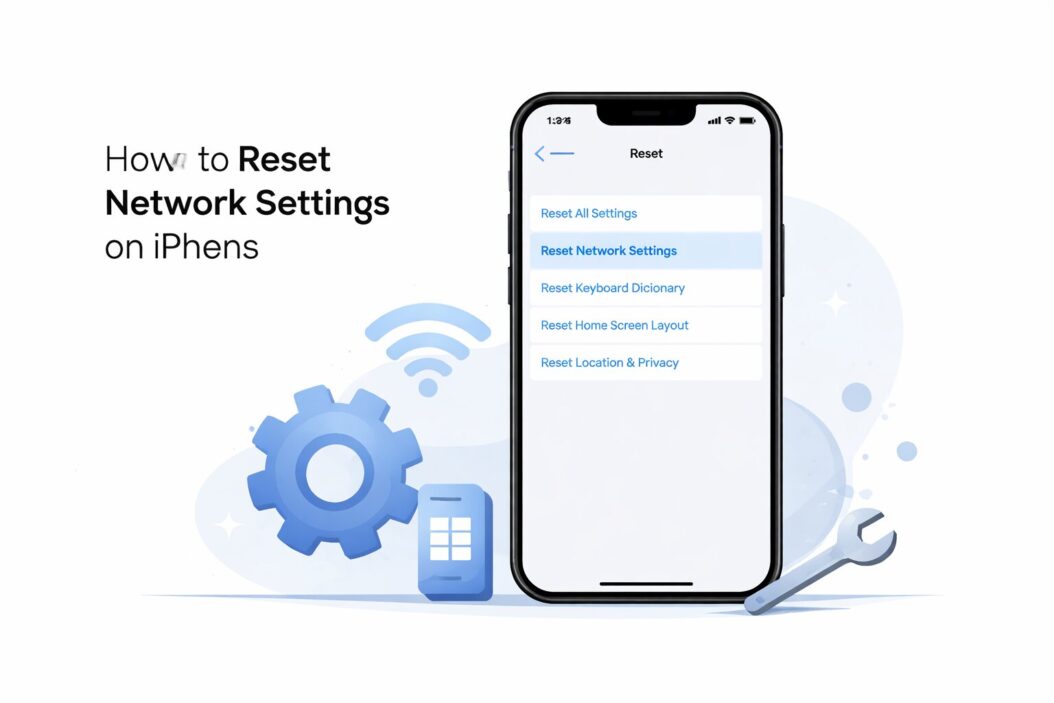
For iOS 15 and Later
Step 1: Open the Settings app on your iPhone
Step 2: Tap “General”
Step 3: Scroll down and tap “Transfer or Reset iPhone”
Step 4: Tap “Reset” at the bottom
Step 5: Select “Reset Network Settings”
Step 6: Enter your passcode when prompted
Step 7: Tap “Reset Network Settings” again to confirm
Your iPhone will restart. The Apple logo appears for about 30 seconds. When your phone turns back on, network settings are reset.
For iOS 14 and Earlier
Step 1: Open Settings
Step 2: Tap “General”
Step 3: Scroll to “Reset”
Step 4: Tap “Reset Network Settings”
Step 5: Enter your passcode
Step 6: Confirm by tapping “Reset Network Settings”
The phone restarts automatically.
What to Prepare Before You Reset
Gather this information before you start. You will need it afterward.
Wi-Fi Network Passwords
- Write down your home Wi-Fi password
- Note work network credentials
- Save any custom DNS settings
VPN Information
- VPN server addresses
- Login credentials
- Configuration profiles
Cellular Settings
- APN settings if manually configured
- Carrier-specific settings
Most people only need their Wi-Fi password. Your carrier settings restore automatically in most cases.
Take a screenshot of important network configurations. Go to Settings > Wi-Fi > tap the info button (i) next to your network. Screenshot any custom settings.
What Happens After the Reset
Your iPhone will look the same, but all network connections are gone.
Immediate Changes
- All saved Wi-Fi networks deleted
- Bluetooth devices unpaired
- Cellular settings return to default
- VPN profiles removed
- Network preference order reset
You Need To
- Reconnect to Wi-Fi networks manually
- Re-enter Wi-Fi passwords
- Pair Bluetooth devices again
- Reconfigure VPN if used
- Set up personal hotspot again
Most iPhones reconnect to cellular networks automatically. The carrier settings update within a few minutes of restarting.
Wi-Fi networks in range appear in your settings. Tap one and enter the password to reconnect.
Common Problems and Quick Fixes
Sometimes the reset doesn’t work as expected. Here is what to do.
iPhone Still Has No Service
Wait 5 minutes after the reset. Carrier settings need time to reactivate.
If service does not return:
- Toggle Airplane Mode on and off
- Remove and reinsert your SIM card
- Update carrier settings (Settings > General > About)
- Contact your carrier for account issues
Cannot Remember Wi-Fi Password
Check your router. Most routers have the password printed on a label.
For home networks, try:
- Looking at router documentation
- Asking someone who set up the network
- Accessing router admin page (usually 192.168.1.1)
- Checking password manager apps
You can also connect to Wi-Fi on another device and view the saved password there, depending on your operating system.
Bluetooth Devices Won’t Reconnect
Put your Bluetooth device in pairing mode again. The reset removed the connection completely.
For AirPods: Put them in the case, open the lid, press and hold the button on the back until the light flashes white.
For other devices: Check the manual for pairing instructions.
Settings Reset But Problems Continue
If network issues persist after resetting:
Try These Steps
- Update to the latest iOS version
- Reset all settings (not just network)
- Restore iPhone from backup
- Contact Apple Support
Hardware problems require different solutions. A damaged antenna or faulty SIM card reader needs professional repair.
Alternative Solutions to Try First
Reset network settings is powerful but inconvenient. Try these simpler fixes first.
For Wi-Fi Issues
- Restart your iPhone
- Restart your router
- Forget the network and rejoin
- Move closer to the router
- Check if other devices connect
For Cellular Problems
- Toggle Airplane Mode
- Restart your iPhone
- Check for iOS updates
- Verify your plan with carrier
For Bluetooth Troubles
- Turn Bluetooth off and on
- Restart both devices
- Forget device and pair again
- Check for interference
These quick fixes solve minor glitches. They take seconds and don’t erase any settings.
Only reset network settings when simple solutions fail. The reset works for stubborn, persistent problems.
iOS Version Differences You Should Know
Apple changes settings locations between iOS versions. The reset function works the same, but you find it in different places.
| iOS Version | Location | Steps |
|---|---|---|
| iOS 15-17 | Settings > General > Transfer or Reset iPhone > Reset | 4 taps |
| iOS 14 | Settings > General > Reset | 3 taps |
| iOS 13 | Settings > General > Reset | 3 taps |
| iOS 12 and earlier | Settings > General > Reset | 3 taps |
All versions require your passcode. All versions restart your iPhone automatically.
The actual reset process is identical regardless of iOS version. Only the navigation path changes.
Will Resetting Network Settings Remove a Profile?
Configuration profiles can survive a network reset. It depends on the profile type.
Removed Profiles
- VPN profiles (most types)
- Network-specific configurations
- Custom APN profiles
Profiles That Stay
- MDM (Mobile Device Management) profiles
- Work or school profiles
- Some enterprise certificates
If you installed a profile for work, school, or device management, check with your IT administrator before resetting. Some organizations require manual reinstallation.
To check your profiles: Settings > General > VPN & Device Management
How Often Should You Reset Network Settings?
Only reset when you have connectivity problems. This is not regular maintenance.
Unlike clearing cache or updating apps, network setting resets are reactive solutions. You perform them to fix a specific issue, not to prevent future problems.
Most iPhone users never need to reset network settings. Others do it once every few years when changing carriers, traveling internationally, or after major iOS updates.
Frequent resets suggest a deeper problem. Hardware issues, carrier problems, or software bugs need different approaches.
If you reset network settings more than once per month, contact Apple Support or your carrier. Something else is wrong.
The Difference Between Network Reset and Factory Reset
These are completely different actions. Do not confuse them.
Reset Network Settings
- Removes only connection settings
- Keeps all personal data
- Takes 2 minutes
- No backup needed
- Fixes connectivity issues
Factory Reset (Erase All Content and Settings)
- Deletes everything on iPhone
- Returns phone to new condition
- Takes 10-30 minutes
- Requires backup to restore data
- Fixes major software problems
Factory reset is extreme. Only use it when selling your iPhone, fixing severe software corruption, or exhausting all other options.
Most connection problems need only a network reset. Factory reset is overkill for Wi-Fi or cellular issues.
Network Reset on Dual SIM iPhones
iPhones with dual SIM capability reset both SIM configurations simultaneously.
Both your physical SIM and eSIM lose their settings. Both need to reconnect after the reset.
Physical SIM: Usually reconnects automatically within 2-3 minutes
eSIM: May require carrier settings update or manual reconfiguration
For eSIM issues after reset:
- Go to Settings > Cellular
- Tap your eSIM plan
- Tap “Turn On This Line”
- Contact carrier if it does not activate
International travelers with eSIM plans should save their QR code or activation details before resetting.
What Apple Says About Network Resets
According to Apple’s official support documentation, resetting network settings is a recommended troubleshooting step for connectivity issues. Apple confirms this reset is safe and does not affect personal data.
The company suggests this solution for:
- Wi-Fi connection failures
- Cellular data problems
- Bluetooth pairing issues
- VPN configuration errors
Apple also notes that carrier settings reinstall automatically for most providers after the reset completes.
Advanced Scenarios and Special Cases
Some situations need extra attention when resetting network settings.
Business or School iPhones
Managed devices may have restrictions. Check with your IT department first.
Some organizations:
- Disable the reset option entirely
- Require administrator password
- Need manual reconfiguration afterward
Resetting without permission might disconnect you from company resources or violate device policies.
After Jailbreaking
Jailbroken iPhones can experience issues with network resets. Some jailbreak tweaks modify network behavior.
Resetting might:
- Remove jailbreak-related network modifications
- Cause unexpected behavior
- Require reinstalling certain tweaks
If your iPhone is jailbroken, search jailbreak forums for specific guidance before resetting.
International Travel
Reset network settings only if absolutely necessary while traveling.
You will need to:
- Reconnect to local Wi-Fi manually
- Re-enter international data roaming settings
- Reconfigure travel VPN
If possible, wait until you return home. Hotel Wi-Fi passwords and temporary configurations are annoying to lose.
After iOS Updates
Major iOS updates sometimes cause network glitches. Resetting network settings often fixes post-update problems.
Wait 24 hours after updating. Some issues resolve automatically as background processes complete.
If problems persist after a day, reset network settings. This clears conflicts between old settings and new iOS features.
Privacy and Security Considerations
Resetting network settings affects some security configurations.
What Changes
- Saved Wi-Fi passwords deleted from this device only
- VPN configurations removed
- Network security preferences reset
What Stays Protected
- iCloud Keychain still stores Wi-Fi passwords
- Two-factor authentication remains active
- Face ID and Touch ID unchanged
- Apple ID and password unchanged
If you use iCloud Keychain, your iPhone may automatically suggest saved Wi-Fi passwords when you reconnect to known networks. This is convenient and secure.
Your iPhone encrypts all network data during the reset. No information transmits anywhere. Everything happens locally on your device.
Expert Tips for Smooth Recovery
Make the reset process easier with these preparation steps.
Before You Reset
- Screenshot your Wi-Fi settings page
- Write down custom DNS or IP configurations
- Note any manual proxy settings
- Export VPN configuration if possible
- Check that you know all passwords
After You Reset
- Let cellular service reconnect (wait 3-5 minutes)
- Connect to Wi-Fi starting with your most important network
- Pair essential Bluetooth devices first
- Test cellular data and calls
- Reconfigure VPN last
Reconnect to networks in order of importance. Home Wi-Fi first, then work, then others.
Test each connection before moving to the next. This isolates any remaining problems.
When Network Reset Is Not Enough
Sometimes deeper issues exist. Network reset is not a cure-all.
Hardware Problems That Need Repair
- Damaged Wi-Fi antenna
- Faulty Bluetooth chip
- Broken SIM card slot
- Physical water damage
Software Issues Requiring More
- Corrupted iOS installation
- Persistent malware or adware
- System file corruption
- Incompatible apps
For hardware issues, visit an Apple Store or authorized repair center. Diagnostics can identify component failures.
For software corruption, try:
- Reset all settings (not just network)
- Update to latest iOS version
- Restore from backup
- Factory reset as last resort
Summary
Resetting network settings is a simple, safe way to fix most iPhone connectivity problems. It takes two minutes and keeps all your personal data intact.
Key Takeaways:
- Only connection settings are erased
- You will need Wi-Fi passwords again
- Cellular service usually restores automatically
- Bluetooth devices need re-pairing
- The reset fixes about 80% of network issues
Try simpler solutions first. Restart your phone, toggle Airplane Mode, or forget and rejoin networks. These quick fixes work for minor glitches.
Reset network settings when problems persist despite simple troubleshooting. This reset clears corrupted configurations that cause stubborn issues.
Prepare before you reset. Write down Wi-Fi passwords and note any custom settings. The process goes smoothly when you have the information ready.
After resetting, give your iPhone a few minutes to reconnect to cellular networks. Then manually reconnect to Wi-Fi and Bluetooth devices.
Frequently Asked Questions
Does resetting network settings delete photos or apps?
No. Resetting network settings only removes Wi-Fi passwords, Bluetooth pairings, VPN configurations, and cellular settings. All your photos, videos, messages, apps, and personal files remain completely untouched. Think of it as erasing only how your phone connects to networks, not what is stored on your phone.
How long does it take to reset network settings on iPhone?
The actual reset process takes about 30 to 60 seconds. Your iPhone restarts automatically, which adds another 30 seconds. Total time from starting the reset to having your phone back on is typically under 2 minutes. After that, you will spend a few more minutes reconnecting to Wi-Fi and pairing Bluetooth devices.
Will I lose my text messages if I reset network settings?
No. Text messages, iMessages, and all other message history stay on your iPhone. The reset only affects network connections and settings. Your conversations, message attachments, and chat history are safe. This includes both SMS messages and iMessages stored on your device or in iCloud.
Can I undo a network settings reset?
No. Once you reset network settings, you cannot undo it. The old settings are permanently deleted. However, if you use iCloud Keychain, your Wi-Fi passwords sync back when you reconnect to those networks. You will need to manually re-enter other settings like VPNs or custom configurations. This is why writing down important settings beforehand helps.
Why does my iPhone ask for a password when resetting network settings?
Your iPhone requires your device passcode for security. This prevents someone from resetting your network settings without permission. If someone stole your phone, this security measure stops them from disconnecting your device from Find My iPhone by resetting network settings. The passcode requirement protects your data and device location services.

- How to Delete Lock Screen Password on Windows 10/11 in 2026 - April 5, 2026
- How to Reset Network Settings on iPhone: Step-by-Step Guide 2026 - April 5, 2026
- DXGI_ERROR_DEVICE_REMOVED: The Complete Fix Guide for Windows Users in 2026 - April 5, 2026